Relational tables in detail
Everything about tables as records, cards and boards, one fact at a time
This page holds the full behavior behind Relational tables. Each section matches a section there.
Overview
- Put each row's key in the first column, and write a relation as a link to that row's key in another note. Leaftext then reads the table as linked records.
- Leaftext calls this RDB: a relational table view over a Markdown table.
- The table stays ordinary GFM, so it opens everywhere it did before.
- Leaftext adds the view while you read, in the desktop app, on a published site and in an embedded document.
- It never moves your records into a separate database, and never makes a companion file.
Open a relational table
Point at a table with a header row and at least two body rows. A quiet bar appears above it with Table, Cards, Board, Sort, Filter and Describe, centered over the table, and the copy and whole-window buttons at the same bar's right end. The layout on screen is marked.
A smaller table stays an ordinary table, with only those two buttons in the bar.
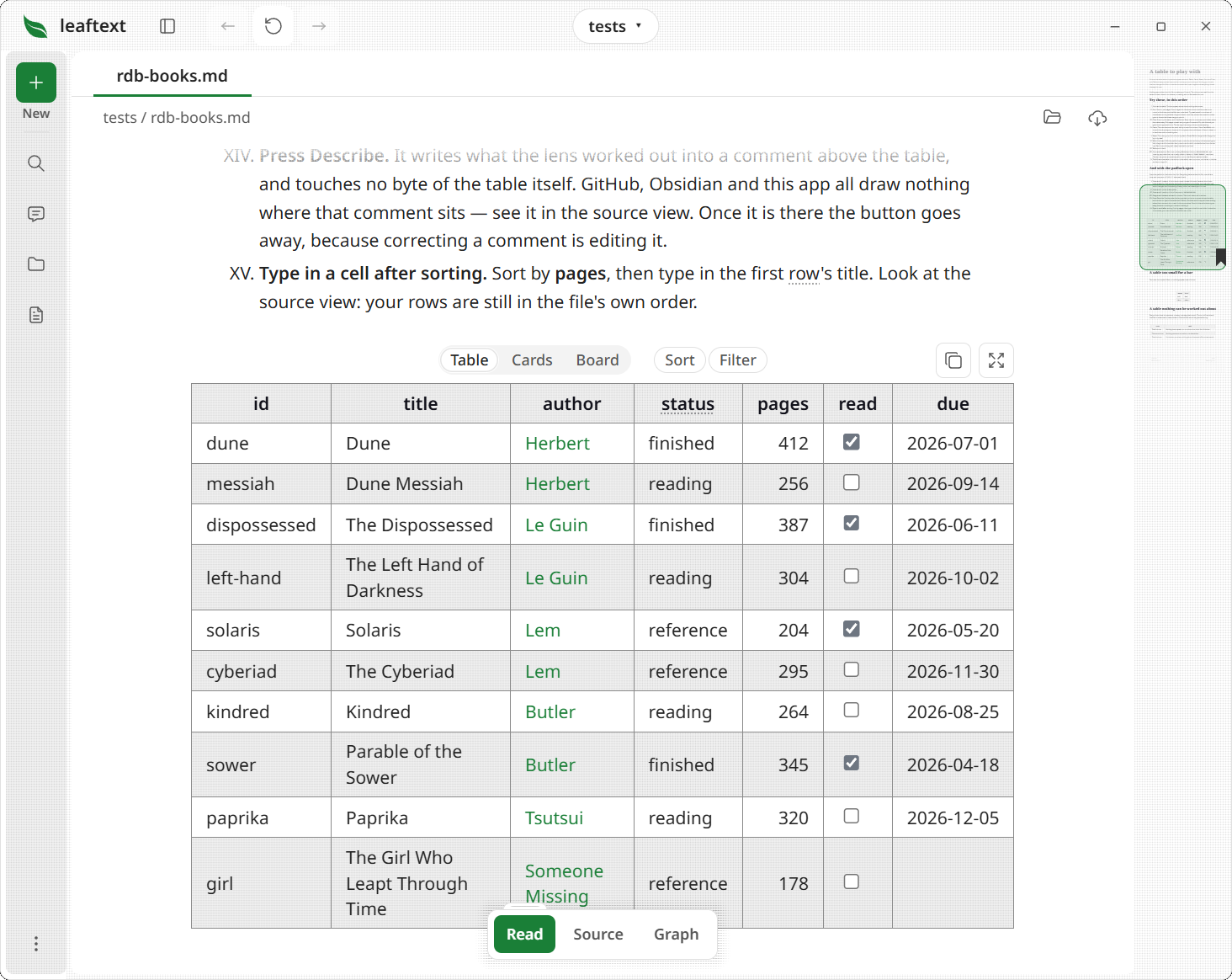
The view works from the values already in the table. Leaftext recognizes numbers, ISO dates, task checkboxes, short repeated values, lone images and links to another table. A column it cannot recognize stays text.
Views, sort and filter
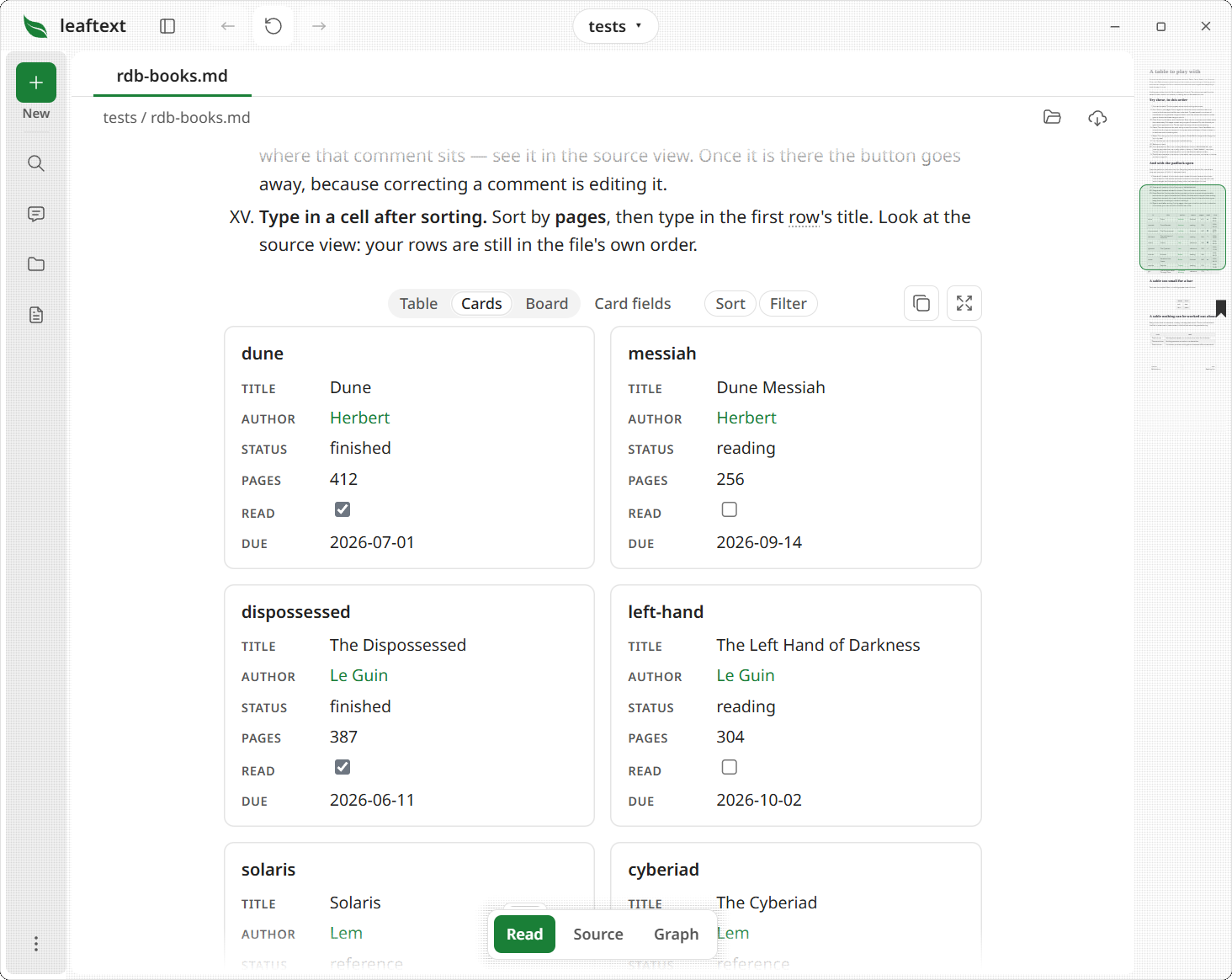
Table is the Markdown table as written. Cards shows one card per record, as many side by side as the page holds.
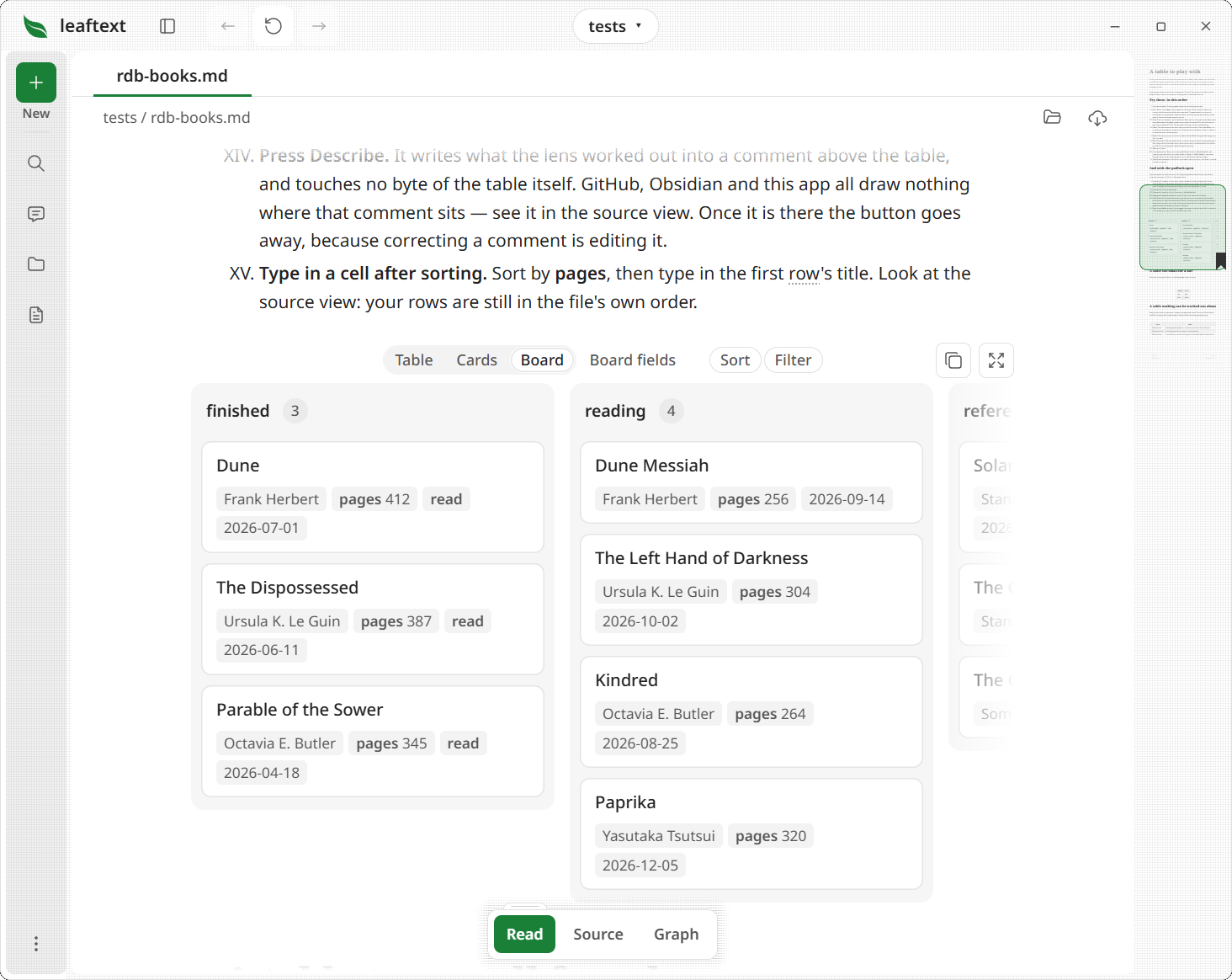
Board lays the records out as a kanban board, with a lane per value of a short-list column such as a status or stage. The lanes stand side by side across the window. Each is headed by a small ring in its cards' color, filled more the further along it stands. Each card shows its title, one quiet line of what it is, its sentence, and its other fields as small chips.
Lanes keep their width and the board scrolls sideways, fading the edge with more lanes past it; a card held near that edge rolls the board toward them. The field button beside a view says which columns it is using for as long as the document stays open.
Working a board
On an unlocked page a board is edited where it stands, and every change is an ordinary edit that waits for Save and comes back with one Undo:
- Drag a card to another lane to change its value, or above another card to move its row in the table.
- From the keyboard, with a card focused,
Altwith Left or Right moves it to the next lane.Altwith Up or Down moves it past the card above or below. On a Mac, use Option. - The plus at the top of a lane adds a card there: type its title and press Enter.
- Press a card to edit every field of it in place, or remove it.
- Add a lane from the last lane on the board. Press a lane's name to rename it, which renames every card in it, or drag a lane by its head to move it among the others. An empty lane you added can be removed from its foot.
What a card says
- Its title, from the column that names the record. A table led by a column of whole numbers is ranked rather than keyed, so the title is the first column of words after it. A link in the title cell opens what it points at, even on a locked page.
- One quiet line: a bug's red badge, then the rank as
#4, then the record's short repeating choice, such as a track —BUG #4 · Progress. - What it waits on: a
Blocked bycolumn's words, on a line of their own in the warning color. - Its sentence: the first column most of whose cells are three words or more and that is not a short repeating choice, two lines at most.
- Its other fields as chips. A dash says nothing and draws none, and a cell drawn as a badge stays that badge.
A board that stays a board
A note can say its tables open as a board. Put the column to group by in the frontmatter, and the lanes in the order you want them:
---
board: Status
board-columns: [Backlog, Doing, Review, Done]
---
Every table in the note with a Status column opens as a board grouped by it, every time. That holds from the first card, and before it: a heading row with no rows under it opens as the kept lanes, empty, ready for a card. board-columns orders the lanes and keeps a lane with no cards in it.
Adding a lane on a board writes both fields for you. Switching a kept board to Table or Cards from the bar lasts until the note is opened again.
A board whose stages are written somewhere else says so with board-moves, a sentence:
---
board: Stage
board-moves: "Stages move when the ticket does: /design, /dev, /test and /done write it."
---
That board offers no plus, new lane, rename or removal. A card dragged or moved from the keyboard goes back where it stood, while the note's sentence shows.
A view you set stays set while the document is open, including when the file changes underneath. Editing a cell, dragging a card between columns, or another program writing the file all redraw the page. The layout, sort, filters and chosen fields come back with it, and a changed record is drawn as it now reads.
Adding or deleting a table above the one you are on is the exception. The view belongs to a table's place in the document, and your table is no longer at that place, so it returns as an ordinary table.
Sorting, filtering and changing the layout only change what is drawn. They write no file, setting or saved view, and reopening the document restores the table as written. Sorting from a cell's right-click menu in Editing is different: that action deliberately reorders the file.
Sort a column once for ascending order, again for descending order and a third time to restore the file's order. Numbers, ISO dates and task checkboxes sort by their values; other columns sort as words. A filter offers a value list for a short-choice column, a range for a number or date, and words for other columns.
More than one filter can apply at once. Filtering hides excluded records in every view, including cards, while keeping them in the file. Clear the filter to show them again.
Relations
A Markdown link in a cell can point to a row in another table. For example, [Le Guin](../01-features/authors.md#le-guin) points to the row whose first-column value is le-guin in authors.md.
The row can be in any table of that note, so a note keeping two lists can be pointed into either. Where two of its tables share a first-column value, the relation lands on the first, the same row the link opens on.
The link continues to open normally in GitHub, Obsidian and other Markdown readers; Leaftext adds the row lookup when it can read the target.
A relation is labeled by the target row's name. Where the first column is written as words — | Name | Born | with Le Guin | 1929 — the name is that first cell, so the link above reads Le Guin. Where the first column is written as its own address — | id | Name | with le-guin | Ursula K. Le Guin — the label is the next filled cell, Ursula K. Le Guin.
The same name is shown when you point at the relation, offered in a relation cell's picker, and listed in a column that shows which rows point back.
Point at the relation to see the row it found. Press it to open the target file on that row: the first row whose first cell matches the address, unless a heading of that name comes first. A red relation means the target row is not there.
A dashed gray relation means the target file is outside the set Leaftext has read, so it may still contain the row.
Show a row in another note
Write a link to a row alone on its own line, such as [why-1](../01-features/made-with.md#why-1), and Leaftext draws the row's words in its place. It uses the same next filled cell a relation is labeled with, in the note's body text.
Edit the row in its table and save, and every open note that shows it redraws with the new words, keeping your place. Nothing is copied into the note; the file still holds the link, so GitHub, Obsidian and other readers show a working link to the row.
Point at the words to see where they come from, and press them to open the table on that row. A link with other words beside it, inside a list or a table cell, or to a heading rather than a row stays a link. A note shows rows from at most 16 other files.
Describe a table
You do not have to set up a relational table. If Leaftext guesses a column wrong, press Describe. It writes an optional leaf:table HTML comment directly above the table with the type, key or relation correction. The comment is hidden in Leaftext, GitHub, Obsidian and VS Code; a malformed comment is ignored rather than partly applied.
Editing a relational table
Open the reading-view padlock to edit. A date, a value from a short list or a relation can open a picker instead of a caret. Dragging a board card to another column changes that row's grouping cell. Each action writes only the cell that changed and is one Undo step.
Point at a row without typing its address
Press an empty cell in a column that holds only relations or nothing yet.
A menu opens under the cell with a search box. Type part of a name, and matching rows from every table in the vault are listed under the notes they come from. Outside a vault, it searches the notes around this one.
Pick one and the cell becomes a link to that row, written relative to this note so it opens anywhere. Press Enter without picking a row to type the words into the cell instead, or Escape to leave it.
A cell already holding a relation opens that row when pressed, and never opens the search box. Middle-click or Ctrl-click it (Cmd-click on a Mac) to open it as a page behind.
To point words already written at a row, select them and press the link button on the format bar. That works for a cell of plain words or a phrase in a paragraph. Type part of a name instead of an address and the same rows are listed under the box; pick one to link the words to it.
An address typed or pasted into the box is written as it always was.
On a published site and in an embed
The same bar works on a Leaftext site published to the web, and on a document embedded in another product. Table, Cards, Board, Sort, Filter and Describe all work as in the desktop app.
A published site resolves relations only among the pages it serves. A link to a row on another page of the site becomes a relation. A link to a page the site does not publish reads as a red relation, since that page is not there.
A site reads at most 64 pages for one table, and a relation into a page past that reads as a dashed gray relation rather than a broken one. A row shown in a note is fetched from the site before the page is drawn; a row in a page the site does not serve stays a link.
An embedded document holds only itself, so it reads no other document: its link columns stay ordinary links, and every other view, sort and filter works as usual.
The search box listing rows from other notes belongs to the desktop app. On a site or in an embed, the menu offers the rows the column already points into, and typed words filter those.