Editing
Write where you read. Click into a sentence and type, or drop to the raw source — both write back to the same file, and nothing saves until you say so.
Leaftext is reading-first, but it is also editable. You can edit in the reading view itself — click into a sentence and type, toggle a checkbox — and the change is written back into the source at exactly that spot. When you would rather work in the raw text, the code view swaps the page for the file's actual source, for every format the app opens. Both paths share one source of truth and one green Save button. There is no autosave for text edits: nothing touches your file until you say so — the one exception is ticking a checkbox, which saves on the spot.
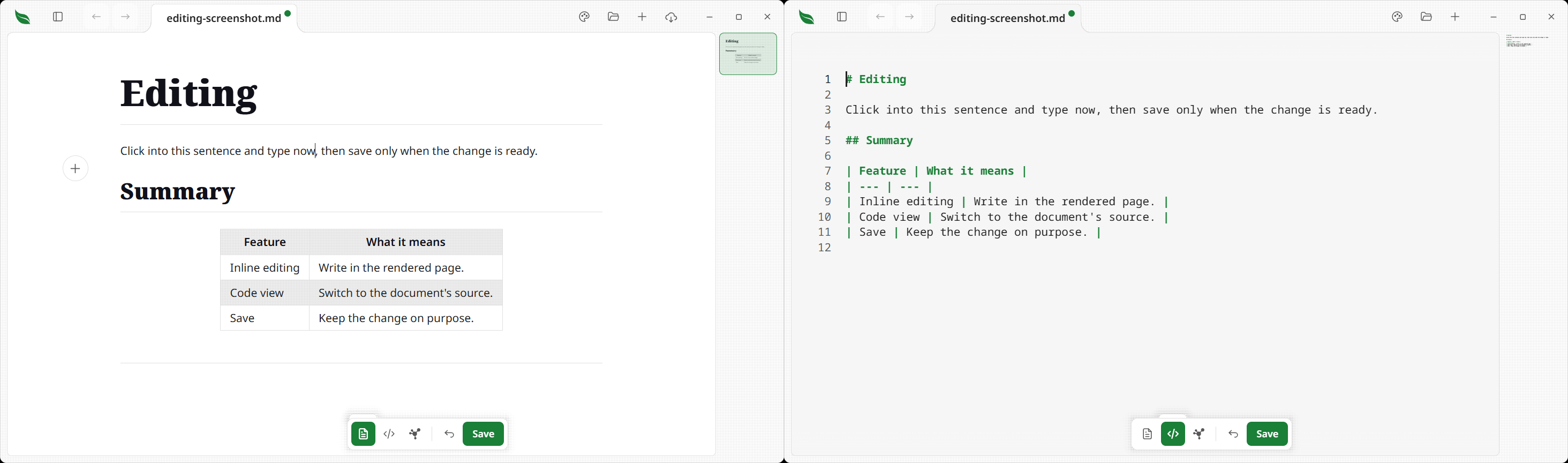
Summary
| Feature | What it means |
|---|---|
| New document | The + at the end of the tab strip (and on the home screen) starts a blank page, its reading view unlocked and ready to type |
| Save As | A new document has no file until its first save, which asks where to put it |
| Inline editing | Click into the rendered page and edit it directly — see Formats for what each one allows |
| Typing in a Word file or a spreadsheet | Type into a paragraph of a .docx, .docm or .odt, or a cell of an .xlsx, .xlsm or .ods, where it is drawn — and everything the app never read stays byte for byte what it was on save |
| Typing on XML as words | Press a sentence in an XML document and type on it where it is drawn, with the tags left alone; a block whose drawn words are not the file's own bytes opens its source instead and says why |
| Typing in a cell of an XML table | Press a value and type on it where it is drawn — one of two values joined by a comma as readily as a cell holding one — and press a column heading to rename that element in every record at once; the rest of the file is untouched, and the grid never swaps for markup |
| Typing on a value inside an XML tag | Press a value written inside a tag — in the element's own list, in a table cell, as one of several drawn together, or as the lone value an empty element is drawn by — and type on it where it is drawn; only what sits between the quotes is written, and the quote that closes it is refused |
| Block editing | Enter splits a block or starts a new one; Backspace at the start merges into the block above |
| Taking a block away | Clear a paragraph or heading of its text and the whole line goes — no bare ## left standing |
| Taking several away | Highlight across blocks and Delete removes the lot; whatever survives at each end joins into one block |
| Picking a section | Ctrl+A with the caret in a block widens a step per press: the block, then the heading and everything under it, then the page |
| The fields at the top | Click a value in a note's field block and change it, pick a date, tick a box, add and drop tag chips, rename a key, add a field or take one away — and start a block on a note that has none |
| Renaming from the heading | A document that names no title of its own is headed with its file name; press that heading to rename the file |
| Renaming a config key or section | Press the name to the left of a value in an INI file, or a [section] heading, and type the new name where it is drawn; only that word is rewritten, and the brackets and the spacing around a key stay as the file had them |
| The title a data file names | A JSON, YAML or INI file that names its own title heads the page with it; press that heading and the value itself opens for editing, quotes and all |
| A quoted YAML value | A value written in quotes opens its own source at a press, quotes and all, the way the same value in JSON does |
| A press that cannot open says why | Where a data file is written a way the page cannot place exactly, pressing it raises a line naming the source view rather than answering with nothing |
| The block gutter | A handle and a plus in the page's left margin: drag a block to reorder it, or add one on the empty line |
| Pasting a picture | Ctrl+V / Cmd+V with a picture on the clipboard puts it in the note: the picture is written into an imgs folder beside the file and drawn on the line below |
| Adding a block | The plus opens a row of kinds — text, heading, list, quote, code, table, image, flowchart, divider, framed figure, cards, badge, bars |
| Inserting an image | The image button asks for a file or an address; nothing is copied, and the picture stays where you keep it |
| Drawing a flowchart | The flowchart button, and the one in any drawn diagram's corner, open a canvas beside the Mermaid text |
| A box's link, icon or picture | A selected box has a field for each: where clicking it goes, one of the app's own drawings by name, and a picture beside the document or at an address |
| Exporting a diagram | The diagram's own corner, and the diagram sheet, write it out as its own file — Markdown, PNG, WebP, PDF or JPEG |
| The format bar | Highlight words and a bar appears over them, or under them where there is no room above: copy, highlight and annotate on any page, and on an unlocked one bold, italic, strikethrough, code, link and badge as well, then text, bigger/smaller heading and quote for the whole block |
| Interactive checkboxes | Click a task checkbox — in a list or a table cell — to check or uncheck it; it saves on the spot and works even with editing off |
| A date on a checkbox | A task line's 📅 09/16/2026 is drawn as a short colored badge; press it for today, tomorrow, next Monday, a box for any other date, or a row that clears it |
| A table keeps its spacing | Type in one cell and only that cell is rewritten, so a table you lined up by hand stays lined up |
| Walking a table's cells | Tab and Shift+Tab step through the cells of an open table and Enter drops one row down; Tab at the last cell writes one more row and lands in it |
| Row and column grips | Point at a table and a grip appears beside the row and above the column: drag either to reorder it |
| Sorting a column | Sort the body rows by any column, A to Z or Z to A — numbers and ISO dates by value, everything else as text; the header, the divider and a row of totals never move |
| A date, a choice or a link, picked rather than typed | With editing on, a cell holding a date, one of a short list of values, or a link to a row of another table opens a small picker instead of a caret; whatever you pick rewrites that one cell and leaves the rest of the table's spacing exactly as you set it |
| Relational tables | A table can be viewed as cards, a board or a list, filtered, sorted and linked to a row in another table without leaving Markdown |
| Dragging a card between a board's columns | With editing on, moving a card from one board column to another writes that row's own cell — one change, one press of undo |
| Sorting and filtering what is drawn | Point at a table and its own bar offers a sort and a filter that change what you are looking at and never the file; the sort on the cell's right-click menu above is the one that writes |
| The table's right-click menu | Right-click a cell to add, delete, align or sort a row or column, and to say how that cell gets its value |
| A table that adds itself up | Right-click a cell and ask for the sum, average, count, smallest or largest of the rows above it; the number is written into the file and stays right as the rows under it change |
| Copy as CSV | The copy button in the row above a table copies it as a spreadsheet reads it, on a locked page as readily as an unlocked one |
| Full-window tables | Open a safe Markdown table on the whole window; it keeps the same look, takes the room the window has, folds long cells rather than running off the right edge, never squeezes a short column until its words break in half, and follows its own links the way the page does |
| Undo | An Undo button (and Ctrl+Z / Cmd+Z) steps back through reading-view edits, a word at a time while you are typing; a Redo button beside it (and Ctrl+Y or Ctrl+Shift+Z) brings back what you took back |
| When the app cannot write it | A file that has gone takes the tab dot, Save and Undo down and raises a message naming it; the flowchart editor keeps the drawing and the image box keeps the address you typed, rather than closing over them |
| The padlock | Two padlocks, one for the reading view and one for the source, each remembered. Both start locked, except in a new document — and checkboxes toggle either way |
| Replacing text | The find bar's Replace and All write through the same padlock as typing does — in the reading view as one edit carrying only the blocks that changed, so one Undo puts it all back |
| Code view | Toggle the rendered page to the raw source and back |
| A source view that will not open | Where the editor cannot be brought up, the app says so and puts you back on the document at the place you were reading, and pressing the button again is a fresh attempt |
| Your place is kept | Toggling between the two views holds your position, and toggling back and forth returns you to the exact spot |
| Highlighting | The source is colored in the active theme's syntax colors — Markdown, HTML, XML, YAML, JSON, and the XML of the part an Office file is anchored to; raw email, plain text, INI and source files show as uncolored text |
| Color squares | A color written in the source carries a small square of itself in the line beside it — hex, rgb() or hsl() |
| Line numbers | A gutter numbers each source line, staying pinned when long lines wrap |
| Wrapped lines | Long lines wrap; the code view never scrolls sideways |
| Minimap | The editor's own minimap rail, drawn on the window's chrome beside the page |
| Pinned headings | In Markdown source, the headings you are reading under stay at the top edge as you scroll; click one to jump to it |
| Editing the source | Type directly; undo/redo, selection, clipboard, and IME all work, and Tab indents instead of moving focus. A multi-megabyte file stays responsive |
| Typing help | Monaco's IntelliSense, answered from your own notes: type [[ to see them, # for headings, hover a wikilink for a preview — and broken links get a wavy underline |
| Save | A green Save button (or Ctrl+S / Cmd+S) appears from the first keystroke, and writes the words on screen without clicking out of them |
| Unsaved marker | A tab with unsaved edits shows a dot beside its name, from the first keystroke |
New document
The + at the end of the tab strip starts a blank document in a new tab — it rests against the last tab, where the next one will open, and walks right as you open more. The home screen carries the same button beside Choose file.
- It opens in the reading view, whose padlock is turned off for you, with the caret on the first line — there is nothing to click before you type.
Enterstarts the next paragraph, as it does anywhere else in the reading view. - It has no file yet. The tab is called Untitled (Untitled 2, and so on, when one is already open), and nothing reaches your folders until you say so. Closing the window with words in it keeps them in the saved session rather than losing them, and the next launch puts the note back under the same name with its dot lit; a note you never typed into does not come back, because there is nothing in it to keep.
- The first Save opens your operating system's Save dialog: choose a folder and a name, and from then on it saves like any other document. On Windows that dialog lists every format the app reads; on a Mac it shows none of them, so a short menu asks which one first and the dialog then suggests a name already ending in it. Close the dialog without choosing and nothing is written.
- Once it is saved, the tab, the window title, and Recent files all take the real name, and you can keep typing — the padlock is a setting, not something the new name resets.
- To put the file in a folder you are already looking at rather than choosing one at the first save, right-click that folder in the library pane and pick New file: it is made on the disk straight away, under the name you type, and opens in the tab in front.
Writing in the page
Inline editing (the reading view)
The rendered page is a live editor. The source stays the single source of truth — every edit is anchored to the exact byte range of the source it came from and spliced back there, so what you see and what is saved never drift apart. Editing is intentional per block and never rewrites parts of the file you did not touch.
- Click into a sentence and type. Paragraphs, headings, lists, tables, and block quotes edit in place with their styling intact — bold stays bold, links stay links, table pipes, list markers, and
>prefixes are rewritten for you — and your change is written back into the Markdown at that spot. Interactive checkboxes toggle their[ ]/[x]marker in the source, in task lists and table cells alike. A checkbox is a quick action rather than an edit: it saves to disk immediately, records no undo step, and stays clickable even when reading-view editing is turned off. - Cut, copy, paste and select all take the keys every program does —
Ctrl+X,C,VandA, orCmdon a Mac — in a block, the code view, the find and replace boxes, the address bar and every other box you type in. In a box of its own,Ctrl+Z/Cmd+Zundoes what you typed there. - A date on a task line is picked rather than typed. A checkbox whose line ends in a
📅 09/16/2026date draws that date as a short badge after the words —Sep 16, red once it is past, green on the day itself, amber through the next seven days, gray later or once the box is ticked. Press the badge and the same menu every other picker uses offers today, tomorrow and next Monday, a box for any other date, and a row that takes the date off the line. Whichever you pick rewrites only that date's own characters, so the rest of the line and every other line is left exactly as you wrote it, and one press of undo puts the old date back. It is an ordinary edit, so it waits for Save. See Task lists. - A table keeps the spacing you gave it. Type in one cell and that cell's own text is what changes — every other row, and the
| --- |divider under the header, is left exactly as you wrote it, so a table you lined up by hand stays lined up. The cell keeps its own padding too: the pipe to its left never moves, and the one to its right moves only by however much longer or shorter your text is. Clicking a checkbox in a cell works the same way. An edit that changes the table's shape — adding or dropping a column — still rewrites the whole thing, and the:---/:---:/---:alignment markers survive that rewrite, rebuilt from the alignment each column is already drawn with. See Tables. - Size a table from any outline edge or cell divider. Drag the left, right, top or bottom outline to move that side, bigger or smaller, with the opposite side held still. The visible edges remain available after scrolling sideways, including on one-column tables. Double-click a strip to reset only its boundary. The held shape survives typing elsewhere in the document and changes no file bytes or undo history. Refreshing, closing and reopening the document, or restarting Leaftext returns every table to its automatic widths, heights and placement. If unsaved changes prompt a refresh choice, sizing stays until you press Refresh anyway.
- A table opens on the whole window. Point at it and press the expand button at the right end of the row above it, lined up with the table's right edge, to give a wide table the room it needs; the larger copy keeps the original cells' borders, fills and spacing, and does not change the file. Any width or height you dragged in the page stays in the page: the copy is measured against the whole window rather than against the reading column it was sized in, and it offers no divider to drag, since a size set on a copy that closes has nowhere to go. A cards layout you chose yourself opens as cards; one the narrow reading column chose for you opens as the grid. It takes the room the window has rather than the room its longest cell wants, so every column stays on screen and a long cell folds inside its own column instead of pushing the later columns off the right edge — the columns are still shared out by how much each one asks for, so the column holding sentences keeps most of the width. A heading is never broken mid-word, and no column is drawn narrower than about seven characters, so a short cell like a weekday or a year reads as one word rather than as two pieces. Where something in a cell cannot fold at all, such as a picture, hold
CtrlorCmdwhile using the wheel to scroll it sideways. Its links are followed the way the page's are: a glossary word slides its term up over the table, dims the table behind it the way every bottom sheet dims what it covers, and leaves the table standing — so closing the term, by its close button or by clicking the dimmed table, puts you back on the table, and closing the table takes the term with it rather than leaving it over a page it did not come from. Anything that leaves the document — another page, an address away from it, a jump to a heading — closes the table first and then opens. HoldCtrlorCmd, or use the middle button, and the page opens behind the one you are reading with the table left exactly where it is. PressEscape, click the dimmed page, or use the close button to return to the document. The header still moves or double-clicks the window on a custom title bar. - Blocks behave like a block editor.
Entersplits a block at the caret — a split heading stays a heading at the same level — or starts a fresh paragraph when pressed at the end (keep pressing to keep writing).Shift+Enterinserts a line break, andBackspaceat the very start of a block merges it into the one above, with the caret staying put. In a list,Enteradds an item andBackspacejoins items. - Every other block edits its exact source. Code blocks, alerts, blocks with images, footnotes, or math, and blocks containing raw HTML tags outside a small safe set (links, line breaks, bold, italic, strikethrough, inline code, and the inline HTML tags Leaftext can rebuild exactly —
<abbr>,<kbd>,<mark>,<ins>,<sub>,<sup>,<span>, and<div>) open their raw source in place when you click them, then splice back on the way out. A list spaced out with blank lines — between its items, or inside one step under a list of its own — is typed in as it looks wherever it writes back to exactly the bytes it came from, and keeps its source editor where it cannot. - XML types on its words wherever the words are the file's own bytes. Press a sentence and a caret lands in it: what you type is spliced between that element's own tags, and the tags are never part of the edit. Where the drawn words are not the file's bytes — inline markup the page flattened into text, an entity the file spells another way, spacing the renderer tidied — the block opens its exact source instead, the way it always did, and a line says why the markup appeared.
Enterends the element at the caret and carries on in another of the same one, its tags and attributes included; pressed at the end of the words it opens a blank line inside another of the same element. A section heading and a document's alternate-language title line take a caret but noEnter, because a second one of either is not drawn. - A cell of an XML table types on its words as well. A table drawn from a run of records — a sitemap's addresses and dates, a feed's entries — takes a caret in any cell whose words are one element's own bytes, and what you type is written into that element alone: no other row of the file moves. Where a record holds several elements of one name the cell draws them joined by a comma, and each value takes a caret of its own: type on one and the others stay exactly as they were, while the comma between them belongs to neither and answers a press with nothing. A cell drawn from a value inside a tag types the same way, on the bytes between that value's quotes. A column a record has nothing for is not the file's own words, so it answers a press with nothing.
- A column heading renames that element in every record. The words across the top are not in the file anywhere — they are the tag spelled out, so
lastmodreads as "Last modified" — and there is no way back from the one to the other. So pressing a heading puts the tag the file actually holds under the caret in place of the label, and typing a new name over it renames that element in every record of the table at once, with one press of undo to take the whole thing back. Every other byte of those records comes back exactly as it was, the comment and the spacing included, and a folded column renames each of the elements folded into it. Leaving without typing puts the label back and writes nothing, and a name no XML element could carry is refused where you typed it. A heading over a column drawn from a value inside a tag has no element to rename, so it takes no caret. The table itself is never swapped for its markup, whatever you press — the whole file's text is in the code view. - A value written inside a tag types on its words as well. An XML file keeps much of what it says inside the tags —
<entry id="chapter-4" updated="2026-08-13">— and the page draws every one of those values: under the element's own heading, as a column of a table, where several are drawn together in one line, and on its own where an empty element carrying one attribute is drawn by that value alone, the way a feed's<link href="…"/>reads asLink: https://leaftext.com/. Press any of them and a caret lands where it is drawn; what you type is written between that value's quotes alone, and the tag around it — the name, the equals sign and both quotes — is never part of the edit. A value the page did not draw exactly as the file spells it, because the spacing was tidied or the file writes it with an entity, cannot be written back without putting bytes in the file that were never there — so pressing it raises a line naming the source view rather than a caret. The quote that closes the value is the one thing it cannot hold, so typing one is refused with a line saying so and the words go back, the way two dashes in a comment already are. A lone value drawn as an address still types on a press because it has no words beside it to press; the blank part of its row opens the element's whole markup. - A comment types on its words too. The fold holding a note in an XML file takes a caret in the words themselves, with the
<!--and-->marks left off the page and untouched in the file. Nothing is escaped either way, so an ampersand you type is an ampersand in the file. Two dashes in a row would end the comment early and stop the file opening, so typing them — or leaving a dash at the end — is refused, with a line saying so, and the words go back to what the file has. - A code block hands you the code, not the fences. Click into one and you get what is inside the
- A diagram edits as its diagram. A rendered Mermaid diagram carries two buttons in its corner, shown on hover: one swaps it for the Mermaid behind it, on the same code tint as any other source block, and the other opens it in the flowchart editor. Click away from the source and it is drawn again. A press on the drawing itself moves it — see zoom and pan — which is why the source opens from a button rather than from a click.
- The field block at the top edits too, in its own way — see the fields at the top of a note. It is drawn by the reader rather than being a block of the document, so it takes no caret and no gutter handle; every paragraph, heading, list and table below it edits exactly as it would in a note with no fields.
- A cursor can be in more than one place. Hold
Ctrl(Cmdon a Mac) and click to add another, or take every match of a search at once from the find bar; what you type then lands at all of them, and one undo takes the lot back. - A right-click asks, it does not edit. Only the left button opens a block for typing. Right-click a picture, a code block or any other block that shows its source and the block stays drawn, with the menu over the thing you pointed at — see Right-click a picture.
- Nothing is ever mangled. A block only edits WYSIWYG when its rendered form can be turned back into the identical source; anything else edits its source directly. Either way the edit is a precise splice, and the live reload watcher recognizes your own save so it never fights it.
- Nothing is drawn around the line you are typing in. No ring, no box. The caret says where you are, and a page whose whole point is that it is a page should not turn into a form when you touch it. A block showing its raw source is the exception: its code tint is what says this is source. It is set in the theme’s own code face, the one every other code surface on the page uses, so a fenced block does not change face under the click that opens it.
- Edits raise the same green Save button and unsaved-dot as the code view, and save the same way — from your first keystroke, without clicking out of what you are typing in. Save, Undo and
Ctrl+Sall act on the words on screen, and the typing itself reaches the document at every pause, so an outside change arriving mid-sentence no longer takes it away. Clicking out of a paragraph or heading is what turns the marks you typed into what they mean —*stars*into emphasis, an address into a link — and it draws that one block again and leaves the rest of the page standing, so moving from line to line in a long note costs no wait. A heading with a competing section link, a block of any other kind, or words that now reach past the block — a new blank line, a list marker, a bracket the rest of the note might answer — draws the whole page again. - The reading view opens locked: clicks do not enter edit mode until you say so. See The padlock.
Renaming from the heading
A document that names no title of its own — a sitemap, a feed, a package.json, an email with no subject — is headed with its file name, because there is nothing else to head it with. That heading is the file's name, so pressing it opens the same rename box the library pane opens, anchored over the heading and holding the real file name with everything before the extension already selected. Enter renames the file; Escape leaves it alone. An empty name, one already taken, and one carrying a folder separator are all refused, exactly as they are in the pane.
The heading, the tab and the pane all move to the new name, unsaved typing stays where it was, and every history step standing on that file follows it too. With the source view open, it stays at the place you were reading rather than going back to line one. A heading the document does write for itself — an XML <title>, a message's Subject, a JSON, YAML or INI title or name key, the title of a Word file, a deck or an OpenDocument file — is not a file name, so pressing it edits that value instead of opening the rename box. The XML and email ones take a caret in the words; a data file's opens the value's own source, the way every other value in one does, and so does an office file's, which opens its own paragraph the way every other line of that file does — except in an OpenDocument spreadsheet or presentation, where the heading is the first sheet's or slide's name and pressing it opens just that name, so typing a new one renames the sheet or slide. A sheet or slide the file gives no name is headed with a word of the app's own, which no bytes of the file hold, so pressing it opens nothing.
Editing an email
An email edits where you read it too: the subject, every header in its header card, every block of a plain-text body, and each line of an HTML body the page can write back. A plain-text body packed in quoted-printable opens on its decoded words; only the coded lines you change are written again.
- The header card is a note's field card. Click a value to type over it, press a header's name to rename it, take one out with the cross at the end of its row, and add one with Add a field, which offers
To,Cc,BccandReply-To.To,Cc,BccandReply-Toare chips, one address each. Each change is written as one line of the message: a folded header goes whole, a value outside plain letters is written the way mail codes it, and only a name beside an address is ever coded. The headers that say how the rest of the file is read, and the ones a server signed on the way through, are left to the code view. - A plain-text body is written as note syntax. Its lists, quoted replies and bold words draw as a note draws them, and a single line break stays a line. Click a block and type; what you type is written over that block and nothing else, and line endings survive: a message written the Windows way stays written that way.
Entersplits a paragraph and leaves a blank line between the halves, andShift+Enteradds one more line to the same paragraph.- A line of an HTML body is typed on where it is drawn. A paragraph, a box, a heading, a list item, a cell or a quote whose inside is words, bold, italic, underline, struck words, code, breaks and plain links is a line, and what you type is written between its own tags as the markup a mail program reads — its colors and settings stay as the message wrote them. Both
EnterandShift+Enteradd a break inside the line. Words that sit beside other boxes, such as a greeting above a message's lines, and anything drawn from markup the page cannot repeat exactly say so when pressed and open in the code view. This reaches a body written into the message as it is; a packed HTML body is still read-only here. - The margin handle moves a block within one plain-text body, and the + on an empty line adds another. Neither is offered on a header row.
- What cannot be opened says why. A base64 body, a packed HTML body and a quoted-printable body in a charset other than UTF-8 or ASCII are drawn but not editable here; clicking one says so and points at the code view, which edits the whole message as it stands.
- A message that can prove nothing and has no header card has no reading padlock at all — see The padlock.
- The bar over selected text answers in a plain-text body with bold, italic, strikethrough, code, a link, the text, heading and quote row, and copy, each written as note syntax. The badge, the highlight and the note are left off, since no mail program reads them. Over a line of an HTML body it offers bold, italic, strikethrough, code, a link and copy, each written as a plain tag inside that line. A packed body has no bar.
- A message written in a legacy charset is saved back byte for byte. Its words are read out of the file's own bytes, and a save writes those bytes rather than re-spelling them, so the body you were reading is the body on the disk. Type a character that charset has no room for — an emoji into a Shift_JIS message — and the save is refused in a sentence naming the character, because writing it would take the rest of the words with it.
The fields at the top of a note
A note's field block — the title, status, due and tags between the two --- lines — is edited where you read it, in the sheet the Frontmatter edge above the title opens, with the reading padlock open. There is no save button of its own: a change raises the same green Save as any other edit in the page, and Ctrl+Z steps back through them.
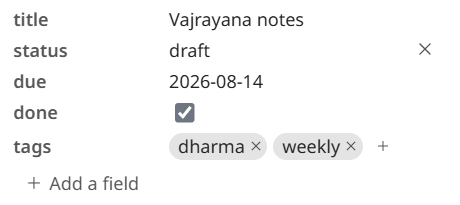
- Click a value and type.
Enterkeeps it,Escapeabandons it, and clicking away keeps it.Ctrl+Sfrom inside the box keeps it and saves the file with it. - The control matches the field. A date opens a calendar. A checkbox is a real box you tick. A list draws one chip per item, each with a cross, and a
+for the next one. Everything else is a plain box. The app never guesses a control for a value it cannot read — a field pinned as a date but holdingsometimekeeps its plain box rather than opening a picker that would blank it. - A field the vault shares a few words for is picked from a list. In a vault, a text field like
statusorpriority— one that holds between two and twelve different words across your notes, with at least one of them used twice — is a list box with the words the vault already uses, so the fourth note never getsIn Progres. The last row, Type a value…, opens the plain box for anything the list does not have. A note's own spelling is always in the list, so the file never changes just by being shown. Atitleevery note has its own of, a number, and every field outside a vault stay plain boxes. - Click a field's name to rename it. The value, its quoting and its place in the block all stay where they were. A name the block already uses is refused, since two fields of one name is a note that half reads.
- A cross at the end of a row takes the field away, shown when you point at the row.
Ctrl+Zputs it back. - "Add a field" under the last row asks for a name and a value side by side. Four names are offered as you type —
aliases,cssclasses,tagsandleaftext-types, the four the app itself reads — and anything else is still typed freely. - A note with no fields can start one. Rest the pointer in the strip above the first line and the gutter's plus appears, reading Add frontmatter. Press it and the same name-and-value pair opens; filling it writes the two
---lines and the first field together, and leaving it empty writes nothing at all. - A chip can hold a comma. Type
Smith, Johnand it is one chip and one name. On a list written[a, b]the app puts quotes around it so it reads back as one, leaving the other items exactly as they were; the one thing it will not write there is an item carrying a comma and both a"and a', which no quote can wrap — put that one in a list written a line each. - Your file keeps its shape. Every change is a splice over that one field's own bytes, so comments, blank lines, the order of the fields, the case of each key and the quotes around a value all survive exactly as they were. A list stays in the form it was written in:
[a, b]stays on one line, and a- itemlist keeps its own indent. Removing the last field takes the two---lines with it rather than leaving an empty pair. - A locked page shows none of it — no edit box, no cross, no add row, and the block reads exactly as it did before.
Deleting
Taking something out of a document is not the same as emptying it of words. Clear the text out of a paragraph and there should be no paragraph left — not an empty one, and certainly not the leftovers of the one that was there.
- An emptied block goes. Delete the last word out of a paragraph or a heading, click away, and the whole line is removed from the file along with the blank line that separated it from the next one. A heading does not leave its
##behind. The blank lines either side do not stack up: the two neighbors end up exactly one apart, and an extra blank line somebody had put above the block stays where it was. - A highlight can cross blocks. Drag from one paragraph into the next and the selection follows, through headings, code blocks and tables alike — so it can be copied or deleted in one go. A block only becomes typable when you click into it, which is what lets the drag leave it; click into one and it is an editor again, and the page around it goes back to being selectable when you click away. A drag that starts and ends inside one line opens that line for typing wherever you let go, so the words it highlighted can be deleted or typed over straight away.
DeleteandBackspacework across blocks. Highlight from the middle of one paragraph to the middle of another and press either: everything between them goes, and the two surviving halves join into one block. It keeps the kind of whichever end kept its own words, so a heading cut part way is still a heading. The caret lands at the join.- Anything that cannot be cut in half goes whole. A code block, a table, a list, a picture, a diagram — a selection that touches one takes all of it rather than leaving a half the app cannot write back. That is what somebody dragging across a code block means anyway.
- It is one edit. However many blocks the highlight covered, one press of Undo — the button or
Ctrl+Z— puts all of it back. - The whole document can go. Empty the last block and the file is empty, and the page comes back as a blank one — a title and a line to type on, the same as a new document.
- Selecting a section takes two presses. With the caret in a block,
Ctrl+A(Cmd+A) widens a step at a time: the first press selects the block you are in, the second the section — the nearest heading at or above you and everything under it, down to the next heading of any size — and the third the whole page. Move the caret and the next press starts at the block again. From outside a block it is one press and the whole page, as it always was. - A code block's inside is not a block. Clear the code out of a fence and you have an empty fence, not a missing one — see above.
- Deleting is behind the same padlock as typing. A locked page can still be selected, copied, highlighted and annotated, and
Ctrl+Aon one selects the page in one press.
The block gutter
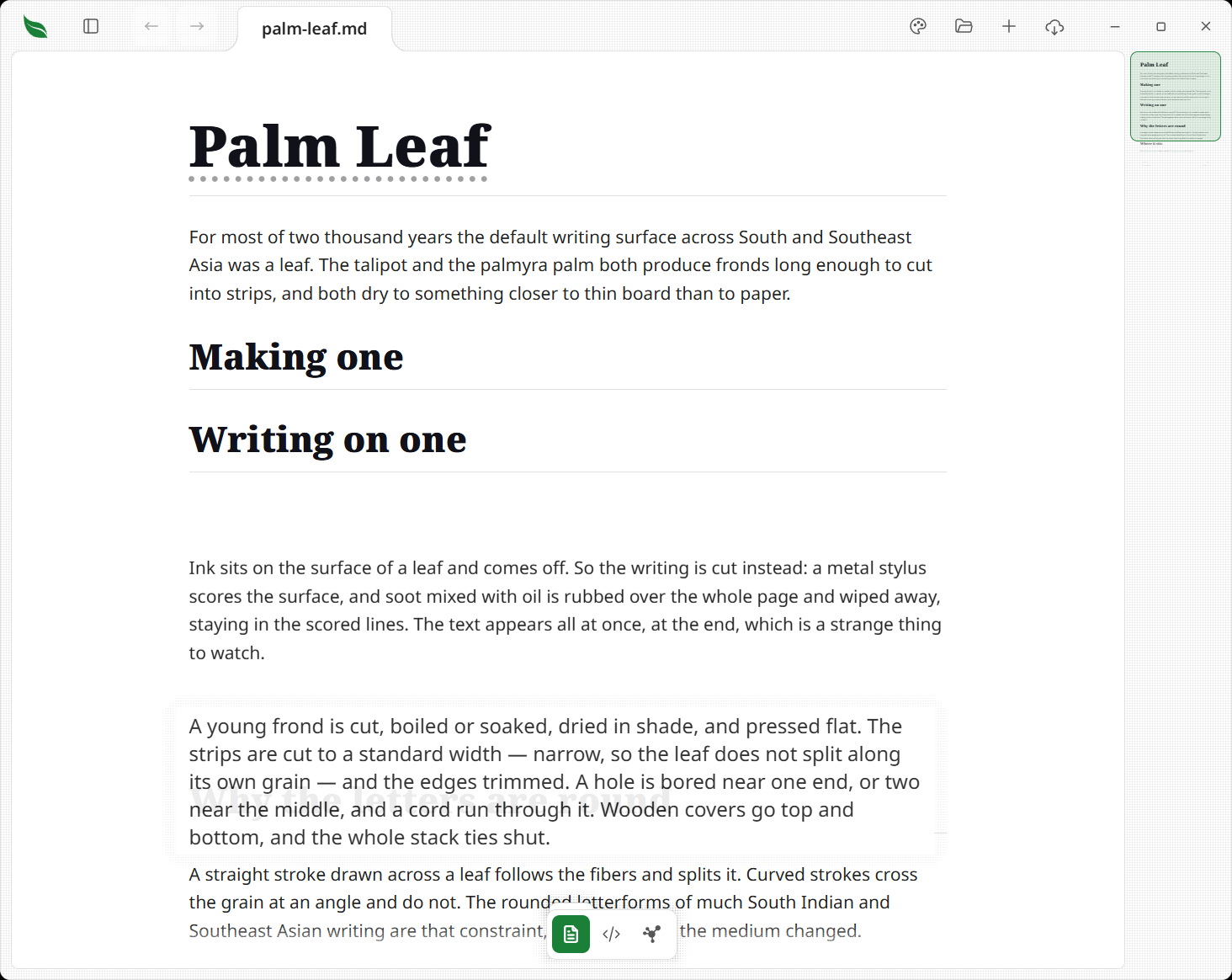
Hover a block and two controls appear in the page's left margin: a handle to drag it by, and a plus for adding one. They act through the same source ranges every other edit uses, so this is a view onto your file rather than a second idea of the document — which is why one gutter serves every format that qualifies.
- The margin is live. Run the pointer down the gutter strip itself and the controls follow whichever line you are level with, blocks and the spaces between them alike. You never have to hover the words first and slide left.
- Drag to reorder. Take the handle and the block lifts off the page and follows the pointer, while its neighbors slide aside to open the gap it will land in. Drop it there.
Escapeputs it back. A comment line written on a block, or beside a table, moves with it. Shared comments and comments keeping paragraphs apart stay in place, as do the blank lines, indentation and punctuation between blocks. - It stays available while you write. Hover any other block mid-edit and its handle is there; the margin reaches the line you are typing in too, so that one can be dragged as well. Drag after typing and the line you were on is saved first, then moved — one gesture, both edits.
- Markdown and XML only. A block can only be moved when its recorded range is the whole block. In JSON and YAML a range covers a value and not its key, so moving one would leave the key behind — those formats get no gutter at all, only the click-to-edit they already had.
Adding a block
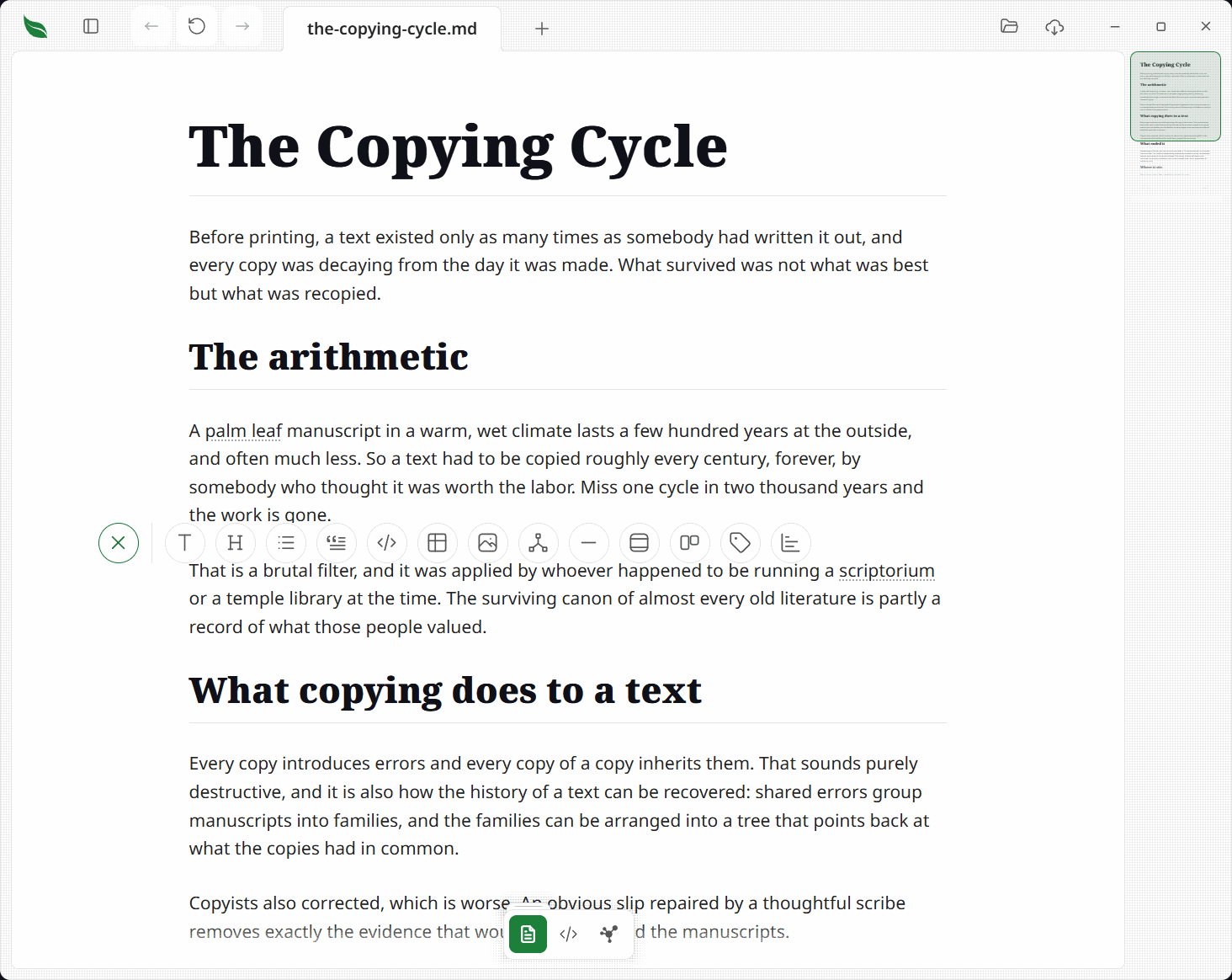
The plus stands on empty lines, never on a line that already says something — beside a written line it would be offering to write over it. So:
- On a blank line, the plus is right there.
- While you are typing, it waits on the line below. Press it to save the line you are on and choose what the next one is, in one go — no
Enter, no clicking out first. Clicking that empty space instead just starts typing there, as body text. - Between any two blocks, hover the space and the plus appears in it. Clicking the space starts a line there too.
- Never over something the page drew. The pager is not part of your document, so no clickable space is offered across it.
Press it and a row of kinds fans out over the empty line, unfurling rather than appearing — the same motion as everything else that folds open:
| What you get | |
|---|---|
| Text | An empty paragraph |
| Heading | An empty ## heading |
| List | An empty list item |
| Quote | An empty block quote |
| Code block | An empty fence, edited as source |
| Table | A two-column table with empty cells |
| Image | The image box |
| Flowchart | The flowchart editor |
| Divider | A horizontal rule |
| Framed figure | A framed figure with its title selected, so the first keystroke replaces it |
| Cards | A choice of two prose or four compact cards, each opening on an empty heading with the caret in the first, or two Picture cards: each an empty title with an empty line under it for its words, one for its picture and one for its More link. Type the title and the words, choose Image from the plus on the picture's line, and write the link on the last line. Nothing is written into any of them until you do |
| Badge | The badge box |
| Bars | The bars box |
The first four open a block rather than writing one: you get an empty block of that kind showing gray placeholder wording, and nothing reaches the file until your first keystroke. Pick Heading and change your mind and the page is as it was — no stray word left in the document. Picking a kind on a line that is already empty just changes what that line is, rather than adding a second one.
In XML the row offers what the renderer drawing your file can draw, so a TEI document and every other kind of XML get different lists — one has verse and no tables, the other tables and no verse, and offering a kind the page will not draw is how a click lands nothing.
| TEI | Every other XML | |
|---|---|---|
| Text | A paragraph | An element under the name of the block you pressed the plus beside |
| Heading | A section with its heading | A section with its heading |
| Row | — | One more record on the table above, when the plus is under one |
| Verse | A line of verse | — |
| Comment | A comment | A comment |
Every one of them but the comment opens a line to type on, the way the first four above do: what you type is committed inside the tags on your first keystroke, and typing nothing writes nothing. Enter carries on with whatever comes next there — another verse line, another row, another element of the same name, and a paragraph under a heading. A heading is written as the section its own heading names, because that is the only shape either renderer draws as a heading. Row is offered only under a table, and writes another record of the kind already in it with your words in its first column; a table whose columns are all attributes is offered no row, since there is nothing in it to type into. The comment is written straight in and drawn as a comment fold.
Images
The image button does not write a placeholder path for you to correct. It asks:
- Choose file opens your operating system's picker, filtered to what a page can draw.
- Or paste an address for a picture on the web and press
Enter. Where the app cannot write the line, the box comes back with the address still in it.
A picture on the clipboard goes in with Ctrl+V (Cmd+V on macOS), with the padlock open. Take a screen clip, or copy a picture file in your file manager, click the line you want it under and press it: the picture is written into an imgs folder beside the note — the same folder a picture taken out as Markdown fills — and drawn on its own line below the one you were on, as one press of undo.
- The file takes the note's own name:
release-notes.pngbesiderelease-notes.md, thenrelease-notes-2.pngfor the next one, so animgsfolder shared by a folder of notes says which note each picture belongs to. - The picture keeps its own format. A screen clip stays the PNG your system made, and a JPEG, a WebP or a GIF copied from your file manager stays what it was, at the bytes it already had. Anything that is not one of those four is refused and nothing is written.
- Pasting the same picture twice leaves one file, addressed twice. A different picture landing on a name already there is written beside it, numbered, and the file already there is left alone.
- A note you have never saved is told to save first — there is no folder beside it yet for the picture to go in, so nothing is written.
- A paste carrying words is still a paste of words. Copying from a word processor puts a picture of what you copied on the clipboard beside its text; the text is what goes in.
A picked file is never copied anywhere — the picture stays where you keep it. That is the difference between the two ways in: a picture that already has a file of its own is addressed where it sits, and a picture that only exists on the clipboard is written beside the note, because there is nowhere else for it to be. What goes into the document is where it already is: written relative to the document when it sits under the same folder, so the pair survive being moved or shared together, and as a full path when it does not. A path holding a space or a bracket is written in Markdown's <…> form, so it cannot end early. A note you have never saved can take a picked picture and draw it straight away, unlike one off the clipboard: nothing is being written beside the note, so there is no folder to need.
Taking a picture out again is a right-click on the picture. While the padlock is open, a picture on a line of its own carries a Delete picture row: it removes the picture from the document as one press of undo, writes nothing until you save, and leaves the picture on your disk exactly where it is. A picture inside a sentence has no such row, because the only piece of source it belongs to is the sentence around it. See Picture actions.
Badges
The badge button asks before it writes anything. Press it and the row swaps for the tones — green, amber, red, gray and the theme's own primary — each drawn as a badge of that color rather than named in plain words.
- Pick a tone and a box opens for the words the badge carries, with a live badge of that tone beside the field, so what is being written is on screen while it is typed.
Enterwrites it;Enterwith nothing typed writes nothing. - The box also offers a mark — a check, a cross, a tag or an update arrow — drawn as itself; picking one puts it in the badge beside the words, and pressing the one already on takes it off.
- What lands is one badge on the line, and never a list item: a status list is a list you write as a list.
Bars
The bars button asks the same way. Press it and the row swaps for the same tones the badge offers; pick one and a box opens with two fields — what the bar is, and how much — and a live bar of that tone above them that redraws on every keystroke.
- The live bar is drawn full, because one amount on its own is its own scale. In the document a run of bars shares one scale, so the largest amount fills its track and every other bar is drawn against it.
Enterin either field writes the row once both fields hold something, and writes nothing otherwise.Escapefolds the row away.- What lands is one bar — a label, the amount as inline code, and the marker that gives it its tone — so a reader whose app has never heard of Leaftext still sees the label and its number.
Editing a table
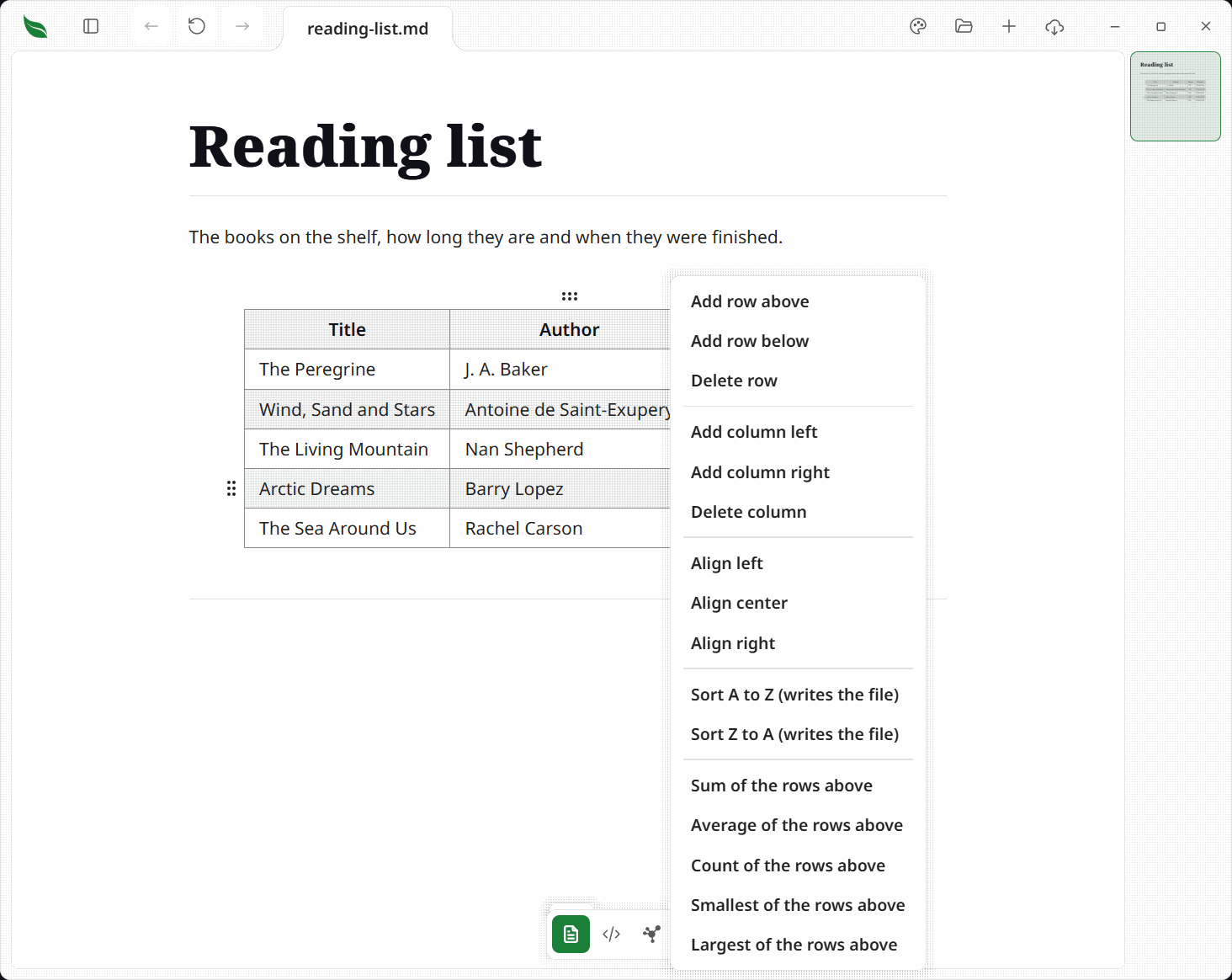
A safe Markdown table — one the app can write back out whole — is more than a block you can type in. Point at it and its own controls appear, so a table in a note can be restructured without typing a pipe.
- The keyboard walks the cells. Click into a table and
Tabmoves to the next cell,Shift+Tabto the previous, andEnterone row down in the same column. Each end stands still rather than wrapping round to the other, so the caret never lands somewhere off screen — exceptTabat the very last cell, which writes one more body row and puts the caret in its first cell. Arriving in a cell leaves the caret at the end of the words already there rather than selecting them, so passing through a cell cannot wipe it, and it closes off the last cell's typing as its own undo step. - A grip beside the row and above the column, and it drags. Run the pointer over a table and one handle stands at the body row you are level with and one above the column you are in. Move from the cell across the left outline to the dots; they stay beside that row as you cross. Drag the outline itself to resize. Take the row grip and carry it down or up: the row lifts and follows the pointer, the rows it passes step aside to open the place it will land, and letting go drops it there. The column grip does the same sideways, and the columns it crosses step aside for it. The space they open inside the table accepts the drop. A release anywhere outside that table cancels, leaving it exactly as it was, so a drag that wanders into the document never moves a row out of the table. The dots mean that one thing and nothing else — a press that never becomes a drag does nothing. The header row has no grip of its own — the pipes are keyed off it.
- Align a column. Left, center and right write the
:---,:---:and---:markers into the divider row and nothing else; every other line of the table is left as you wrote it. - Sort by a column, and it writes the file. A cell that is entirely a number sorts as a number and one that is entirely an ISO date sorts as a date, so 9 comes before 10 and last March before this one; everything else sorts as text, and equal cells keep the order you wrote them in. The header and the divider never move. Sorting is labeled as a write because it is one — it changes the document rather than the view — and sorting a column already in that order writes nothing at all.
- Everything else is on a right-click. Right-click any cell of an open table and its menu adds a row above or below, deletes the row, adds a column left or right, deletes the column, aligns it and sorts by it — all acting on the cell you right-clicked — with the five that say how that cell gets its value under them.
- The last row and the last column stay. Deleting either is refused: a table with nothing under its header, or with no header cell, has nothing left to point at.
- Copy as CSV. The row above a table carries a copy button just before the full-window opener, at the table's right edge: it copies the table as a spreadsheet reads it, quoting a cell only where it holds a comma, a quote or a line break. It only reads, so it is there on a locked page too, and it copies the words as they are drawn rather than the Markdown behind them.
- Markdown only, and only unlocked. The grips, the keys and the menu appear on a safe Markdown table with the reading padlock lifted. A table the app could not write back keeps the editor it already had, and a locked page keeps everything but Copy as CSV out of the way.
A table that adds itself up
A number in a table that is the sum of the numbers above it stops being true the moment anything under it changes, and the usual answer is to move the table into a spreadsheet. Leaftext keeps it right in the note.
- Ask for it from the cell. Right-click the cell the number belongs in and the menu offers Sum of the rows above, Average of the rows above, Count of the rows above, Smallest of the rows above and Largest of the rows above. The five act on the cell you right-clicked, so a total at the foot of the table and a subtotal partway down are the same press. They are left out where there is nothing above the cell to read — the header row and the first body row.
- The number and the rule are written together. One press writes the answer into the cell and a formula line under the table saying what that cell is, as a single edit: one press of undo takes both back. The line is an ordinary HTML comment, so the file stays a plain Markdown file that any other program can read, and asking the same cell again replaces the rule rather than adding a second one.
- It stays right as you edit. Change a quantity and the totals that read it are rewritten in the same edit, so the table is never half updated and one press of undo takes the change and its totals back together. Only the cells the rule names are written; every other byte of the table, its spacing and its divider row included, is left exactly as you wrote it. Opening a document whose totals are already right writes nothing at all.
- A kept number wears a quiet mark. A cell the app is keeping right carries a thin bar on its leading edge — the edge a right-aligned number never reaches — so it reads as a number the file is answering for rather than one somebody typed.
- A row of totals holds its place in a sort. Sorting a column moves every body row except one whose cells are all kept numbers, so a totals row cannot be carried into the middle of the data. A row of ordinary data with one kept number in it is not one of these and moves like any other.
- Writing the rule by hand. The line is
<!-- TBLFM: ... -->under the table, in the syntax org-mode uses:$4=$2*$3gives every row's fourth column the product of its second and third, and@>$4=sum(@2..@-1)gives the last row's fourth column the sum of the body rows above it.$nis a column,@na row with the header as@1,@>the last row and@-1one back from it; a range between two of them reads the cells between. It has+ - * /, parentheses, a leading minus, andsum,average(oravg/mean),min,maxandcount. A cell whose inputs are not all numbers is left as you wrote it, an answer carries as many decimal places as the widest number it read, and a line the app cannot parse is ignored whole — the table stays an ordinary table rather than half computing.
The format bar
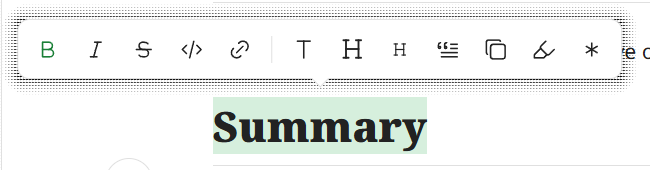
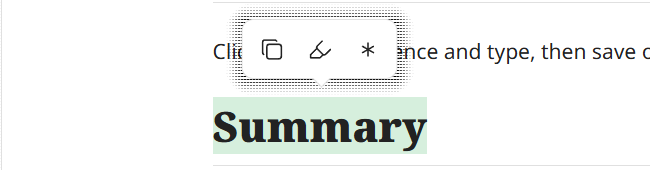
Highlight words in a Markdown page and a small bar appears over them. What it holds follows the padlock: three buttons that read the words out or mark them up on any page, and the formatting buttons in front of those once the page is unlocked.
-
The bar waits for you to let go. While the button is held to drag out a highlight, no bar stands over the page, so a drag that wanders up into the space between blocks or out into the margin keeps only the words you dragged; the bar rises over them on the release.
-
The bar goes under the words where there is no room above them, with its point on its top edge instead of its bottom, so a highlight on the first line of a page is not handed a bar drawn behind the tab strip. It hangs off the last line of the highlight there, rather than the first, so the rest of what you chose stays visible. It is the same answer the bar already gives sideways: it stops short of either edge of the page and slides its point along to keep pointing at the words.
-
Bold, italic,
strikethrough,code, and link apply to the highlighted words. A button lights up when the words already carry that format, so the bar says what they are as much as what they could be — press it again to take it off. The light is about the whole highlight: drag past the end of a bold phrase into the plain words beside it and Bold goes out, because those words are not all bold and the press would be adding the format rather than taking it off. -
Coding out of a code span leaves one code span. Highlight from inside
codeinto the plain words beside it and the two runs join, so the file carries one span rather than two touching ones — and only the words you chose stay highlighted. -
Taking a format off leaves the same words highlighted, wherever the phrase sits in its sentence, so the bar goes on answering for them and a third press puts the format back. Nothing has to be highlighted again by hand.
-
Link opens a box for the address, filled in with the link already there if there is one.
Enterapplies it; an empty box takes the link away, and the words stay highlighted.Escape, or a press anywhere off the box, leaves the link as it was. -
Badge turns the highlighted words into a badge. The bar swaps in a row of tones, each press drawn as a badge of its own color, so the choice is made by looking at it; pressing a tone on words that already carry a badge re-tones that badge rather than wrapping it again. It appears only on an unlocked page, beside the inline formats.
-
Text, a bigger and a smaller heading, and Quote act on the whole block the highlight sits in. They appear only where the block is a paragraph, heading, or quote.
-
These don't toggle — a button with nowhere to go grays out, so every press is a straight answer. Text is the way out of a heading or a quote, and grays out on body text.
-
The two Hs are the same glyph at two sizes, and they move one level per press:
######→#####→ … →#. All six levels are reachable, so a document can carry as many#headings as you want. The bigger H grays out at#and the smaller at######. -
On body text or a quote, the bigger H makes it a
##heading — the ordinary section heading, with#one more press away. The smaller H grays out there, since body text has no size to shrink. -
Copy puts the highlighted words on the clipboard as they read, not as the Markdown behind them.
-
Highlight washes the words in the theme's own warning color, so a marked passage reads the same in every family and in both modes. Press it on words already marked and the highlight comes off.
-
Highlighting out of a highlight leaves one highlight. Drag from the middle of marked words into the plain ones beside them and press it: the whole run comes back one even wash rather than a darker patch where the two overlap, and a second press takes the run off in one go.
-
Annotate opens a box for a note.
Enterwrites it as a footnote — a marker after the highlighted words, the note itself at the foot of the document — andEscape, or a press anywhere off the box, leaves it alone. Press Annotate again on a passage that already carries a marker and the marker and its note come off together. -
A note hangs off words, and only off words. Highlight the passage the marker should follow and press Annotate; a click on its own leaves the page alone, so nothing stands over the pointer on a page you have not unlocked.
-
A note goes when the last marker pointing at it goes, however the marker went — backspacing over it, deleting the block or the passage it sat in, or a Replace All that rewrote the words around it. The note's own line at the foot of the document leaves in the same edit, so one press of Undo brings both halves back. A note something else still points at stays where it is.
-
These three write into the document and wait for Save, like any other edit, and each goes in as one press of Undo — a note's marker and its own line included, though they sit at opposite ends of the file. None of them opens a block for typing, which is why they are offered with the padlock shut.
-
Ctrl+B/Cmd+B,Ctrl+I/Cmd+IandCtrl+K/Cmd+Kdo bold, italic and the link box without the bar, on an unlocked page.Escapedismisses it.
The formatting is written into the page as you would expect it in Markdown — **bold**, *italic*, ~~strikethrough~~, `code`, [text](address), a highlight as <mark>…</mark> and a note as a footnote — and saved with the block, by the same splice as any other inline edit. Code holding backticks of its own is fenced with a longer run of them, so the file still reads as the one span you were looking at: code containing a single backtick is written between two, and code that begins or ends with one takes a space inside each end, which the next render takes back off. A formatted phrase emptied of its words leaves nothing behind — delete everything inside bold, italic, strikethrough or code and the file keeps no stranded delimiters for the next read to draw as text.
The padlock
Whether a document can be typed into is a padlock in the recess that rides in the tray above the button of the view you are in, on the floating toolbar. A shut padlock means read-only; an open one means you can type.
- In the desktop app there are two, one per editable view. The reading view has its own and the code view has its own, and they are independent — unlocking the page you read is not consent to rewrite the file by hand, and unlocking the source does not open the rendered page under your cursor. The button in the bar holds whichever one the view you are in belongs to, and its tooltip says which: the page or the source.
- Both open locked, and both are remembered (settings). Reading is the default posture, and one click is a cheap price for not editing a file by brushing it. A new document is the exception: it was created to be written in, so it opens with the reading view already unlocked. The source keeps its own answer.
- Checkboxes toggle either way, and so do copy, highlight and annotate on the format bar. Ticking a box is a quick action that auto-saves and records no undo; the other three are ordinary edits that wait for Save. What the shut padlock refuses is typing, not marking the words up.
- The reading view's padlock is absent on a page nothing can be typed into. An email whose every part is coded into the file proves nothing to open, so the button leaves the recess rather than standing there answering a press with nothing. In the desktop app, the source keeps its padlock on every document.
- On leaftext.com and Emptyguru, the source is for reading. The code view opens there, but its padlock is absent and typing cannot change the site's copy. The reading view's padlock starts shut in a new tab on the published page. A refresh, or a walk to another page and back in the same tab, brings back the words you typed and the padlock as you left it, with Save still lit. Opening it on leaftext.com's front page keeps the page exactly as it was laid out, and the words the page draws from the README take a caret where they are drawn — the title, the line under it, the small print, the comparison's heading and its line, each card's title and words, the install line and the words beside the links at the foot — and what you type is written into the README that Save hands you. Click beside the download buttons in their line to type there; a click on a button follows it. A download button stays a button in that file, braces and mark and all. The comparison chart, whose words come from the comparison pages, and each card's More link stay as they are.
- A click on a link or a button follows it with the padlock open or shut. The pointer over it is a hand. Click the words beside it or the blank part of its line to put a caret there and type; a tag still searches on a press. A lone address value in an XML file is the exception: clicking it puts a caret in the value.
- Flipping the reading view's padlock commits whatever block was mid-edit rather than discarding it, and leaves you where you were reading — the same words are on screen either way.
- Typing into a locked source is refused rather than swallowed: the keystroke does nothing and a message in the corner says the source is locked and where the padlock is.
The recess holds the tools of the view you are in, and it stands in the tray over that view's own button rather than beside the buttons — the padlock in both editable views, the speed reader in the reading view, the typing help wand in the source, and how big a graph to draw on the graph. It is there only while it holds something, so a view whose every tool has stood down loses the tray and the nub it stands as. Point at that button to bring it out with a mouse, or tap it on a touchscreen and it stays out until you tap it again. None of them is filled in the accent color: that treatment means "this is the view you are in", and a setting inside a view must not wear it.
Undo
Reading-view edits are undoable, step by step.
- Every inline edit — a typed change, a block split or merge — records one undo step, and a run of typing is one step however long you pause in the middle of it. An Undo button appears beside Save whenever there is a step to take back, and disappears when there is nothing left to undo. A Redo button appears beside it whenever an undo has left an edit to bring back, and goes as soon as there is nothing waiting. (Checkbox toggles are the exception: they auto-save and are not undoable.)
- Click it, or press
Ctrl+Z(Cmd+Zon macOS), to revert the most recent edit. With the caret in a block you are typing in, the keystroke takes back a word at a time rather than a letter: a group ends at a space or a punctuation mark, when you move the caret somewhere else, and after two seconds of stillness.Ctrl+YorCtrl+Shift+Z(Cmd+Shift+Z) walks those groups forward again, up to the newest words you typed; typing something new drops whatever was ahead. Once a block's groups are spent each key means a whole edit:Ctrl+Ztakes the last one back, including a delete that removed several blocks, andCtrl+YorCtrl+Shift+Zbrings back the edit an undo took. The Undo and Redo buttons always mean a whole edit, so Undo pressed mid-sentence takes back the whole run of typing. - A successful Save makes the current text the new baseline and clears the history in both directions, so Undo only ever steps back through edits made since your last save — it never walks you below saved text — and there is nothing left to redo.
- The flowchart editor keeps its own history while it is open, because everything you do in there arrives here as a single edit.
- A file you just deleted from the library pane takes the key first, while the message offering it back is still on screen. That is a file coming out of the Recycle Bin, not a text edit, and it is the only thing here that does not touch the document you are reading.
The flowchart editor
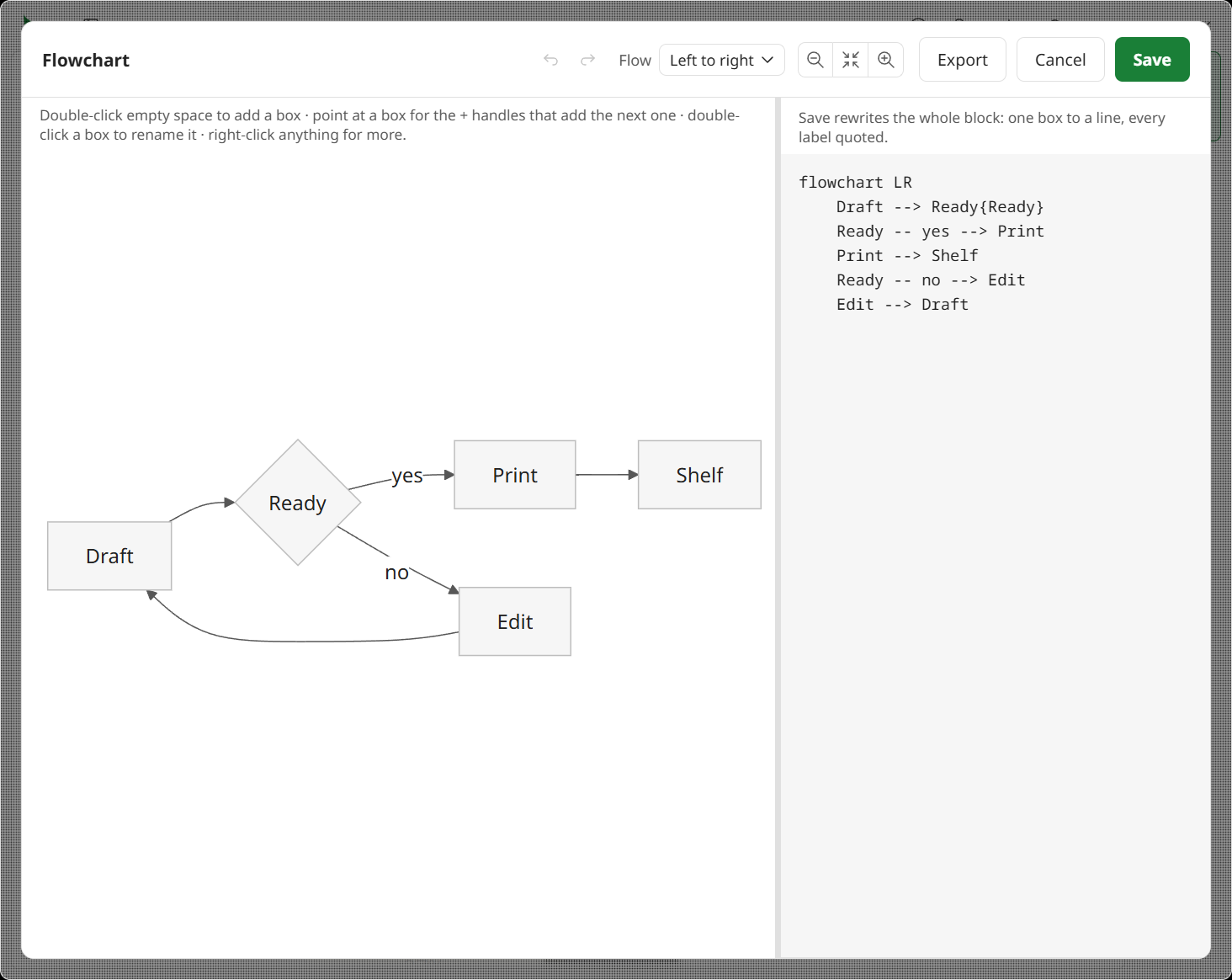
A flowchart is a Mermaid block like any other, and it can always be written as text. It can also be drawn. There are two ways in:
- The flowchart button in the insert row, which starts a new one.
- The flowchart button on a diagram already in the page, shown when you hover it. The button beside it opens the same diagram as Mermaid text instead.
Either opens a full-window sheet with two panes: a canvas on the left and the Mermaid text on the right. They are peers over one diagram — draw on the canvas and the text follows; type in the text and the canvas follows. Drag the bar between them to give either pane more room; arrow keys move it too, and a double-click puts it back. The canvas keeps a minimum width however the window moves, so making the window smaller takes the room out of the text pane rather than out of the picture, and the width you dragged to comes back when you widen the window again. Nothing is written until Save, which writes the whole block as one edit, so the document's Undo puts the diagram back in one press. Cancel writes nothing. Save asks where the diagram goes at the moment you press it, not when the sheet opened, so a change to the same file underneath you moves the write with it; where the place it was going has gone entirely — the block the sheet was opened over, or the line the plus stood on — Save says so and leaves the sheet standing, with the text pane still holding everything you drew.
The canvas is Mermaid's own drawing of your diagram, not a second picture of it — the same renderer the page uses, so what you are working on is exactly what the document will show. Selection rings and + handles are laid over it. When Mermaid refuses a diagram it says why under the canvas, which is the one place this differs from a page: a document marks a failed diagram and moves on, an editor has to tell you.
Drawing
Everything is done on the canvas itself.
- Double-click empty space to add a box. The picker slides up from the bottom of the sheet, a quarter of the editor tall so the diagram behind it stays readable, over a dimmed editor: a field for the name, then every shape under a heading for what it is for — basics, steps, start and stop, in and out, by hand, data, documents, notes — alphabetical inside each. Pull its grab bar up for more of the list at once, or push it down to park it; either height lasts as long as the sheet is open. Type the name first or leave it and rename later; picking a shape never overwrites what you typed. A press on the dimmed part puts the sheet away — empty canvas, the text pane, the line above it — while the sheet's own header and the bar between the panes go on doing their jobs with it standing, since zooming and widening the text pane are working the diagram rather than leaving it.
- Hover a box for its + handles. Click one and the same picker opens; the box you choose arrives already joined on that side. Drag a handle onto another box instead and it connects the two — or back onto the box you started from for a line from that box to itself, which is what a retry or a poll looks like. The box you are over lights up either way, so a drop is never a guess.
- Select a box or a line and the picker opens on it, holding its name and every shape it could be instead — the same sheet, so choosing a shape and changing one read the same way. A box's other three fields — where clicking it goes, the icon on it and the picture in it — sit beside its name in one form at the top of the sheet, above the shapes rather than buried among them. Drag the sheet's grab bar down to park it out of the way, or close it with the X.
- Double-click a box — or press
Enterwith it selected — to rename it in place. - Drag a box onto a line to move it into that line:
A → BbecomesA → this → B, and the chain it came from closes up behind it. Drop it on another box to move it beside that one, inside a group's box to put it in that group, or outside one to take it out. - Point at a line and it brightens. A drawn line is a hair of ink, so each one carries a wide invisible copy of itself: a click, a hover and a drop all land anywhere along it rather than only on the ink. Select one and both its ends become handles: drag either onto a different box to point it somewhere else.
- Right-click anything for the same actions in words, plus duplicate, flip a line, take a box out of its chain, and everything to do with groups: put a box in a new one, move it to another, take it out, rename the group, or remove the group and keep the boxes.
- Delete removes whatever is selected.
Ctrl+Z/Cmd+Zsteps back inside the sheet, andCtrl+Shift+ZorCtrl+Ysteps forward — separate from the document's own undo, which only sees the finished diagram.
A line at the top of the pane says what the thing under your pointer is for, and what letting go of a drag would do.
Which way it runs
A chart has one direction, and the first box is what decides it: while there is only one box it carries four + handles, and the one you take sets the chart running that way. From the second box on it carries two — the next step and the one before — so nothing can spin a settled diagram round by accident. Flow at the top of the sheet turns it after that.
Where the boxes go
Nothing about position is stored in your document, so Mermaid lays the diagram out fresh every time. Dragging a box still moves it under your pointer and still means something — it changes where the box sits in the order — but it settles back into place on release rather than staying where you dropped it. Since Mermaid does the placing here and in the page, what you see is what the document will draw.
The canvas fits the diagram when it opens and centers it. Drag empty space to move it — any diagram, not only one too big for the pane, so a picture can be pushed out from under the picker — and use the zoom buttons or Ctrl + scroll. They are the same lens, frame and lens buttons a drawn diagram carries in the page, and the middle one puts it back where it started.
The sheet is the whole window, so its header stands in for the app bar while it is open: drag empty space along it to move the window, double-click to maximize.
Export
Export at the top of the sheet writes the diagram out as a file of its own. It never touches the document you opened it from — Save is still the only thing that writes into the page — and it asks where the file goes: on Windows the save window offers Markdown, PNG, WebP, PDF and JPEG and the ending on the name you give is the format it writes, and on a Mac a short menu asks first, since that window shows none of them. The name you type is the last word on both. Pick one format and then type an ending for another and you get the one you typed; the format picked before the window only decides the name it suggests. Markdown answers to .md, .markdown and .mdown, and a name with no ending at all comes out .md. Not .mdc: Leaftext opens a Cursor rule, and what this window writes is an ordinary document with no field block, so a rule is never what comes out of it. An ending it does not write — .svg, say — writes nothing and says which five it does. A quiet note in the bottom-right corner names the file when it is written, and the name is a press that opens it. The same button is in the corner of every drawn diagram in a page, with no need to open this sheet and with the padlock shut.
- Markdown — the Mermaid text in a
mermaidfence, as a document of its own. - PNG — the drawing as a picture, at twice life size, on the page color behind it. The page hands the host raw pixels and the host writes the file.
- WebP — the same picture at about half the file, which is what a chat, a slide or a web page wants. On Windows the page writes this one itself and hands over finished bytes; on a Mac, whose web view cannot write WebP, Leaftext makes it from the drawing's pixels. It is lossy, and a drawing over 16,383 pixels a side is more than the format holds, so that one is refused out loud and the PNG row takes it.
- PDF — the drawing printed on a page of its own, at its own size, so the lines and the lettering stay sharp however far you zoom in. That is what a slide, a projector or a print wants. What gets printed is a freshly drawn copy, the same one the picture rows use, so a diagram you have zoomed or dragged still comes out whole.
- JPEG — the same picture again, for anything that will not take a WebP: an older presentation program, an upload form that lists
.jpgand nothing else. It is the biggest of the three pictures on a drawing and the only lossy one that shows it, so pick it for reach rather than for size. Either spelling of the ending works,.jpgor.jpeg, and a drawing over 65,500 pixels a side is more than this window can encode, so that one is refused out loud and the PNG row takes it.
There is no SVG. Mermaid's SVG is a web page in an SVG's clothing — a stylesheet keyed to a generated id, labels that are really HTML, a font list full of CSS keywords no font is named after — and drawing programs read those as instructions they cannot follow.
What it can draw
The canvas models the whole of Mermaid's flowchart language:
- Forty-seven shapes — the fourteen the brackets spell, and the thirty-three only
A@{ shape: … }can reach. The picker groups them by what they are for and hovering one says what it means. Both spellings are read, along with every other name Mermaid answers to for a shape, and a box is written back the shorter of its two ways. - Connectors — solid, dotted, thick or invisible, with an arrow, nothing, a circle or a cross at the end, or the same at both ends. Any of them can carry a label, be stretched to push a box further down the layout (
A ---> B), be given a name, and be animated. A line can leave a box and come straight back to it, drawn as an arc over the box, and it selects, takes a label and deletes like any other. - Subgraphs — nesting, a
directionof their own, and arrows pointing at the group itself. A box says which group it is in, so reordering never moves it out of one. - Labels — quoted, unquoted, with Markdown inside the quotes, and broken across two lines.
- Color —
classDef,class,:::name,styleandlinkStyleare read onto the box or the line they paint and written back off it, so deleting a box takes its color with it. The canvas has no color picker; it carries what your diagram already says. - A link, an icon or a picture on a box — a selected box has a field for each. The link is where clicking the box goes, written back as
click A "…"; the icon is one of the app's own drawings by name (leaf:back); the picture is a file beside the document or an address. A box carrying a link wears a dotted ring on the canvas, because a link is the one of the three that shows nothing. - Front matter,
%%{init}%%directives and comments written in the block are carried through a save untouched.
What it refuses
The canvas fails closed: a diagram it cannot fully model opens with the canvas switched off, and the text pane still edits it normally. It never quietly drops the half it did not understand, and one unmodeled line switches the canvas off for the whole diagram rather than half of it. One thing does that:
| In the diagram | Example |
|---|---|
| A box given a size or a place of its own | A@{ shape: rect, w: 40, h: 20 }, A@{ pos: "t" } |
The canvas does not keep a layout, so a save would drop those two silently. click A call fn() is the other thing it will not act on: it is read, written back, and does nothing — the page renders diagrams at Mermaid's strict level with no unsafe-eval, so a document cannot name a function inside the app and have it run. When the canvas does switch off it names the line that stopped it and what on that line did, rather than leaving you to find it.
Every other kind of Mermaid diagram — sequence, class, state, pie, Gantt and the rest — opens the same sheet as a live preview beside its text: drawn as you type, pannable and zoomable, but without handles, because the canvas draws flowcharts. The sheet is named for what it holds — Sankey, Pie chart, Quadrant chart and so on, or Diagram for a kind it has no name for — and the name follows the text if you retype its first line. The Flow picker stands in the bar only while the canvas holds a flowchart it can draw on. Export works on all of them.
Saving a flowchart the canvas draws rewrites the block in one spelling: always
flowchartrather thangraph, every label quoted, every box declared on its own line, and each shape spelled the shorter of its two ways. It is the same diagram and it renders identically anywhere Mermaid runs — but a file you hand-wrote will come back tidied. Every other diagram, and a flowchart the canvas cannot draw, is saved exactly as typed. The sheet says which of the two Save will do, above the text pane and on the Save button.
Working in the source
Code view
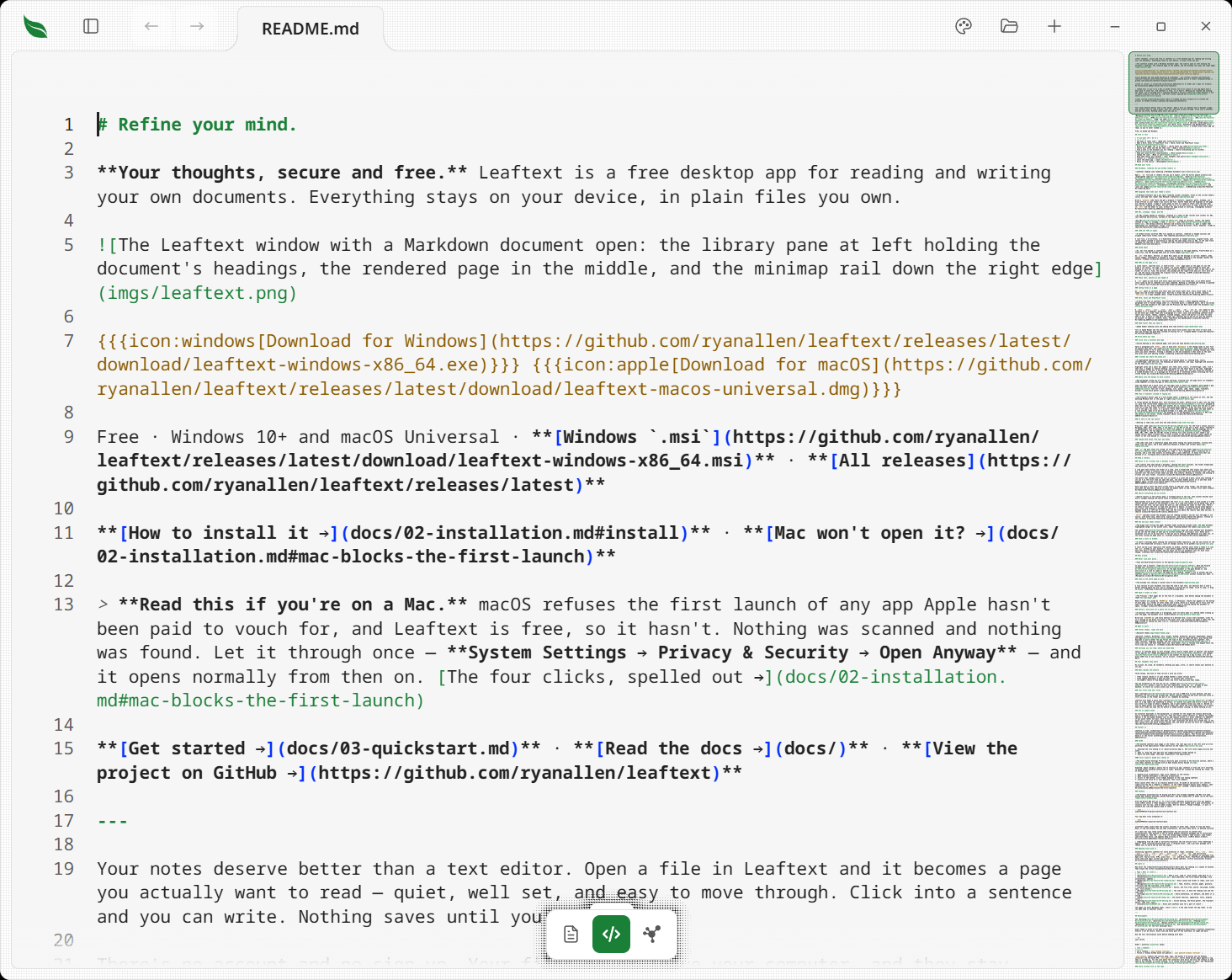
The toggle is the code-brackets button on the floating toolbar under the page, beside reading and the graph. Click it and the rendered page is replaced by the file's raw source; click the reading button to come back.
On leaftext.com and Emptyguru, the same button shows the published document's source read-only. The reading button returns to the page held beneath the source view, keeping its reading edits and position.
Opening another document while you are in the source view opens that document in the source view. The view is where you are working, not a property of the file you picked.
- The source is colored in the active theme's own syntax colors, so the code view looks like the rest of the app rather than like a foreign editor dropped into it: headings and list markers in the keyword color and bold, bold and italic text at their real weight and slant, inline and fenced code in the string color, links in the link color, block quotes in the comment color. HTML and XML files show their tags and attribute names in their own colors, and a YAML file its keys, values and punctuation. A JSON file is colored the same way YAML is — the same color for a key in both, because they sit in the same view — and its
//and/* */comments are colored too, even though JSON has no comments: a file carrying one is exactly the file the reading view refuses to parse, so this is where its author lands. The editor carries grammars for those five and no others, so every other format Leaftext reads opens here as uncolored text — raw email, plain text, INI, and every source file, which the reading view does color. They all still edit, wrap, and get the rail and the line numbers. Switching theme or flipping light/dark re-colors the open source in place. - A color carries a small square of itself, drawn in the line immediately before the value, so a palette can be read as colors rather than as six characters at a time. Hex in its three-, four-, six- and eight-digit forms, including
#000and#1234, andrgb(),rgba(),hsl()andhsla()written with commas or with spaces. A word that happens to name a color deliberately draws nothing, because "red", "gold" and "orange" are ordinary English and a square beside every one of them in prose is noise. The square is a mark, not a button — there is no color picker behind it, and a value is changed by typing it. - Long lines wrap instead of scrolling sideways, and the gutter numbers source lines — a wrapped line keeps one number, pinned to its first row. The gutter widens to fit the highest number in the file, and the numbers stand clear of the page's left border rather than against it.
- Where it cannot be opened, it says so and gives the document back. The editor is brought up the first time you ask for the source, and if that fails the app says the source view could not be opened and puts you back on the document you were reading, at the place you were reading it, rather than on an empty page. Pressing the button again is a fresh attempt rather than the same refusal.
- The rail on the right is the editor's own minimap: a scaled drawing of the source, with the same viewport box the reading view's rail uses. Drag the box or click the rail to move. It stands on the window's textured chrome, not on the page — the page's right border is the line between them.
- Toggling keeps your place: the code view opens on the source line of the block you were reading, and toggling back lands the reading view on that same block. Switching to another tab and back does too — a tab left in the code view comes back in the code view, scrolled to where you left it.
- Toggling back and forth stays put. Working out where you are in the other view can only be approximate — the two views wrap the same file to different heights, so a position has to be rounded to the nearest block or line, and rounding the same place twice does not return it unchanged. So when you toggle away and straight back without scrolling in between, the view you return to takes back the exact position it handed over, rather than a position worked out a second time. Scroll while you are there and the block-for-line landing takes over again, which is what you want then.
Editing the source
The code view is a real editor surface: unlock it with the padlock, then click anywhere and type. It is Monaco — the editor Visual Studio Code is built on — compiled into the app rather than fetched from anywhere, and loaded the first time you open the source view. That first toggle spends a moment on the spinner; every one after it is immediate.
- Locked, it still scrolls, selects and copies — it only refuses the typing, and says so in the corner rather than letting the keystroke vanish.
- Selection, caret movement, undo and redo (
Ctrl+Z/Cmd+Z,Ctrl+Y/Cmd+Shift+Z), clipboard (Ctrl+C/X/V,Cmdon a Mac), and your platform's IME are the editor's own.Tabindents at the caret rather than moving focus. - Color follows your typing: the source is tokenized as you go, so a construct takes its color the moment you finish typing it.
- A multi-megabyte file types and scrolls like a short one, because only the lines on screen are ever drawn. Earlier versions carried a hand-built surface to manage that; the editor does it now.
- What reaches the host is the edit, not the file: the offset, how much was removed, and what was typed. Sending a multi-megabyte buffer on every pause in typing cost a fifth of a second of it. The message carries the buffer's new length too, so if the host's copy ever disagreed it would ask for the whole text again rather than splice into a buffer it no longer understood.
- Each tab keeps its own edit buffer: words typed just before another document opens are written into the document they were typed in first, and switching tabs, toggling back to the reading view, or closing the window never loses unsaved work. Closing carries the words into the saved session and the next launch puts them back, with one press of undo standing between them and the file as you last saved it. A new document that never got a file comes back the same way, and its one press of undo takes it back to the empty page it started as. Where the file has gone from the disk in the meantime, the words come back as a note with no file under the name it had, undo still standing between them and that file as you last saved it, and nothing is written to the old place unless you choose it. Following a link out of the document you were typing in keeps the buffer too — press Back and the words are there again — and closing the window in that state brings the tab back on the document holding the words rather than on the page it had walked to.
- The reading view renders the buffer, not the disk — toggle back before saving and you see your edits rendered.
Pinned headings
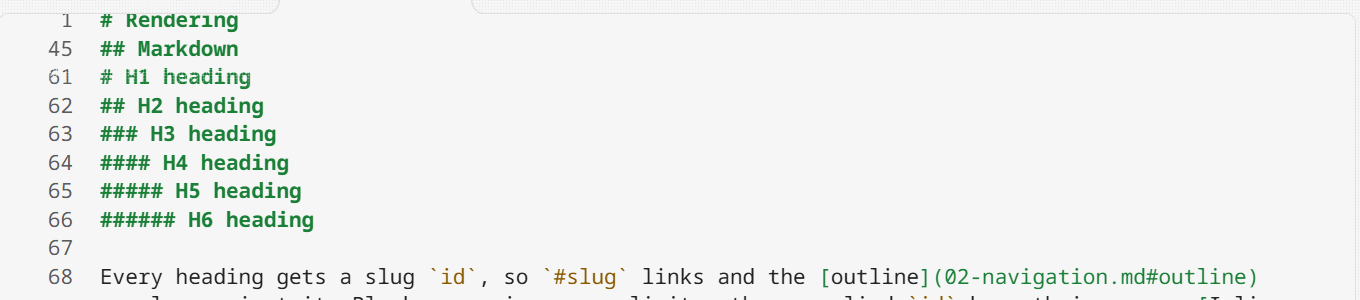
Scroll a Markdown file in the code view and the heading you are under stays at the top edge instead of scrolling away, so you can always see where you are.
- A deeper heading stacks below the one above it: inside
## Why this existsunder# Architectural opportunities, both are pinned, in that order — the trail down to where you are. A heading at the same level or above replaces the one it matches rather than stacking, so the trail never repeats itself. Five rows is the limit. - Each row is the source line itself — its own line number, its own syntax colors — so what is pinned reads exactly as it does in the file. As a section ends, its row is pushed up and off by the next heading arriving beneath it.
- Click a row to jump to it. The heading lands where its row was standing, so the line you clicked does not move.
- The rows sit above the page's top fade, with a soft dissolve of their own for the text sliding under them.
- Markdown only. XML, JSON, and YAML have no headings, and their structure is nesting rather than a trail.
Typing help
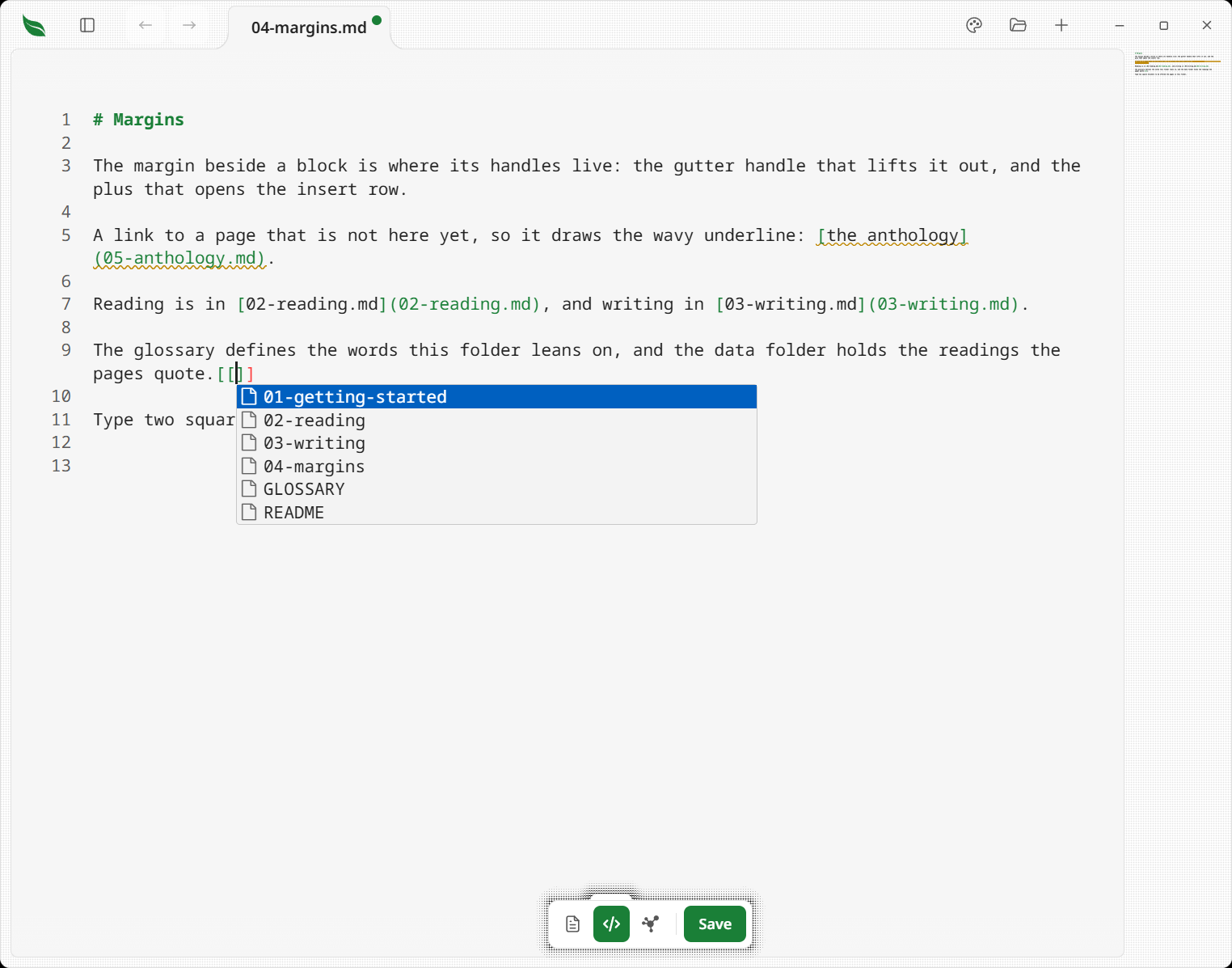
While you type Markdown in the code view, the editor can offer what Leaftext already knows — the same knowledge the graph and search run on, so it only ever sees what you pointed it at: the active vault, or the document's own folder when no vault holds it.
This is IntelliSense — the completion popup, hover card and squiggly underline Monaco brings from Visual Studio Code. Monaco draws them; Leaftext supplies the answers, and they are your notes rather than code. The docs call it typing help because that is what it does for prose.
- Type
[[and a popup lists your notes — the whole vault, or the folder beside the document. A note's other names are listed too, each saying which file it opens. Keep typing to filter; pick one and the link closes itself. - Type
[[Note#for that note's headings, or](#for the open document's own anchors. Anchors are the exact ones the reading view gives its headings, so a completed link always lands. - Hover a
[[wikilink]]for a card with the note's opening lines. - Broken links get a wavy underline — a moment after you stop typing, links whose file does not exist and wiki names no note answers to are marked, with a plain-words message on hover. The same underline says when two notes answer to one name, and when a note lists more other names than are used.
It never interrupts prose: suggestions appear only on those triggers, never as you type ordinary words. The wand on the floating toolbar — in the recess above the code view's own button, the code view's counterpart to the reading view's padlock — turns the whole thing on and off. On by default, remembered across restarts (settings).
Saving
Save
Saving is always explicit.
- With no unsaved changes there is no save control at all. From your first keystroke, a green Save button appears on the floating toolbar without moving the view buttons beside it, and the tab shows a dot beside its name — typing in the page counts, with nothing clicked out of. Take that typing back to where it started and both go out again.
- On leaftext.com and Emptyguru, every page opens locked. Open the padlock and you can type in the page to try the editor; the edits stay in that tab. Save appears once you have typed and downloads the edited file under its own name, and a refresh brings back the published words under a closed padlock. A book on a site is typed into one chapter at a time as it is in the app, and Save downloads the whole book with every chapter you typed in.
Ctrl+Ssends no save request for a clean page. - Click Save or press
Ctrl+S(Cmd+Son macOS) to write the buffer to disk. Whatever you are typing goes in first, so what is written is the words on screen. The button and dot clear on success. - Where the disk refuses the write — a read-only file, a folder that has gone, another program holding the file — the message in the corner names the file, says it was not saved and why, and says your edits are still here. The Save button and the tab's dot stay up, because nothing was lost. A refusal that arrives with no reason attached still raises that message, saying no reason was given, so a save that did not happen is never a silent one.
- A new document has no file yet, so its first save asks where to put it before writing anything — and on a Mac which format, since that dialog shows none. That menu opens under the Save button whichever way you asked, so the keyboard shortcut and the button land in the same place.
- Closing the window does not save, and does not throw the edits away either: they travel in the saved session and are back, with the dot, at the next launch. Only the close carries them — a window left open writes nothing of what you have typed.
- A save does not bounce the view: the file watcher recognizes the app's own write and skips the live reload it would otherwise trigger.
- A file is written in the encoding it was read in. A UTF-16 document stays UTF-16; a file with no byte order mark does not gain one.
When the app cannot write it
A file can go while its document is open — deleted, its folder moved, a drive unplugged, a permission changed. The first thing you type after that cannot be written, and the app says so rather than letting it look as though it worked.
- A message in the corner names the file and says nothing was changed, with the reason beside it. Your words stay on screen: they are the only copy left, and taking them away would lose them.
- The dot on the tab, Save and Undo all go down, because the app is holding nothing for that document — a lit Save button over a file nothing reached is a promise there is nothing behind.
- Pressing Save then says the same thing rather than answering with silence.
- A checkbox says it too, and comes back off. A box the app cannot write raises the message the same way, in a list or in a table cell — and the tick the browser drew the moment you clicked is taken back off, so the box is not left ticked beside a message saying nothing was changed. A tick the app did take and only failed to write to disk keeps its tick instead: that change is real and unsaved, so the box stays on, the dot and Save stay up, and the message says it was changed and not saved.
- The flowchart editor keeps the drawing. Its Save waits for the app to say the write landed, so a refused one leaves the sheet open with the diagram in it and the message beside it, instead of closing over minutes of work.
- The image box keeps the address you typed. An address is the only copy of itself while it sits in that field, so pressing
Enterwaits for the app to say the write landed; a refused one puts the box back on the same line with the address still in it and the message beside it. Where the line it was going onto has gone as well, the message carries the address itself, so it is still there to copy. A picture chosen through the file picker needs none of this — the picker opens again.
External changes
The live reload watcher keeps working alongside editing:
- With a clean buffer, an outside change reloads as usual — and if the code view is open, the source refreshes at the place you were reading rather than at line one.
- With a clean buffer on a tab that is not the one in front, the change is picked up the moment you switch back to it, in the reading view and the source view alike.
- A Word, Excel, PowerPoint or OpenDocument file takes the whole archive with it when it reloads, not only the part on screen, so a save after an outside change writes the file that arrived rather than the one it replaced. An EPUB book is read whole again the same way, so the chapters it carries are the ones that arrived.
- A new document has no file, so no change on disk is a change to it — including a change to a file of the same name in the folder Leaftext was started in.
- With unsaved edits, an outside change never clobbers the buffer: your edits stay, and saving writes them over the file. Typing in the page is an unsaved edit as you type it, so a change landing mid-sentence leaves your words alone.
Formats
The code view edits every format Leaftext opens, as the whole-file source editor: Markdown (.md, .markdown, .mdown, .mdc), HTML (.html, .htm), XML (.xml), JSON and YAML (.json, .yaml, .yml), plain text (.txt), INI (.ini), CSV (.csv, .tsv), email (.eml, .mht, .mhtml), and every source file. A Word, Excel, PowerPoint or OpenDocument file (.docx, .docm, .xlsx, .xlsm, .pptx, .pptm, .odt, .ods, .odp) is the one exception to whole-file: it is a zip rather than one text file. The code view names the XML part above the editor. A workbook or deck lists its readable sheets or slides there in the order the file presents them; a workbook's selected sheet is also the one you can type into in the reading view, where its blocks wear a thin accent bar while the padlock is open, and a deck is typed into on whichever slide you press. A slide's build is set in the reading view with the padlock open, from the list under the slide, and written into the slide where PowerPoint reads it, so PowerPoint plays it; Google Slides plays a Type box as one fade, as the list says. Save or undo an edit before choosing another part. A refused choice leaves the source and selection where they were. Each save rewrites the selected part and carries the rest of the package forward. A Word or OpenDocument file shows its one source part without a picker. An EPUB book (.epub) is made of a source file per chapter, so the code view opens the chapter at the top of the reading view, named above the editor, and leaving it returns to the same place in that chapter; move to another chapter and press the button again to open that one. A Kindle book (.azw, .mobi, .azw3) is stored as compressed records rather than text anybody typed, so the code view does not open it. A Google Doc, Sheet or Slide deck, whether from a vault or from one of the Google Drive app's .gsheet, .gdoc and .gslides shortcuts, is kept by Google rather than in a file, so the code view does not open it either.
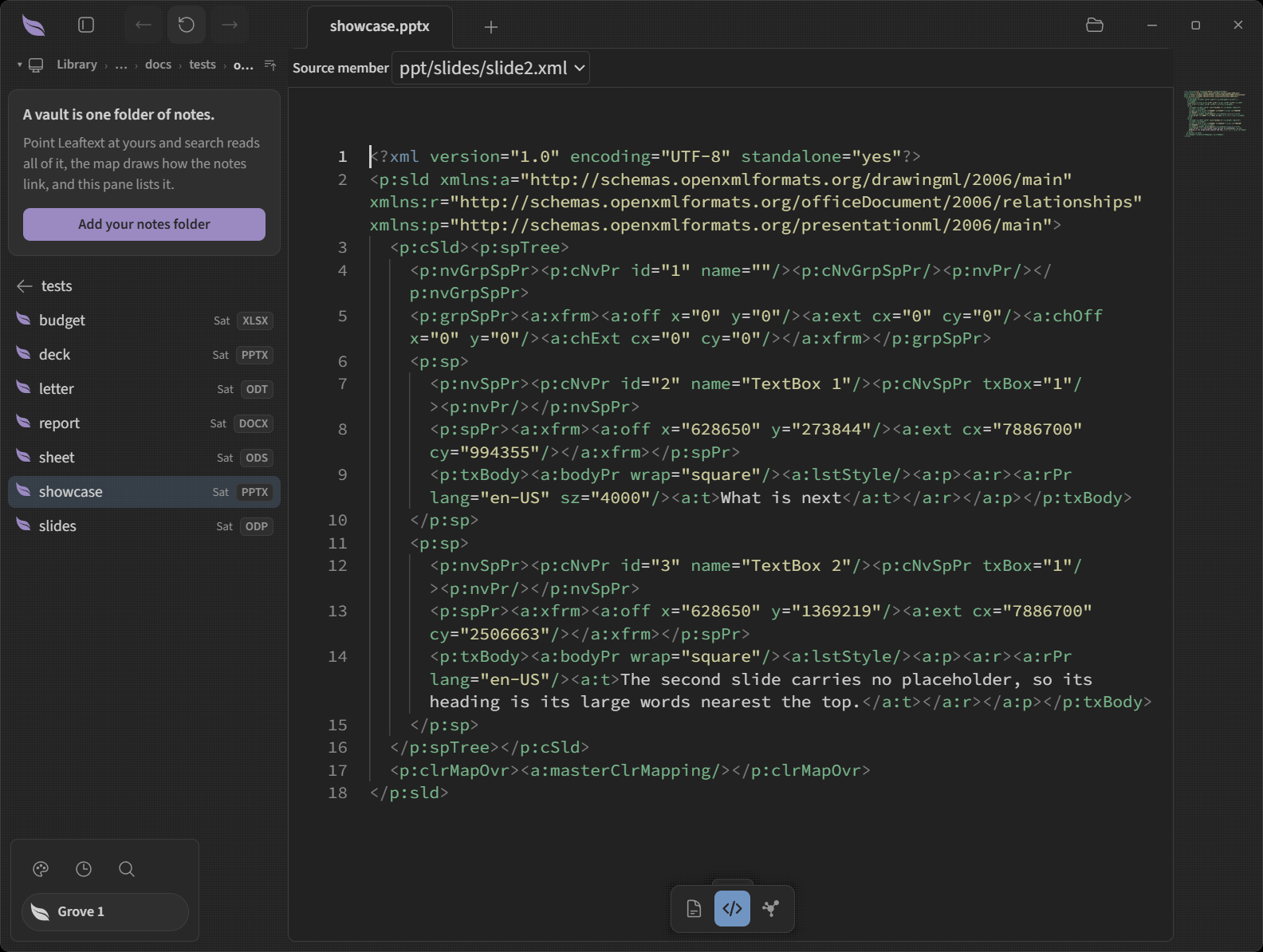
What the reading view offers differs by format, because a block can only be edited in place when the app knows the exact bytes it came from:
| Format | In the reading view |
|---|---|
| Markdown text blocks | Edit WYSIWYG — type in the rendered page, styling intact. Block gutter and format bar |
| A safe Markdown table | Type in any cell, drag a row or column by its grip, and restructure it from its right-click menu: rows and columns added and deleted, a column aligned or sorted, the whole table copied as CSV. Editing a table |
| Markdown blocks that cannot round-trip losslessly | Edit their exact source in place. Block gutter. A checkbox in such a table is the exception: it ticks where it sits, whatever else the table holds |
Markdown blocks the page never draws — an HTML comment, a <script> or <style> block | Nothing is drawn for them, so there is nothing to click; edited in the code view. Every other block in the document stays editable around them |
A block of raw HTML the page does draw — a <figure> holding its caption, a wrapper written with its content inside it | Read-only where it is drawn, because the file gives that whole block one range and the markup inside it none; edited in the code view. Every other block in the note stays editable around it, and a wrapper written with a blank line before and after its content leaves the Markdown inside it editable as ordinary blocks |
| HTML | Read-only, and the page carries no padlock: sanitizing rewrites the markup before it is drawn, so no block can prove the bytes it came from. Edited in the code view |
| XML blocks whose drawn words are the file's own bytes | Type on the words where they are drawn; the edit is spliced between the element's own tags. A comment is the same, between its <!-- marks. Block gutter |
| An XML table's cells and column headings | Type on any value whose words are the file's own bytes, including one of several joined by a comma and one drawn from inside a tag; a column heading opens onto the tag itself and renames that element in every record |
| A value written inside an XML tag | Type on the words where they are drawn, including the lone value an empty element is drawn by; only the bytes between that value's quotes are written, and the quote that closes it is refused |
| Every other XML block | Edit its exact source in place, with a line saying why the markup appeared. Block gutter |
| An XML field name, a section heading with no element behind it, and a value the page cannot place | Read-only, and a press says why; edited in the code view |
| JSON values | Edit their exact source in place; names stay read-only because their humanized labels are not the file's bytes |
| YAML plain and quoted values | Edit their exact source in place — a quoted one with its quotes, the way a JSON string opens |
| YAML lists, tables, block scalars, and a quoted value the file spells another way | Read-only, and a press says why; edited in the code view |
YAML aliases (*name) and keys with no value | Read-only, and a press says why; edited in the code view |
| INI values, key names and section headings | Edit their exact source in place — a key opens without the spacing around it, and a section opens without its brackets |
| A paragraph, heading or list item in a Word or OpenDocument text file | Edit its exact source in place, spliced into the part it came from. Everything the app never read — styles, themes, comments, tracked changes, charts, macros — is copied across untouched |
| A cell in a spreadsheet | Type on the words where they are drawn. Excel keeps almost every cell's text in one shared table, so what is written is the cell itself carrying its own words, and a cell that shared that text with another one stops sharing it while the other reads what it always read |
| A box on a slide of a deck | Type on its words where they are drawn, each run keeping its own formatting — a title set on two lines too, where each line's words stay in their own line and the break between the two lines cannot be typed over; press the box and drag the strip round it to move it or a corner to size it, held inside the slide. The margin handle beside a slide drags it to a new place and opens Duplicate slide and Delete slide. Pressing a box on another slide holds that slide, and every slide you changed is written at Save |
| Any block in a workbook outside the selected sheet | Read-only in the page; choose that part above the code view, save or undo changes before switching, then edit its source. With the padlock open, the blocks that can be typed in wear a thin accent bar on their leading edge, and the app says once as the padlock opens that the rest is edited in the source view |
| A block in an EPUB book | Typed into one chapter at a time. A paragraph or heading whose words match its chapter's source opens for typing in the book's own type, keeping italics and links. A block whose source cannot be placed opens its exact markup with a line saying why. Pressing a paragraph or heading holds its chapter, and its edits change only that chapter's source file. Nothing is inserted, dragged or rewritten across the line between two chapters. Undo and redo walk back across chapters in the order you typed in them, and Save writes every chapter you typed in at once, in one pass over the book. Closing the window keeps every unsaved chapter for the next launch. On a published site the same presses work, and Save downloads the whole book with every typed chapter in it; inside another product, the product is handed the book to write |
| Email lines and paragraphs the page can write back byte for byte | Type on the words where they are drawn |
| A line of an HTML body written as it is, whose markup the page can repeat byte for byte | Type on the words where they are drawn; what you write goes between that line's own tags as markup |
| A quoted-printable plain-text body in UTF-8 or ASCII | Type on its decoded paragraphs; only changed coded lines are written again |
| Every other part of a message — a base64 body, a packed HTML body, a folded or coded header line | Read-only in the page, and a press says so; edited in the code view |
Editing data files
A data file is edited as source, never as rendered text. Click a JSON value in the reading view and you get the real thing — "0.1.380" with its quotes — which is what keeps an edit from turning a string into something the file no longer parses as.
The big heading is one of those values wherever the file names its own title with a root title or name key. That key is left out of the body, so the heading is the only place its value appears, and pressing it opens that value's source exactly as pressing a field does. A YAML title written in quotes opens the same way, quotes and all; one written as a block scalar stays read-only, like the value itself. A heading standing in for a file that names no title of its own is the file's name instead — pressing that one renames the file.
That only works where the byte range is certain, so Leaftext offers it only where it is:
- JSON values — everywhere. The reader knows precisely where each value begins and ends, so every value is click-to-edit. A name stays read-only because the humanized label on the page is not the file's own bytes.
- INI — every drawn value, key name and section heading. The reader holds the exact bytes after the
=, around the key without its spacing, and inside the section's brackets; nothing is unquoted, unescaped, joined or relabeled on the way to the page, so what you see is what the file says. A key with nothing after it is not drawn, so there is nothing there to press. - CSV cells — every cell the file holds. Each is typed on as the words it shows, and the save writes that one field back quoted the way the file needs it; a cell a short record never wrote has no field to write into, and the table itself opens nothing when pressed.
- YAML plain and quoted values — where proven. A scalar's source text is checked character-for-character against the value it parsed to — for a quoted one, against the value with its own quotes around it; when they match, the range is exact and the value is editable. The quotes are part of what opens, exactly as they are for a JSON string.
- Everything else in YAML — read-only in the reading view. A block scalar (
|,>) carries an indicator and an indent its value does not; a quoted value holding an escape, a doubled quote, or a run of lines is spelled differently in the file from the value it means; and nothing can prove where a YAML list or mapping ends — its closing position points at whatever token came next. Rather than splice an edit over a guessed range and corrupt the file, Leaftext offers no inline editor and leaves these to the code view. - An alias, and a key with nothing after it — read-only for the same reason.
b: *xshows the value written up at&x, so the only text an edit could replace is on the anchor's line, not the alias's. And a key with no value has no text at all: typing into the gap afterkey:would writekey:x, which is one scalar rather than a key and a value. - A press on any of those says why. Rather than answering with nothing, the page raises a line naming the source view: that the file does not say where a list or table ends, that a JSON or YAML heading's words come from the file, that a JSON or YAML name comes from the file, or that a value is written a way the page cannot place. A value written as two quotes with nothing between them is not drawn at all, the way every empty value is, so there is nothing there to press.
- No block gutter in any data file. Its ranges name bytes that can be typed over, not standalone pieces of the surrounding syntax, so dragging or inserting around one would split a key from its value or land outside the syntax that gives it meaning.
This is a deliberate floor, not a gap to work around: a range that is off by one byte writes an edit into the wrong place silently. Where the range cannot be proved, the code view edits the file with the full source in front of you.
Next
- Rendering for what the saved Markdown renders as
- Navigation for tabs, history, and live reload
- Minimap for the rail beside the source