Library
Point Leaftext at a folder and it becomes a vault: a browsable file tree, a searchable body of text, and a map of how those documents link to each other. Opening a vault adds no files to your folder. Edits and confirmed tag renames write only the notes you chose to change, and a vault can sync itself to GitHub.
The library is the part of Leaftext that helps you find documents, not just read the one you already opened. It lives in a left-side pane, and everything it shows is read from disk when you ask for it.
Summary
| Feature | What you get |
|---|---|
| Vaults | A folder you name as a library root. The switcher beside the breadcrumb creates, edits and moves between them |
| First-launch bubble | One bubble points at the switcher the first time you open the pane, and goes for good the moment you point at that button. A sheet takes it down, unmet, and it returns once the last one closes |
| Your first vault | With no vault yet, the start screen offers to add your notes folder, and the pane says once what a vault buys you |
| File tree | One folder at a time, with a breadcrumb showing where you are and a row that steps back out; every folder you open appears at once |
| The open document's headings | Open a document and the pane holds its outline instead of the files, the page's own title first and the heading you are reading lit; a back row puts the files back, and so does asking the pane for a folder |
| Breadcrumb | The folder path under the app bar; every crumb steps back to that level, and what does not fit collapses into a … menu |
| Search | Filename and content search across the active vault, from the find bar's All files |
| Skipped folders | A folder a machine filled — build output, a package cache — is listed and openable, and not read or watched. The search line says when one was left out |
| Filtering | More than words in the search field: #work status:open due:<friday -draft |
| Tags | Press a tag in a Markdown note to find its notes; right-click to rename it across the vault after confirming the file count |
| Other names | A note's aliases field: every name in it works wherever the file's own name works |
| Graph | A force-directed map of how documents link to each other, shown on the page rather than in the pane |
| Cloud folders | Dropbox, OneDrive, iCloud Drive, Box, Nextcloud, Google Drive and the Kindle app's books become vaults on their own when their app is on this machine, and their rows wear a cloud |
| GitHub sync | A vault can be a git repository that pushes to GitHub, manually from its header or automatically once local changes stop when that vault opts in — and a repository can be cloned into a new vault |
| Storage services | Connect Dropbox, Google Drive, OneDrive, SharePoint, Box, a WebDAV server or an S3 bucket and keep a local copy for offline reading |
| File actions | Right-click a file or the page you are reading for the actions that fit it |
| Picture actions | Right-click a picture for its own actions: open it big, copy it, find its file, and take it out of an unlocked page |
| Deleting | Delete asks before it goes, and offers the file back for a few seconds afterward — on the message, or with Ctrl+Z |
| Folder actions | Right-click a folder — or the empty space in the pane — to make a file or a folder in it, paste, reveal it, or see its properties |
| Calendar | A month, week or day of the vault's documents by when they were changed, made or dated; pick a day and the pane lists it |
| Launchers at the foot | Scheduled tasks, Favorites, Recent, Search and Calendar, one press from the bottom of the pane, over the document you are reading |
| Narrow windows | Too tight for a pane beside the page? The library slides in over it as a full-width sheet |
Vaults
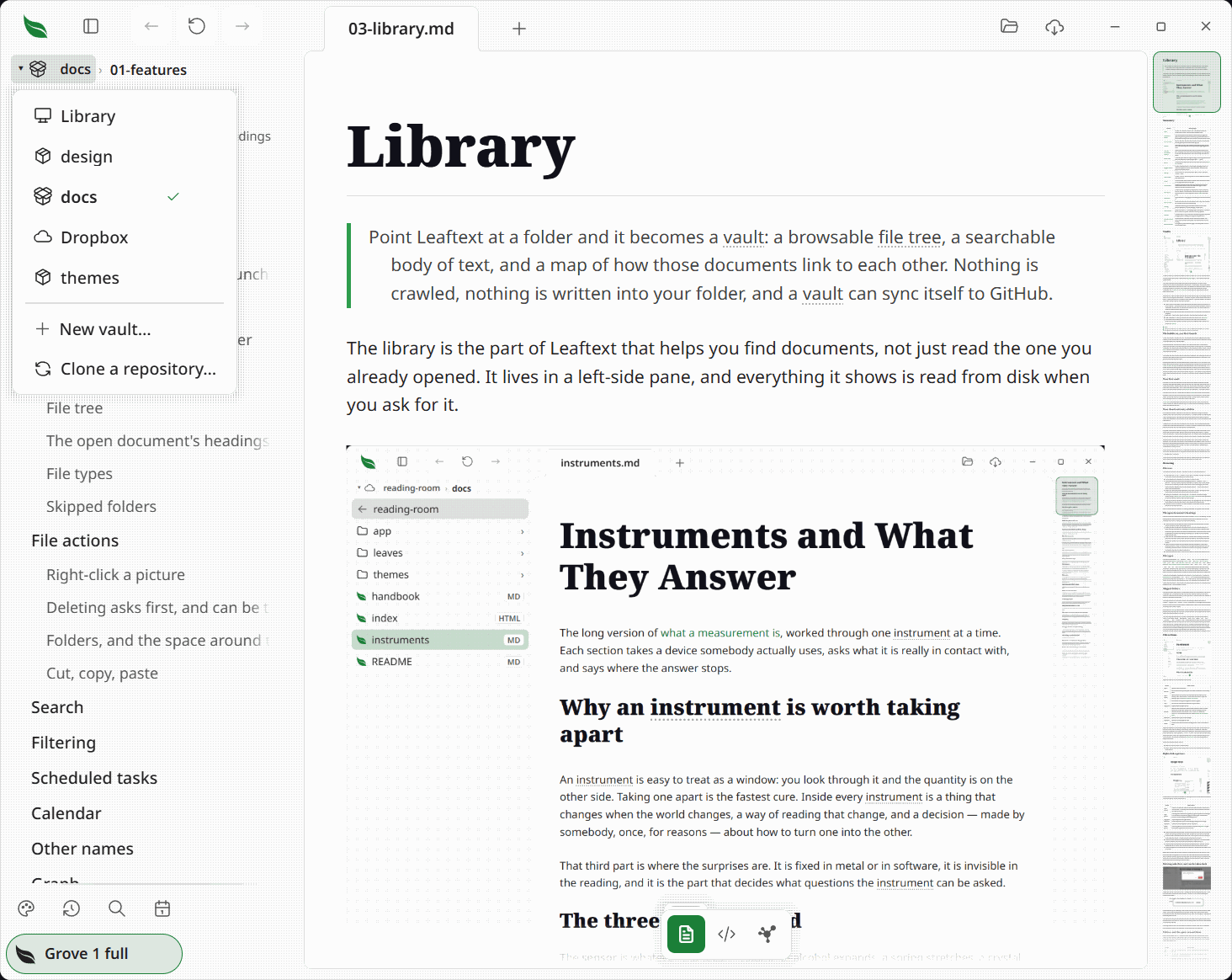
A vault is a folder you have told Leaftext to treat as a library root. It is the unit that search and syncing work over, and it is what makes the graph bigger — but not what makes the graph possible.
Press the button at the left of the breadcrumb to open the vault switcher. Press it again to close the list; moving the pointer past it or away from the open list leaves the list as it is. The same button appears over the start screen whenever a vault exists, so switching to Library never leaves you there. What it wears says what you are in: this machine for the whole library, a box for a vault whose files only live here, and a cloud when saving in that vault also reaches somewhere else — GitHub, or a cloud folder. Its mark stays the regular weight and sits apart from its name.
While the list is open, the button and the vault's name beside it light as one shape, because what you pick changes the whole pane — the name, the path, the file tree and what search reads — rather than the icon you pressed. Vaults read A to Z, ignoring capitals. The name is still a place: clicking it goes to the vault's top folder.
- Library is the no-vault state, marked with the machine rather than a box because it is not a collection — the pane starts at your drive roots and browses anywhere. Search is unavailable, because it has no bounded set of words to read. The graph still works: it maps the open document instead of a vault.
- A vault roots the pane at that folder. Everything below it is browsable, searchable and mappable.
- New vault… opens a folder picker; the folder's name becomes the vault's name.
- Clone a repository… takes a git address and makes the clone a vault. See below.
- The settings button appears when you point at a vault row or reach it with the keyboard, and opens a panel to rename it, point it at a different folder, remove it, or connect it to GitHub.
Nothing is written into your folder. A vault is a row in Leaftext's own database, not a marker file. Removing a vault forgets it; the folder and its files are untouched.
The bubble on your first launch
A caret and a mark is not much to go on, so the first time you open Leaftext with the pane showing, a small bubble floats over the window with a chevron aimed at that button, saying "Pick which folder the list below shows."
It goes the moment you point at the button, and it never comes back — pressing the button does the same. The bubble itself ignores the pointer, so moving across it on the way somewhere else neither takes the words away nor gets in the way of what is under it, and a menu opened into the space it is standing in is drawn over it rather than under. There is no close button and no timer.
One bubble per launch at most, with a quiet launch in between, and nothing at all once you have met them. With the pane shut there is no bubble, and that launch is not spent — you get it the next time the pane is open.
Anything that stands over the whole window takes it down while it is up. The glossary, the theme picker, the start screen's list and the flowchart editor all slide over the window, and a picture, a table or a diagram opened on the whole window covers it the same way — so a bubble left standing would point at a button that view is covering, with no way to reach it and no way to put the bubble away. It steps aside instead, unmet, and comes back against wherever its button now is once the last of them has gone — one opened on top of another keeps it away until both have gone. The launch is not spent, and the promise is still there to meet.
Your first vault
Until there is a vault, the start screen carries a third button beside Choose file and New document: Add your notes folder, with one line under the row saying what a folder buys — search across all of it, a map of how the notes link, and the folder in the pane. It opens the same folder picker New vault… does. Once a vault exists the button goes, because from then on the name over the headline is the switcher and New vault… is one press inside it.
The pane says it once too. A reader who has met the bubble and still has no vault of their own finds a short box at the top of the file list: what a vault is, what it buys, and the same button. It sits inside the list, so nothing above it moves. Picking a folder retires it, and so does opening the vault list — either way it never comes back.
A cloud folder that made itself a vault does not count as one you made, so the box still shows. A folder you picked yourself out of your Dropbox reads the same way, so that one reader may meet the box once.
Your cloud is already a folder
If you have the Dropbox, OneDrive, iCloud Drive, Box, Nextcloud, Google Drive or Kindle app installed, that cloud is a real folder on this machine — so Leaftext makes it a vault for you. There is nothing to press: the folders are there in the switcher the first time you open it, named after themselves, and each wears a cloud because saving in one goes wherever that client sends it.
Leaftext holds no account and no password for any of them. Their app does the syncing; Leaftext only reads and writes the files — so there is no refresh to wait for here, and a file that has not arrived yet is one their app has not finished with.
Only what is really there is added: a client you do not have is not listed, and neither is one whose folder has been deleted. Where a client records having been moved — Dropbox, OneDrive, Nextcloud — that record is what gets read, so a Dropbox living somewhere other than the default is still found. Nothing is scanned to do it; each is a named place, checked.
Remove one and it comes back the next time Leaftext looks, which is when it starts and whenever you come back to its window. A client installed while Leaftext is open is found on that return, because leaving the window is what you did to install it. A vault is a row in a list, not a copy of anything, and it is a folder you have — the alternative is remembering a refusal forever to save you a row.
On Windows the Google Drive app mounts each signed-in account as a drive of its own, labeled with the account. Leaftext finds every one and adds its My Drive as a vault named for the account — My Drive (you@example.com) — so two accounts are two vaults you can tell apart; Shared drives and Other computers stay in the library. A name you give one is kept. These drives download a file the moment anything reads it, so in them Leaftext lists every note by name, time and size without reading any: rows carry no title or preview, a field rule hides nothing there, and search, the map, fields and Home's tasks do not look inside them. A note is fetched when you open it.
A vault inside one of these folders wears the cloud too. Where the files end up is what the mark is about, and a folder under Dropbox syncs exactly as Dropbox does.
Browsing
File tree
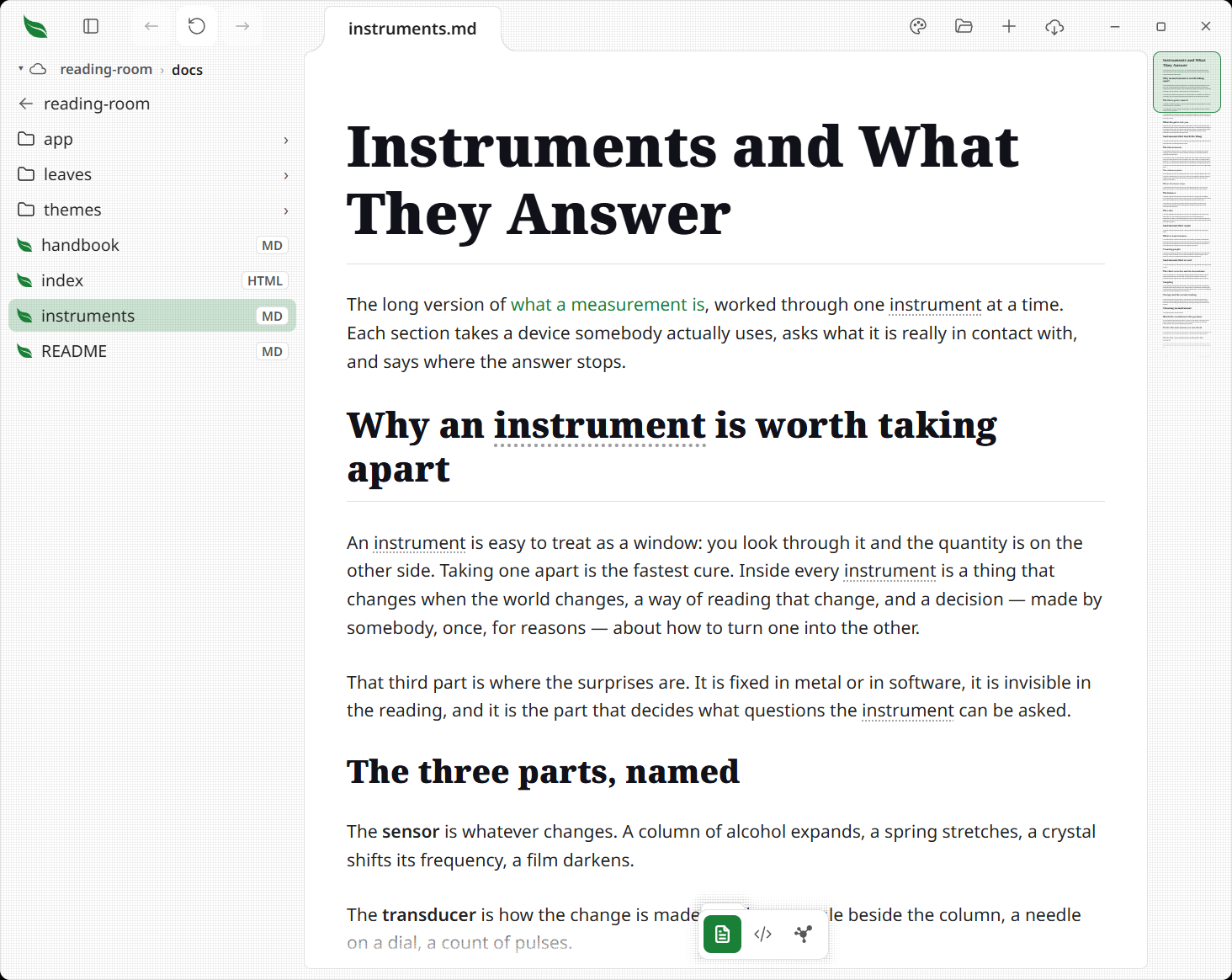
The pane lists one folder at a time — the folder you are in, not a whole hierarchy.
- Click a folder row — or its
›chevron — to go into it. The folder you open is on screen in one frame, with nothing fading and nothing sliding. - The row above the list steps back out one level. So does a crumb.
- A folder whose name Windows keeps but cannot spell as ordinary text shows
�where the odd letter is, and still opens and keeps its own sort and grouping. Two such folders spelled alike in one place are both left shut rather than one opening in the other's place. - The breadcrumb under the app bar is the path you are on:
Fieldwork › docs › features. Click any crumb to step back to that level. It shows as much of the path as fits the band, so widening the pane reveals more crumbs and dragging the divider refits it mid-drag. Whatever does not fit collapses behind a…button that opens a menu of the skipped folders. - Folders sort before files, each alphabetized unless you sort the folder another way. Every folder is listed, including the ones whose names start with a dot and the ones a shortcut points at.
- A folder starts with one line a row, the name and nothing else. With Show details on, each file sits in a softly filled card that says what the file is: its name on disk and when it last changed, then its title — a
titlein its field block — where that says more than the name, then two lines describing it — adescriptionorsummaryin its field block, else its opening lines, with buttons, badges and alert markers read as their words. A folder row says how many documents sit directly inside it. A folder of more than five hundred files reads the first five hundred and draws the rest as one line each. On a slow disk, such as a network share or a synced drive, the names come up first as one line each and the titles and prose fill in once they are read; a folder hiding notes by a field waits for them, since the fields decide which names show. A note kept only online — OneDrive's Files On-Demand on Windows, iCloud's Optimize Mac Storage on a Mac — shows its name, time and size on one line and is never read to draw its row, so browsing a synced folder downloads nothing; a folder kept only online shows no count. Opening the note downloads it as usual, and a rule hiding notes by a field cannot hide one whose fields were never read. Search, the map, including a single note's map, field names, typing help's note names and Home's tasks leave such a note out until it has been downloaded, so arriving in a synced vault downloads nothing either. A file with no ending kept only online is not listed until it is downloaded, since Leaftext cannot tell whether its contents are text without opening it. - A favorite that lives in the folder you are in comes first, under a Favorites heading, with Files over the rest.
- Pointing at a row washes it and nothing else — no shadow, no change of shape, nothing sliding — what a control does under the pointer. The row you have open keeps its own tint instead, so what is open still reads as open.
- Opening a file moves the pane to that file's folder and highlights the row. A file inside a vault switches to that vault first; a file in none switches to the whole library.
- The folder you are in is saved, so a restart reopens it. If the folder has gone, the pane falls back to the top of the vault.
On a published site, the breadcrumb stays at the head of the pane and follows the open page, including when a link opens a page in another folder. Folder crumbs open their folders; the current page ends the trail. The site has no vault switcher or Sync button beside it.
Each call reads exactly one directory, so nothing below what you opened is ever touched.
Walking the pane from the keyboard
Tab into the list and a ring marks the row you are on — separate from the tint on the document you have open, and never drawn under the mouse.
- Up and Down move a row; Home and End go to the first and last; Page Up and Page Down move a pane's height.
- A letter jumps to the next row whose name starts with it.
- Right or Enter on a folder goes into it; Left steps back out, and lands on the folder you came from. Enter on a file opens it.
- When the folder is read again under you — a paste, a rename, a change on disk — the ring stays on the same file.
- The same keys walk the search results under the find bar, and the Tags and Fields lists, where Right and Left open and shut a branch.
Sorting and drawing a folder
The button at the end of the folder trail opens the view menu for the folder you are in. It is lit whenever the folder is drawn any way but the default, and resting on it says how.
- Sort by name, date modified, date created or size, either way round. Folders stay above files in every order.
- Group by date puts headings between the files — Today, Yesterday, Previous 7 days, Previous 30 days, then a month at a time — while the folder is sorted by a date.
- Show details draws each file with its title, when it changed and its opening lines; off, each row is one line, the name and nothing else.
- Show hidden, two fields that hide names like
draft-*and notes whose field saysstatus:done, and a Stop hiding row for each rule standing. Hide from the pane on a row's right-click menu hides that one; nothing on disk moves, and Show hidden draws them dimmed. - Arrangements keep what is on screen under a name. The arrangement in use is how every folder with no choice of its own is drawn, and it brings the list it was saved on with it; deleting the last one goes back to the defaults.
Each folder keeps its own choice, so a restart draws it the same way.
Tags and Fields
In a vault, the top of the same menu switches the pane between Folders, Tags and Fields.
- Tags is every tag in the vault, nested, each with how many notes carry it. The mark before a tag opens the tags under it; pressing the tag searches it through the find bar's All files, the same as pressing a tag in a note. Right-click one to hide it from the list.
- Fields is every field the vault's notes set. Pressing one opens the values it holds; pressing a value searches
field:value.
Neither list is a filter of its own: every press goes to the one search box.
The open document's headings
Opening a document swaps the file list for that document's outline — its headings, in order, starting with the page's own title and indented by level under it, with the one you are reading lit as you scroll. Clicking a row jumps to that heading.
- A back row above the list wears the folder's name and puts the files back, the same way the row above a folder listing steps out of it.
- Sending the pane somewhere puts the files back on its own, because asking for a folder is asking for the files in it. Switching vault, pressing a crumb, opening a folder from a file's right-click menu, and pressing a favorite folder on the start screen all land in that folder's list rather than leaving the headings up. The files arrive in one draw, when the folder does.
- Under that row, On this page names the list, with how many headings it holds at its right. Each level reads a step smaller than the one above it, and the levels below the second sit in quieter ink, so the shape of the document shows without counting the indents.
- Once you have put the files back and walked the pane somewhere, it stays there. Marking a favorite, closing or moving a tab, and a page opening behind the one you are reading all leave the pane on the folder you left it on; only going to a different document brings that document's headings up.
- An HTML file, and a web page opened by its address, lists its own headings too, read out of the page as it is drawn and read again whenever the page changes size, so a page that builds its headings as it runs lists them once they are there. Clicking a row scrolls the page to that heading, and the row under the top of the page is lit as you scroll.
- A document with only a title, or none, has no outline, so the files stay where they are.
File types
The pane lists Markdown (.md, .markdown, .mdown, .mdc — a Cursor project rule is Markdown with a field block at the top), HTML (.html, .htm), XML (.xml), JSON and YAML (.json, .yaml, .yml), plain text (.txt), INI (.ini), CSV (.csv, .tsv), email (.eml, .mht, .mhtml), Word, Excel, PowerPoint and OpenDocument (.docx, .docm, .xlsx, .xlsm, .pptx, .pptm, .odt, .ods, .odp), EPUB books (.epub), Kindle books (.azw, .mobi, .azw3), and the Google Drive app's shortcuts to Google Docs, Sheets and Slides (.gsheet, .gdoc, .gslides). Source files open when named without becoming vault-search text, graph nodes, or Previous/Next pages; the pane lists only the two it knows by whole name, .env and Dockerfile, so a project folder shows its settings file beside its .gitignore. A file with no ending at all — CHANGELOG, LICENSE, AUTHORS, .gitignore — is listed too when its opening bytes are text, and is searched, mapped and paged like any note; one that holds a binary, or nothing at all, is left out, and nothing inside a .git folder is ever read. Anything else is left alone. Where that empties the pane, the line in its place says how many files are in the folder, so a folder of pictures reads as a folder of pictures rather than a folder Leaftext lost.
Data files are searchable by name and title but draw no graph edges at all — not even to web addresses. A string inside a .json, .yaml, .ini, .csv or .tsv is a value, and scanning one as prose would invent links nobody wrote. A .txt draws none for the other half of the same reason: its words are the words somebody typed, not Markdown to be scanned for links. Emails draw none either — their bodies are transfer-coded in the file, so a scan would read base64, not links. They still appear as nodes.
Skipped folders
The pane lists every folder there is. A name starting with a dot, a build folder, a shortcut to somewhere else — all of them are rows you can open, because a folder you can see in Explorer or Finder should be a folder you can open here. A shortcut opens onto whatever it points at, the same as it does there.
Two things are left out. At the top of a drive, the operating system's own folders — Windows, Program Files, AppData, Library and the rest — are skipped, and only there: a folder of yours with one of those names, anywhere else, is listed. And a shortcut pointing at nothing is not a folder to open.
Search and the graph go almost as wide. A note in a folder whose name starts with a dot is findable and on the map, and a shortcut is refused, because one can point back at a folder above it and make the walk run forever.
The other thing that walk refuses is a folder a machine filled: one that declares itself a cache, or one named target, node_modules, build, dist, vendor, venv, .venv, __pycache__, .next, .gradle or Pods. A vault that is also a folder you build in can hold a hundred generated files for every note you wrote, and reading and watching all of them costs a third of your computer while you sit still. The pane still lists these folders and you can still open one; what changes is that search does not read inside them, and a change inside one is not something Leaftext goes and looks at. When a search leaves any of them out, the line above the results says how many and names them if you rest on it. A document you have actually opened from inside one still updates when it changes on disk.
A folder a tool filled without saying so — a cache of thousands of tiny data files under a name of its own — is read like any other, and it cannot crowd out your notes: a vault too big to read whole reads the files written to be read first and data files such as JSON, YAML and XML after, and every file in it, read or not, is still found by its name.
Storage services
The vault switcher offers Dropbox…, Google Drive…, OneDrive…, SharePoint…, Box…, WebDAV… and S3…. The first five connect through your own app registration and open sign-in in your browser, so your password stays in the browser. Google's sign-in opens instead in a tab beside the one you were reading, drawn by Google in a web profile of its own, and the tab closes by itself when Google answers; where Google refuses to draw in that tab, the same sign-in opens in your browser and Leaftext comes back to the front when Google answers. A WebDAV server or an S3 bucket has no browser sign-in, so its form takes your own user name and password, or your own key pair, and Leaftext tries them against the server before it keeps them. Every credential goes in your operating system's credential store and never in a file Leaftext writes. Each one is kept under a name made from the profile folder, the vault and the account it is for, so a second copy of Leaftext running under its own profile signs in without replacing the first copy's sign-in. A sign-in kept by an older version under the vault alone is carried across the first time it is needed, once it is shown to be that vault's own — the same account and the same app, or the server taking the password — and a waiting Box client secret is not carried, so a Box sign-in that never finished starts again from its form.
| Service | What the connection asks for |
|---|---|
| Dropbox | Your app key and a folder path such as /Notes; register http://127.0.0.1:37653/ as its redirect address |
| Google Drive | Nothing, where this copy of Leaftext carries its own Google sign-in: press Sign in with Google and your whole Drive becomes a vault. Use my own client ID… takes your desktop client ID and a folder ID instead; Use whole Drive there chooses the entire drive |
| OneDrive | Your desktop app client ID, drive ID, and folder ID |
| SharePoint | Your desktop app client ID, document library drive ID, and folder ID |
| Box | Your app's client ID and client secret, and a folder ID; register http://127.0.0.1/ as its redirect address |
| WebDAV | The folder's https:// address, such as a Nextcloud folder's WebDAV link, your user name and your password |
| S3 | The endpoint (blank for Amazon), region, bucket, an optional prefix, and your access key ID and secret access key |
The connection form explains the app registration each service needs. Google registrations must be set to In production before connecting.
While a new service vault is waiting for sign-in or a server check, Cancel stops that attempt and removes the new vault. The library returns to the vault and folder you were browsing unless you have moved elsewhere. Canceling Enter password… on an existing WebDAV or S3 vault keeps that vault and its earlier sign-in. A canceled attempt cannot later add a credential or show a sign-in failure.
Leaftext keeps a local copy of readable files, so opening, searching, and following links work offline.
Google Docs, Sheets and Slides
A Google Doc, Sheet or Slide deck in a Google Drive vault opens as a page in a tab named after the document, fetched from Google each time you open it. Type into a paragraph, a heading, a cell or a slide's text box and Save sends only what you changed back to Google, to the place it came from. A paragraph holding something Leaftext cannot write back exactly — a color, a font, a picture, a list, a table in a Doc, a formula in a Sheet — is shown and cannot be typed into, so nothing you did not touch is ever rewritten. If somebody changed the document in Google after you opened it, Save sends nothing and your edits stay where they are. Using your own client ID, turn on the Docs, Sheets and Slides APIs in its Google Cloud project; Leaftext says which one is missing.
The Google Drive app puts the same documents on its own drive as shortcuts ending .gsheet, .gdoc and .gslides. Leaftext opens one through your Google Drive vault for that drive's account and reads, edits and saves it exactly as above. With no such vault signed in, it says what the file is and offers Open in Google Sheets — or Docs, or Slides — which opens it in your browser.
The vault's settings show the account and refresh state, with Refresh, Sign in, and Sign out; a WebDAV or S3 vault shows Enter password… in place of Sign in. A connected vault refreshes every five minutes. A WebDAV vault asks its server about every folder until the server has shown that it marks a folder changed whenever something inside it changes; from then on it asks only about the folders that changed, and still checks every folder about once an hour. Three consecutive failures pause automatic refresh until you press Refresh. Signing out keeps the local files.
An explicit Save sends your edited file using the version it was opened against. A refused save or a conflicting remote version leaves your local edit intact and unsent; refreshing preserves that edit.
File actions
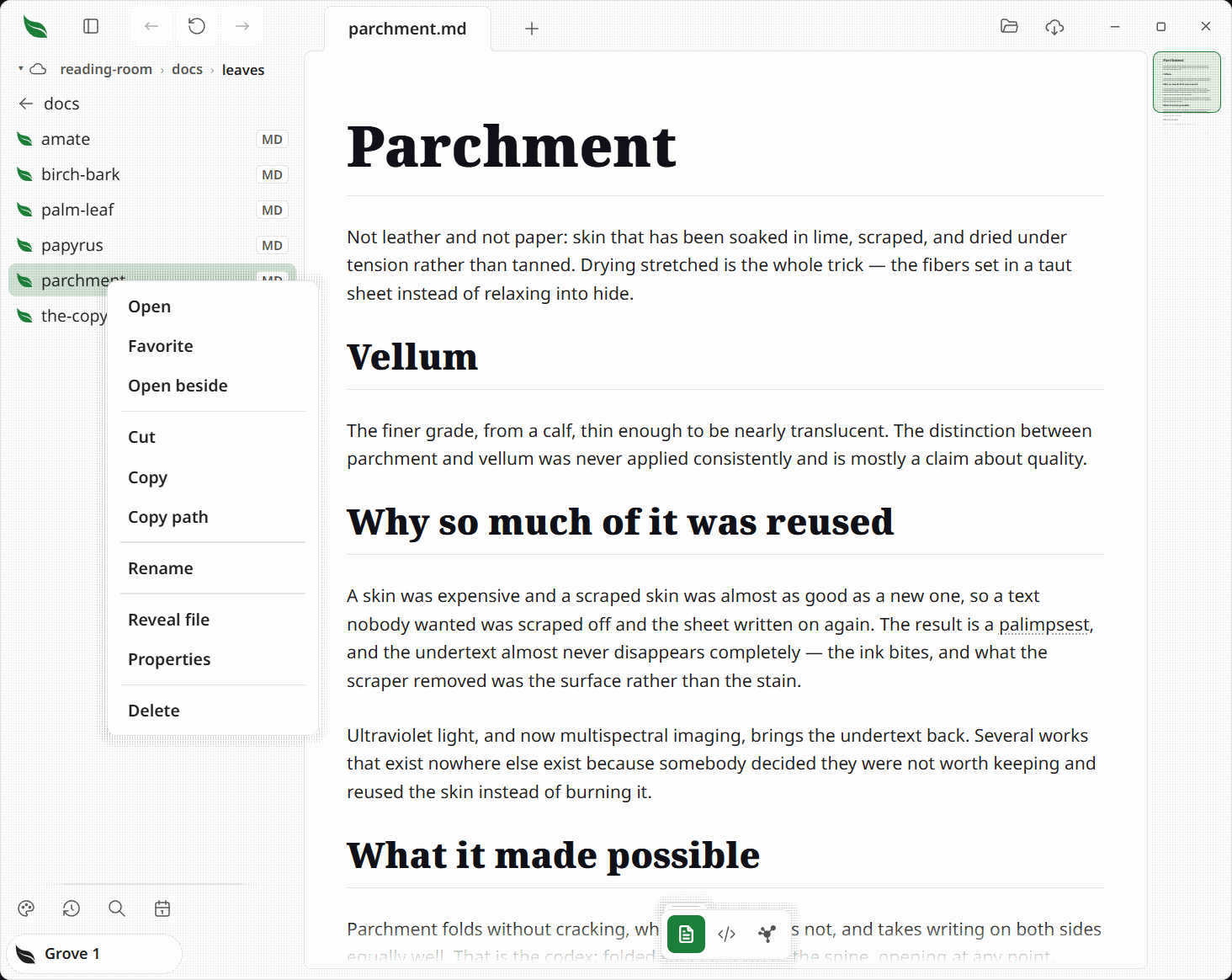
Right-click a file row for a context menu of file actions:
| Action | What it does |
|---|---|
| Open | Opens the file in the reader |
| Favorite | Pins the file to the top of the pane, and reads Unfavorite on one already there |
| Open beside | Stands the file in a column of its own beside the document you are reading, which keeps the keys. There while a document is open and nothing is split — see two documents side by side |
| Cut | Puts the file on the system clipboard to move on paste |
| Copy | Puts the file on the system clipboard to copy on paste |
| Copy path | Copies the file's full path as text |
| Duplicate | Makes a copy beside the file, named … copy, then … copy 2 |
| Hide from the pane | Keeps the row out of the pane without touching the file; Show in the pane takes it back while Show hidden is on |
| Rename | Edits the name inline; press Enter to apply, Escape to cancel. A name another file in the folder already has is refused; changing only the capitals of the file's own name is not, so notes.md can become Notes.md. A name holding <, >, :, ", |, ? or *, or one Windows keeps for a device such as CON, is refused on both platforms, so a file can always travel to a Windows machine. The same box opens over a page headed with its own file name |
| Reveal file | Shows the file in your OS file manager |
| Properties | Opens the OS file-properties view |
| Delete | Asks first, then moves the file to the Recycle Bin / Trash — and offers it back |
Right-click anywhere on the rendered page, including the blank space around its text, for the actions about the document you are reading: Favorite or Unfavorite, Copy path, Reveal file, Properties, and Delete. Over a saved web page — an .html or .htm file — Open in browser stands above Copy path and sends the page to your browser, where its own layout, type and color are drawn. With words highlighted, Copy leads the menu and puts exactly those words on the clipboard — Ctrl+C, or Cmd+C on a Mac, does the same thing without the menu. Open, Cut, Copy and Rename stay on a file row because they act on a row in a folder. A link inside a document has its own menu, and a block being typed in keeps its text menu.
Reveal and Properties map to each OS:
- Windows: Explorer; the file Properties dialog.
- macOS: Finder; Get Info, which brings Finder to the front so its window is the one you are looking at.
Right-click a picture
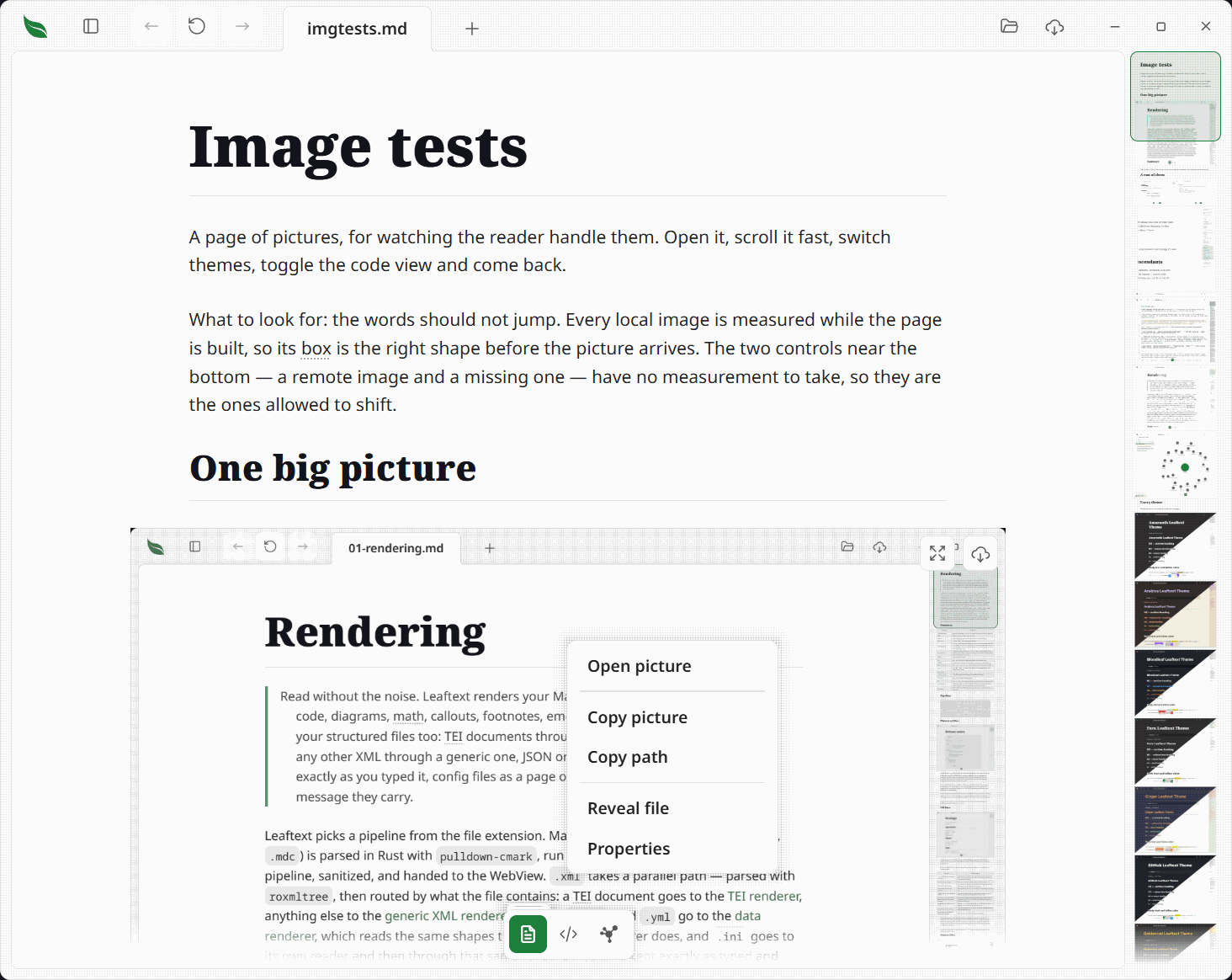
A picture kept on your own disk answers for itself. Right-click one in the page and the menu is about the picture, not the note around it:
| Action | What it does |
|---|---|
| Open picture | Opens it on the whole window, the same view the expand button over a picture opens — including a picture sitting inside a sentence, which has no button of its own |
| Copy picture | Puts the picture itself on the clipboard, as pixels to paste into a message or a document. Every kind the page can draw copies, because what crosses is a PNG the page's own drawing wrote |
| Copy path | Copies the picture's full path as text |
| Reveal file | Shows the picture in your OS file manager, sitting where it is kept |
| Properties | Opens the OS file-properties view for the picture |
| Delete picture | Takes the picture out of the document. Only while the padlock is open, and only for a picture on a line of its own |
- Delete picture leaves the file alone. It removes the picture from the note, as one press of undo, and nothing is written until you save. The picture on your disk is untouched.
- A picture inside a sentence has no Delete row. The only piece of source it belongs to is the sentence around it, so removing it would take the words with it.
- A picture already open on the whole window keeps Copy picture, Copy path, Reveal file and Properties, and loses the two rows that have nowhere left to go.
- A picture from the web, one written into the document as data, and one Leaftext cannot find get no picture menu, because none of these rows has a file to act on.
- A picture wrapped in a link keeps the link's own menu, because the link is what a click on it opens.
Where either window will not open, a message in the bottom-right corner says so, so the menu item never just appears to do nothing. Cut, Copy and Copy path say so the same way. A clipboard another program is holding open is an ordinary thing for a machine to be doing, and a copy that did not happen is otherwise only discovered at a paste in another app, minutes later, with nothing to connect it back.
Deleting asks first, and can be taken back
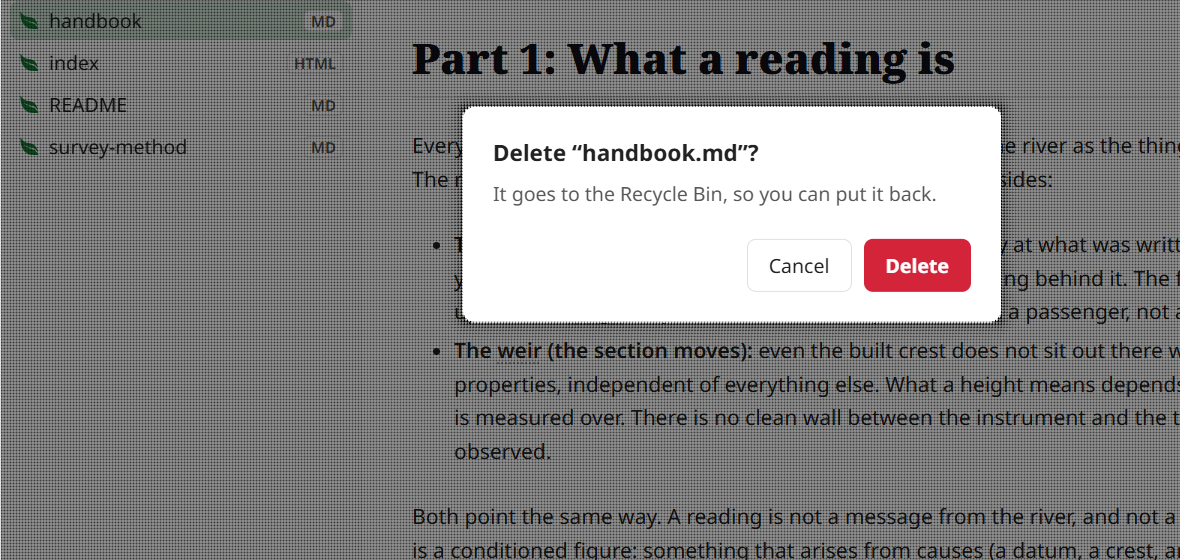
Delete does not act on the click. It asks — naming the file and saying where it goes — and the safe answer is where the pointer already is. Escape or a click on the dimmed page cancels; Enter deletes.
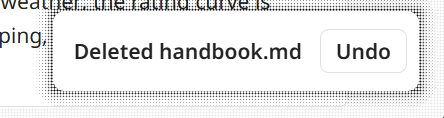
Once the file has gone, a message in the bottom-right corner says so and carries an Undo button. Press it and the file goes back to the folder it came from, under its own name. Ctrl+Z does the same thing while that message is up, unless you are typing — anything you are editing keeps the key.
The offer lasts as long as the message and covers one delete. After it goes the file is still in the Recycle Bin or the Trash, so nothing is lost by letting it pass; you just put it back the way you would any other file.
Two things stop an undo, and it says which: the file is no longer in the bin, or something else has taken its name in the meantime. It never writes over the newer file.
Folders, and the space around them
Right-clicking a folder row — or the empty space below the rows, which stands for the folder you are browsing — offers what a place can do rather than what a document can. Both make in the folder that was right-clicked, and a name already taken there is refused rather than written over:
| Action | What it does |
|---|---|
| Open folder | Goes into it. Only on a folder row; the empty space is already the folder you are in |
| Favorite | Pins the folder to the top of the pane, and reads Unfavorite on one already there. Only on a folder row |
| New file | Makes an empty file in this folder and opens it. The name comes up as Untitled.md with Untitled selected, so typing replaces the name and keeps the extension; press Enter to make it, Escape to change your mind. A name with no extension is made as Markdown, and an extension Leaftext cannot read is refused in words rather than made into a file the pane would not list |
| New folder | Makes a folder in this folder, from the same box, prefilled New folder. Nothing opens — the pane shows it where you made it |
| Paste | Puts what you last cut or copied into this folder. Only shown when there is something to paste |
| Reveal folder | Shows the folder in your OS file manager |
| Properties | Opens the OS folder-properties view |
Picking several files
Hold Ctrl (Cmd on a Mac) and click rows to pick them one at a time, or hold Shift and click to pick every row from the last one you clicked. Picked rows are tinted and outlined; the row of the document you have open keeps its own tint as well. A plain click, Escape, opening another folder, opening a document or clicking the empty space below the rows lets them go.
With rows picked and the pane in use, Ctrl+X and Ctrl+C cut and copy all of them, Ctrl+V pastes into the folder you are looking at, and Delete sends them to the Recycle Bin (Cmd+X, Cmd+C, Cmd+V and Cmd+Backspace on a Mac). Right-clicking a picked row acts on every picked row. Ctrl+C anywhere else still copies the words highlighted in the document.
Carrying files onto a folder
Press a row and drag it: a small tag follows the pointer naming the file, or how many you are carrying when the row is one of several picked. Let go over a folder row, a folder in the path at the top of the pane, or the empty space of the pane itself, and the files move there. Hold Ctrl as you let go to copy instead (Option on a Mac). A folder does not light up for itself or for a folder inside it, and neither does the folder the files are already in. Escape puts them down where they were.
Keep going past the edge of the window and the files come with you: let go over an Explorer or Finder window, the desktop, or a mail being written, and that program takes them the way it takes a file dragged from one of its own windows.
Dropping files in from outside
Drag files in from Explorer or Finder and they land on whatever you let go over. Over a folder row or the pane, they are copied into that folder; hold Shift as you let go to move them instead. Over the tab strip, or anywhere that is not one of these, they open as tabs, the way a drop always has.
Over the open document, a dropped file is written into it as a reference, at the place you let go, spelled the way that kind of document names another file. The path is relative to the document's own folder, and absolute only when the file is on another drive.
| The open document | A file | A picture |
|---|---|---|
| Markdown | [name](path) |  |
| HTML | <a href="path">name</a> | <img src="path" alt="name"> |
| XML | <link href="path"/> | <img src="path"/> |
| JSON | { "$ref": "path" } | the same |
| YAML | { $ref: path } | the same |
| Text, INI, source code | the path on its own | the same |
| Email, Word, Excel, PowerPoint, OpenDocument, EPUB, a service page | nothing: the drop is refused and says why | the same |
In JSON and YAML there is nowhere between two values to put one, so a file dropped on a text value replaces that value, and a drop anywhere else is refused. In the source view the reference goes in at the cursor. A path in an XML, JSON or YAML value draws as a link you can click, and so does any $ref.
A file Leaftext cannot read can still be dropped into a folder or written into a document as a link; dropped on the tab strip, it is refused with the reason.
Cut, copy, paste
Cut or Copy a file, then Paste it into a folder to move or copy it there. A cut is used up by the paste; a copy can be pasted again. When some of several files cannot go — a name already taken — the rest still land, and one message says which did not and why.
Two things are worth knowing:
- Nothing is overwritten. Pasting where the name is already taken refuses and says so, rather than replacing what is there.
- This clipboard is Leaftext's own. Cut and Copy also put the file on the system clipboard, so you can paste it in Explorer or Finder — but the reverse does not hold: a file you copied in your file manager is not what Paste here acts on.
Copying a whole folder is not supported; a folder can be pasted only as a move (Cut, then Paste).
Search
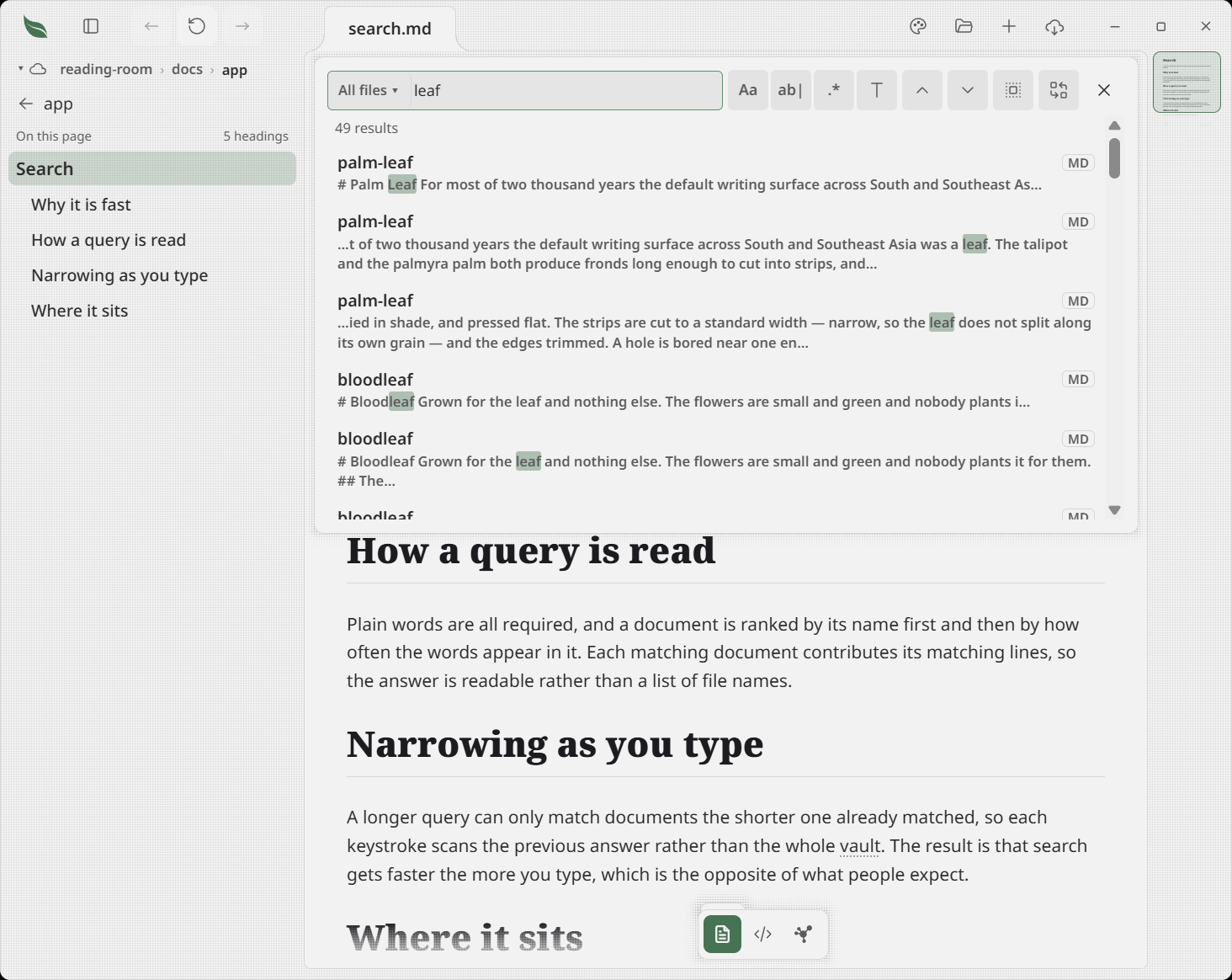
Search covers the active vault, and it is one of the two things the find bar searches. Press Ctrl+F anywhere and pick All files from the menu at the left end of the field; on the start screen, where there is no document, the bar comes up on All files already. The results hang under the bar, so the pane goes on showing your files or your outline while you read them. With no vault, the field says a notes folder is needed rather than looking like a box that works and does not.
Escape closes the bar and takes the results with it. Nothing about the pane changes either way — it is not where the answer lands.
| Search type | Behavior |
|---|---|
| Name matches | Ranked first, and by how much of the name you typed: the whole name, then the start of it, then the start of a word in it, then buried inside one |
| Its other names | Counted as names, on the same scale — a note's aliases entry matched end to end is worth what its file name matched end to end is worth. The row says which name matched |
| Folder names | Counted, and weakly — everything under notes/ matches "notes" |
| Content matches | Ranked by how often the terms appear for the document's size, so a long file cannot out-count a one-page note by being long |
| A word in the text | Found where it starts a word, so a note holding working is not found by king and fut still finds future while you type. A word in Chinese or Japanese, written without spaces, is found anywhere |
| A match in a heading | Outranks the same word in a paragraph |
| Multiple terms | Every term must appear, in a name, the folder or the body |
| More than words | The box takes a filter — #work status:open due:<friday -draft |
| Rows per file | Up to three, one per line the words are on — a word found twice on one line is one row with both places marked |
| Result limit | The best 50 files. Past that the count says so — "84 results in the first 50 files" |
| Folders left out | Named in the same line, with how many — "12 results · 1 folder of generated files not read". Rest on the line to see which. See Skipped folders |
| Text left out | A vault too big to read whole reads its notes first — Markdown, text, web pages, mail, Word, PowerPoint, OpenDocument and books — and its data files after, and searches the text past what it holds after the rest, straight off the disk, so those rows arrive under the first ones. The same line says "12 results · part of the vault's text not read" until every file has been searched, then goes. See Documents read under Facts |
| A file too far down to read | Found by the words inside it, read off the disk after the rest of the vault has answered, and by its name, when every word you typed starts a word in it — or all but one, in a search of three words or more, so the once and future king finds white-once-and-future-king. A file kept only online is found by its name alone, because reading it would download it |
| While the vault is still being read | Rows arrive in batches, a turning ring sits in the count line, and the count says what it has so far. Before the first row arrives, three result-shaped rows stand in their place — a name with the two lines of matched words under it — and they go the moment one real row exists, whether it is this query's first batch or the query before it |
Opening a result lands on the line the match is on. Documents whose source Leaftext cannot place a line in — anything but Markdown — fall back to the nearest heading above the match.
Asking the same thing twice costs nothing: the last answer is kept and handed straight back while the query and the vault's text are both unchanged, which is what happens when you walk the folder tree with a search still in the box. Typing one more letter costs almost nothing either — only the files that matched the shorter word can match the longer one, so those are the only ones read again, and the same holds for the names a file is found by. A box that held no word yet — a lone quote mark, say — narrows nothing, so the first word typed after it reads every file. Anything else, including a letter deleted or a file saved while you type, reads the vault afresh.
To search inside the document you are reading rather than across the vault, switch the same bar to This file — see Find in this document.
The text search reads is the same copy the graph reads: one pass over the vault, held in memory, patched a file at a time when you save the note you are reading, tick a box in it, or the watcher sees another file change, and dropped when you move to a different folder or quit. A read still running is stopped at the same moment, so leaving a big folder hands the machine straight back rather than finishing a pass nobody is waiting on, and the vault you switched to starts reading right away. Naming the folder you are already in — New vault… on a folder that is already a vault, or Change folder… accepting the folder it already shows — is not moving, so that vault keeps what it has read and a read still running carries on. There is no index on disk, so nothing can go stale relative to your files.
That pass starts as you arrive in the vault rather than waiting to be asked, so the field names offered under the search field are ready before you type — and a search made while it is still running is the one that pays for the rest of it. Arriving while another vault is still being read starts it too: only one vault is read at a time, so the arrival waits, and the moment the vault you left gives up its read the one you are in takes it up without being asked again. How long that takes is your disk rather than the matching — a vault read once already answers in milliseconds, and the same vault untouched since the machine started can take a minute. So the first one answers as it reads. Even the folder listing that has to finish before the vault can be read smallest-first no longer holds everything up: the first handful of documents the listing walks past are read straight away, so matches can be on screen before Leaftext has finished finding out what is in the folder. Those early rows are a taste rather than an answer, and one of them can vanish when the settled list arrives. A line above the results carries a turning ring while the vault is still being read, matches appear underneath as batches of documents land, and the count says what it has so far. Rows already on screen keep their place while more arrive, and keep being the same rows: a match that is still a match is left where it is rather than rebuilt, so a press half-way through it lands and the keyboard focus ring stays on the row you put it on instead of falling back out of the list. Only the rows the answer actually changed are redrawn. The list never grows past what a single answer can hold: while the vault is still being read it stops at the first fifty documents, the same ceiling every answer is ranked and cut at, so the count climbs to that ceiling and stays there instead of past it. The ranking is settled once, on the last answer, which is when the ring goes. A search you run while an older query's results are still up is marked the same way, so the results never show an answer to a question you have moved on from. The map still waits for the whole read, because a picture redrawn three times a second is not one anybody can look at.
Filtering
See Tags for the tags a note carries and how to rename them.
The search field takes more than words.
| You type | You get |
|---|---|
harvest | the word, in a name, one of its other names, the folder path or the text |
"the second draft" | those words in that order |
-draft | not that. It goes in front of anything, not just a word — -status:open works |
#work | the note carries that tag, or one under it like #work/reports |
status:open | a frontmatter field with that value |
status: | the field is set, whatever it says |
due:<friday | a date field before that day |
rating:>4 | a number field over that. <, >, <= and >= all work |
ext:md | a file of that kind |
in:notes/2026 | inside that folder, or anything under it |
task:open | the document holds an unfinished - [ ]; task:done wants every box in it ticked |
a OR b | either. OR and AND are the only reserved words, and only in capitals — a note called or is still found by typing or |
(a OR b) -c | grouped |
A date can be today, tomorrow, yesterday, a weekday name (friday means the next one, and today when today is a Friday), 2026-08-10, or last7d / next7d for any number of days. The day it counts from is your machine's, not a server's.
Nothing you type is an error. A search box spends most of its life holding half a filter, so every unfinished shape means something: an unclosed quote runs to the end of what you typed, an unclosed bracket groups to the end, a stray ) is ignored, and a trailing OR drops with the side you did type still standing. Inside quotes nothing is special, so "-draft" and "#work" find those characters.
A colon only starts a field when what is in front of it looks like a field name and what follows does not start with a slash — so C:\Users\me, https://leaftext.com and 12:30 are all still findable text rather than filters that match nothing.
It says what it understood. Type anything past plain words and a line appears under the box reading the filter back — tagged work, status is open, due before 2026-08-07, not draft — and naming any field the vault has never set. A filter on a field nobody uses matches nothing, and an empty list that really means "there is no such field" is the one thing a filter must not do quietly.
It completes as you type. The field names your vault actually uses, and the values each one holds, are offered under the box. Arrows walk the list, Enter or Tab takes one, Escape closes it — and only then does a second Escape clear the field. The list is what the vault sets now, not what it set when it was opened: add a field to a note and it is offered, and when the last note using a field drops it the name stops being offered.
Scheduled tasks
A checkbox in a note can carry a date. Every one of them that is still open shows up in one box on the home screen, above Recent and Favorites, with the nearest due at the top.
With a document open, the Tasks button at the foot of the library opens the same list over it.
The box is about the vault you are in, the same as Recent and Favorites. Leave the vault and its rows go with it; the new vault's own arrive once its text has been read.
| A row shows | Where it comes from |
|---|---|
| The words on the checkbox line | The line itself, without its date |
| The note and the folder holding it | The path |
| The date | Red once it is past, green on the day itself, amber from tomorrow through the next seven days, gray after that. Today is your machine's |
Overdue work is at the top, because a past date is the nearest one. Two tasks due the same day settle by note and then by the line they sit on, so the order does not shuffle between one look and the next. Pressing a row opens that note and lands on the checkbox.
A ticked box is not in the list, and neither is a checkbox with no date on it — those stay in their notes. With nothing open and dated, the box is not on the screen at all.
Calendar
Inside a vault, the Calendar button at the foot of the library opens a month of the vault's documents in a sheet from the bottom of the window. Each day wears up to three marks for the documents dated to it, and its full date and count are read out to a screen reader.
| Control | What it does |
|---|---|
| Changed, Made, or a field | Which date is counted: when a file was last changed, when it was made, or any date field the vault's notes write in their frontmatter. Written dates are grouped under Written in your notes, with how many notes carry each. The calendar starts on Due where the vault writes one and remembers your last choice. A written date and time belongs to the day it names. A field that disappears from every note falls back to Changed for that vault without replacing your choice |
| Month, Week, Day | How long a stretch is shown. The choice is kept until the app closes |
| The arrows and Today | Step back or forward by the stretch shown, or jump to today |
Pressing a day closes the sheet and leaves the pane listing that day's documents, up to 50, with the folder each sits in. The cross beside the day's name puts back the outline or file tree that was there. A search from the find bar leaves the day where it is.
The keyboard works the month too: the arrows move a day or a week, Home and End reach the week's edges, Page Up and Page Down turn the month, Enter or Space picks, and Escape closes the sheet.
The calendar reads only the vault's text already held in memory, and it stays current: a file changed, made or re-dated while the sheet is open is counted again. Outside a vault there is no Calendar button.
Other names
A note can answer to more than the name of its file. Give it an aliases field and every name in the list works everywhere the file's own name works:
---
aliases:
  - Mozart
  - W. A. Mozart
---
Now [[Mozart]] reaches Wolfgang Amadeus Mozart.md — it draws that edge on the map, finds the note in search, previews it on hover, and appears in the [[ popup with the file it opens named beside it. Written aliases: [Mozart, W. A. Mozart] on one line, or as a single aliases: Mozart, it reads the same. This is the same field Obsidian uses, so a vault written there opens here with its links intact.
A name with a comma in it goes in quotes. On one line, aliases: ["Smith, John", Jack] is two names — the quotes run until their pair, so the comma inside belongs to the name and [[Smith, John]] finds it. An apostrophe is left alone: [a, don't, b] is three names, because a quote only opens a run where a name starts. A list written a line each needs no quotes at all.
A few rules, so a preferred name can never quietly take a real one:
- A file name always wins. If one note is called
Mozart.mdand another prefers the name,[[Mozart]]opens the file. - Between two notes preferring one name, the first found wins, and the code view's broken-link check says which note the link opens and which others wanted it.
- A node on the map keeps its file's name — a node labeled with a preferred name is one you cannot find by the name on disk. Hover it to see the rest.
- Thirty-two per note. Past that they are ignored, and the check marks the
aliasesline to say how many there were.
It works outside a vault too: for a document in a plain folder, Leaftext reads the top of each file beside it — the field block and no further — for up to 500 files. One folder, never the tree below it.
Tags
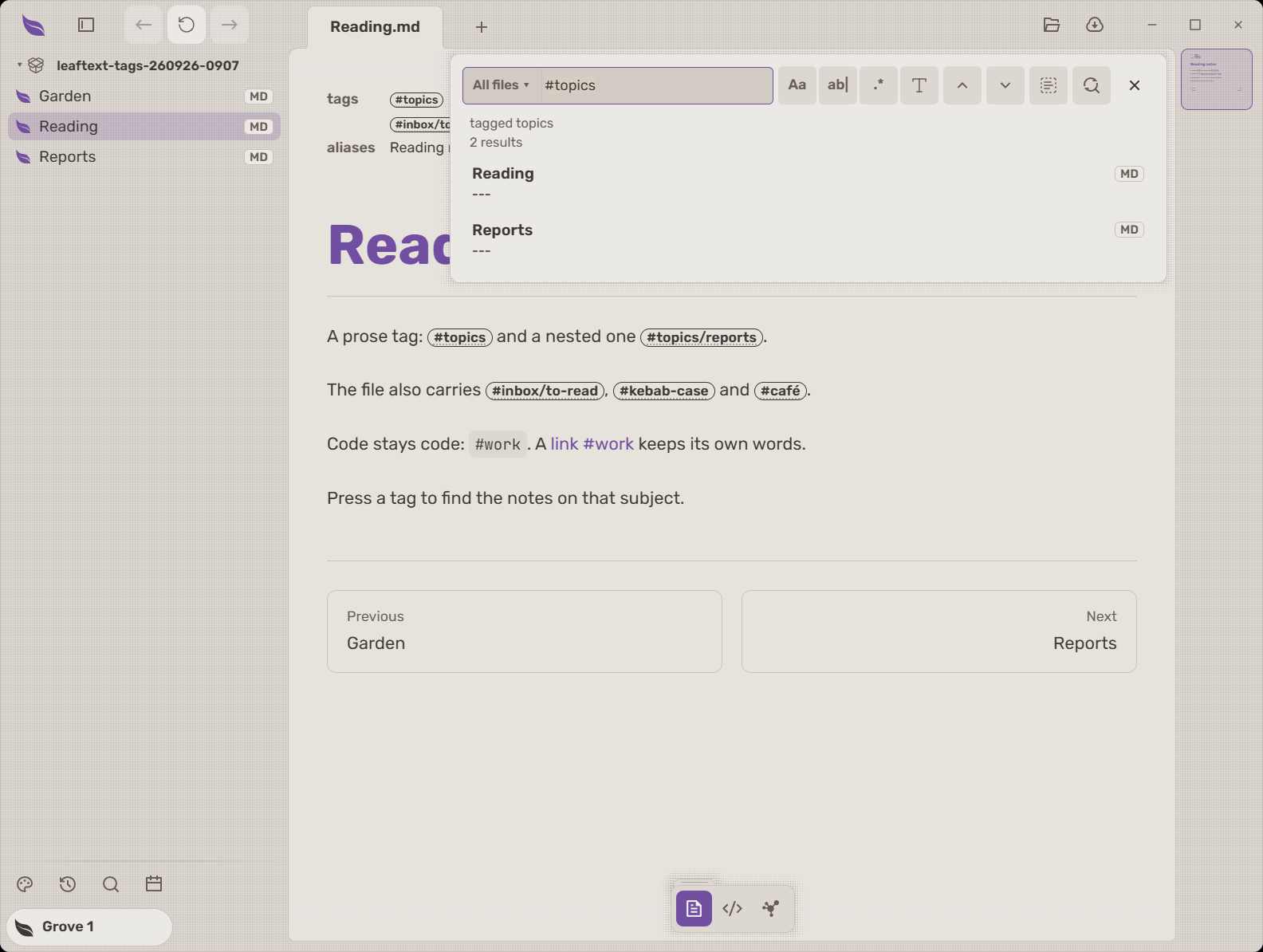
A tag such as #work or #work/reports draws as a small pill in a Markdown note's prose and in its tags field. Press it to search the active vault through the find bar's All files. A parent tag finds its children: #work finds #work/reports, while #workshop is a different subject. Matching ignores capitals.
Tags in prose and the field block belong to the same set. A field value may include its leading # or leave it out. Tags inside code, link words, addresses, brace syntax and heading-only wiki references stay text. A tag needs a letter: a number on its own, or held together by slashes or dashes as in #2/ or #2-, is not a tag, and a slash at the end of a tag is not part of it. Outside a vault, tags still draw as tags.
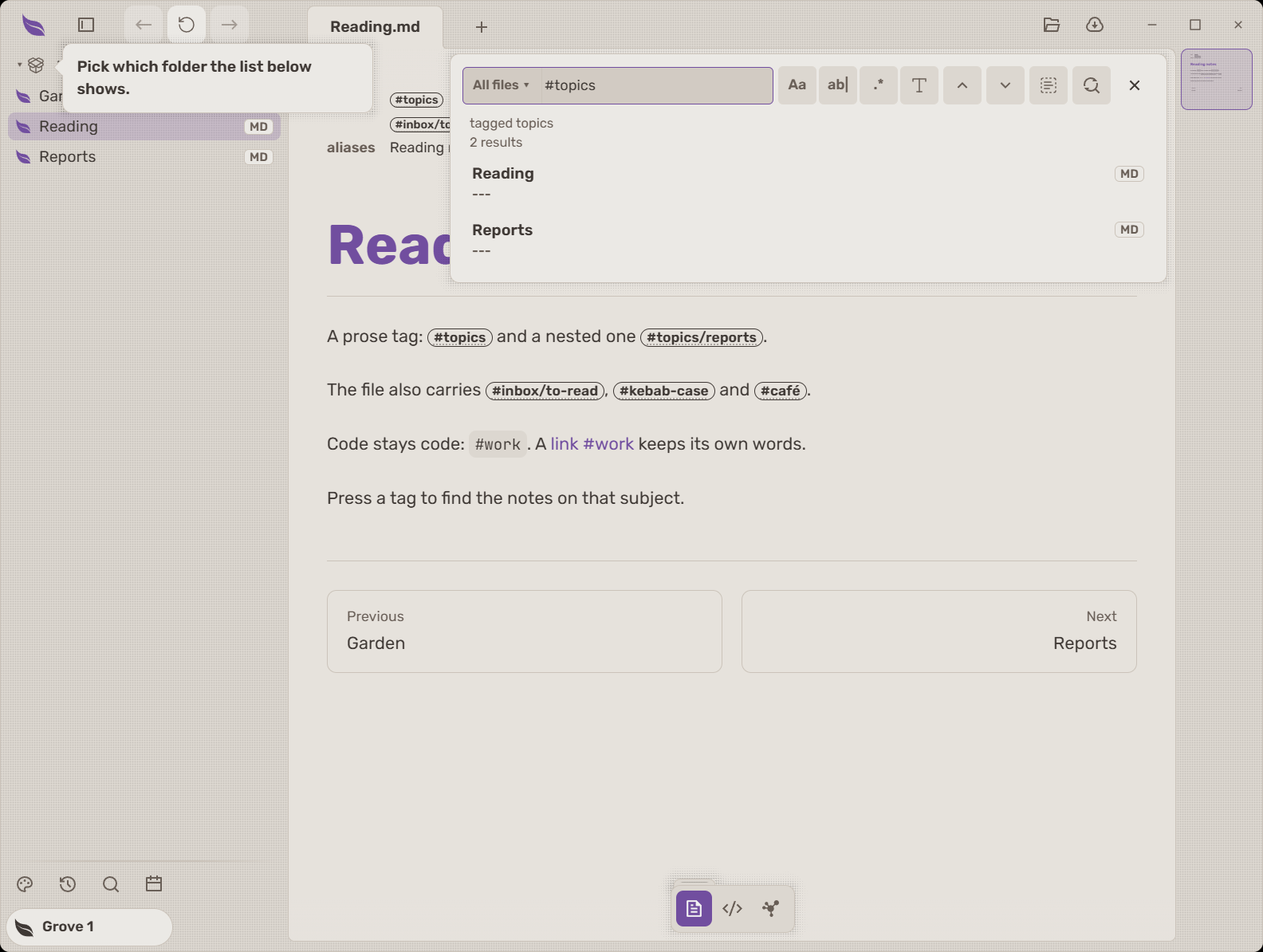
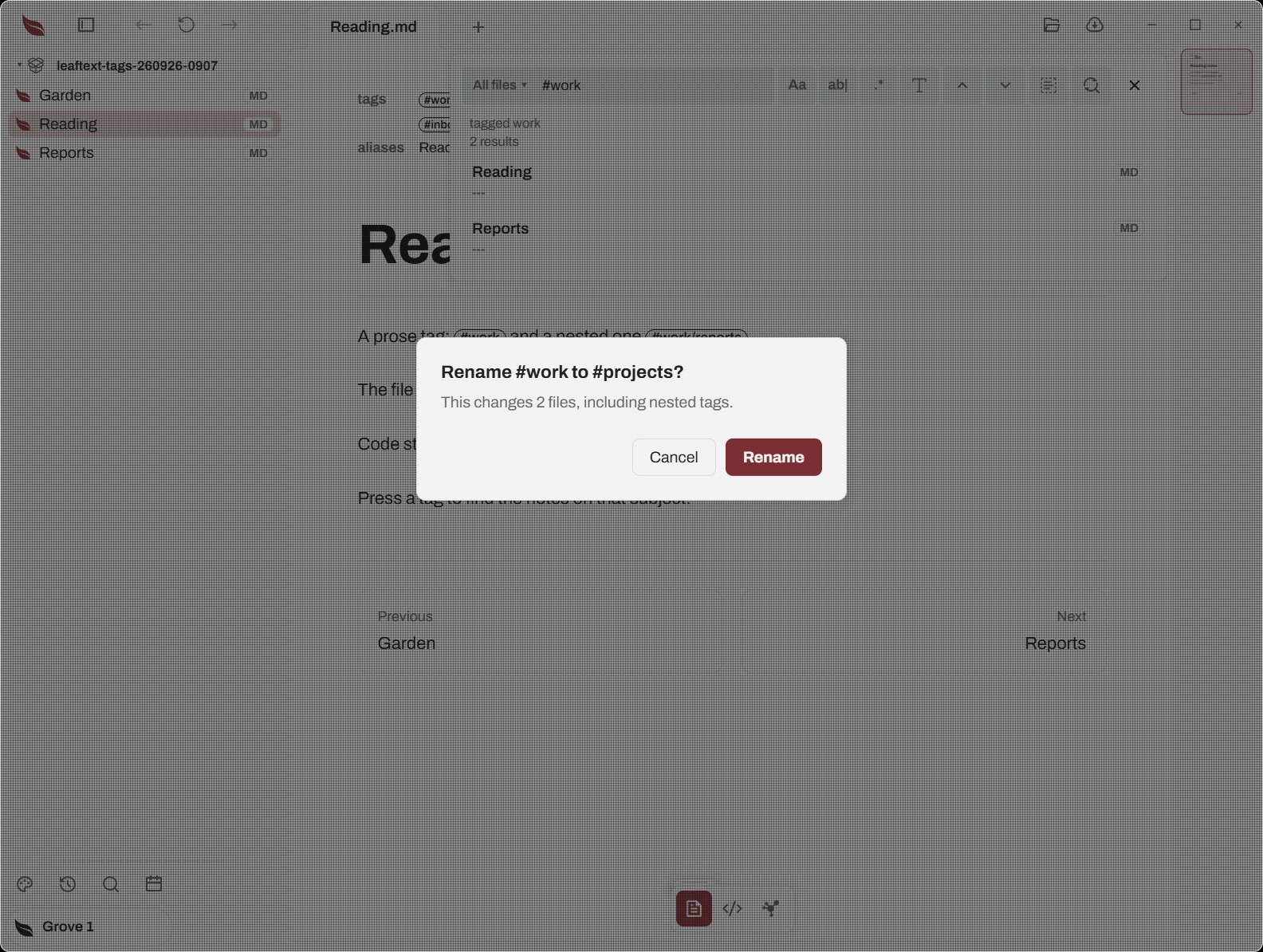
In the desktop app, right-click a tag for Search for this tag or Rename everywhere…. Enter the new name and choose whether to include nested tags. Leaftext counts the files before asking you to confirm. A rename keeps each note's encoding, line endings, quotes and other words. Save or discard unsaved edits in affected notes first. A read-only file or a file changed since confirmation stops the run; a stopped run lists the files changed and the files left unchanged.
The browser readers offer tag search where their host has a vault; they cannot rename files on your disk.
Graph
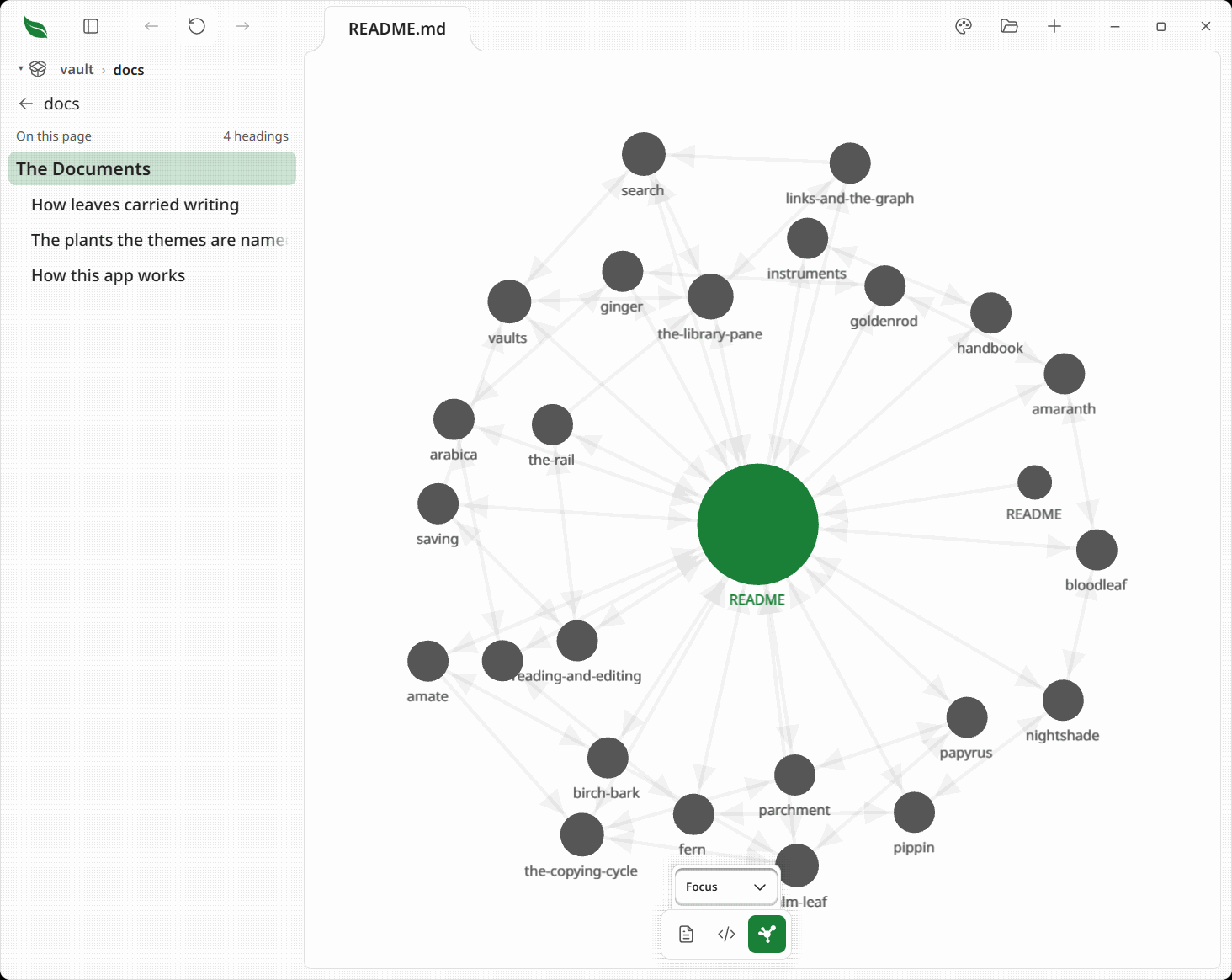
A force-directed relationship map. Each node is one of your documents or a web address one of them links to; each edge is a link that resolves — a Markdown link, an <a href>, a [[wiki]] link matched by file name or by one of the note's other names, a TEI target=, or a bare URL in the text.
It is a view of the page, not a panel — reach it from the floating toolbar under a document or web tab, beside reading and the source view. It does not need a vault.
What it maps
What it draws over depends on where the open document lives, and you never choose between them:
- Inside your active vault — the map is of the whole vault. Every document in it is a node, so you see what links to the document you are on as well as what it links to, and
[[wiki]]names resolve against the whole collection. - Anywhere else — the map is of that document: itself, the documents in its folder, and whatever it links to, wherever those live. A link is followed one hop out; nothing below the folder is read.
- On leaftext.com and Emptyguru — the map uses the links published with the site's document list. It draws the open page, other pages in its folder, and pages it links to without fetching those pages when you open the map.
- In a live web tab — the map draws the current page and up to 499 distinct pages it links to. Pages on the same site are filled and named by path; pages on another site are rings named by site. Press a page to visit it in the tab and redraw the map around it.
The second map is smaller, not wrong. A document only ever records what it links to — what links back is written in somebody else's file — so reading the folder is what recovers incoming links, and it stops there. A link to a document outside the set simply draws no line. Web addresses are unaffected — those are nodes in their own right, so a document's outbound links show up either way. Put the folder in a vault and the map widens.
Neither map reads anything you did not point at. The vault's map reads the folder you named. A document's map reads that document, one folder listing, and one file per link. Opening the map on a file sitting at
C:\does not walk your drive.
Moving around it
- The map opens framed on everything it drew — the tightest zoom that still holds the whole layout, centered. Two documents fill the view; two thousand shrink to fit. The first pan, zoom, drag or flight hands the view over to you, and it stops reframing — including across leaving it: go and read a document, come back, and you are looking at the same corner at the same zoom. A framing you never touched is framed afresh, and so is a map of something else.
- While the layout settles the view follows only what leaves the frame, then frames everything once more when it comes to rest. A force layout breathes as it works, and a camera refitting on every frame of that put the pumping on screen.
- The document you are reading is highlighted in the accent color and pulled larger.
- Names float in dim gray beneath the nodes. They stay a fixed size as you zoom and are decluttered by fit: where the layout is open every name shows, and where nodes crowd only the ones that clear their neighbors do. The document you are on always keeps its name, and hovering shows the hovered node's name and its neighbors'.
- Edges point the way the link was written. An arrowhead sits where the line meets the document being linked to. Two documents that link each other get one line with a head at both ends, not two lines on top of each other. Heads are left off a very dense map, and while you are zoomed far out — at that size they are ink and nothing else.
- Click a node to open that document and keep the map — it redraws around what you opened and flies to its node, so you can carry on following links from there. Hover to light up a node's direct links and dim the rest.
- Drag a node to reposition it, drag the background to pan, scroll to zoom.
- Opening a document from the pane while the map is up keeps the map up too, and moves the highlight. Changing what you are looking at is not a reason to change how you are looking at it.
- Closing the last tab closes the map with it: the start screen is not one of a document's views.
- Editing a document the map covers redraws it in place: every node keeps its position, your pan and zoom are kept, and the layout eases into what changed rather than laying itself out again. An edit that draws the same map — a word typed into a document that links nowhere new — changes nothing on screen at all.
- Coming back to the map shows it at once. Leaving it for another view keeps the drawing, paused, so switching back is the same picture at the same corner with no wait — a layout that was still settling picks up where it stopped. It is drawn again only when something could have changed it: a different graph size, a document whose map is a different map, a vault switch, or a file behind it being edited, saved or changed on disk.
- Leaving the map puts the page back where you were reading. Press Reading and you are on the paragraph you left; press Source and it opens on the lines that were on screen rather than at line 1, and a source view you were already in comes back to the same scroll. That holds whichever view the map was opened from: open it from the source view and Reading lands on the paragraph those lines were, rather than at the top of the page.
- Building the map shows the same waiting page a slow document does — including the redraw after a node click, which builds a new map. Leaving the map shows it too: open a search hit or switch to the source and the map holds until its replacement is ready rather than dropping to a half-drawn page, with the wait shown on top of it.
How much it draws
How many documents it draws is set by the Graph size setting — from a tight Focus neighborhood (the open document and its direct links) up to Everything. Smaller sizes render faster; larger ones stay responsive by easing the layout and repainting less often as it settles.
A vault stops reading at its limit, so a very large one can hold a document it never read. That document is mapped from its own links rather than drawn empty, the way it would be outside any vault. Where a Focus map inside a vault still comes back with nothing, it says the document is not in that vault's map — not that the document has no links.
Web addresses
A http/https link is a node too, drawn as a ring with a dot at its center rather than a filled disc, and labeled by its domain — reddit.com, not the whole URL, which stays in the tooltip. Clicking one opens your browser and leaves the map exactly as it is — no redraw, because nothing here replaced the document you are on.
They are found wherever the reader can click one: written out as [text](https://…), in <https://…> angle brackets, in an <a href>, and bare in the text, by the same finder that turns bare URLs into links when the document is rendered. So the graph and the page can't disagree about what a link is.
Two documents citing one page share one node — the point of drawing them. The scheme and host are matched case-insensitively and a #fragment or trailing slash is ignored, so https://Example.org/a/, https://example.org/a and https://example.org/a#notes are one page.
- Email addresses are not nodes. Neither is any other scheme —
mailto:,file:, a custom one. - One document contributes at most 25 web addresses. A bibliography is a real document, and without a cap it would bury the notes around it.
GitHub sync
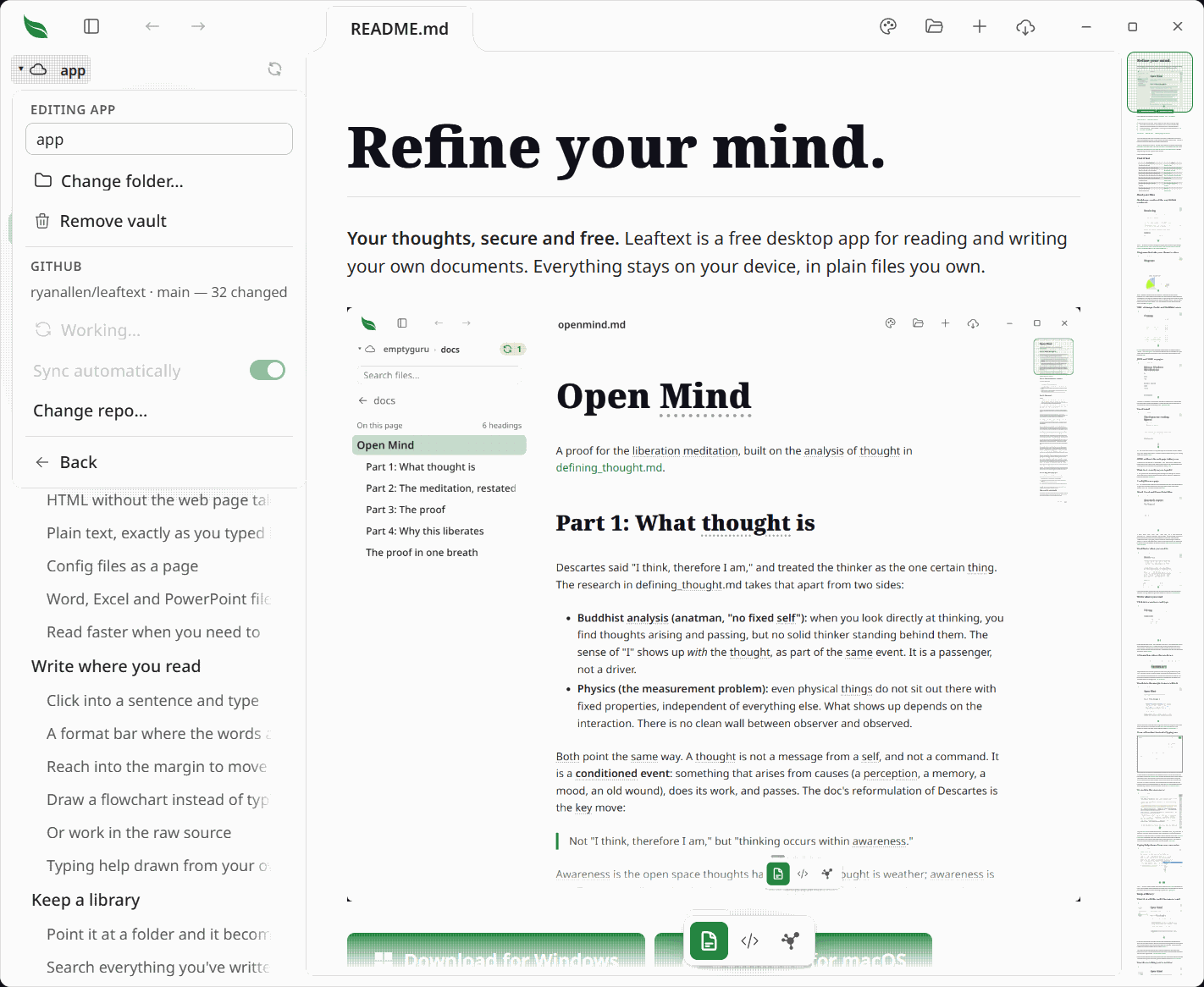
A vault can be a git repository that pushes to GitHub. Open a vault's settings from the switcher to see where it stands. The panel stays open while you go elsewhere — the row that opens a browser leaves it standing, and switching away and back leaves it there with whatever you had typed in it — so pasting an address you had to fetch is one trip rather than two. The lists it opens over, the vaults and the folders the path swallowed, close with the window the way any menu does.
What it needs
git is the only requirement. Leaftext never holds a token: it runs the git already on your machine, which already knows who you are and how to sign in.
| What is installed | What the panel offers |
|---|---|
git and gh | Create a private repo — one click, made and pushed |
| git alone | Create it on GitHub ↗ — opens GitHub with the name filled in; paste the address back and the panel points the vault at it |
| neither | A link to install git, and nothing else |
On Windows, Git for Windows installs Git Credential Manager and sets it as the default, so the first push opens a browser once and never asks again. On macOS the bundled credential helper cannot sign in to GitHub any more, so gh or Git Credential Manager has to be installed; the panel says so rather than letting a push fail.
The panel also warns before the fact about the two things git needs and often lacks, and each warning carries its own way out rather than stopping at the diagnosis.
No identity. Two fields and a Set who I am button under the warning. What you type is written to git's settings for the whole machine — the same place the warning is read from, so a press that works is a press that clears it, and somebody with no identity at all sets it once rather than once per vault. An empty field, or one starting with a dash, is refused before git is run.
No way to sign in. A sentence naming what fixes it — install gh and run gh auth login, or a credential manager — and How to sign in ↗, which opens GitHub's own page on it. It is a link and never a button: every git Leaftext runs has its prompts shut off and no console to hold a conversation in, so signing in is something you do, never something the app does for you.
And a failed sync says which of them to press. Where git's own words name the cause — nothing signed in, or nobody to commit as — the panel says so and points at the fix above it, instead of handing over git's first printed line untranslated. Where they name neither, git's line stands as it is: a network that is down has no button here, and pointing at one would send you to press the wrong thing. Where git printed nothing at all, the line names the step and how it ended — git add stopped without saying why (exit 128) — rather than the step alone.
Clone a repository
Clone a repository… in the vault switcher takes a git address, asks where it should go, and makes the clone a vault. Paste https://github.com/owner/repo.git or the git@ form; the folder you pick is the parent, and the repository gets its own folder inside it named after itself.
Nothing of yours is at risk if it goes wrong: git makes that folder and removes it again if the clone fails, so a broken clone leaves nothing behind and no vault is registered. A name already taken in the folder you picked is refused rather than cloned into.
Again there is no sign-in of Leaftext's own. A public repository just works; a private one works when your own git can already reach it, and says what is missing when it cannot — Leaftext never puts up a password box, because a prompt behind a window it cannot show is the one thing worse than a clear refusal.
Changing the repository
The settings panel names the address the vault points at now. Change repo… opens a field for a new one, with Save and Cancel: nothing changes until you press Save, and the address it replaces is offered back with one press in case the change was a mistake.
Setting or changing the address only points the vault — it never pushes on its own. Sending your files starts with a separate, deliberate Sync, so naming a repository can never overwrite what is already in it. Leaftext also refuses to act on a repository the vault folder merely sits inside; it works only on a repository the folder is the root of.
Syncing
Sync commits everything changed, asks GitHub whether it holds anything the vault lacks, and pushes. Only when it does is the vault rebased onto it, after committing anything written since the first commit — so a file another program or a second window writes while a sync runs never stops the push. Commit messages describe the change — Update README.md, or Update 4 files — and carry no mention of the app.
GitHub sync starts manually unless this vault's settings has Sync automatically turned on. The switch belongs to one vault and starts off, so private notes can wait for a press while another vault sends itself. An automatic sync waits for the vault to stop changing: it starts ten seconds after the last change, so a run of saves — yours, or an agent's, or another program's — goes to GitHub as one sync rather than one per file. A vault that never goes quiet is sent anyway after two minutes. Once a sync finishes, whether it started itself or you pressed Sync, the next automatic sync of that vault waits until a minute has passed since it finished, so saves spread over a few minutes go out as a few pushes rather than one every ten seconds; saves during that minute do not push its end back. The minute is counted only while the app is open, so a fresh launch waits the usual ten seconds. Pressing Sync during any of these waits starts at once. Automatic sync uses the same Sync turn, count and result growl as the button. After a failure, later saves leave the header's Sync button waiting instead of trying again, the switch stays on, and the panel says Automatic sync stopped. Press Sync to start it again. The button says so too, for as long as it lasts: it turns red and reads Stopped before its count, its tooltip carries what went wrong, and the failure's growl adds that automatic sync is off until a sync works. Pressing Sync or completing another GitHub action allows automatic sync to start again. A sync is never given up on for taking too long. Sending a large vault the first time can run for as long as the connection needs; what stops a transfer is going quiet, and it is stopped only after two minutes with nothing arriving, which the panel and the growl say in those words rather than blaming the network. Every failed sync also writes one line into the journal naming the vault, the step, how git ended and everything git said, so a sync that stopped while you were away leaves something to read; a sync that worked writes nothing.
A sync button appears at the end of the vault's breadcrumb whenever there is work that has not reached GitHub, carrying the count. It spins for as long as the sync is really running — opening the vault's settings mid-sync leaves it spinning and the panel's rows dimmed, so a second sync cannot start over the first — and a vault too large to stage quickly is never cut off part way, since stopping git there would leave the repository locked against every later sync. Resting on it while it spins shows how far along the upload is, in a bar under the breadcrumb reading the count and the percentage git itself is reporting — 283 of 827 · 34%; a keyboard focus opens the same bar, a press on the spinning button still does nothing, and a step with nothing to count draws no bar. It fades out still spinning — more slowly under Reduce Motion, which slows every spinner rather than stopping it — and a growl in the corner says where the push landed. Where GitHub held commits the vault lacked, that growl and the panel's note count them at the end of the same sentence — Nothing to send; 3 came down. — which is the only record you get that the vault changed under you, since the panel's standing above it reads as up to date by then. It is absent when there is nothing to send.
The count is uncommitted changes plus unpushed commits — both answerable from disk. Whether the remote has moved needs a fetch, so it is not checked in the background; behind-counts appear in the vault's settings panel and after a sync, where you have asked for them.
A tracked repository inside the vault is left to itself: work still uncommitted inside it is not counted as waiting and is never committed from the outer vault. When that inner repository moves to a new commit, the changed recorded commit belongs to the outer vault and is counted and synced.
A rebase that hits a conflict is undone before the sync returns. There is no merge view in a reader, so the panel says what happened and leaves the folder as it found it, for you to resolve in git.
Repositories inside repositories
A vault whose folder already holds a repository somewhere below it — a project vault with the code in app/ — has that named in the panel, whether or not the vault is a repository itself. Creating a repository at the vault root adds those nested ones to a new .gitignore, with the reason written beside them: each has its own remote, and tracking one from outside records a pointer nobody else can resolve.
A vault that already is a repository gets the same warning and one press to act on it. Where one of the repositories inside it is neither tracked by the vault nor already named in the vault's own .gitignore — a project you cloned in yesterday — the panel says the next sync would swallow it as a pointer nobody else can resolve, and Ignore them writes those folders into the .gitignore with the same reason beside them. Pressing it a second time adds nothing, because a path the file already names is skipped.
The offer names only the ones nothing is holding back. A repository the vault already tracks is left exactly as it is: it is named in the panel, kept out of the offer — an ignore line for a tracked path does nothing — and its moved commit is still committed and pushed the way syncing describes.
A vault sitting inside someone else's repository is told so too. Creating a repository there is legal and common, but it should not be a surprise afterwards.
Live updates
While another app is in front, the documents on screen and the folder list keep updating. The vault's changed-file count, search index and map catch up once when you return; any unsaved edits stay in place.
The pane keeps up with changes on disk, so a file you just created shows up without a refresh.
- The same file watcher that drives live reload watches the active vault recursively, plus the open document's folder when it sits outside the vault. With no vault, only the folder you are browsing is watched, and not recursively — browsing a drive root should not subscribe to the whole drive.
- A file added, renamed or removed in the folder you are looking at refreshes the list. A read that describes exactly what is already on screen leaves the rows where they are, so a row can never be replaced under your finger mid-click.
- A change inside a
.gitfolder is ignored outright. Nothing in there is a document to open or a row to draw, and reading a repository's state runsgit, which writes there — so treating those writes as news is the app answering itself for ever. - A change inside a folder that holds generated files is ignored the same way, for the same reason: it is not a document and not a row, and a build rewriting tens of thousands of files at once is the one thing measured taking a third of a computer while nobody was touching the window. See Skipped folders for which folders those are. The exception is the folder the open document sits in, so a file you are actually reading out of one still reloads when it changes.
- Something you did — a paste, rename or delete — refreshes the list the moment it lands, rather than waiting on the watcher to notice.
- The vault's in-memory text is patched for the one file that changed, so search, the graph and the completion menu under the filter box stay current without re-reading the vault. Saving the note you are reading takes the same path, so the words you just wrote are findable at once rather than after the vault has been read again. So does a checkbox you tick in the page, in a list or inside a table, which writes the file straight away and with no press of Save behind it. Only a document whose text actually moved counts: a vault is a folder you work in, and git writing to itself, a saved image or an editor's temp file are not changes to your documents.
- A folder rewritten wholesale under the window — a branch switch, a folder sync, a pull — arrives as one debounced batch, and the pane is re-read once for the batch rather than once per file. Each changed file's text is still patched into the vault, and the graph is redrawn at most once for the whole batch.
- A change that lands while the vault is still being read is held until that read finishes, then applied once. The pass under way is reading every file as it was when it started, so a change folded into it would either be thrown away by the batch that replaces the first rows or carried back stale by a later one. Search can answer with the old words for the rest of that read; the answer it settles on when the ring goes has the change in it.
- A graph of one document rather than a vault holds nothing in memory to patch, so it is simply read again — a folder listing and a file per link, which is cheap enough not to cache. It cannot go stale, and a redraw that produces the same picture never reaches the screen.
- The sync count is re-read too, whether the change was to the document you are editing or to any other file in the vault — and again whenever the window is focused, which is what catches a commit you made in a terminal: that writes nothing but the repository's own bookkeeping, which the watcher ignores.
Launchers at the foot
A row of buttons sits at the bottom of the pane, so the lists on the home screen are one press away while a document is open:
| Button | What it opens |
|---|---|
| Tasks | The Scheduled tasks list, over the document. Shown only while a dated checkbox is still open |
| Favorites | The home screen's Favorites list, over the document. Shown only while something is a favorite |
| Recent | The home screen's Recent list, over the document. Shown only while something has been opened |
| Search | The find bar, set to All files when a vault is open, and to the document when none is |
| Calendar | The Calendar month, over the document. Shown only inside a vault |
A button with nothing to open is left out and the row closes up around it. Opening a list never leaves the document: close the list and you are where you were. Every button wears the drawing of the icon set your theme uses.
Drag the pane narrower and the row stays one row: whatever no longer fits folds under a chevron at its end, the same one the app bar folds into, and opens upward as a menu. Widening puts each button back in its place. A launcher you reached with Tab keeps the keyboard while the pane moves, on the row or inside the open menu. Close the pane and the row goes with it.
The row and the pill sit on a small page of their own, which ends just past the last button — or past the pill, where the pill is wider — so on a pane dragged wide the pane's own texture fills the rest of the width. The page grows and shrinks as buttons come and go and as they fold, and on a pane too narrow for even one button it gives way to the buttons alone.
Under the row sits the Grove pill, which opens Your Grove, the record of how you use Leaftext. It runs the width of that row, and never narrower than four launchers' worth, so it reads whole on a fresh copy with only Themes and Search on the row. Drag the pane narrower than the pill and it narrows too, shortening its words and keeping its leaf, and it goes with the row when the pane shuts.
Layout
| Behavior | Rule |
|---|---|
| Toggle | The panel button in the app bar, left of Back, opens and closes the pane. It never folds into the app bar's overflow menu, so it is reachable at every window size. Opening or closing it keeps what you were reading at the top of the page, and inside a long table that is the row you were reading, even though the page's new width wraps every row to a new height |
| Long tables | Tables beyond the view take their new width one at a time after the pane lands. If you scroll while they settle, they wait until the scroll stops, then the nearest table settles first. |
| Motion | Opening springs slightly past its width and settles; closing slams to the page's padding, bounces off it once and seats there, the pane's contents fading with the travel. The pane, the tabs above it and the page edge move as one, dragging the divider tracks the pointer exactly, and under Reduce Motion both land instantly |
| Opening width | 240 px, or the width of the buttons at the left end of the app bar where those come to more — the leaf, the panel button and the history arrows, and on macOS the window's own three dots beside them. That group is sized to the pane so the tab strip begins at the pane's edge, and a pane opening inside it would leave the first tab over the page. A width you dragged to is restored exactly as you left it, at any size |
| Snap shut | Drag narrower than 40 px |
| Reader minimum | Reader stays at least 360 px wide |
| Small window | Too tight for a pane beside the page, so the library becomes a full-width sheet over it — see Narrow windows |
Saved library state includes:
library_closedlibrary_widthgraph_scopecalendar_fieldlibrary_project_path
The active vault is saved in manifest.db beside the vault list, not in settings.
Narrow windows
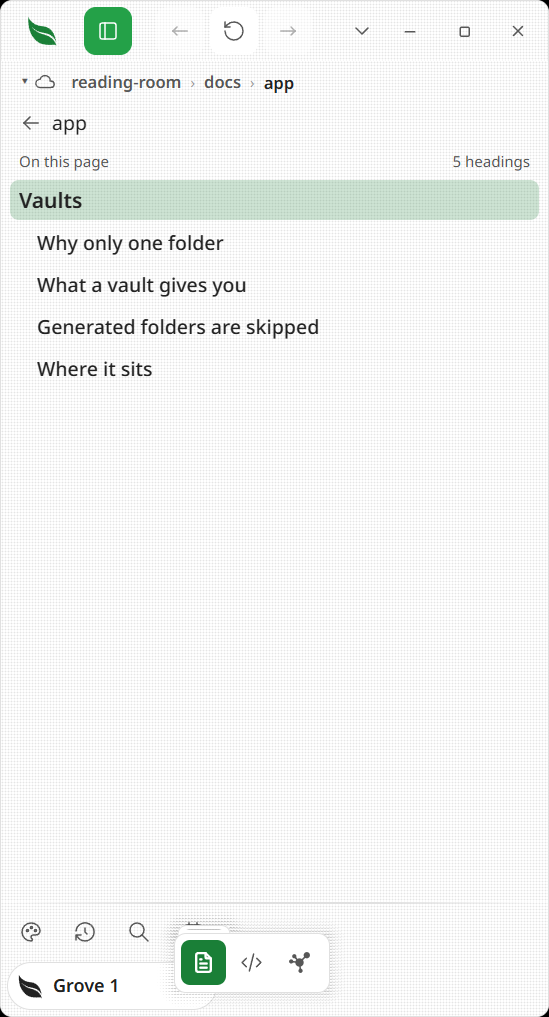
Below the point where a pane at the width it opens at and a usable reader both fit, the library stops being a column beside the page and becomes a sheet over it. The same panel button opens it: it slides in from the left at full width, covering the document, with the vault name and path at the top — or arrives in place, with no slide, under Reduce Motion. Picking a document dismisses it, since the page you just opened is behind it. The app bar stays above the sheet, so the button that opened it also closes it. On a phone or tablet the button goes back to rest the moment your finger lifts, so it never looks lit after the library has shut; a mouse still lights it while the pointer is over it. Every other button in the app works the same way.
The sheet is not saved. It describes the current view rather than a preference, so widening the window puts the pane back beside the page and there is no sheet to restore.
Facts
| Item | Value |
|---|---|
| Vault registry | manifest.db — the vaults you have named, and which one is active |
| Vault text | Held in memory for the active vault only; dropped when the folder you are in changes, and on quit |
| Documents read | Up to 25,000 per vault, or 32 MB of text — whichever comes first, notes before data files and smallest first within each. A file past either is still found by its name and its words, up to 100,000 files listed |
| Folders not read | A folder that declares itself a cache, and eleven names a build tool picks. See Skipped folders |
| Repositories inside a vault | Found up to three folders deep, stopping at the first one on each branch. See Repositories inside repositories |
| Scheduled tasks | The active vault's open dated checkboxes, nearest due first. See Scheduled tasks |
| Search results | Top 50 |
| A calendar day's documents | Top 50 |
| Folder listing | One directory per click |
| First-launch bubbles | One per launch at most, with a quiet launch between; each one shows until you point at what it points at, then never again. A sheet takes it down, unmet, until the last one closes |
| The pane's vault introduction | Shown once, to a reader with no vault outside their cloud folders; retired by picking a folder or opening the vault list |
manifest.dbkeeps its name from when it held a file index. It no longer does — anything that reads a document reads the disk. What it holds now is the list of folders you called vaults, which is why losing it loses that list.