Navigation
Never lose your place. Leaftext moves like a browser — tabs, Back and Forward, in-document jumps, and your reading position kept across reloads, tab switches and every step back.
The navigation model is simple from the outside and fairly careful under the hood. Each tab keeps its own file history and its own in-document scroll history.
Summary
| Feature | What it means |
|---|---|
| Tabs | Open multiple documents at once |
| Tabs inside a document | Switch among sheets in a workbook or named parts of a Markdown note |
| Web tabs | Browse a live web page beside your documents |
| Two documents side by side | Stand a second tab beside the one you are reading, each column scrolling on its own with its own rail |
| New document | The + in the app bar starts a blank page, ready to type |
| Outline | The open document's headings, listed in the library pane with the one you are reading lit, labeled with how many headings it holds |
| Back / Forward | Move through file history and in-page jumps, landing where you were reading, with the page you arrive at on screen at once |
| Refresh | Draw the open file from disk again, dropping page-only state such as a folded block or dragged table column |
| Scroll anchors | Restore the same reading spot after rerenders, and on every step of a tab's history |
| Scrollbars | Every bar fades in while its box is being scrolled and out a moment after it stops, and comes back thicker while the pointer rests on it — or stays drawn the whole time, where your machine is set to always show scrollbars |
| Live reload | Reload a changed file without losing your place |
| Recent files | Reopen a recently opened file from the home screen, showing the vault you are standing in |
| Favorites | Favorite a file or folder so it is never lost off the end of Recent, in its own column beside it |
| Loading | The reader holds the shape of the page that is coming — a heading bar and the paragraph bars under it — while a slow document or view renders |
| Export the page | Save the page you are reading as one continuous PDF, as a picture of the whole document, as a web page with its stylesheet, its pictures and its minimap in a folder beside it — every one of them in the theme on screen — as the Markdown note itself with its pictures in a folder beside it, or as an EPUB book with its pictures inside, for a phone or an e-reader |
| Glossary sheet | Open a glossary term over the page without leaving it |
| Link hints | Hover a link to see what kind it is, where it points, the opening of a linked note, and a glossary term's whole entry |
| The pointer | The hand means this goes somewhere — a link, a button written into a document, and the controls that carry you between documents; the arrow stays over the reader's view buttons, the vault switcher, every menu and popup row, the icons the app bar draws for itself, and anything you cannot press right now |
| What a control does under the pointer | The buttons at either end of the bar, the file rows in the pane and a button written into a document answer with their color over the same beat, and with nothing else — none of them lifts, changes shape or moves. The Previous / Next card answers with its color and a dotted shadow around it, and is the one control that adds anything |
| Open a link in a new page | Ctrl-click, middle-click or right-click a link to open it behind what you are reading |
| Pager | Previous / Next buttons at the bottom of each document for reading a folder in order, filling with the theme's color under the pointer and throwing a dotted shadow around themselves |
| Single window | A second launch opens the file as a tab in the running window instead of a new copy |
| When another app is in front | The whole window settles together the moment it falls behind another app — chrome, document, pictures and the little picture of the page all keep some color at half strength, with black text going less dark, faded in and out over the same beat |
| When the bar runs out of room | On a window too narrow for the whole app bar, its buttons fold into a chevron menu one at a time — and the window's own close, minimize and maximize stay on the bar |
| Code view | Toggle any document to its raw, editable source |
Web tabs
Press + and enter an address in the field in the middle of the empty page. A bare host such as ryanallen.com opens over HTTPS; words open a Google search. Typing the first character of a note removes this field.
A web tab takes its name from the page's title. Move the pointer onto the app bar to slide its address open, or press Ctrl+L to select it. Enter opens the new address, Escape closes the bar, and Copy copies the current address. The bar stays open while you edit and closes after the pointer leaves it and the app bar.
Back, Forward and Refresh control the live page. Refresh keeps your place as the page loads, even when its own script adds content later. Closing, switching and dragging work as they do on document tabs. A saved web tab reopens at its last address when you bring it forward. Links asking for a new window open in another web tab. A link that hands off to another app on the computer — a Linear issue, a Slack channel, a mailto: address — asks first: a message names the app, and Open starts it. The minimap shows a picture of the page and follows its scroll position.
The live page fits inside the reading card's thin border and all four of its rounded corners, so its top turns down on the same curve the bar draws over a document; the address bar lies over its top while the page holds still. Its main scroll bar is hidden because the minimap shows the page's place; scrolling inside a page element still uses that element's own bar. The active web tab takes a solid page background when one is available and chooses readable light or dark letters for it.
An HTML file opened on the desktop is a live page the same way, served from its own folder on an address only this computer can reach. Its tab is named by the file, with the star and right-click menu any document tab has. Its address is in the same bar, Back steps through its pages and its jumps to its own headings, landing where each link was pressed, and then through the documents read in the tab before it, and a link out of the site makes it an ordinary web tab. Its Code is the file itself, to edit and save, rather than a copy of the markup.
The view bar stands over a web tab with Reading and Code. Code shows the page's markup the way a browser's Inspect does — the page as it stands now, including what its own script built, one element to a line and indented by depth. It is read-only, since there is no file behind it; find works as it does on a document. It is a copy taken when you press Code, so Refresh and Code again take a fresh one. Reading brings the live page back.
Model
flowchart LR
    A[Open file] --> B[Tab]
    B --> C[Open another file]
    C --> D[Same tab history]
    B --> E[Jump to heading]
    E --> F[Scroll history]
    D --> G[Back / Forward]
    F --> G
Shortcuts
| Action | Windows | macOS |
|---|---|---|
| Open file | Ctrl+O | Cmd+O |
| Close tab | Ctrl+W | Cmd+W |
| Quit, keeping your tabs and unsaved edits for next time | Ctrl+Q | Cmd+Q |
| Back | Alt+Left | Cmd+Left |
| Forward | Alt+Right | Cmd+Right |
| Next tab | Ctrl+Tab | Ctrl+Tab |
| Previous tab | Ctrl+Shift+Tab | Ctrl+Shift+Tab |
| Stand the next tab beside this one, and close the split | Ctrl+\ | Cmd+\ |
| Full screen | F11 | Green dot at the top left |
| Save (with unsaved edits, your own typing included) | Ctrl+S | Cmd+S |
| Undo — a word of your typing, then the last reading-view edit | Ctrl+Z | Cmd+Z |
| Redo a word of typing, or a whole edit, you took back | Ctrl+Y or Ctrl+Shift+Z | Cmd+Shift+Z |
| Select the page — or, with the caret in a block, a step wider per press | Ctrl+A | Cmd+A |
| Copy the words highlighted in the document | Ctrl+C | Cmd+C |
| Delete a selection that crosses blocks | Delete or Backspace | Delete or Backspace |
| Find in this document, or across all files | Ctrl+F | Cmd+F |
| Find and replace | Ctrl+H | Cmd+H |
| Put a cursor on every match, from the find field | Alt+Enter | Alt+Enter |
| Add a cursor where you click | Ctrl+click | Cmd+click |
| Bold the highlighted words | Ctrl+B | Cmd+B |
| Italic the highlighted words | Ctrl+I | Cmd+I |
| Link the highlighted words | Ctrl+K | Cmd+K |
| Open a link in a new page | Ctrl+click | Cmd+click |
Tab cycling is Ctrl-based on every platform, including macOS. Mouse side buttons also trigger Back and Forward.
The chrome
Two bars. The one at the top is about the app; the one floating at the foot of the page is about the document.
The app bar

+ (new document) stands at the end of the tab strip, where the last tab ends and the next one will begin — so starting a document begins where you are reading rather than across the bar. At the right Open and Export. The palette that opens the theme picker is not up here: it stands with the other launchers at the foot of the library pane, because what it opens is a sheet rather than a file.
The leaf mark at the left is the way home — click it to return to the no-file screen. Beside it sit the library button, Back, Refresh and Forward, then the tab strip. Those are about the app rather than the document, which is why they are up here and not on the floating toolbar.
Open reaches any file, on either platform. On Windows the dialog carries a list of the formats the reader opens, with All files at the end for anything else. A Mac dialog has no such list, so it simply shows everything — which is the same answer, since a file whose ending Leaftext does not know is read as Markdown rather than refused.
Export the page
The export button in the app bar — shown only while a rendered document is in front of you — asks where the file goes, and which kind of file it is. On Windows the save window carries every kind it can write and the ending on the name is what gets written; on a Mac that window shows no format at all, so a short menu asks first and the window then carries the one you picked. Either way the list is the one the app can actually write on the machine you are on. The reader stays exactly where it is while the save window is open and while the file is rendered: its tabs, bar, pane and toolbar do not move. The button steps aside on the home screen, in the source view and on the graph, since none of those is a page to hand over.
A page whose diagrams are not all drawn yet has every one of them drawn before anything is asked, so a document exported the moment it opens carries its drawings rather than empty frames the right size. The reading spinner stands over the page while that runs — a few seconds on a document of a dozen diagrams, about fifteen on one of two hundred — and the save window opens when it is done.
PDF document writes a slide deck with one page per slide. Each page follows the deck?s own shape, growing to fit the tallest slide when needed, and keeps the words, pictures and charts the reading view draws. Other documents export as one continuous page: every screen of it, in the theme on screen, with none of the app's controls and the paper ending at the last line. A document taller than the longest page a PDF can hold — about two hundred inches — is still one page: the whole of it is shrunk to fit that page rather than cut into sheets, because a drawing cannot be split across a cut and every cut left a gap above it.
PNG picture writes a deck?s slide pages one under another in a single picture. Other documents export whole as one picture: every screen of it, in the theme on screen, with none of the app's controls — the same document the PDF row writes, at the same width, as pixels. It is the row to pick for pasting the page into a chat, a slide or a web page, none of which will take a PDF. A long document makes a large file; nothing is scaled down to keep it small, because a twentieth-size picture of a document is not a picture of it.
WebP picture writes that same picture at about half the file, in the format anything you paste into already reads. It cannot hold a picture more than 16,383 pixels down the page, which a long document passes — there it says so and writes nothing, and the PNG row has no such limit. On a Mac it is not offered at all.
JPEG picture writes that same picture again, in the one format every tool takes, for anything that will not accept a WebP. It is the row for a long document as much as for reach: it holds four times what WebP does, and on the pages measured here it is smaller than the PNG — a page four thousand pixels down came to 805 KB against 845 KB, and one twenty thousand down to 1,756 KB against 2,710 KB, where WebP is refused. Either spelling of the ending works, .jpg or .jpeg. Past what it can hold it says so and writes nothing, and the PNG row takes it.
Web page writes what is on screen as a web page anybody can open in a browser — the same theme, the same type, its diagrams drawn and its links live — with its stylesheet and every picture it draws in an assets folder beside it. It lays out the way the app does: the sentences hold a comfortable column that grows and shrinks with the browser window, while a wide table or picture takes the room beside it; printing that page from the browser still puts everything back in the column so the sheets come out right. That folder is shared: export a second document into the same place and it joins the first, and a picture whose name is already taken by a different picture is written beside rather than over. The stylesheet carries the drawings of the theme the page was written in and not the other five sets, which the page has no way to reach — so it is smaller than the one the app runs on, and two documents exported in themes with different drawings get a sheet each rather than one writing over the other. Export the same document again and it finds the copies it made last time and points at them, so the folder holds one copy of each picture however many times you export. A document with math in it carries the stylesheet that draws equations too; one without carries neither it nor its fonts. That folder also holds one small script, the minimap: the rail stands down the right edge of the exported page on a window with room for it, and the page is the document and nothing else — no buttons, no settings, nothing fetched over a network. The stylesheet, that script and the equation set are left exactly as they are wherever the file already there is the one wanted, so exporting a folder of notes one at a time writes each of them once; after an app update, where they are no longer the same file, they are written again.
Markdown document writes the note itself — its own words, unsaved edits and all, spelled the way the file was — so what comes out is a note you can go on editing rather than a picture of one. Every picture it draws from your machine is copied into an imgs folder beside the file and the note is pointed at the copy: a Markdown picture, a picture written as HTML, one inside a diagram box and one named at the foot of the note all travel, and only the address changes, so the words, titles and layout around each picture stay exactly as you wrote them. A picture served over the network stays as it was written and keeps working, and so does one whose file is missing. Export the same note into the same place again and it finds the copies it made last time and copies nothing, and a different picture whose name is already taken is written beside it rather than over. The row stands only while a Markdown note is in front of you, since a JSON, HTML or email file written under a .md name would not be a note at all; the file you are reading is not touched.
EPUB book writes the document as one book file with every picture inside it, for a phone, an e-reader or any reading app — nothing sits beside it. It works on every document the app opens, a note as much as a Word file or a book, and it carries what is on screen: the same words, headings, tables, diagrams and equations, in the light version of the theme whatever the screen shows, because a reading app brings its own night mode. Its contents lists the document's headings, a book lists every chapter its own contents named, under the same words, and a document with neither lists its title. Three things stay behind, because a reading app cannot follow them: a picture served over the network, or one in a kind no reading app is required to draw, leaves a blank where it was and keeps its description; a link to another note keeps its words and loses its address; and nothing that runs travels, so a whole HTML page goes in as its words and pictures without its scripts. The book is named the page's own title, or the name you type into the save window where the page has none.
A quiet note names the file when it is written, and the name is a press — click it to open it in whatever your machine opens that kind with.
There is no Settings button. Every control stands where it applies — see Settings. The one thing that comes and goes is the update bell, which is in the bar only while there is something to download or install.
The app bar doubles as the title bar on both platforms, and Leaftext draws the window buttons itself on each: squares at its right end on Windows, and three dots at its left end on macOS, where a Mac's belong. Both fold into the chevron menu when the bar runs out of room.
When another app is in front
Click into another app and the whole window steps back at once: the leaf, the window buttons, the tabs and their names, the library pane, the floating toolbar, the find bar, the minimap and its little picture of the page, and the document under all of them — its words, its code, its diagrams and any picture inside it — all keep half their color and come a little closer together in contrast, so black text goes less dark and the paper comes down to meet it. It is not gray: a red is still plainly red, and a tinted theme stays tinted. Click back and every part of it returns together.
The documents on screen keep live-reloading while you work in another app. Vault status and the library's search index and map catch up once when you return. The theme picker's Random preview rests while away, and a due update check runs on return.
It fades rather than switches, over about a fifth of a second, leaving and returning both — and Reduce Motion takes the fade away and leaves the state, so somebody who has asked for less movement still gets the quieter window without the travel. Nothing goes see-through and no background is swapped, so no line appears that an active window does not draw, and the band the window casts on the desktop keeps its full strength because it is drawn outside the app rather than inside it. A page exported or printed while the window is behind another app comes out at full strength, since the state is the window's rather than the document's.
It follows the window rather than the page. Clicking another tab in a browser showing an exported page or the published documentation leaves that page alone: only the app's own window has a front and a back to tell apart.
The floating toolbar
A small bar floats over the foot of the page, holding the ways of looking at the document you have open, then whatever you can do to it.
| Group | What is in it |
|---|---|
| Views | Reading, the source, and the graph. One pill in the accent color sits behind them, and it slides to the button you press with a small bounce at the end. It moves at the press rather than when the new view lands, so the bar answers straight away; a source view that will not open puts it back |
| View tools | A nub stands proud of the bar over the button of the view you are in, and grows upward into a small tray when you point at that button or at the nub, or when the keyboard reaches what is inside. On a touchscreen, tap that button or the nub: the tray stays out after your finger lifts, so its tools can be tapped in turn, and tapping the button again, tapping anywhere else or pressing Escape puts it away. The recess in it carries the tools of the view you are in: the padlock in both editable views, the speed reader in the reading view, the typing help wand in the source, and how big a graph to draw on the graph. Move away and it comes home the way the library pane does: down onto the bar, one small bounce back off it, and it parks as the nub again. Every view has one. A view left with none of them loses the tray and the nub with it — the reading view of a page drawn in its own frame, which has neither |
| Edits | Undo and Save, each appearing only when there is something to undo or save |
The bar stays put while a view changes. Its horizontal place is the same in reading, source and graph views, including the first time source opens after launch. The page underneath goes blank for as long as the new view takes to build, and the bar stands over that wait rather than going out with it — so the control your hand is on is still there, and still pressable, the whole way across.
No document, no bar. The three views are three ways of showing one thing, and the start screen is not that thing — a toggle there would be navigation, which the library pane already does better.
All three views are always enterable. With the bar up there is a document, and a document can be read, edited as source, and mapped — so no view button is ever dead. The graph used to gray out without a vault; it maps the open document instead now. The reading tools do appear and disappear with the reading view, because a control for a view you are not in says nothing.
Tabs
- Opening another file creates another tab, and so does starting a new document.
- A full strip scrolls; it never squeezes. Tabs keep their size however many are open, so once they need more room than the bar's middle has, the strip scrolls under the + standing at its end. A full strip rests at its right end, with the newest tabs and the + in sight and the oldest dissolving into the row of buttons at the left rather than being cut in half there, and it stays at that end through a launch, a close and a resized window. A wheel over the tabs moves them. The tab you just opened, switched to, or were left on by a close is always in sight — the strip brings it in far enough to show it whole and no further, and leaves a strip you scrolled by hand exactly where you put it, whatever the window does.
- Reopening Leaftext puts its saved file tabs back in the same order and opens the tab that was in front, at its last reading or source position; the other documents wait to load until you select them. A file that is no longer there does not return unless you had left words unsaved in it, and neither does a new document nobody typed into. Where that leaves nothing at all to put back — every saved tab a file that has since moved or been deleted — Leaftext opens on the home screen with no tabs.
- A tab you closed the window on with unsaved edits comes back with those edits still in it and its dot lit — the front tab and the ones behind it alike, and a new document with words in it among them, under the name it was wearing and still asking where it goes on its first save. Where the file itself changed on disk in the meantime, the file wins and the tab opens as the disk has it, since writing your old words over somebody else's edit is the worse of the two. Where it has left the disk altogether — deleted, renamed, or sitting on a drive that is not mounted — the tab comes back as a note with no file, wearing the name it had, so the words are still there and the first save asks where to put them. A tab that had followed a link out of the document it was typed in comes back sitting on that document rather than on the page it walked to, since the words belong there and a reopened tab has no Back to press.
- Each tab keeps its own document history, and every step in it remembers where you were reading on that document.
- Each tab also keeps its own scroll history.
- Switching away from a tab and back returns you to where you left it — the same reading position, or, for a tab in the code view, the same spot in the source.
- A tab keeps its last render, so coming back to a document nobody has changed shows it again without the file being read or parsed a second time — however long the document is. Leaftext asks the file how long it is and when it was last written, which the folder already knows, and only opens it where either has moved. A file something else wrote while the tab was behind is read again and drawn as the disk has it.
- A tab you have typed in comes back the same way. Unsaved words are never written over from the disk, so Leaftext does not read the file to find that out; once you have saved, it asks the folder the same two questions and opens the file only where one of them has moved. Leaving a long note and coming back to it costs the same whether you have typed in it or not.
- The page keeps the last page it drew as well, so switching between two documents puts the drawn page back rather than building it again — the words, the pictures, the diagrams and the little picture down the side are the ones that were already there, and coming back costs about what leaving does however long the document is. Only the tab that was in front is kept, so a switch to a third document draws that one and keeps it in place of the older. Anything that is not a plain switch back to the same unchanged document — a reload, a file that moved on disk, the source view, the home screen — draws the page the usual way.
- A selected tab over a saved site takes the solid color that site paints behind its page, through both curved joins. Its filename, favorite heart and close cross turn black or white together, whichever reads more clearly on that color.
- A tab shows its filename, including its dot extension, such as
email-thread.md; a long inactive name fades evenly at both sides, while the active tab reveals its whole name. Its close cross shows only when you point at it or the keyboard reaches it, so a strip of tabs is a row of names. The cross fades in over the end with a wash behind it, and neither it nor the favorite heart in the opposite corner takes any of the tab's room, since neither is drawn at rest. - A tab with unsaved edits shows a dot in the corner where its close button sits, until they are saved; pointing at the tab hands that corner back to the button. The two share one spot rather than each taking their own, so a tab never changes size as the pointer crosses it.
- Both corner buttons take their own click on a tab you are not reading: the cross closes it and the heart marks it, without switching to it first.
- Closing a tab you are not reading leaves the page you are reading exactly where it was — the strip loses the tab and nothing else moves, whether that page is the rendered document or the source. Closing the tab you are reading brings the neighbor forward at the place you left it, the same as switching to it would.
- Tabs can be dragged to reorder them, and dragging one leaves the page you are reading exactly where it was — the strip takes the new order and nothing else moves, whether that page is the rendered document or the source.
- Clicking a tab while the Graph view is open flies the graph to that document's node and zooms in on it.
- Closing the last tab returns to the home screen. So does clicking the leaf mark at the left of the app bar, which brightens on hover to show it is a control.
- Opening a file while Leaftext is already running (e.g. Explorer "Open with", or double-clicking an associated file) reuses the running window — the file opens as a new tab and the window comes to the front, rather than launching a second copy of the app.
Two documents side by side
Any second tab can stand beside the one you are reading, in a column of its own, so two documents are on screen at once and each scrolls on its own.
- Press
Ctrl+\(Cmd+\on a Mac) to stand the next tab beside the one in front. Right-click a tab and choose Open beside to stand that tab on the right. When it is the tab you are reading, it takes the keys to the right and the next tab fills the left. The row is there where there is another tab for it to stand beside, so a window with one document open does not offer it. The same menu row reads Close beside while a split is open, and the same key closes it. - Right-click a file in the library pane and choose Open beside to stand that file in the second column, with the document you are reading keeping the keys.
- Dragging a tab onto the right half of the page opens that tab on the right. When it is the tab you are reading, it takes the keys and keeps your reading place while the next tab fills the left. The tab rides above everything at your hand, and while it is over the half the second page is drawn as a see-through ghost carrying its name, at the share the split will take; carry it back out and the ghost goes and nothing opens. Along the strip itself the tab still reorders; carried past the last tab, anywhere up to the window’s right edge — over the plus, the buttons at the end of the bar or the minimap rail — it counts as the half, and the other tabs stay where they are.
- Each column keeps its own place, its own Back list, its own unsaved edits and its own minimap rail, because each is a tab and a tab already carries all of those.
- Each page wears its own tabs. The strip is cut into a group per card, each taking that card's share of the window, so the tab of the document you are reading sits over the page it opens; a press in a card's own strip draws into that card, and a tab dragged from the other card's strip into this one hands that document to this card. The second page's own tab carried onto the other page or its strip closes that side: the page it would close fades while the tab is over, and carried back, both pages stay up.
- One column has the keys: the reader's commands — Find, the outline, the floating toolbar, the padlocks, the source view — all act on that one, and the floating toolbar stands under that card, which is what says which one has them. Press into the other column to move the keys there; neither document moves when you do.
- The row of tabs stays over the left page and the right page wears only the one tab it is showing, whichever page you pressed into — so pressing into the other page moves no tab. A document opened while the right page has the keys opens there, and the tab it replaces goes back into the row. The tab each card is showing is drawn selected, so the strip says which two documents are on screen and which card each one is in. One document standing beside itself as its source and its page wears one tab, over both cards.
- Drag the line between the two columns to share the window differently, and Leaftext remembers where you left it. Pull a side narrower than one page needs and the split closes. A window too narrow for two pages folds the second column away and brings it back when there is room again.
- A split is remembered across launches, as the tabs are. Closing either tab ends the split; closing the one you are reading brings the other forward.
- Pressing a tab that is in neither column reads that document on its own and puts the split away, and pressing the tab you were reading stands the same pair back up — the same document beside it, on the same side. Closing the split with Close beside or the key is you saying you are done with it, so that tab opens on one page from then on.
One document can stand beside itself as well: Open source beside on a tab puts its source in one card and the page it draws in the other, under that one tab. It is one document and one buffer, so a word typed into the source arrives in the page beside it and the Save mark is the tab's; closing it leaves the tab in whichever view you were in.
When the bar runs out of room
Tabs are never squeezed to make space for the toolbar, and a strip that has run out of room folds nothing: the tabs scroll under the + at their end instead. What folds is the bar itself running wider than the window — its buttons go into a chevron menu one at a time, right to left: the trailing actions first, then Back, Refresh and Forward, then the window controls. Two never fold — the leaf, which is the way home, and the library button, which on a narrow window is the only way to reach the library at all. Once a group has gone entirely — Open and Export, or Back, Refresh and Forward — the row closes up over it rather than holding a gap where it stood. The + is never one of them: it belongs to the tabs rather than to the toolbar, and the tabs are never folded away. Widening the window puts each one back where it came from. A button you reached with Tab keeps the keyboard while the window changes width, whether it stands on the bar or inside the open chevron menu, and follows the button when it crosses between the two.
That matters most on a small window with nothing open, where the window's own close, minimize and maximize buttons would otherwise run off the right edge: the bar is measured on its own account, so the chevron holds whatever will not fit beside them.
The menu reads in its own order, not the order things folded into it: Back, Refresh, Forward, Open, Export, then the window buttons at the foot. So the controls you open it for are at the top, and close is not the first thing under the pointer. On a Mac that means the three dots stack at the bottom with the green one above and close at the very foot — the reverse of how they read across the bar, since stacked they run top to bottom.
While the library sheet is up it covers the page, so the tab strip goes with it.
Moving between documents
Tabs inside a document
A workbook with two or more sheets shows their names in a row inside the page, below its title. Press a name to see that sheet alone. The sheet names come from the workbook and cannot be changed from this row.
A Markdown file with two or more tab markers uses the same row. Press + at its end to add a part, then type its name. Double-click a name to rename it, drag it to move its whole part, or right-click it to remove it. Removing a part that holds content asks first. Each change is unsaved until you press Save. Find and the outline search the whole document and open the tab that holds the result. The minimap shows the open part.
History
Files. Open README.md, then click a link to docs/guide.md. Back returns to README.md, at the paragraph you left rather than the top of the page. Forward returns to docs/guide.md, at the place you left that one.
Jumps. Jump from #intro to #api inside the same document. Back returns to the earlier reading position instead of switching files.
Refresh. Press the circular arrow between Back and Forward to read the open file again and redraw it from scratch. It resets page-only state, including folded blocks and dragged table columns, and picks up a picture or stylesheet an HTML page draws from beside itself. A file with unsaved edits asks first: press Refresh anyway to discard those edits, or leave the notice alone to keep them.
A renamed file. Rename a file and every step that was standing on it follows the new name, in every tab and forward as well as back — so pressing Back onto a document you had already read once lands on it rather than on a message saying it could not be opened. Each step keeps the place you were reading at.
That second case is why Leaftext keeps scroll history separately from file history.
Every destination arrives at once. Following a link, pressing Back or Forward, and going into a folder in the library pane all put the page or list on screen in the frame it is ready, at full strength, with nothing fading in and nothing sliding. So does everything else that redraws: saving, an edit, a file changing on disk, the padlock and clicking a tab.
Restore
Leaftext stores a reading position as a ScrollAnchor:
| Part | Meaning |
|---|---|
section | Nearest heading above the top edge |
block | Content block number within that section |
offsetY | Pixel offset from that block |
This is more stable than storing only raw scroll pixels, so the app can usually return to the same paragraph after rerendering.
Every step in a tab's file history carries one, written as you navigate off that document, so Back and Forward land where you were reading rather than at the top. A document you have not left yet has no anchor, which is why a first visit starts at the top. A document that fails to open loses its step and its position together, so Back never restores a place on a page it cannot show.
The map hides the reading page rather than replacing it, and a hidden page measures nothing — so the anchor it was holding is kept rather than re-read while the map is up, and the place the page was at is taken before the map covers it. A page drawn while the map is already up — which is what the trip in from the source view does — holds its landing rather than spending it on a page with nothing to measure, and the moment the map steps aside that landing runs. That is what lets the map hand the page back where you were, and the source view open on the lines that were on screen.
The same anchor also holds your place while a document is still settling. Images decode, Mermaid diagrams and math render, and the Pager arrives a beat later; each changes the page height, and Leaftext re-pins the reader to its anchor so the text you were reading stays where you left it. Anything that moves the reader therefore records a fresh anchor as it lands — including a click, a drag or a wheel notch on the minimap — or the next late arrival would restore the spot you jumped away from.
The anchor is recorded a moment after scrolling stops rather than on every frame of it. Reading it means measuring the document, which on a large file is expensive enough that doing it per wheel click is what makes the wheel feel slow. While a scroll or a drag is in flight the reader's position is yours, so the re-pin stands aside until the gesture settles — re-pinning mid-gesture would pull against the very scroll that is happening.
A re-pin reads your place at the moment it runs, never the moment it was queued. Drawing a page of Mermaid diagrams holds the window for a beat at a time, so a re-pin asked for before you scrolled can land after it — and the place it restores has to be where you are now, not where you were.
Recent files
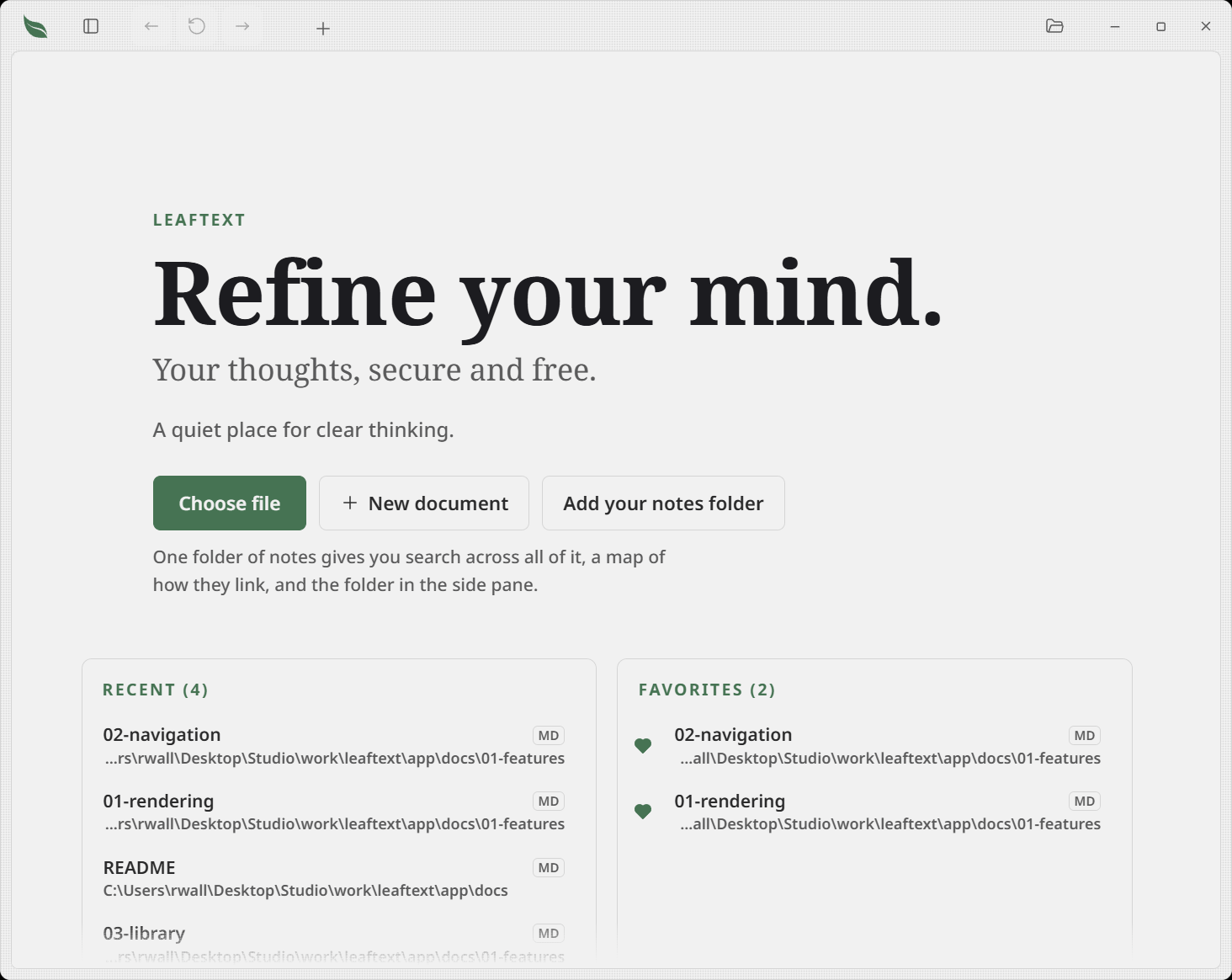
The no-file home screen lists the files you opened most recently, under the Choose file and New document buttons — plus Add your notes folder until you have a vault; the last 50 are kept. Every row shows the file's clean name with its type as a badge and the folder underneath, so you read the name rather than the path. With any favorites it becomes two boxes side by side, Recent on the left and Favorites on the right. The whole path is still the row's tooltip either way, and a right-click gives the same menu it always did.
- The three lines at the top change with each visit. The headline, the line under it and the sentence under that are drawn together from one of three voices — palm leaves and the long history of writing on them, clear thinking, and your files staying files you own — and you get a different one each time you come back to this screen. Nothing under them moves with it: the buttons, both lists, the help line and the version are the same every time.
- The screen is about the vault you are standing in. Recent shows that vault's files alone, the way Favorites beside it does, and the small word over the headline is the vault's name where it otherwise reads Leaftext. Switching vaults from the library pane with the home screen up changes both lists and that word with them. Standing outside every vault, both lists show every vault at once, grouped under each vault's name with the files in no vault last.
- A vault with dated work puts it above both. Open checkboxes carrying a date show up in one full-width box over Recent and Favorites, nearest due first — see Scheduled tasks.
- Each box is eight rows deep and scrolls, with the app's own thin bar and a soft edge wherever there is more list past it.
- Missing files are removed automatically.
- Equivalent path spellings collapse to one entry.
- Clicking a recent file opens it immediately.
Where the window is too narrow for two columns, each list shows its first five rows with a Show all button under it, which opens that list in a sheet from the bottom of the window — drag it down or press Escape to close it.
Favorites
Recent is a record of where you have been, and anything that fails to open drops off it. A favorite is a choice you made, so it stays until you say otherwise, and it has its own column on the home screen beside Recent.
- From the tab you are reading. Point at the tab and a heart appears in its top-left corner: click it to favorite the file, click it again to stop. It is filled when the file is already a favorite, and it fades out a beat after the pointer leaves — a strip of tabs at rest carries no marks, so the list is where you see them all.
- From a right-click, for anything else. Favorite in the menu, reading Unfavorite on one that is already a favorite. It works on a row in the library pane, on the page you are reading, on a tab, and on a row in the recent list — and on a folder as well as a file.
- From the home screen. Every row in the Favorites column carries a filled heart: click it and the file is unfavorited. The row stays for half a minute, dimmed, and clicking the heart again puts it back — so unfavoriting one is never a click you cannot take back.
- Marking shows straight away and is saved beside the recent list, in the same file.
- A favorite belongs to the vault it was marked inside. Something opened from outside every vault can still be favorited; removing a vault takes its own favorites with it.
- Outside a vault the column shows every vault's favorites at once, under the vault's name; inside one it shows that vault's alone, with no heading. Switching vaults from the library pane with the home screen up changes the column with it, and so does adding, renaming or removing one. A favorite folder opens the library pane at that folder rather than opening as a document.
- A favorite whose file has moved stays, and says so. Recent drops anything that fails to open; a favorite is a decision you made, so its row is struck through instead, with its folder line kept so you can see where it used to be, and Find it… at the end of the row opens the file picker and points that favorite at the file you choose. Nothing is ever repointed for you. A vault whose own folder has gone says so once on its heading, and its rows carry no way out — one file cannot be found inside a folder that is not there.
- Drag a row to put the list in the order you want. Press a row and move it: the row is carried under the pointer, the rows around it step aside, and the gap it will drop into shows where it lands. A row never leaves its own vault's group, and the order is saved, so it is the order you find next time. A press that does not move still opens the file.
- With no favorites there is no second column: the home screen is the Recent list on its own.
Loading
Opening a document hands it to the Rust side to parse and render before the view comes back, and building the page in the reading view can itself take a moment for a large file. For a big document either half of that is slow, so Leaftext holds the shape of the page that is arriving over the reader — a heading bar and the paragraph bars under it — and clears it the instant the new view arrives.
- The waiting page covers every path that loads a view: opening a file (from recent files, the library, a link, the Open dialog, or drag-and-drop), Back/Forward, switching tabs, and toggling the code view in either direction.
- It appears immediately when a load starts, so a quick load may show it briefly rather than not at all.
- Its surface is opaque, so the document being replaced is not left showing through as though it were still the answer.
- The bars pulse while you wait. Under Reduce Motion they hold still at their dim value rather than reading as text that has finished arriving.
- It overlays the reader without disturbing the library pane or the app bar, and lets clicks pass through.
- Re-clicking the tab you are already on does nothing on the host side, so no waiting page appears there. Reading-view edits, such as ticking a checkbox, re-render in place without one.
- The minimap rail carries a spinner of its own. Its thumbnail is a scaled clone of the finished page, so it can only be built once the document has been laid out — it arrives just after the page rather than with it.
- A safety timeout lowers it even if a response never comes, so it can never get stuck on screen.
Moving within a document
Scrollbars
Every scrollbar in the app fades in while its box is moving and fades out a moment after it stops, and there is only the one kind: the reading page, the library pane, the lists on the home screen, the theme picker's grid of cards, a glossary entry longer than its sheet, the canvas and the text pane in the flowchart editor along with its shape picker, and the boxes a document itself brings — a line of code pushed past the page's width, a wide equation, a frontmatter block and any table too wide for the measure. A scroll Leaftext makes itself brings it up too, when it restores your place or jumps to a find match. Resting the pointer anywhere in the box does not bring it back — but resting it on the narrow strip the bar itself lives in does, and the bar thickens while it is pointed at, so it can be aimed at and dragged; moving away thins it and takes it off again. The space the bar takes is held whether or not it is drawn, so nothing on the page shifts when one arrives, and with the minimap rail up the reading page draws no bar at all because the rail is that indicator. In a window 720 pixels wide or less — a phone, or a window dragged narrow — there is no rail, so the reading page wears the bar like every other box and the page takes the rail's width. The strip the rail stands in scrolls too — that is how a wheel over the rail moves the page — and it draws no bar either, for the same reason: the rail beside it already says where you are.
Where your machine is set to always show scrollbars — the accessibility setting on Windows, Show scroll bars: Always on a Mac — every one of those bars stays drawn instead of fading, from the moment the app starts. Nothing else changes: a bar still thickens under the pointer, it still holds the same space, and the reading page with the rail up still draws none. The setting is read at launch, so turning it on or off takes effect the next time the app starts, and the app has no switch of its own for it.
Find in this document
Ctrl+F opens one find bar at the top right of the page, over whichever view is on screen — the rendered document or the source. It works on the start screen too, where there is no document: the bar comes up on All files rather than letting the key through to the web view's own find box. Ctrl+H opens it with the replace row already down. Pressing the replace button slides that row down under the bar rather than snapping it there — see collapsible sections, which is the same motion everything that folds open uses.
One bar, two searches. At the left end of the field, inside the same well, a small menu says what is being searched: This file or All files. It opens on This file over a document and on All files on the start screen, and picking the other one keeps what you have typed. All files is the same vault search the pane used to carry its own box for — the same filters, the same completion menu, the same ranked results, which now hang under the bar that asked for them, so the pane keeps showing your files or your outline either way. Under All files the document's own controls — the toggles, the steps, the cursors and replace — stay in the row and go quiet, so nothing you have learned the place of moves. Closing the bar takes the results with it. With no vault, All files says a notes folder is needed rather than answering nothing.
- The field opens with whatever you had highlighted, and the counter beside it reads 3 of 41 as you type. Past 999 matches it says
999+. Entersteps to the next match,Shift+Enterto the previous, andEscapecloses the bar and hands the keyboard back to the document. With the scope menu open, the firstEscapeputs that menu away and the bar stands.- Every match is washed in the theme's accent color; the one you are on takes the primary, so stepping through is a mark that moves rather than a page of identical stripes.
- Four toggles: Aa match case (
Alt+C), ab| whole word (Alt+W), .* regular expression (Alt+R), and find inside the text you had highlighted (Alt+L). A half-typed expression readsBad expressionrather thanNo results. - Find inside the text you had highlighted narrows to the last thing you highlighted, not to what is highlighted at the moment you press it — opening the bar puts the cursor in the field, which takes the page's own highlight away, so the page remembers it instead. Highlight a few paragraphs, press
Ctrl+F, then the toggle, and the counter answers for those paragraphs rather than for the whole document. Highlight something else and the toggle follows it; clear the highlight and it says to highlight some text first. - Every control on the bar is the same size as the buttons in the app bar above it, and on a narrow window the bar keeps itself whole: the field shrinks first, then the buttons wrap under it, and on a window as narrow as a phone the bar spans the page instead of floating in the corner.
- Typing keeps pace however long the document is. The page's words are read once when the bar opens and again whenever the page redraws, rather than once for every letter you type, so a letter costs the same in a megabyte of Markdown as in a paragraph. Edit the page while the bar is open and the count catches up with what you just typed.
Replacing needs the padlock lifted for the view you are in, and the padlocks are separate: unlocking the page you read is not consent to rewrite the file by hand. Replace rewrites the match you are on, All rewrites every one, and either way it is a single edit — one Ctrl+Z puts the whole thing back.
All rewrites the matches the counter found, and it says so when there were more. The counter stops at 999+ on purpose, so a word that appears ten thousand times goes 999 at a time; when a press leaves some behind, a line at the lower right says more matches remain and to press All again. Nothing is lost — keep pressing until it stops saying it. Where formatting also split a match in the rendered view, the same line says both things at once.
Put a cursor on every match — the two-caret button between Next and Replace, or Alt+Enter from the field — works in both views. Every match becomes a selection with the cursor at its end, so the first thing you type overwrites all of them at once, and one Ctrl+Z puts back everything you typed into them. The counter reads 41 selected while they stand, and Escape lets go of them and leaves the bar where it was. Hold Ctrl (Cmd on a Mac) and click to put a cursor wherever you click, as many times as you like, in either view. On the rendered page, a match that formatting splits in two — meadow — takes no cursor, and a message says how many were left out, because its letters are not in one place in the file; the source view has no such matches. Typing, Backspace, Delete and pasting all land at every cursor; Enter does nothing, since a new line in a dozen places at once is a change of shape rather than of words, an arrow key goes back to the one cursor where the last one was, and a plain click anywhere on the page lets go of them all. Both views ask their own padlock: the source view says so before placing any carets, and the page marks the places first and says so at the first key.
In the rendered view a replace is written to the file's source, not to the page. That means the odd match cannot be replaced from there: **dh**arma reads as one word on screen and is three pieces in the file, so Leaftext says so and leaves it for the source view rather than guessing. Replacing in the rendered view is Markdown only; open the source view for the other formats.
Outline
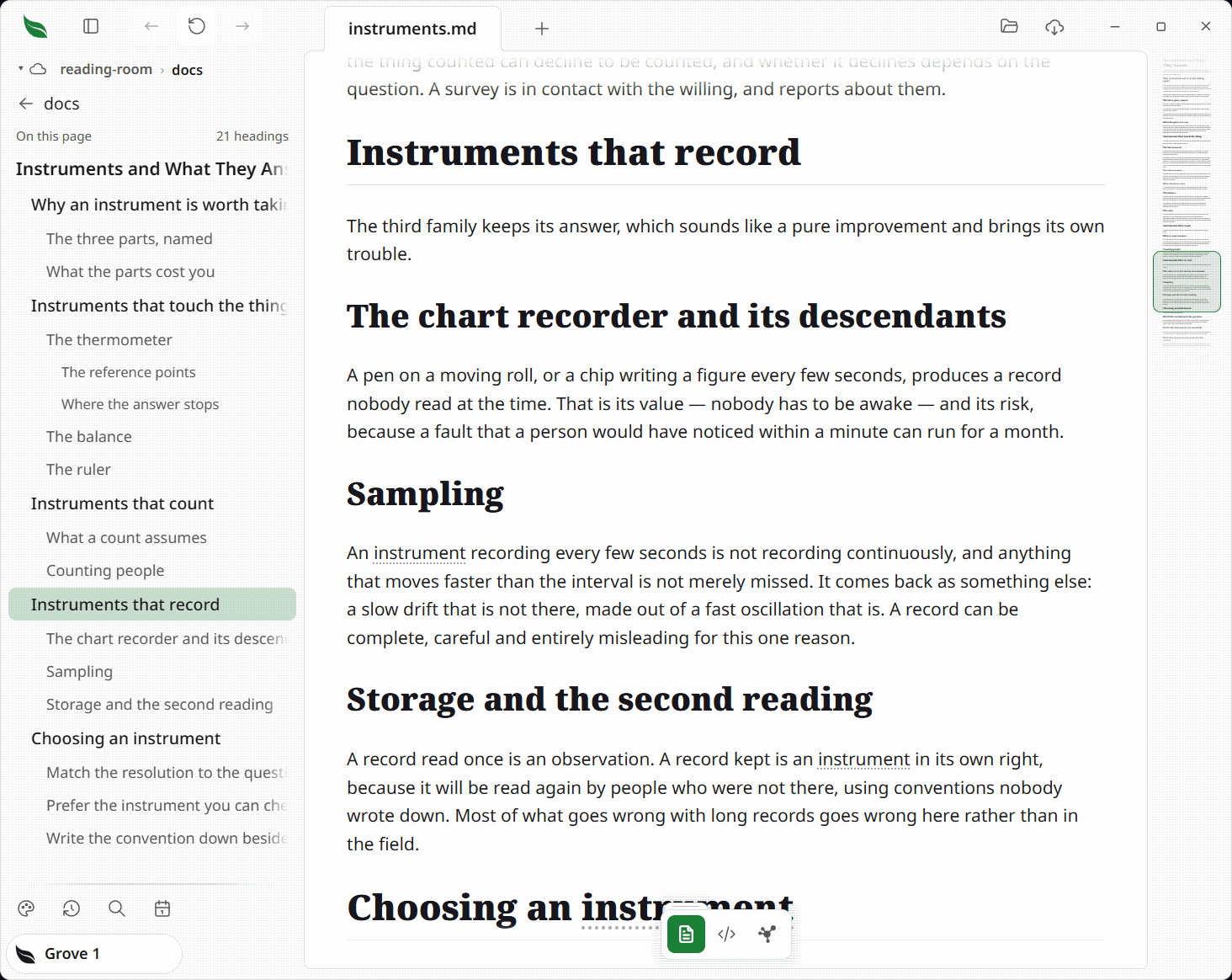
Open a document and the library pane swaps its file list for that document's Outline — its headings, in order, starting with the page's own title and indented by level under it, with the one you are reading lit. The lit row moves as you scroll, so the pane says where you are as well as what is there.
- Above the list, a back row wearing the folder's name puts the files back. So does sending the pane somewhere — switching vault, pressing a crumb, or opening a folder — since asking for a folder is asking for the files in it.
- Under it, On this page names the list, with how many headings are in it at its right — 23 headings — counted off the rows drawn below, so the number and the list can never disagree.
- The page's own title is the first row, so every section below it hangs under something you can see, and it is counted with them.
- The levels look like levels. The shallowest headings read largest and boldest; each level in is a step smaller and lighter, and from the third level in they sit in the page's quieter ink. So the shape of a document shows in the type as well as in the indenting, which matters most in a narrow pane where the indents run out.
- Clicking a row jumps to that heading, and the jump joins scroll history, so Back returns to where you were reading. The row you clicked is the row that lights, with its heading still on screen — the lit row is read from the line a document is read from, under the app bar, rather than from the top edge of the reader behind it.
- It is built from the rendered headings, so it behaves the same for Markdown, XML, JSON or YAML, and email.
- It appears whenever a document has a title plus at least one more heading; a document with only a title leaves the file list showing.
- A very long outline opens as fast as a short one. However many headings a document holds, only the rows in the pane and a pane's worth either side are drawn, and the rest are drawn as you reach them — so the count, the scrollbar and every jump still cover the whole document while nothing waits on thousands of rows. With a row focused, the arrow keys step a heading at a time, Page Up and Page Down move a pane, and Home and End go to the first and last heading; Enter or Space jumps to the one you land on.
The outline lists the sections within the current document, which makes it a companion to the minimap: the outline is the document's structure as clickable text, the minimap a scaled picture of the whole page.
Pager
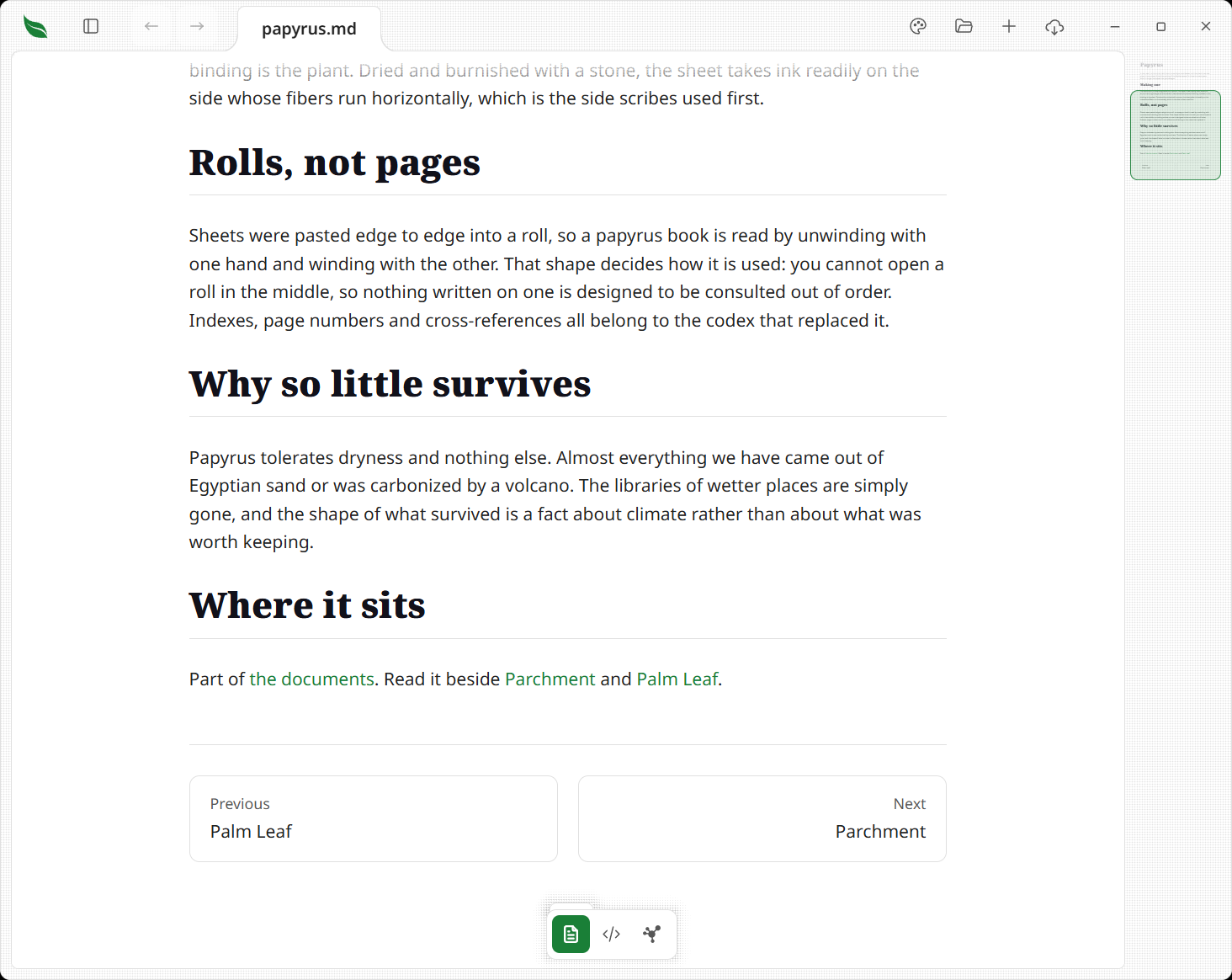
When you open a Markdown, XML, JSON, YAML, or email document that sits inside a folder tree connected by README.md files, Leaftext appends a Previous / Next bar at the bottom of the page. Clicking a button opens the adjacent document in reading order without creating an extra history entry.
Reading order follows the same depth-first walk the docs viewer uses: inside each folder, non-README documents come first (every format the pane lists together — Markdown, HTML, XML, JSON, YAML, plain text, INI, CSV, email, and Word, Excel, PowerPoint and OpenDocument files — sorted by name; a source file is not one of them), then each subfolder — its README acting as the folder's landing page — followed by that folder's own pages. README and GLOSSARY files (either extension) are never standalone entries in the sequence.
Working out the Previous / Next links means scanning the folder tree, so Leaftext does it after the document is already on screen rather than blocking the initial render. A placeholder bar shows in its place for the moment it takes, then the real buttons fill in. In a folder with a great many files the page appears immediately and the pager simply arrives a beat later.
Point at either button and it fills with the theme's own color, the way the buttons on the app bar do, with the document name and the word above it reversed out of the fill. Around the card the app's dotted shadow comes up, the same band every menu and panel throws, so the card reads as lifting off the page while staying exactly where it rests. The hover tooltip gives it the same card any other document link gets — that it opens another page, the address of that page, and how long it is — and sits clear of the button rather than over it. A middle click and the right-click menu treat it as a page too.
The pager is always there; it is not a setting.
Link hints
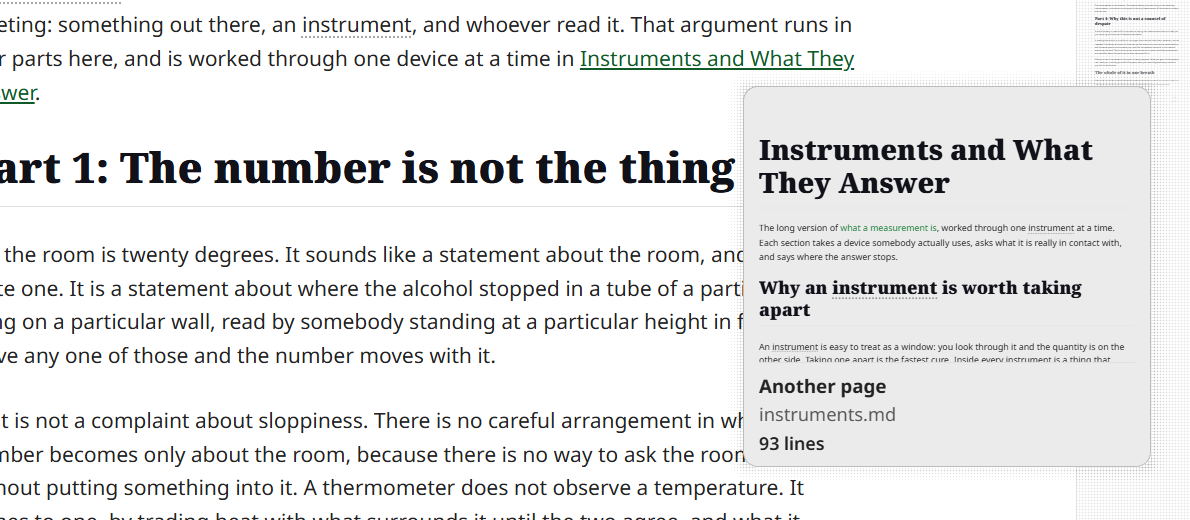
Hovering a link shows a small tooltip that names what kind of link it is and shows the exact href it was written with, so you can tell a glossary term from an in-page jump from an outside site before you click. When the link opens another document, the tooltip shows that document above the same detail rows, along with its length — in lines for a file somebody typed, in words for a book or a Word, Excel, PowerPoint or OpenDocument file, which has no lines of its own, and in pages for a book whose chapters hold only pictures, counting each picture chapter as one page to turn — and where the address names a heading, it shows that heading's own section rather than the top of the file: the heading, everything under it, and nothing of the next section of the same rank. A heading that has since been renamed, or an address naming no section at all, shows the document's opening. A glossary term does the same thing at reading size: the entry itself is drawn in the card, at the words' own size rather than shrunk to a picture, so most terms can be read without pressing anything. A long entry stops at about three fifths of the window, fades out over the cut, and says the press opens the rest; a term the glossary has not got shows the kind and address rows alone. No line count is shown for one, because the number would be the whole glossary file's. A bare glossary: link with no term after it is that whole file rather than one entry, so it draws the file's opening shrunk to a picture with its length under it, the same card the same file linked by name gets. It opens with a dot-textured loading space and keeps one size while the opening arrives; website links keep the text-only tooltip, so a hover never contacts a site. A link whose page has been deleted, renamed, or cannot be read drops that space and settles on the kind and address rows, so it never leaves you pointing at a loading mark that will not finish.
Whatever the file is, the card draws it the way its own tab would, and only as far as the card can show: a document that opens on a long table or a long code block gives the card that block's beginning — a table head and its first rows — rather than the whole of it, so a hover costs the same whether the file behind it is a page or a thousand of them. A link to a settings or workflow file, a feed or a saved email shows the headings and rows the press opens, not that file's characters run together as prose — and a data file whose first line is three dashes shows its own opening rather than wearing a Markdown note's metadata box. A data file larger than a megabyte drops the picture and keeps the kind, address and length rows, since drawing one that big would hold the window up. An Office or OpenDocument file larger than a megabyte drops its length along with its picture, because its words are counted off that same drawing.
A Mermaid diagram in that opening is drawn in the tooltip too. While it is being drawn its own spot holds the same empty box with a spinner in it that the reading view gives a diagram it has not drawn yet, and the words above and below it are readable the whole time; the drawing then takes that spot. A diagram too tall to read at the size the tooltip can give it — a flowchart running down a whole page — settles into a thin strip with its name in the corner instead, so the rest of the opening still reads on past it. A diagram is drawn whole even where the opening ran out of room before it — a long table or code block gives the card its beginning, but half a diagram is not a diagram, so the card takes the whole of it and stops there. A diagram the tooltip has drawn once is not drawn again, and one the reading view has already drawn costs the tooltip nothing.
| Hint | When you see it |
|---|---|
| Glossary entry | A glossary: term link, or a link to GLOSSARY.md#term. The entry itself is drawn in the card |
| Full glossary | A bare glossary: link that opens the whole glossary. It draws the file's opening and its length, the same as that file linked by name |
| In-page jump | A #fragment link to a heading on the current page, and a link naming the current page by its own file name, such as DEVS-WITH.md#a-heading inside DEVS-WITH.md, since a press on it only scrolls |
| Another page | A link to any document Leaftext reads — .md, .xml, .json, .yaml, .txt, .ini, .csv, .tsv, .eml, a source file, an EPUB book, a Word, Excel, PowerPoint or OpenDocument file, and a file with no ending whose opening bytes are text, such as CHANGELOG — including a Previous / Next button (its line count is shown too) |
| External site | An http:// or https:// link |
| Email link | A mailto: link |
| Opens in another app | A link to a local file Leaftext does not read — a PDF, a picture, a saved web page. The address under it is where that file actually sits, worked out from the folder the document is in, so you can tell a live link from one pointing at nothing |
| Goes nowhere | A link written with an address this app does not follow: another program's own scheme, or a phone number. It is not painted like a link at all — see below |
This is a desktop affordance: it appears only with a mouse (a fine pointer that can hover), and is left off on touch screens. The tooltip follows the cursor, flips to stay on screen near the edges, and hides on scroll, when the window loses focus, when you right-click the link it is describing, or the moment a new page renders — clicking the link it describes included. Over a Previous / Next button it stands clear of the whole button instead of following the cursor into it, so it never covers the document name printed on it.
A link the app will not follow does not wear the link color, the hover underline or the hand: its words stay the document's own with a dotted line under them, and the hint says the address it was written with is not one this app follows. So a dead link reads as dead before you click it rather than after. A brace-wrapped button written that way stops drawing as a button for the same reason.
The hint also tells you where a click will land. A link to a document Leaftext reads opens in the reading view, in the current tab, with a history entry — that covers every format it renders, not Markdown alone, so a link from a note to the .json beside it stays inside the app, and so does a link to a CHANGELOG or LICENSE with no ending at all once its opening bytes read as text. A file dropped on the window opens by the same rule. A link to any other local file (an image, a PDF, a saved web page) is handed to your operating system to open in whatever owns that type, and the link is worked out against the folder the document sits in first, so a link written ../designs/map.html opens the file at that place rather than nothing. A whole path works the same way, written from the drive letter (C:\notes\plan.md) or as a file:// address, and a link naming a file the system would run asks before it runs it. Where no file is there, the app says so in the corner and names where it looked, rather than leaving you unsure whether the link was broken or the click was missed.
A link naming something your machine would run rather than open — a program, an installer, a script — asks before it does anything, naming the file, in the same box the app asks before it deletes one. Answer no and nothing is sent. Notes travel in folders, archives and shared vaults, and a link that starts a program looks like every other link until you rest on it.
The pointer
The shape under the pointer says one thing: the hand means this goes somewhere. You get it over a link in the document you are reading, over a button written into one, and over the controls that carry you between documents — the leaf, Back, Forward, a tab, a file or folder row in the library pane, a step of the folder path and the find bar's controls.
The arrow says the opposite: nothing here leaves the page. It stays over any control you cannot press right now — Back on the first document of a session is the one you meet most — over the folder you are already standing in, over the reader's view buttons and the vault switcher, over every menu and popup row, over the icons the app bar draws for itself (the library toggle, themes, open, new document, export, and the window's own minimize, maximize and close), and over the two controls a document offers that are not links: a fold's summary line and a task checkbox. The minimap rail keeps it too, because it is dragged rather than followed.
Every other shape still does its own work, because it describes a gesture rather than a promise — the caret over words you can type in, the open hand over a block you can drag, the double arrow over the library pane's own edge and over the bar that splits a diagram sheet, and the cross while you draw a connection in one.
What a control does under the pointer
Point at one of the icon buttons along the bar — Back and Forward at the left, + at the end of the tabs, Open and Export at the right — at a launcher at the foot of the library pane — at a file row in the library pane, or at a button written into a document, and it answers rather than sitting still. The fill goes to the theme's own color, the glyph reverses out of it, and the ink and the edge arrive over the same beat, as they do on every control in the app.
That is the whole answer. Nothing changes shape, nothing slides: the control stays exactly the box, the corner and the place it rests at, so the thing you aimed at is the thing under the pointer and no row changes height. The color reverses the moment the pointer leaves, and with Reduce Motion on it arrives in one frame.
One control adds something, and it is the widest one: the Previous / Next card takes the same fill and also throws the app's own dotted shadow around itself, the band every menu and panel casts. It stays the size and the place it rests at like everything else — the shadow falls outside the card rather than moving it.
The file you have open keeps its own tint while you point elsewhere, so what is open still reads as open, and the keyboard's own ring is unchanged.
Opening a link in a new page
A plain click follows a link in the tab you are reading, so coming back means a trip through Back. Hold Ctrl (Cmd on macOS) as you click, or click with the middle button, and the linked document opens as a new tab behind the one you are in: you keep your place, and the document waits in the tab strip until you go to it. Hold Shift as you click a link to a saved web page — an .html or .htm file on this machine — and it goes straight to your browser, the same as Open in browser on its menu; on any other link Shift changes nothing, and Alt is not part of the gesture.
This works on a link to any document Leaftext reads — the Another page hint above — and on the Previous / Next buttons under a document. An outside site has no page here to open, so the gesture follows it the way a plain click does, into your browser; an in-page jump has nowhere to go and simply jumps. A document that is already open in another tab does not get a second one, and you are not moved to it — you asked to stay where you are.
A link that names a heading in another document — [the rule](Note.md#the-rule), or [[Note#The rule]] as a wiki link — lands on that heading rather than at the top, whether you click it or open it behind. Where no heading carries the name, a link lands on the first table row whose first cell reads as it, which is how a relation opens on the row it names. A tab opened behind waits on the heading and lands on it the first time you come to it, even after a restart; from then on it keeps the place you left it, like any other tab.
Right-click a link for the same thing by name, plus copying it. The pointer has to be resting on the link for the menu to be about the link, so the hint that rest raised is already up — it goes as the menu opens, and stays down while the menu is up:
| Item | What it does |
|---|---|
| Open | Follows the link, as a plain click does. It says where it is sending you when that is out of Leaftext: Open in browser on an outside link, Open in another app on a file Leaftext does not read, and Open in your mail app on an email address, which come off the same answer the hint over that link gives |
| Open in new page | Opens it as a tab behind this one |
| Open in browser | Sends a saved web page to your browser, where its own layout, type and color are drawn — the browser this machine opens web addresses in, even where Leaftext is the app .html files open with |
| Copy link | Copies the link exactly as it is written in the document |
| Copy link text | Copies the words the link is written on |
| Reveal file | Shows the file it points at in Explorer or Finder — on a link to a place in this page, the document that place names |
| Copy path | Copies the full path of the file it points at — on a link to a place in this page, the path of the document that place names |
The last four items are the same actions the library pane's menu offers on a file, and Reveal file and Copy path say so the same way when the machine refuses them. Open in new page needs a page in this app to open, so it is left out on an outside link, on an in-page jump, and on a link to a local file Leaftext does not read, rather than shown dead. Open in browser is there only on a link to an .html or .htm file on this machine, because a saved page is the one kind of document a browser draws better than Leaftext; an outside site already says Open in browser on Open itself, so the words are never on the menu twice. When the file the link names is not there, it says so rather than opening nothing. Reveal file and Copy path ask a different question — is there a file behind this link — so they are there for a PDF or a saved web page beside your note as much as for a note, and left out only where there is no file at all. A link to a heading or a table row in this page carries them too where that place names one document: the heading's next line opens with a link to it, or the row holds a link to it and to no other file. So a name in a list that jumps to a document's own section copies that document's path rather than the page you are reading. While you are editing a block, a right-click keeps the text menu it has there.
Glossary
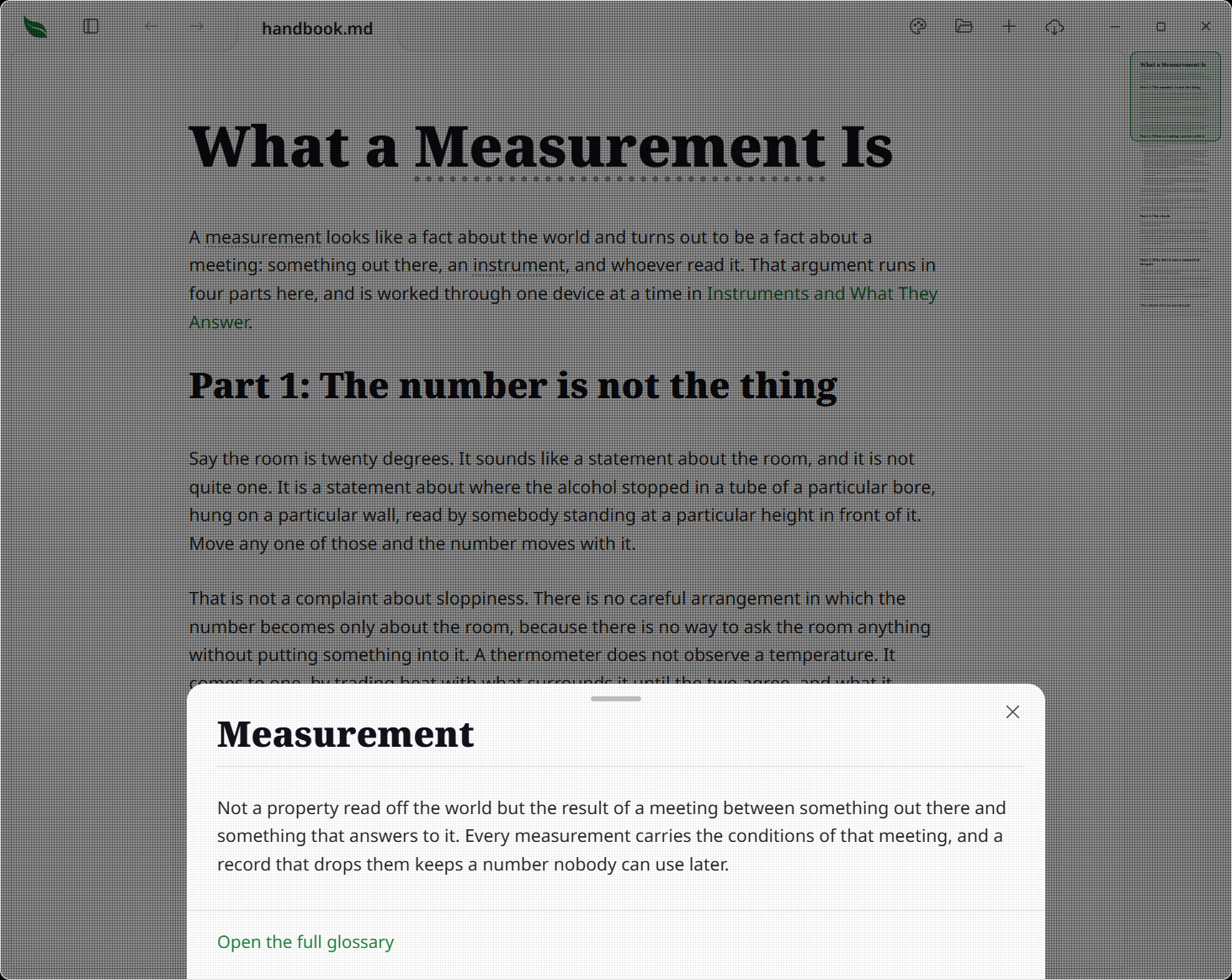
A document draws its terms from a shared glossary file. You do not have to link them yourself: wherever a defined term appears in the text, Leaftext links it for you. Clicking one does not switch documents: it opens that single glossary entry in a sheet that slides up over the page you are reading, so you keep your place underneath.
- Terms are matched automatically in Markdown, XML, JSON and YAML and INI files, email, EPUB books, and Word, Excel, PowerPoint and OpenDocument files — whole words, ignoring case — so the same glossary covers every page with no per-page markup. A term of several words is matched across whatever whitespace the document puts between them, so a term written across a line break links as one term and keeps the break where the author wrote it.
- Text that is already a link, or inside code, is left alone, and the glossary file never links its own entries to themselves.
- Dismiss the sheet with its close button, by clicking outside it, with the
Escapekey, or by dragging the grab bar at its top downwards — a short flick is enough, and letting go partway lets it spring back. - The sheet rises the moment you click the term. A large glossary takes a moment to read, so it opens on a spinner and fills in when the entry is ready; a glossary small enough to answer at once never shows one. If there is no
GLOSSARY.mdto be found, or no entry under that term, the sheet says so instead of spinning. - A link inside the sheet that points at another glossary term swaps the entry in place; any other link leaves the glossary and follows the link normally.
- An entry carrying a Mermaid diagram shows it as a thin strip with the word
MERMAIDin its corner rather than drawing it, and the rest of the entry reads on below. The sheet is not the reading page, so nothing there can be zoomed, panned, fitted to the window, exported or opened as source, and a drawing you could do none of those things to is worth less than the room it takes. - Resting on a term without clicking draws its entry in the hover card, so a short one is read where you are and the sheet is left for the long ones.
- A link at the foot of the sheet opens the whole glossary as a page.
- Glossary term links take the surrounding text's color and carry a quiet dotted underline in a dimmed wash of that same color, in every theme and mode — enough to mark an expandable term without pulling the eye away from the prose. Where the prose is already muted, as in a quote, the underline dims further to match.
- The glossary lives at one file, so the whole document set can share a single set of definitions.
Author a glossary
Write one GLOSSARY.md at or above your documents, with a ## heading per term. Capitals in the file name do not matter — GLOSSARY.md, Glossary.md and glossary.md are all found, on every kind of disk:
# Glossary

## Minimap

The overview rail down the right edge of the reading view.

## Tab

Also: Tabs

One open document, with its own Back/Forward history and scroll position.
Every mention of Minimap, Tab or Tabs across your documents opens its entry. To link other spellings to one entry, put Also: on the first nonblank line below its heading and separate the spellings with commas. Only the spellings you name link, as whole words without regard to capitals; later Also: lines are ordinary entry text. If a spelling is also another entry's heading, that heading keeps it; if two entries name the same spelling, the first keeps it.
The desktop finds the glossary by walking up from the open document, reading each folder and taking the first file whose name is GLOSSARY.md however it is capitalized, so it can sit right beside a page or many folders above at the root of a project. A published site makes the same choice from its file list for each page; where no glossary sits above a page, it uses the first glossary listed. Each project's pages bind to that project's own glossary, while one glossary can still serve the whole set.
You can still link a term by hand when you want to — using the heading's slug (its text lowercased, spaces turned to hyphens — so Bottom Sheet becomes bottom-sheet):
Keep your place with the [minimap](glossary:minimap).
The glossary: link carries no file path, so the same text works from any page no matter how deeply it is nested. A plain relative link to the file also works — [minimap](GLOSSARY.md#minimap), or [minimap](../GLOSSARY.md#minimap) from a page one folder down — but you have to count the folders yourself. Both forms open the same sheet as the automatic links.
These docs ship their own glossary, with an entry per feature and subfeature. The links in the Introduction — like minimap — open this set's GLOSSARY.md; click one to see the sheet in action.
Reload
When the current file changes on disk, Leaftext reloads it and tries to preserve your place.
sequenceDiagram
    participant Editor
    participant Watcher
    participant Leaf
    Editor->>Watcher: save file
    Watcher->>Leaf: debounced change event
    Leaf->>Leaf: compare content hash
    Leaf->>Leaf: rerender if changed
    Leaf->>Leaf: restore ScrollAnchor
Key details:
- The file watcher waits for a file to be quiet for 200 ms before it reloads, and everything that changed inside one window is handled together rather than one file at a time — so a branch switch, a folder sync or a pull that rewrites thousands of files leaves the window answering while they land; at most one batch leaves every 200 ms, and a file that has gone quiet waits no longer than 400 ms. A burst of changes too large for Windows to report one by one re-reads the folder rather than being lost. A write still going when that time is up says so, and Leaftext waits for the report that says the file has settled rather than reading a half-written one first — so saving a big Word file or deck redraws once, at the moment it always did.
- A Word, Excel, PowerPoint or OpenDocument file states what every part inside it holds in a directory at its own end, so an event about one is answered by reading that end rather than the file: a save coming back never reopens the archive it came from. Every other format is its own text and has no cheaper answer, so it is read. The read happens away from the window, so a long note, a slow network share or a file that is slow to answer never stops the window scrolling or taking a click while the new version arrives; a read overtaken by a save, a later change or a switch to another document is thrown away rather than drawn.
- Leaftext hashes what it read to skip duplicate reloads, and skips a reload outright when the file already holds exactly what is on screen — the hash is unknown right after a document opens, and the whole folder is watched, so the first event to arrive is usually about something else.
- Reload re-renders through the same pipeline the file opened with — XML stays XML, JSON and YAML stay themselves, email stays email, Markdown stays Markdown.
- A reload while the code view is open leaves you in the source you were reading, with the new text in it, rather than dropping back to the rendered document.
- The parent directory is watched instead of only the file, so atomic-save editors still work.
- Other Markdown files changed in that same folder are indexed live, so the library pane stays current too.
- A link card you have already opened keeps its words while Leaftext refreshes them after a watched change, so returning to a changed target never leaves the card showing its old opening.
- Replacing an image the document shows refreshes the picture in place, without a rerender, so the reader does not move. The note's folder and each distinct folder containing one of its local pictures are watched without walking those folders' trees; a recursive vault watch already covers every picture below it.
- A picture inside a whole HTML page refreshes the same way. The page draws its own pictures at the addresses its author wrote, inside a frame of its own, and the minimap holds a second copy of that page — so both are refreshed together and the rail never shows a picture the page has stopped showing. The page is not laid out again and you keep your place in it. A movie, a sound, their subtitles and the still a movie stands on before it plays refresh the same way: the player is sent after the replacement and starts it at its beginning. A picture the page draws from a rule in its own stylesheet refreshes with them: the page's own stylesheets are asked for again under a fresh address for the folder they sit in, so every picture, font and further stylesheet a rule names arrives fresh behind them. Nothing of the page's own CSS is read or rewritten, and a page exported afterwards is saved with the addresses its author wrote.
- A new document is showing no file at all, so nothing on disk reloads it — a file of its own name sitting in the folder Leaftext was started in is a different document, and opens as one.
- A change that lands while a different tab is in front is picked up when you come back to that tab, whether or not you had ticked a box or edited there — arriving at a document reads the file it names.
- Saving from the code view does not trigger a reload — the watcher recognizes the app's own write — and a document with unsaved edits is never clobbered by an outside change.
Next
- Quickstart if you want the basics first
- Library if you want browsing and search
- Editing if you want to write in the page