Installation
Download the installer for your platform, run it, and open a Markdown, HTML, XML, JSON, YAML, plain text, config, source, email, Word, Excel, PowerPoint, OpenDocument or EPUB file.
Leaftext is free, and it ships ready to run on macOS and Windows. There's no account to create, no plugins to pick, and no runtime to install first — download it, open it, and it works.
The one snag is the same one every small app hits: neither Apple nor Microsoft has been paid to vouch for it, so each one warns you the first time. Both warnings are cleared in a few clicks, once — macOS, Windows.
Platforms
| Platform | Package | Notes |
|---|---|---|
| macOS | .dmg | Universal (Apple Silicon + Intel). First launch needs unblocking |
| Windows | .exe | Windows 10+ 64-bit. Installer may warn once |
Every file on the release page is an installer you can run — no checksums, nothing published for the updater alone. Windows has one file, the .exe: it is what the front page hands out, and it is the one no machine's policy refuses. The in-app updater then keeps taking that same file, so there is nothing to choose twice.
Download for Windows → · Download for macOS → · All releases — then follow the steps for your platform below.
Install
macOS
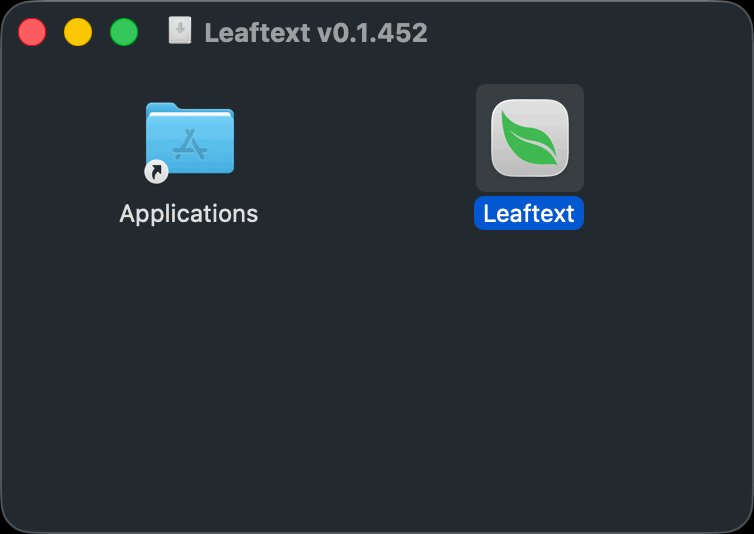
1. Download the file ending in -macos-universal.dmg — the disk image →. One file covers both Apple Silicon and Intel Macs.
2. Open the downloaded file. A window opens showing the leaf app on one side and an Applications folder on the other.
3. Drag the app onto Applications. That is the install.
4. Eject the disk image — click the ⏏ beside its name in the Finder sidebar. You can delete the .dmg afterwards.
5. Open Leaftext from Applications or Launchpad. The first launch will be refused — that is expected, and clearing it takes five short steps. See Mac blocks the first launch.
Windows
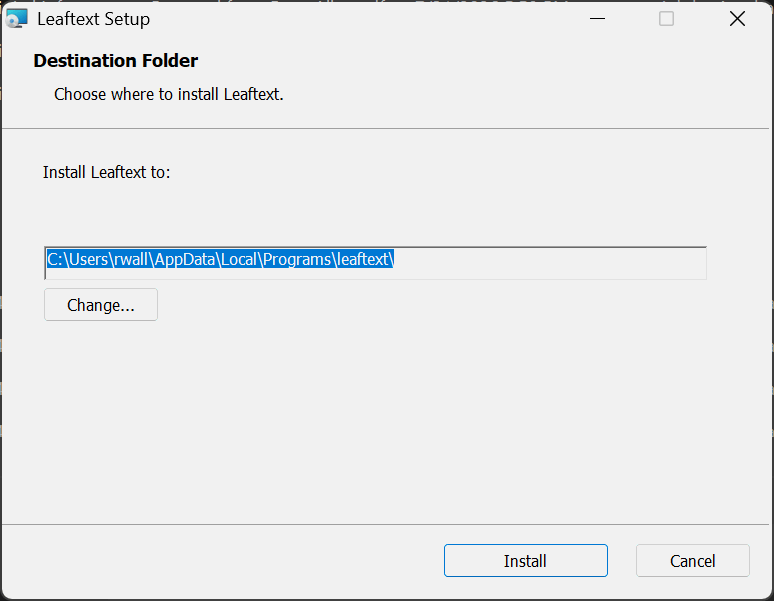
1. Download the file ending in .exe — the installer →. It needs 64-bit Windows 10 or later.
2. Run the installer. If a full-screen Windows protected your PC box appears, click More info → Run anyway — see Windows warns before it runs.
3. Click Install. The installer shows one screen: the install folder, with Change... to pick another. There is no elevation prompt and no confirmation screen — Leaftext installs for the current user, and when it is done the setup window closes and Leaftext opens in its place.
4. Every launch after that is the Start Menu entry, or the Windows key and the app's name.
The first-launch warnings
Both platforms warn once, for the same reason, and neither warning is about what is in the file.
Mac blocks the first launch
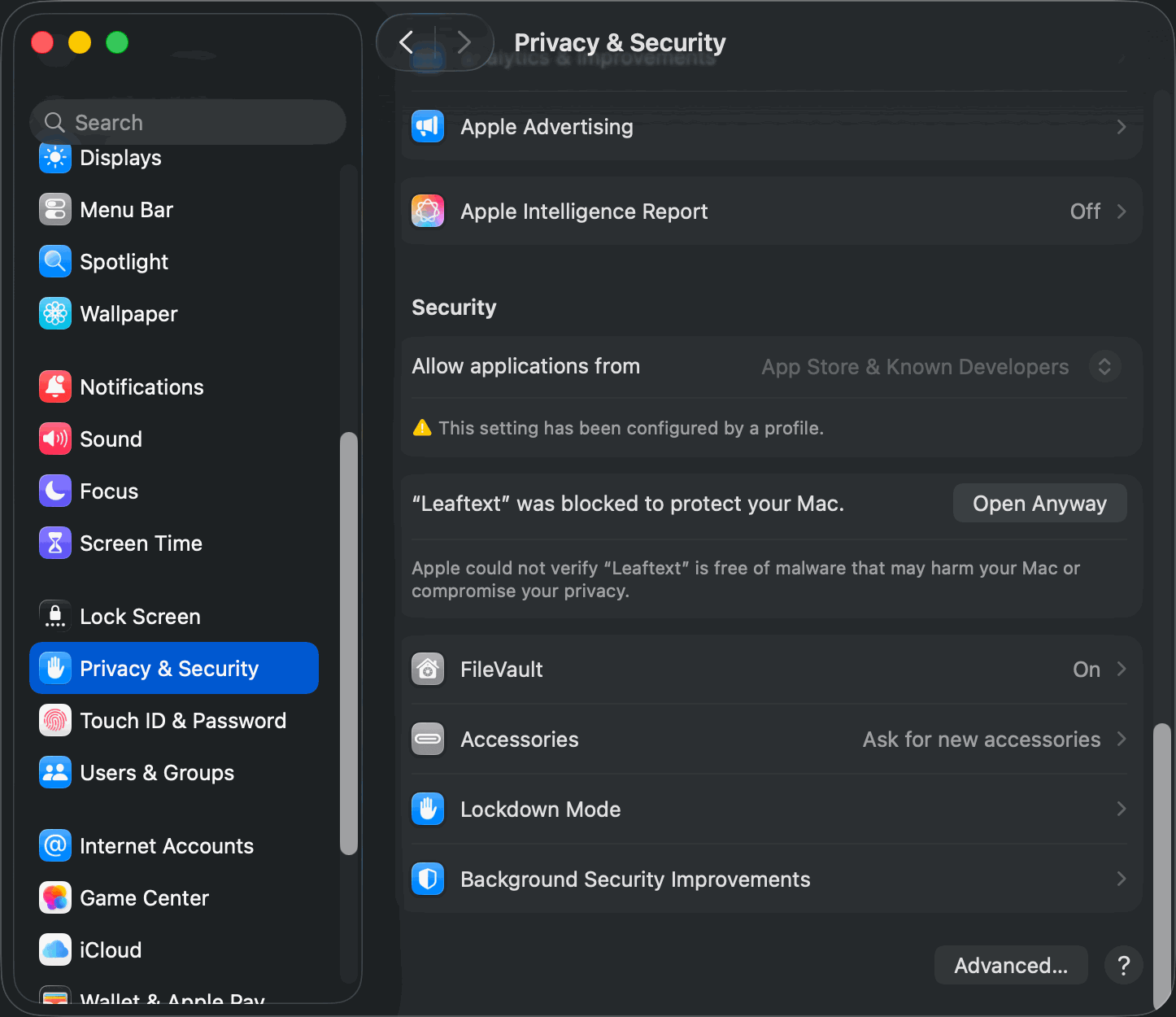
macOS refuses the first launch and says it "cannot be opened" or that Apple "could not verify it is free of malware". This is expected and it is not a report of anything found in the app. Apple charges a yearly developer fee to have an app notarized; Leaftext is free and is not enrolled, so macOS treats it the way it treats everything unnotarized. Nothing was scanned and nothing was flagged.
Let it through once and it opens normally forever after. Either route works.
The easy way — no Terminal
- Double-click Leaftext in Applications. macOS refuses. Click Done (or Cancel).
- Open System Settings → Privacy & Security.
- Scroll to the Security section near the bottom. A line names Leaftext as blocked, with an Open Anyway button. Click it.
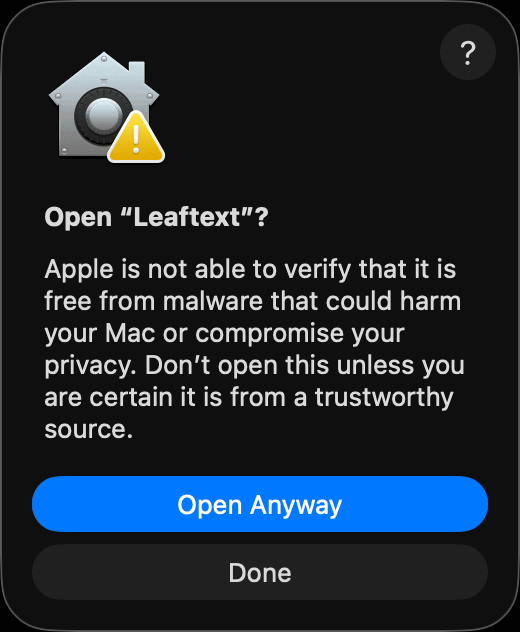
- A box asks Open "Leaftext"? and repeats the warning. Click Open Anyway.
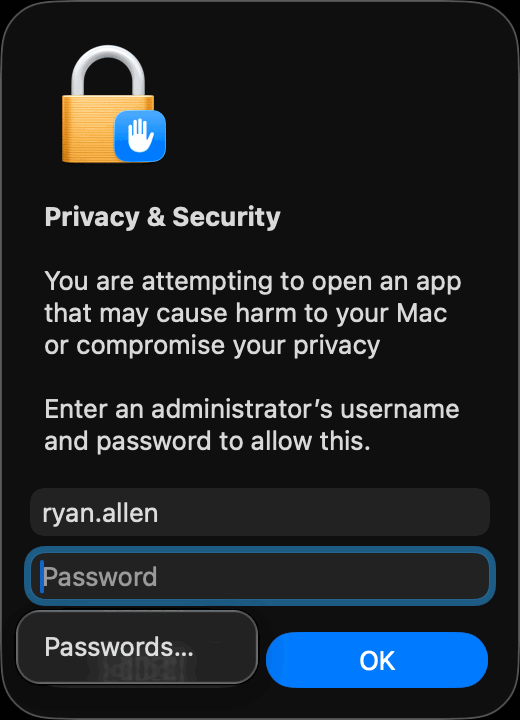
- Enter an administrator name and password — or use Touch ID if your Mac offers it — and click OK.
Leaftext opens, and every launch after this one is a normal double-click.
On macOS 12 and earlier the same thing is one step: right-click (or Control-click) the app in Applications, choose Open, then Open again in the box that appears.
The Terminal way
If the button is not there, open Terminal (press Cmd+Space, type Terminal, press Return), paste this line, and press Return:
xattr -cr /Applications/leaftext.app
That removes the "downloaded from the internet" tag macOS attaches to the file. Then open the app normally.
Either way, you only do this once per installed app bundle.
Windows warns before it runs
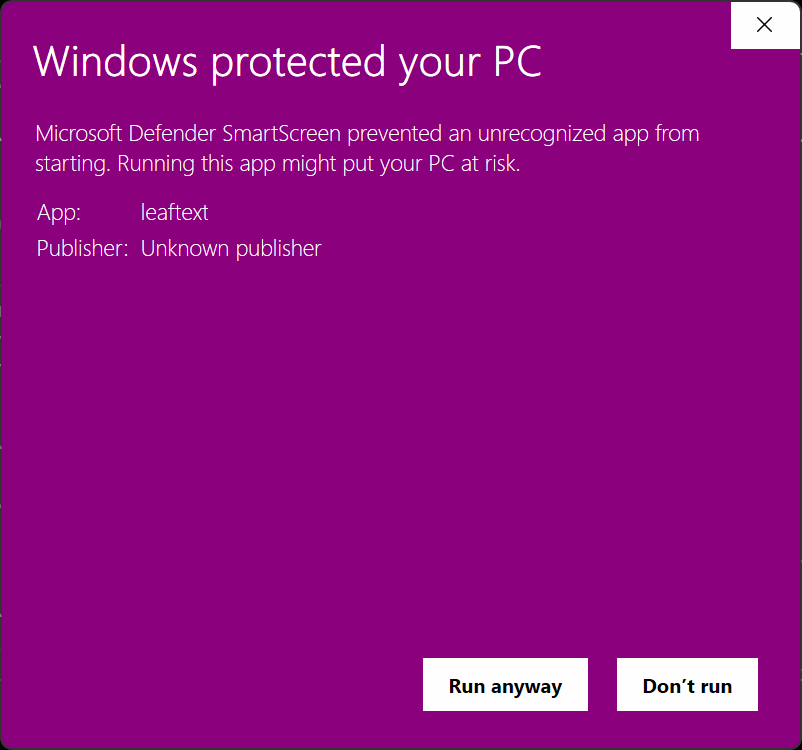
Windows may show a full-screen Windows protected your PC box the first time you run the installer, because it is not signed with a paid certificate. Click More info, then Run anyway. Your browser may also make you keep the download — choose Keep if it asks; browsers press hard on an unsigned .exe, so expect one more click there.
If the installer is refused outright rather than warned about, the machine is enforcing a rule about unsigned programs, and only whoever manages it can allow it through.
Where it goes
Leaftext installs into your user profile on both platforms, which is what lets it update itself without ever asking for administrator rights.
| Platform | The app | Its data |
|---|---|---|
| macOS | /Applications/leaftext.app | ~/Library/Application Support/com.ryanallen.leaftext |
| Windows | %LOCALAPPDATA%\Programs\leaftext\bin\leaftext.exe | %APPDATA%\ryanallen\leaftext\config and %LOCALAPPDATA%\ryanallen\leaftext\data |
On Windows, Change... during the install puts the app wherever you like, and later updates keep it there. The WebView2 browser data sits under the data folder:
%LOCALAPPDATA%\ryanallen\leaftext\data\webview2
The data folders are independent of where the app is installed, so reinstalling or moving it keeps your settings, recent files, and vaults. The full per-platform list is in Settings → Paths.
The installer adds one Start Menu entry and no desktop shortcut. Drag it to the desktop or taskbar if you want it there too.
Upgrading from v0.1.364 or earlier: uninstall the old version first. Those installed into
C:\Program Filesfor the whole machine, and a per-user package has no authority to remove one. Install the new version without doing so and you will have two copies. Uninstall from Settings → Apps, then install.
File associations
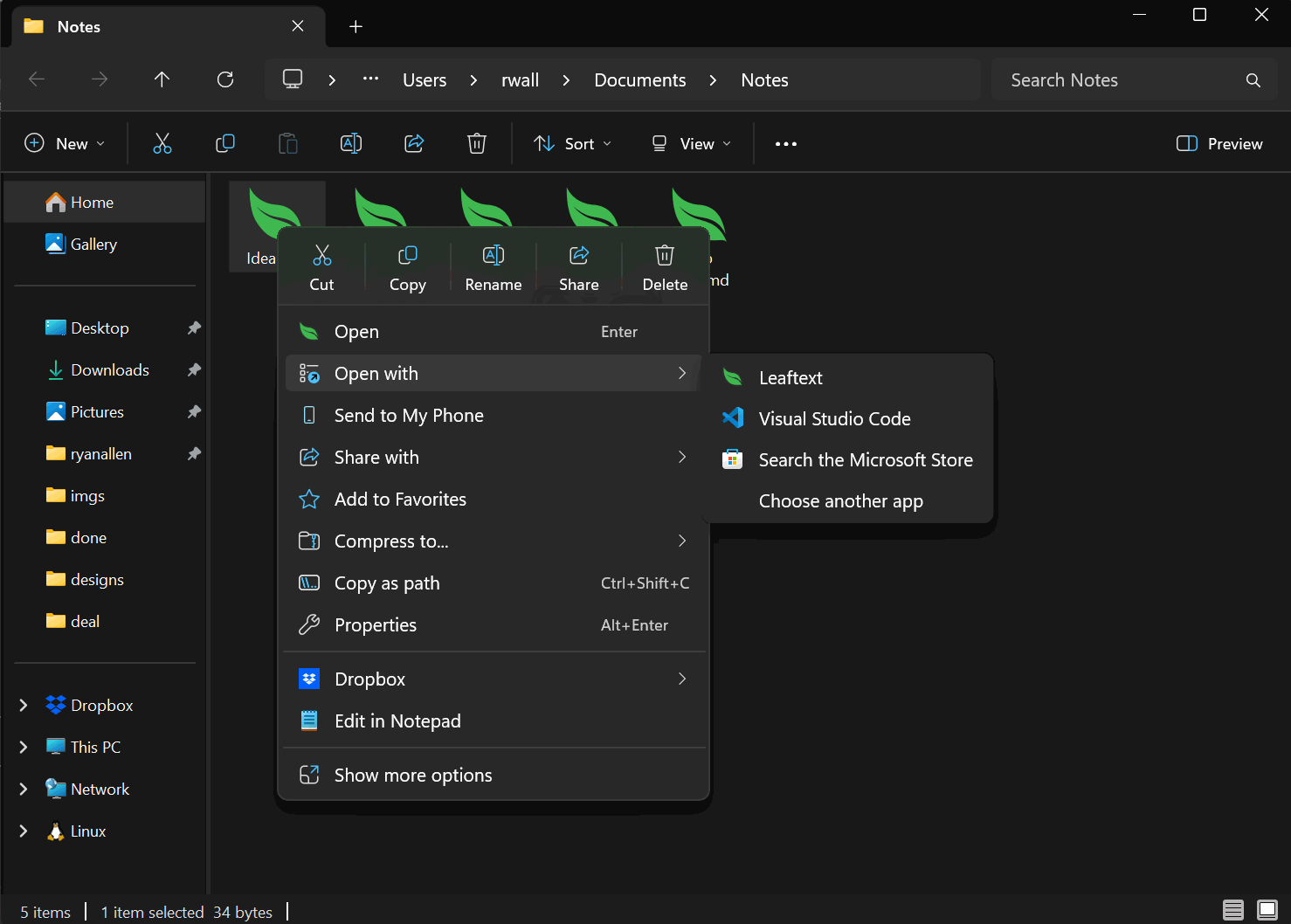
Installing registers Leaftext as a handler for every extension it reads — .md, .markdown, .mdown, .mdc, .html, .htm, .xml, .json, .yaml, .yml, .txt, .ini, .csv, .tsv, .eml, .mht, .mhtml, .docx, .docm, .xlsx, .xlsm, .pptx, .pptm, .odt, .ods, .odp, .epub, the Kindle book endings .azw, .mobi and .azw3, and the Google Drive app's .gsheet, .gdoc and .gslides shortcuts, along with the source-file extensions — so those files carry the leaf icon and appear under Open with. On Windows the entries are per-user (HKCU), like the install itself. HTML remains assigned to the browser, plain text to Notepad or TextEdit, .ini to whatever opens it today, .csv and .tsv to the spreadsheet that opens them, Word, Excel, PowerPoint, OpenDocument, EPUB and Kindle files to the application that owns them, and a Google shortcut to the Google Drive app, unless you choose Leaftext.
An extension no app has claimed opens in Leaftext on its own. One that already has a default app keeps it — neither installer overrides a choice you or another app made, so .json stays with your editor and .eml with your mail app until you say otherwise. To switch:
- Windows — right-click a file, Open with → Choose another app → Leaftext → Always use this app. Or Settings → Apps → Default apps → Leaftext.
- macOS — select a file, Get Info → Open with → Leaftext → Change All…
Double-clicking a file while Leaftext is already open adds it as a tab in the running window rather than starting a second copy.
Explorer and Finder cache icons. A newly registered icon sometimes only appears after the shell refreshes — signing out and back in is the reliable way to force it.
Launch
flowchart LR
    A[Download] --> B[Install]
    B --> C[Let it through the first-launch warning]
    C --> D[Launch app]
    D --> E[Open .md, .html, .xml, .json, .yaml, .txt, .ini, or .eml file]
    E --> F[Read]
Use Ctrl+O on Windows or Cmd+O on macOS to open your first file. The Quickstart takes it from there.
Updates
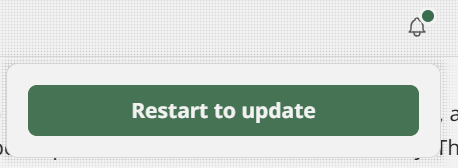
Leaftext checks GitHub Releases for a newer version at every launch, and re-checks in the background at most every six hours while the window stays open. When one is available, a bell appears in the app bar — it is not there otherwise, so its presence is the whole message. Clicking it drops a panel holding one button, and nothing else.
The new installer downloads in the background; a download that arrives short or oversized is discarded rather than kept. While it runs, the bell wears a spinning ring and the button shows a spinner and its percentage. Once the installer is staged and verified the ring becomes a green dot and the button reads Restart to update.
Then quit and reopen, and you are on the new version. The install happens at launch, before any window opens, because Windows cannot replace a running executable — the app hands off to a detached helper that waits for it to exit, installs, and starts the new build. On macOS that means mounting the disk image, copying the bundle out, and swapping it in. Nothing is prompted for, and nothing interrupts you mid-read. Restart to update remains on the button for anyone who would rather not wait for the next launch.
An update brings the app back by itself, the way the install opens it — you never install and then go looking for Leaftext, and one window comes back, never two.
Each version is installed automatically once. If an install fails, that version then waits for a deliberate click instead of being retried forever. There is no setting for any of this: staying current is what the app does.
On Windows, updates arrive as the .exe, whichever installer put Leaftext on the machine. It is the one Windows file a release publishes, and it lays down the same install in the same folder, so nothing about where the app lives changes when an update arrives.
The app only speaks when it can act. A check that found nothing, could not reach GitHub, was rate-limited, or found a release carrying no installer this copy can use yet says nothing at all — the bell stays away, and the next check or the next launch takes the release once its file is there. There is nothing you could do about any of those, and a panel reporting them read as the app asking for work it should be doing itself. Startup is never blocked by any of this, and being offline changes nothing you can see. The version you are running is at the foot of the home screen.
Uninstall
- macOS — drag
leaftext.appfrom Applications to the Trash. Your documents are untouched; the app's own data stays in~/Library/Application Support/com.ryanallen.leaftextuntil you delete that folder too. - Windows — Settings → Apps → Leaftext → Uninstall. Same story: your files and folders are yours, and only the app is removed. Both Windows installers put a Leaftext row in that list, so a machine that has had both shows two — see Why do I have two Leaftext entries.
Nothing you wrote is inside Leaftext. Every document is the plain file you already had, in the folder you put it in.
FAQ
Is the warning a virus alert
No. Both warnings are about who paid whom, not about what is in the file. macOS and Windows check whether an app carries a certificate from a paid developer program; Leaftext is free and carries none, so both systems say they cannot vouch for it. Nothing was scanned, and nothing was found. Clearing it takes a few clicks, once — macOS, Windows.
Why do I have two Leaftext entries
Because Leaftext was installed from the .msi at some point and every update since has arrived as the .exe. Only one Leaftext is on the machine — both installers use the same folder — but each one registers its own row in Installed Apps, and the MSI's row stays behind.
Both rows read Leaftext by ryanallen, so tell them apart by the version. The row showing the version at the foot of the home screen is the live one. The other row is older, and it is the one to remove: Settings → Apps → Installed apps → the older Leaftext → Uninstall.
Nothing is lost by removing it. It is a stale registration and not a second copy of the app — your install, your settings, your recent files and your vaults are untouched, and the row that is left keeps updating as usual.
Does it need administrator rights
No, never. Leaftext installs into your user profile and runs from there, so neither installing nor updating needs administrator rights. See Where it goes.
Does it need an internet connection
Only for two things, neither of which carries your words: checking GitHub for a newer version, and fetching a theme's font from Google Fonts the first time you pick that theme. Reading, writing, searching, and diagrams all work offline.
Where are my settings stored
See Settings → Paths.
Can I install it on Linux
No. Leaftext builds for macOS and Windows only.
Next
- Quickstart — open your first file.
- Settings — every preference and where it lives.