Quickstart
Open your first file and get comfortable with tabs, history, the minimap, and the library — a few minutes, start to finish.
There's nothing to set up. No account, no folder to designate, no plugins to choose. Point Leaftext at a file you already have and start reading. This page walks the shortest useful path: open a file, read it, move around, edit a line, and come back to it later.
Not installed yet? Install it first — three steps per platform. On a Mac, macOS refuses the first launch until you let it through once.
The five minutes
- Press
Ctrl+Oon Windows orCmd+Oon macOS. - Pick any
.md,.html,.xml,.json,.yaml,.txt,.ini,.csv,.tsv,.eml,.docx,.docm,.xlsx,.xlsm,.pptx,.pptm,.odt,.ods,.odp,.epub,.azw,.mobi,.azw3, or source file. - Scroll the document, and use the minimap on the right to jump.
- Open another file to create a new tab.
- Click into a sentence and type.
flowchart LR
    A[Launch Leaftext] --> B[Open a .md, .xml, .json, .yaml, .eml or .docx file]
    B --> C[Read in main pane]
    C --> D[Jump with minimap]
    C --> E[Open another file]
    E --> F[New tab]
    F --> G[Back / Forward keeps history per tab]
1. Open a file
| Method | How |
|---|---|
| Keyboard | Ctrl+O / Cmd+O |
| Drag and drop | Drop a .md, .html, .xml, .json, .yaml, .txt, .ini, .csv, .tsv, .eml, .docx, .docm, .xlsx, .xlsm, .pptx, .pptm, .odt, .ods, .odp, .epub, .azw, .mobi, .azw3, or source file onto the window |
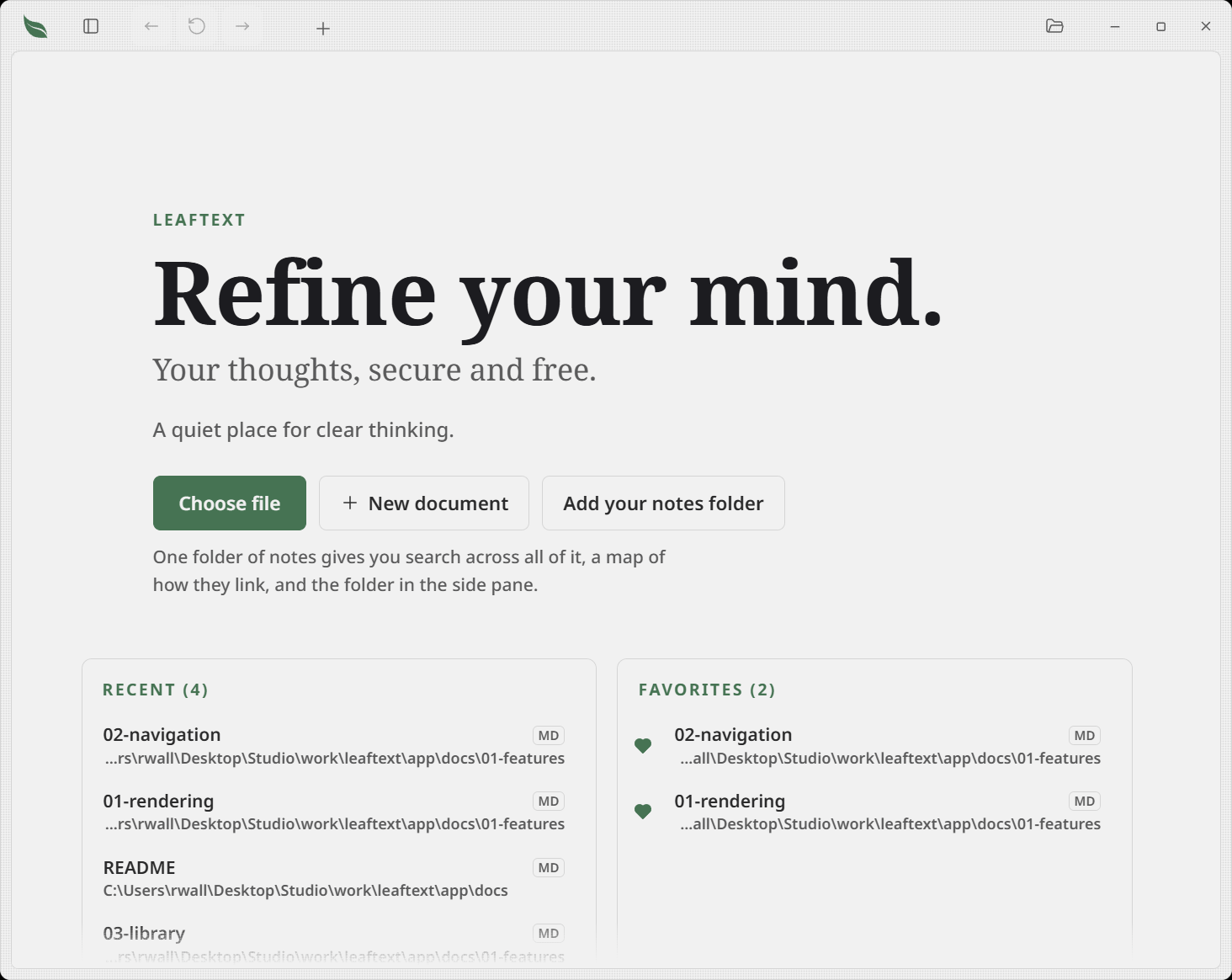
| Recent files | Click a file on the no-file home screen |
| Command line / Open with | Launch Leaftext with a file path, or double-click an associated file |
| Start a blank one | The + at the end of the tab strip, or New document on the home screen — see Editing. To make it in a folder you can see instead, right-click that folder in the library and pick New file |
| Point it at a folder | Add your notes folder on the home screen, until you have a vault |
Recent files keeps the last 50 opened files, so reopening a doc is usually one click — and inside a vault the list is that vault's own. Keep the ones you come back to and they get a column of their own beside it — see Favorites.
2. Know what you are looking at
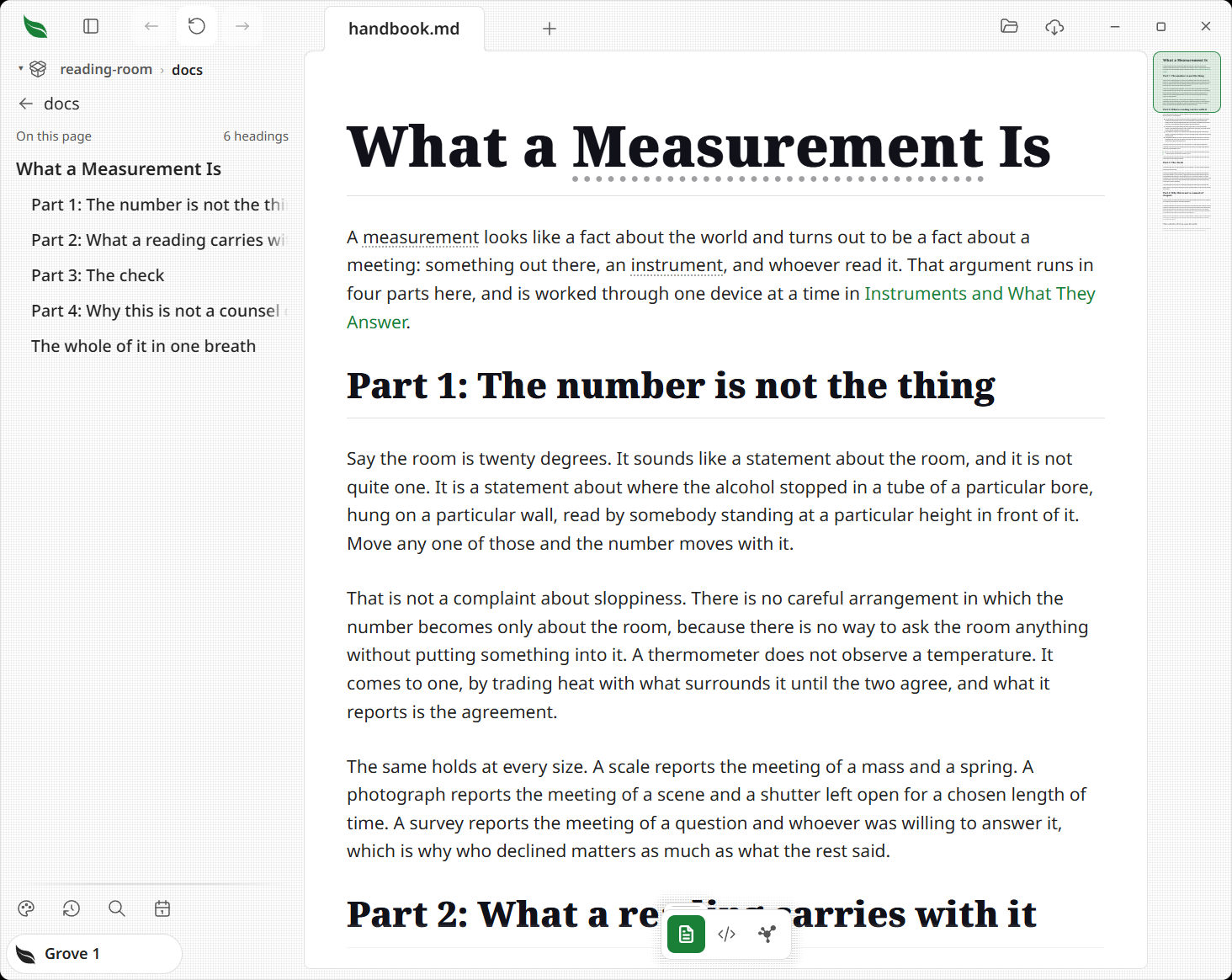
The app bar, across the top
| Area | What it does |
|---|---|
| Leaf mark | Returns to the home screen |
| Library button | Opens and closes the library pane |
| Back / Forward | Moves through document and scroll history |
| Tab bar, + at its end | Keeps multiple documents open, with the + that starts a new document resting against the last tab |
| Open, Export | Open a file, and write the page you are reading as a PDF, a picture, a web page, a Markdown note with its pictures beside it or an EPUB book. There is no Settings button — every control stands where it applies, so preferences are wherever they are used, and the palette that chooses a theme is at the foot of the library pane |
The page itself
| Area | What it does |
|---|---|
| Main reader | Shows the rendered Markdown, XML, JSON/YAML, or email |
| Outline | The document's headings in the library pane, sized by level and labeled with how many there are, for jumping to a section |
| Minimap | Shows the whole document and your current viewport |
| Pager | Previous / Next at the foot, where a folder is joined by README.md files |
The floating toolbar, over the foot of the page
| Control | What it does |
|---|---|
| Reading / Code / Graph | The three ways of looking at the open document; the one you are in is filled in the accent color |
| Padlock | Unlocks the view you are in so you can type into it — the page and the source have one each |
| Speed reader | Dims the prose and marks each word's start — see Speed Reader |
| Typing help | The wand beside the code view: suggestions drawn from your own notes — see Typing help |
| Undo / Save | Appear only when there is something to undo or save |
3. Move around
A second tab
Press Ctrl+O / Cmd+O again. Leaftext opens the next file in a new tab instead of replacing the current one. Each tab keeps its own history and its own place in the document.
A link, without leaving the page
Hold Ctrl (Cmd on macOS) and click a link to another document, or click it with the middle button, and it opens as a tab behind the one you are reading — you keep your place, and it waits for you in the tab strip. Right-click a link for the same by name, plus copying it or finding the file it points at.
Jump
Click a heading in the outline, or click a spot in the minimap. That jump is added to scroll history, so Back takes you to the previous reading position.
Shortcuts worth knowing
| Action | Windows | macOS |
|---|---|---|
| Open a file | Ctrl+O | Cmd+O |
| Close tab | Ctrl+W | Cmd+W |
| Quit, keeping your tabs and unsaved edits for next time | Ctrl+Q | Cmd+Q |
| Next / previous tab | Ctrl+Tab / Ctrl+Shift+Tab | Ctrl+Tab / Ctrl+Shift+Tab |
| Two documents side by side, and close the split | Ctrl+\ | Cmd+\ |
| Back | Alt+Left | Cmd+Left |
| Forward | Alt+Right | Cmd+Right |
| Full screen | F11 | Green dot at the top left |
| Save (unsaved edits, your own typing included) | Ctrl+S | Cmd+S |
| Undo — a word of your typing, then the last edit | Ctrl+Z | Cmd+Z |
| Redo a word of typing, or a whole edit, you took back | Ctrl+Y or Ctrl+Shift+Z | Cmd+Shift+Z |
| Bold the highlighted words | Ctrl+B | Cmd+B |
| Italic the highlighted words | Ctrl+I | Cmd+I |
| Link the highlighted words | Ctrl+K | Cmd+K |
| Select the page — or the block, its section, the page with the caret in one | Ctrl+A | Cmd+A |
| Copy the words highlighted in the document | Ctrl+C | Cmd+C |
| Open a link in a new page | Ctrl+click | Cmd+click |
| Find in this document | Ctrl+F | Cmd+F |
| Find and replace | Ctrl+H | Cmd+H |
| Put a cursor on every match, from the find field | Alt+Enter | Alt+Enter |
| Add a cursor where you click | Ctrl+click | Cmd+click |
Mouse side buttons also trigger Back and Forward on Windows.
4. Edit a line
Documents open locked, so a stray click never changes a file. Open the padlock on the floating toolbar, then click into any sentence and type — the rendered page edits in place, and the green Save button appears. Leaftext remembers the answer, so you only do this once.
- Highlight words for a format bar. Copy, highlight and annotate are on it whether the page is locked or not.
- Use the handle and plus in the left margin to drag a block or add one.
- For the raw source instead, click the code-brackets button on the toolbar. It has a padlock of its own, so unlocking the page does not open the file's text.
- To start from nothing, press the + at the end of the tab strip for a new document; its first save asks where to put it.
Checkboxes are the exception to the padlock: a - [ ] box is clickable either way, and ticking it saves on the spot.
The Editing page covers the whole flow.
5. Come back to it
Close the last tab and you will land on the home screen again, where recent files are listed for quick reopening. To keep a whole folder within reach instead, name it a vault — then the library pane browses it, search covers it, and the graph maps it.
Try it on this file
Save this as demo.md and open it:
# Demo

## Checklist

- [x] Open file
- [ ] Read docs

> [!NOTE]
> This is a callout.

```rust
fn main() {
    println!("Leaftext");
}
```
That single file lets you verify headings, task lists, callouts, and syntax highlighting.
Next
- Rendering for supported syntax and examples
- Navigation for tabs, history, and live reload
- Library for vaults, search, and GitHub sync
- Editing for the whole writing flow