Refine your mind.
Read, understand and edit the files other readers leave closed.
Download for Windows Download for macOS
Free · Windows 10+ and macOS Universal · Installation help
How Leaftext compares
Every feature, checked against Obsidian, Typora and Calibre. The whole chart, with its sources →
✅ the app does this, and the link in the cell is where it says so. ❌ it does not do this: it says it cannot, it only converts the file into something else first, or it is not the kind of app that would. A mark linking to how the marks were checked was read off the app itself rather than off its pages. ? neither its own pages nor the app settle it either way. A bold row also opens the chart on the front page.
Sources read 16 October 2026, 10:38pm. The apps themselves checked 23 September 2026, 10:14am.
| At a glance | Leaftext | Obsidian | Typora | Calibre |
|---|---|---|---|---|
| Markdown files | ✅ | ✅ | ✅ | ❌ |
| Renders in a terminal | ✅ | ❌ | ❌ | ❌ |
| Word documents | ✅ | ❌ | ❌ | ❌ |
| EPUB books | ✅ | ❌ | ❌ | ✅ |
| Mermaid diagrams | ✅ | ✅ | ✅ | ❌ |
| Type in the page | ✅ | ✅ | ✅ | ❌ |
| Map of links | ✅ | ✅ | ❌ | ❌ |
| Works fully offline | ✅ | ✅ | ✅ | ✅ |
Files and formats — Formats, books, email, Office files, encodings and safety · 232 features
| Feature | Leaftext | Obsidian | Typora | Calibre |
|---|---|---|---|---|
| Markdown files | ✅ | ✅ | ✅ | ❌ |
| Renders in a terminal | ✅ | ❌ | ❌ | ❌ |
| HTML pages | ✅ | ❌ | ❌ | ❌ |
| XML files | ✅ | ❌ | ❌ | ❌ |
| TEI editions | ✅ | ❌ | ❌ | ❌ |
| JSON files | ✅ | ❌ | ❌ | ❌ |
| YAML files | ✅ | ❌ | ❌ | ❌ |
| INI config files | ✅ | ❌ | ❌ | ❌ |
| CSV and TSV tables | ✅ | ❌ | ❌ | ❌ |
| Plain text files | ✅ | ❌ | ✅ | ❌ |
| Saved email | ✅ | ❌ | ❌ | ❌ |
| Web archives | ✅ | ❌ | ❌ | ❌ |
| Word documents | ✅ | ❌ | ❌ | ❌ |
| Excel workbooks | ✅ | ❌ | ❌ | ❌ |
| PowerPoint decks | ✅ | ❌ | ❌ | ❌ |
| OpenDocument files | ✅ | ❌ | ❌ | ❌ |
| EPUB books | ✅ | ❌ | ❌ | ✅ |
| TypeScript files | ✅ | ❌ | ❌ | ❌ |
| JavaScript files | ✅ | ❌ | ❌ | ❌ |
| JSON with comments | ✅ | ❌ | ❌ | ❌ |
| CSS stylesheets | ✅ | ❌ | ❌ | ❌ |
| Stylesheets as pages | ✅ | ❌ | ❌ | ❌ |
| Shell scripts | ✅ | ❌ | ❌ | ❌ |
| TOML config files | ✅ | ❌ | ❌ | ❌ |
| Rust source files | ✅ | ❌ | ❌ | ❌ |
| Python source files | ✅ | ❌ | ❌ | ❌ |
| SQL scripts | ✅ | ❌ | ❌ | ❌ |
| Diff files | ✅ | ❌ | ❌ | ❌ |
| Dotenv files | ✅ | ❌ | ❌ | ❌ |
| GraphQL schemas | ✅ | ❌ | ❌ | ❌ |
| Docker build files | ✅ | ❌ | ❌ | ❌ |
| Extensionless text files | ✅ | ❌ | ✅ | ❌ |
| UTF-8, UTF-16, UTF-32 | ✅ | ❌ | ✅ | ✅ |
| Keeps its encoding | ✅ | ❌ | ✅ | ❌ |
| Feature | Leaftext | Obsidian | Typora | Calibre |
|---|---|---|---|---|
| Book as one page | ✅ | ❌ | ❌ | ❌ |
| Chapters in reading order | ✅ | ❌ | ❌ | ✅ |
| Linked contents page | ✅ | ❌ | ❌ | ✅ |
| Chapter headings from contents | ✅ | ❌ | ❌ | ❌ |
| Title and author byline | ✅ | ❌ | ❌ | ❌ |
| Pictures from the book | ✅ | ❌ | ❌ | ✅ |
| SVG covers shown | ✅ | ❌ | ❌ | ✅ |
| Publisher styles, your theme | ✅ | ❌ | ❌ | ✅ |
| Small caps and superscripts | ✅ | ❌ | ❌ | ✅ |
| Hidden parts stay hidden | ✅ | ❌ | ❌ | ✅ |
| No network on open | ✅ | ❌ | ❌ | ? |
| Web and email links | ✅ | ❌ | ❌ | ✅ |
| Book scripts never run | ✅ | ❌ | ❌ | ✅ |
| Damaged book explained | ✅ | ❌ | ❌ | ✅ |
| Encrypted book named | ✅ | ❌ | ❌ | ✅ |
| Obfuscated fonts read | ✅ | ❌ | ❌ | ✅ |
| Picture-heavy books drawn | ✅ | ❌ | ❌ | ✅ |
| Outline, minimap, find, pager | ✅ | ❌ | ❌ | ❌ |
| Feature | Leaftext | Obsidian | Typora | Calibre |
|---|---|---|---|---|
| Kindle book as page | ✅ | ❌ | ❌ | ✅ |
| Locked book says why | ✅ | ❌ | ❌ | ✅ |
| Kindle library titles | ✅ | ❌ | ❌ | ? |
| Feature | Leaftext | Obsidian | Typora | Calibre |
|---|---|---|---|---|
| NCX and nav headings | ✅ | ❌ | ❌ | ✅ |
| Publisher classes mapped | ✅ | ❌ | ❌ | ✅ |
| Inline styles mapped | ✅ | ❌ | ❌ | ✅ |
| Byline skips drop cap | ✅ | ❌ | ❌ | ❌ |
| Empty chapters skipped | ✅ | ❌ | ❌ | ❌ |
| SVG covers kept | ✅ | ❌ | ❌ | ✅ |
| Comic pages drawn once | ✅ | ❌ | ❌ | ✅ |
| Books open on cover | ✅ | ❌ | ❌ | ✅ |
| First page at top | ✅ | ❌ | ❌ | ✅ |
| Every chapter outlined | ✅ | ❌ | ❌ | ✅ |
| Word counts in cards | ✅ | ❌ | ❌ | ❌ |
| Slide lists and tables | ✅ | ❌ | ❌ | ❌ |
| Removed bullets drawn plain | ✅ | ❌ | ❌ | ❌ |
| OpenDocument list openings | ✅ | ❌ | ❌ | ❌ |
| Cards only when cramped | ✅ | ❌ | ❌ | ❌ |
| Labels on bars | ✅ | ❌ | ❌ | ❌ |
| Feature | Leaftext | Obsidian | Typora | Calibre |
|---|---|---|---|---|
| Kept exactly as typed | ✅ | ❌ | ❌ | ❌ |
| Copy button | ✅ | ❌ | ❌ | ❌ |
| Offered, never default | ✅ | ❌ | ❌ | ❌ |
| Feature | Leaftext | Obsidian | Typora | Calibre |
|---|---|---|---|---|
| Sections as headings | ✅ | ❌ | ❌ | ❌ |
| Keys as labels | ✅ | ❌ | ❌ | ❌ |
| Clickable link values | ✅ | ❌ | ❌ | ❌ |
| Comments shown in source | ✅ | ❌ | ❌ | ❌ |
| First equals sign splits | ✅ | ❌ | ❌ | ❌ |
| Title key heads page | ✅ | ❌ | ❌ | ❌ |
| Repeated keys in order | ✅ | ❌ | ❌ | ❌ |
| Keys keep their spelling | ✅ | ❌ | ❌ | ❌ |
| Edit keys in place | ✅ | ❌ | ❌ | ❌ |
| Saved as written | ✅ | ❌ | ❌ | ❌ |
| Feature | Leaftext | Obsidian | Typora | Calibre |
|---|---|---|---|---|
| File name heading | ✅ | ❌ | ❌ | ❌ |
| Theme syntax colors | ✅ | ❌ | ❌ | ❌ |
| Language badge shown | ✅ | ❌ | ❌ | ❌ |
| Copy button | ✅ | ❌ | ❌ | ❌ |
| Kept out of search | ✅ | ❌ | ❌ | ❌ |
| Feature | Leaftext | Obsidian | Typora | Calibre |
|---|---|---|---|---|
| Any XML document | ✅ | ❌ | ❌ | ❌ |
| TEI found by content | ✅ | ❌ | ❌ | ❌ |
| Plists, XHTML, DocBook | ✅ | ❌ | ❌ | ❌ |
| Parse errors located | ✅ | ❌ | ❌ | ❌ |
| Fields as labels | ✅ | ❌ | ❌ | ❌ |
| Records as tables | ✅ | ❌ | ❌ | ❌ |
| Elements as sections | ✅ | ❌ | ❌ | ❌ |
| Tag names as words | ✅ | ❌ | ❌ | ❌ |
| URLs become links | ✅ | ❌ | ❌ | ❌ |
| Sitemaps as tables | ✅ | ❌ | ❌ | ❌ |
| RSS and Atom feeds | ✅ | ❌ | ❌ | ❌ |
| Maven POM files | ✅ | ❌ | ❌ | ❌ |
| File name as title | ✅ | ❌ | ❌ | ❌ |
| Comments fold open | ✅ | ❌ | ❌ | ❌ |
| Comments editable in place | ✅ | ❌ | ❌ | ❌ |
| Feature | Leaftext | Obsidian | Typora | Calibre |
|---|---|---|---|---|
| Main and long titles | ✅ | ❌ | ❌ | ❌ |
| Sanskrit titles italicized | ✅ | ❌ | ❌ | ❌ |
| Front matter folded | ✅ | ❌ | ❌ | ❌ |
| Divisions as headings | ✅ | ❌ | ❌ | ❌ |
| Verse stanzas quoted | ✅ | ❌ | ❌ | ❌ |
| Endnotes as footnotes | ✅ | ❌ | ❌ | ❌ |
| Cross-references linked | ✅ | ❌ | ❌ | ❌ |
| Feature | Leaftext | Obsidian | Typora | Calibre |
|---|---|---|---|---|
| Data as a page | ✅ | ❌ | ❌ | ❌ |
| Keys as labels | ✅ | ❌ | ❌ | ❌ |
| Record lists as tables | ✅ | ❌ | ❌ | ❌ |
| Nested keys as sections | ✅ | ❌ | ❌ | ❌ |
| Keys read as words | ✅ | ❌ | ❌ | ❌ |
| Title key heads page | ✅ | ❌ | ❌ | ❌ |
| Keys in file order | ✅ | ❌ | ❌ | ❌ |
| Numbers kept as written | ✅ | ❌ | ❌ | ❌ |
| JSON comments allowed | ✅ | ❌ | ❌ | ❌ |
| YAML anchors and aliases | ✅ | ❌ | ❌ | ❌ |
| YAML merge keys | ✅ | ❌ | ❌ | ❌ |
| Multi-document YAML table | ✅ | ❌ | ❌ | ❌ |
| Alias bombs refused | ✅ | ❌ | ❌ | ❌ |
| Parse errors name line | ✅ | ❌ | ❌ | ❌ |
| Deep nesting refused | ✅ | ❌ | ❌ | ❌ |
| Edit JSON values | ✅ | ❌ | ❌ | ❌ |
| Edit YAML values | ✅ | ❌ | ❌ | ❌ |
| YAML schema checks | ✅ | ❌ | ❌ | ❌ |
| Feature | Leaftext | Obsidian | Typora | Calibre |
|---|---|---|---|---|
| Page's own CSS | ✅ | ❌ | ❌ | ❌ |
| Own dark theme kept | ✅ | ❌ | ❌ | ❌ |
| Tab uses page title | ✅ | ❌ | ❌ | ❌ |
| No scripts or forms | ✅ | ❌ | ❌ | ❌ |
| Network addresses blocked | ✅ | ❌ | ❌ | ❌ |
| Own folder only | ✅ | ❌ | ❌ | ❌ |
| Find and outline inside | ✅ | ❌ | ❌ | ❌ |
| Select and follow links | ✅ | ❌ | ❌ | ❌ |
| Exports whole page | ✅ | ❌ | ❌ | ❌ |
| Mermaid inside HTML | ✅ | ❌ | ❌ | ❌ |
| Scroll kept across tabs | ✅ | ❌ | ❌ | ❌ |
| Source edits redraw live | ✅ | ❌ | ❌ | ❌ |
| Hidden panels stay hidden | ✅ | ❌ | ❌ | ❌ |
| Saved pages keep theme | ✅ | ❌ | ❌ | ❌ |
| Sprite icons drawn | ✅ | ❌ | ❌ | ❌ |
| Feature | Leaftext | Obsidian | Typora | Calibre |
|---|---|---|---|---|
| Subject as heading | ✅ | ❌ | ❌ | ❌ |
| Addresses as mail links | ✅ | ❌ | ❌ | ❌ |
| HTML body sanitized | ✅ | ❌ | ❌ | ❌ |
| Plain body with links | ✅ | ❌ | ❌ | ❌ |
| Inline images shown | ✅ | ❌ | ❌ | ❌ |
| Attachments with sizes | ✅ | ❌ | ❌ | ❌ |
| Routing headers hidden | ✅ | ❌ | ❌ | ❌ |
| No network reached | ✅ | ❌ | ❌ | ❌ |
| Mail forms dropped | ✅ | ❌ | ❌ | ❌ |
| Any legacy charset | ✅ | ❌ | ❌ | ❌ |
| Edit mail in place | ✅ | ❌ | ❌ | ❌ |
| Exact editable ranges | ✅ | ❌ | ❌ | ❌ |
| Controls dropped whole | ✅ | ❌ | ❌ | ❌ |
| Images from cid parts | ✅ | ❌ | ❌ | ❌ |
| Readable attachment sizes | ✅ | ❌ | ❌ | ❌ |
| Line endings kept | ✅ | ❌ | ❌ | ❌ |
| Eight-bit legacy bodies | ✅ | ❌ | ❌ | ❌ |
| Feature | Leaftext | Obsidian | Typora | Calibre |
|---|---|---|---|---|
| Word headings and paragraphs | ✅ | ❌ | ❌ | ❌ |
| Eight bullet levels | ✅ | ❌ | ❌ | ❌ |
| Word tables drawn | ✅ | ❌ | ❌ | ❌ |
| Every sheet as table | ✅ | ❌ | ❌ | ❌ |
| Every slide drawn | ✅ | ❌ | ❌ | ❌ |
| Master slide bullets | ✅ | ❌ | ❌ | ❌ |
| Untitled slides titled | ✅ | ❌ | ❌ | ❌ |
| Presentation builds | ✅ | ❌ | ❌ | ❌ |
| Macros never run | ✅ | ❌ | ❌ | ❌ |
| Oversized parts refused | ✅ | ❌ | ❌ | ❌ |
| Only words written back | ✅ | ❌ | ❌ | ❌ |
| Styles and comments kept | ✅ | ❌ | ❌ | ❌ |
| Type on first sheet | ✅ | ❌ | ❌ | ❌ |
| Accent bar marks typing | ✅ | ❌ | ❌ | ❌ |
| Type in Word paragraphs | ✅ | ❌ | ❌ | ❌ |
| Type in spreadsheet cells | ✅ | ❌ | ❌ | ❌ |
| Edit slides where drawn | ✅ | ❌ | ❌ | ❌ |
| Part XML in source | ✅ | ❌ | ❌ | ❌ |
| Choose source slide/sheet | ✅ | ❌ | ❌ | ❌ |
| No sign-in needed | ✅ | ❌ | ❌ | ❌ |
| One zip reader | ✅ | ❌ | ❌ | ❌ |
| Every zip member kind | ✅ | ❌ | ❌ | ❌ |
| Unpacked only when read | ✅ | ❌ | ❌ | ❌ |
| Oversized members refused | ✅ | ❌ | ❌ | ❌ |
| Untouched parts copied exactly | ✅ | ❌ | ❌ | ❌ |
| Word numbering read | ✅ | ❌ | ❌ | ❌ |
| Removed bullets drawn plain | ✅ | ❌ | ❌ | ❌ |
| Repeated cells capped | ✅ | ❌ | ❌ | ❌ |
| Layout and master bullets | ✅ | ❌ | ❌ | ❌ |
| Picture bullets drawn | ✅ | ❌ | ❌ | ❌ |
| Titles from placeholders | ✅ | ❌ | ❌ | ❌ |
| Excel shared strings | ✅ | ❌ | ❌ | ❌ |
| Cells saved inline | ✅ | ❌ | ❌ | ❌ |
| Feature | Leaftext | Obsidian | Typora | Calibre |
|---|---|---|---|---|
| Byte order marks | ✅ | ❌ | ✅ | ❌ |
| Both byte orders | ✅ | ❌ | ✅ | ❌ |
| Mark kept on save | ✅ | ❌ | ✅ | ❌ |
| Windows-1252 fallback | ✅ | ❌ | ✅ | ❌ |
| Binary files refused | ✅ | ❌ | ✅ | ❌ |
| Unknown extensions named | ✅ | ❌ | ❌ | ❌ |
| Invisible marks handled | ✅ | ✅ | ✅ | ❌ |
| Four-byte marks first | ✅ | ❌ | ✅ | ❌ |
| Zero byte means binary | ✅ | ❌ | ✅ | ❌ |
| Extensionless files tested | ✅ | ❌ | ❌ | ❌ |
| Unsavable characters named | ✅ | ❌ | ❌ | ❌ |
| Unreadable file explained | ✅ | ❌ | ✅ | ❌ |
| Feature | Leaftext | Obsidian | Typora | Calibre |
|---|---|---|---|---|
| YAML bomb refused early | ✅ | ❌ | ❌ | ❌ |
| Zip bombs refused | ✅ | ❌ | ❌ | ? |
| Columns past XFD refused | ✅ | ❌ | ❌ | ❌ |
| Rows capped at 16,384 | ✅ | ❌ | ❌ | ❌ |
| Encrypted books named | ✅ | ❌ | ❌ | ✅ |
| Book paths contained | ✅ | ❌ | ❌ | ? |
| Books size-capped | ✅ | ❌ | ❌ | ❌ |
| Fallback chains bounded | ✅ | ❌ | ❌ | ? |
| Saved-page SVG icons | ✅ | ❌ | ❌ | ❌ |
| Feature | Leaftext | Obsidian | Typora | Calibre |
|---|---|---|---|---|
| XHTML read as page | ✅ | ❌ | ❌ | ❌ |
| Own Markdown extensions | ✅ | ❌ | ❌ | ❌ |
| Bare addresses linked | ✅ | ✅ | ✅ | ❌ |
| Footnotes numbered by use | ✅ | ✅ | ✅ | ❌ |
| Picture sizes from headers | ✅ | ❌ | ❌ | ❌ |
| False sizes ignored | ✅ | ❌ | ❌ | ❌ |
| Alt text on hover | ✅ | ❌ | ❌ | ❌ |
| Drive paths in links | ✅ | ✅ | ✅ | ❌ |
| Frontmatter problems said once | ✅ | ✅ | ❌ | ❌ |
| Unknown cssclasses named | ✅ | ❌ | ❌ | ❌ |
| Colors stamped after sanitizing | ✅ | ❌ | ❌ | ❌ |
| Only note- classes | ✅ | ❌ | ❌ | ❌ |
| Pages keep theme attributes | ✅ | ❌ | ❌ | ❌ |
| Wiki link length capped | ✅ | ❌ | ❌ | ❌ |
| Terminal rendering | ✅ | ❌ | ❌ | ❌ |
| Books by chapter, printed | ✅ | ❌ | ❌ | ❌ |
| Math printed as symbols | ✅ | ❌ | ❌ | ❌ |
Markdown and diagrams — Markdown, tables, links, pictures, math and Mermaid · 199 features
| Feature | Leaftext | Obsidian | Typora | Calibre |
|---|---|---|---|---|
| CommonMark syntax | ✅ | ✅ | ✅ | ❌ |
| GitHub Flavored Markdown | ✅ | ✅ | ✅ | ❌ |
| Six heading levels | ✅ | ✅ | ✅ | ❌ |
| Heading anchor links | ✅ | ✅ | ✅ | ❌ |
| Bold and italic | ✅ | ✅ | ✅ | ❌ |
| Strikethrough text | ✅ | ✅ | ✅ | ❌ |
| Inline code spans | ✅ | ✅ | ✅ | ❌ |
| Hard line breaks | ✅ | ✅ | ✅ | ❌ |
| Nested lists | ✅ | ✅ | ✅ | ❌ |
| Outline-style numbering | ✅ | ❌ | ❌ | ❌ |
| Nested blockquotes | ✅ | ✅ | ✅ | ❌ |
| Hanging-indent quotes | ✅ | ❌ | ❌ | ❌ |
| GitHub alert callouts | ✅ | ✅ | ✅ | ❌ |
| Horizontal rules | ✅ | ✅ | ✅ | ❌ |
| Collapsible sections | ✅ | ✅ | ✅ | ❌ |
| Text in any language | ✅ | ✅ | ✅ | ❌ |
| Footnotes with back-links | ✅ | ✅ | ✅ | ❌ |
| Footnote marker previews | ✅ | ? | ? | ? |
| Emoji shortcodes | ✅ | ❌ | ✅ | ❌ |
| Issue and PR links | ✅ | ❌ | ❌ | ❌ |
| Cross-repository issue links | ✅ | ❌ | ❌ | ❌ |
| Mentions and team mentions | ✅ | ❌ | ❌ | ❌ |
| Hex strings stay text | ✅ | ✅ | ✅ | ❌ |
| Inserted and highlighted text | ✅ | ❌ | ❌ | ❌ |
| Subscript and superscript | ✅ | ❌ | ✅ | ❌ |
| Keyboard key marks | ✅ | ✅ | ✅ | ❌ |
| Abbreviations with titles | ✅ | ❌ | ❌ | ❌ |
| Definition lists | ✅ | ❌ | ❌ | ❌ |
| Four text alignments | ✅ | ❌ | ❌ | ❌ |
| Author anchors by id | ✅ | ❌ | ✅ | ❌ |
| Line breaks with br | ✅ | ✅ | ✅ | ❌ |
| Scripts and iframes stripped | ✅ | ❌ | ❌ | ❌ |
| Accents through CJK | ✅ | ✅ | ✅ | ❌ |
| Multi-byte safe editing | ✅ | ✅ | ✅ | ❌ |
| Feature | Leaftext | Obsidian | Typora | Calibre |
|---|---|---|---|---|
| Field table on top | ✅ | ✅ | ❌ | ❌ |
| Six field types | ✅ | ✅ | ❌ | ❌ |
| Obsidian field types read | ✅ | ✅ | ❌ | ❌ |
| Per-note field types | ✅ | ❌ | ❌ | ❌ |
| Dates in either order | ✅ | ❌ | ❌ | ❌ |
| Wide pages from cssclasses | ✅ | ❌ | ❌ | ❌ |
| Quoted items keep commas | ✅ | ✅ | ❌ | ❌ |
| Broken frontmatter still renders | ✅ | ✅ | ✅ | ❌ |
| Fields edited in place | ✅ | ✅ | ❌ | ❌ |
| Poem meter beside title | ✅ | ❌ | ❌ | ❌ |
| Feature | Leaftext | Obsidian | Typora | Calibre |
|---|---|---|---|---|
| Syntax highlighting | ✅ | ✅ | ✅ | ❌ |
| Language badge shown | ✅ | ❌ | ✅ | ❌ |
| Copy button | ✅ | ✅ | ❌ | ❌ |
| Sideways scroll, badge pinned | ✅ | ❌ | ? | ❌ |
| Twenty-plus languages | ✅ | ✅ | ✅ | ❌ |
| Feature | Leaftext | Obsidian | Typora | Calibre |
|---|---|---|---|---|
| GFM tables | ✅ | ✅ | ✅ | ❌ |
| Column alignment | ✅ | ✅ | ✅ | ❌ |
| Drag column widths | ✅ | ❌ | ? | ❌ |
| Drag row heights | ✅ | ❌ | ❌ | ❌ |
| Double-click resets size | ✅ | ❌ | ❌ | ❌ |
| Nested tables sized alone | ✅ | ❌ | ❌ | ❌ |
| Striped theme rows | ✅ | ? | ✅ | ❌ |
| Formula cells kept right | ✅ | ❌ | ❌ | ❌ |
| One-cell tables as cards | ✅ | ❌ | ❌ | ❌ |
| Table or card switch | ✅ | ❌ | ❌ | ❌ |
| Checkbox cells | ✅ | ❌ | ❌ | ❌ |
| Wide tables fill width | ✅ | ❌ | ❌ | ❌ |
| Faded sideways scroll | ✅ | ❌ | ❌ | ❌ |
| Ctrl-wheel sideways scroll | ✅ | ❌ | ❌ | ❌ |
| Narrow tables become cards | ✅ | ❌ | ❌ | ❌ |
| Small-capital card headings | ✅ | ❌ | ❌ | ❌ |
| Full-window tables | ✅ | ❌ | ❌ | ❌ |
| One-cell writes keep padding | ✅ | ❌ | ❌ | ❌ |
| Short rows not padded | ✅ | ❌ | ❌ | ❌ |
| Nested tables edit cells | ✅ | ❌ | ❌ | ❌ |
| Widened tables stay centered | ✅ | ❌ | ❌ | ❌ |
| Cards on muted lane | ✅ | ❌ | ❌ | ❌ |
| Plain card labels | ✅ | ❌ | ❌ | ❌ |
| Unheaded columns unlabeled | ✅ | ❌ | ❌ | ❌ |
| Modifier wheel scrolls sideways | ✅ | ❌ | ❌ | ❌ |
| Pinned widths never clip | ✅ | ❌ | ❌ | ❌ |
| Copy and expand buttons | ✅ | ❌ | ❌ | ❌ |
| Full-window glossary dimming | ✅ | ❌ | ❌ | ❌ |
| Sizes reset per document | ✅ | ❌ | ❌ | ❌ |
| Feature | Leaftext | Obsidian | Typora | Calibre |
|---|---|---|---|---|
| Task checkboxes | ✅ | ✅ | ✅ | ❌ |
| Ticked tasks dimmed | ✅ | ? | ? | ❌ |
| Task due dates | ✅ | ❌ | ❌ | ❌ |
| Colored by due date | ✅ | ❌ | ❌ | ❌ |
| Quick date menu | ✅ | ❌ | ❌ | ❌ |
| Undo date changes | ✅ | ❌ | ❌ | ❌ |
| Typed dates validated | ✅ | ❌ | ❌ | ❌ |
| Feature | Leaftext | Obsidian | Typora | Calibre |
|---|---|---|---|---|
| Inline and reference links | ✅ | ✅ | ✅ | ❌ |
| In-page anchor links | ✅ | ✅ | ✅ | ❌ |
| Bare URL autolinks | ✅ | ✅ | ✅ | ❌ |
| Links to any file | ✅ | ✅ | ✅ | ❌ |
| file:// links followed | ✅ | ✅ | ✅ | ❌ |
| Asks before running programs | ✅ | ? | ? | ❌ |
| Dead schemes shown dotted | ✅ | ❌ | ❌ | ❌ |
| Wiki links drawn | ✅ | ✅ | ❌ | ❌ |
| Wiki link display text | ✅ | ✅ | ❌ | ❌ |
| Wiki links to headings | ✅ | ✅ | ❌ | ❌ |
| Case-insensitive note names | ✅ | ✅ | ❌ | ❌ |
| Aliases resolve links | ✅ | ✅ | ❌ | ❌ |
| Missing note explained | ✅ | ❌ | ✅ | ❌ |
| Hover note previews | ✅ | ✅ | ❌ | ❌ |
| Feature | Leaftext | Obsidian | Typora | Calibre |
|---|---|---|---|---|
| Buttons from braces | ✅ | ❌ | ❌ | ❌ |
| Platform marks on buttons | ✅ | ❌ | ❌ | ❌ |
| Buttons wrap apart | ✅ | ❌ | ❌ | ❌ |
| Badges from inline code | ✅ | ❌ | ❌ | ❌ |
| Five badge tones | ✅ | ❌ | ❌ | ❌ |
| Custom hex badges | ✅ | ❌ | ❌ | ❌ |
| Four badge marks | ✅ | ❌ | ❌ | ❌ |
| Aligned status lists | ✅ | ❌ | ❌ | ❌ |
| Old badge spelling read | ✅ | ❌ | ❌ | ❌ |
| Plain code elsewhere | ✅ | ❌ | ❌ | ❌ |
| Badge from format bar | ✅ | ❌ | ❌ | ❌ |
| Badge from margin plus | ✅ | ❌ | ❌ | ❌ |
| Bar charts from lists | ✅ | ❌ | ❌ | ❌ |
| Amounts like 1.5M read | ✅ | ❌ | ❌ | ❌ |
| Shared scale per list | ✅ | ❌ | ❌ | ❌ |
| Percent bars drawn | ✅ | ❌ | ❌ | ❌ |
| Five colors or hex | ✅ | ❌ | ❌ | ❌ |
| Nested bar lists | ✅ | ❌ | ❌ | ❌ |
| Plain list elsewhere | ✅ | ❌ | ❌ | ❌ |
| Bars from margin plus | ✅ | ❌ | ❌ | ❌ |
| Feature | Leaftext | Obsidian | Typora | Calibre |
|---|---|---|---|---|
| Titled framed figures | ✅ | ❌ | ❌ | ❌ |
| Figures edited in place | ✅ | ❌ | ❌ | ❌ |
| Figures from margin plus | ✅ | ❌ | ❌ | ❌ |
| Plain figure elsewhere | ✅ | ❌ | ❌ | ❌ |
| Cards side by side | ✅ | ❌ | ❌ | ❌ |
| Compact card rows | ✅ | ❌ | ❌ | ❌ |
| Cards stack when narrow | ✅ | ❌ | ❌ | ❌ |
| Figure cards drawn | ✅ | ❌ | ❌ | ❌ |
| Color swatch cards | ✅ | ❌ | ❌ | ❌ |
| Cards from margin plus | ✅ | ❌ | ❌ | ❌ |
| Feature | Leaftext | Obsidian | Typora | Calibre |
|---|---|---|---|---|
| Relative and absolute paths | ✅ | ✅ | ✅ | ❌ |
| Nine picture formats | ✅ | ❌ | ✅ | ❌ |
| Space held while loading | ✅ | ❌ | ❌ | ❌ |
| Missing picture mark | ✅ | ✅ | ✅ | ❌ |
| Live picture refresh | ✅ | ❌ | ❌ | ❌ |
| Wide pictures fit | ✅ | ✅ | ✅ | ❌ |
| Small pictures unscaled | ✅ | ✅ | ✅ | ❌ |
| Full-window picture view | ✅ | ❌ | ❌ | ✅ |
| Picture export, five formats | ✅ | ❌ | ❌ | ❌ |
| Export reuses copies | ✅ | ❌ | ❌ | ❌ |
| Pictures never overwritten | ✅ | ❌ | ❌ | ❌ |
| Export note opens file | ✅ | ❌ | ❌ | ❌ |
| Picture right-click menu | ✅ | ✅ | ✅ | ✅ |
| Picture on dimmed ground | ✅ | ❌ | ❌ | ✅ |
| Fitted, never cropped | ✅ | ❌ | ❌ | ✅ |
| Close mark near corner | ✅ | ❌ | ❌ | ✅ |
| Escape or click closes | ✅ | ❌ | ❌ | ✅ |
| Always the live file | ✅ | ✅ | ❌ | ❌ |
| Feature | Leaftext | Obsidian | Typora | Calibre |
|---|---|---|---|---|
| Inline math | ✅ | ✅ | ✅ | ❌ |
| Display math blocks | ✅ | ✅ | ✅ | ❌ |
| Feature | Leaftext | Obsidian | Typora | Calibre |
|---|---|---|---|---|
| Mermaid diagrams | ✅ | ✅ | ✅ | ❌ |
| Broken diagrams explained | ✅ | ✅ | ✅ | ❌ |
| Suggested diagram fixes | ✅ | ❌ | ❌ | ❌ |
| Nearby diagrams first | ✅ | ❌ | ❌ | ❌ |
| Place kept while drawing | ✅ | ❌ | ❌ | ❌ |
| Background diagram drawing | ✅ | ❌ | ❌ | ❌ |
| Find in undrawn diagrams | ✅ | ❌ | ❌ | ❌ |
| Theme-colored diagrams | ✅ | ✅ | ❌ | ❌ |
| Redrawn on theme change | ✅ | ✅ | ❌ | ❌ |
| Side-by-side bar series | ✅ | ❌ | ❌ | ❌ |
| Group titles unwrapped | ✅ | ❌ | ❌ | ❌ |
| Drag to pan | ✅ | ❌ | ❌ | ❌ |
| Ctrl-wheel and pinch zoom | ✅ | ❌ | ❌ | ❌ |
| Diagram zoom buttons | ✅ | ❌ | ❌ | ❌ |
| Fit and reset | ✅ | ❌ | ❌ | ❌ |
| Full-window diagrams | ✅ | ❌ | ❌ | ❌ |
| Diagram export, five formats | ✅ | ❌ | ❌ | ❌ |
| Swap to Mermaid text | ✅ | ✅ | ✅ | ❌ |
| Open in flowchart editor | ✅ | ❌ | ❌ | ❌ |
| Point-to-edit sequence diagrams | ✅ | ❌ | ❌ | ❌ |
| Point-to-edit state diagrams | ✅ | ? | ? | ? |
| Point-to-edit concept diagrams | ✅ | ? | ? | ? |
| Point-to-edit requirement diagrams | ✅ | ? | ? | ? |
| Point-to-edit C4 diagrams | ✅ | ? | ? | ? |
| Point-to-edit architecture diagrams | ✅ | ? | ? | ? |
| Point-to-edit Gantt charts | ✅ | ? | ? | ? |
| Chart values as rows | ✅ | ❌ | ❌ | ❌ |
| Boxes as links | ✅ | ✅ | ? | ❌ |
| App icons in boxes | ✅ | ❌ | ❌ | ❌ |
| Pictures in boxes | ✅ | ❌ | ❌ | ❌ |
| Diagram config lines | ✅ | ✅ | ✅ | ❌ |
| Failures stay separate | ✅ | ✅ | ✅ | ❌ |
| Stuck diagrams marked | ✅ | ❌ | ❌ | ❌ |
| Diagrams checked at prompt | ✅ | ❌ | ❌ | ❌ |
| Diagrams written at prompt | ✅ | ❌ | ❌ | ❌ |
| Full view opens fitted | ✅ | ❌ | ❌ | ❌ |
| Focus returns afterward | ✅ | ❌ | ❌ | ❌ |
| Drawn heights remembered | ✅ | ❌ | ❌ | ❌ |
| Offscreen diagrams released | ✅ | ❌ | ❌ | ❌ |
| Clickable boxes when locked | ✅ | ❌ | ❌ | ❌ |
| Box icons never fetched | ✅ | ❌ | ❌ | ❌ |
| Bad box pictures marked | ✅ | ❌ | ❌ | ❌ |
| Box pictures from folder | ✅ | ❌ | ❌ | ❌ |
| Diagram PDF own page | ✅ | ❌ | ❌ | ❌ |
| JPEG up to 65,535 | ✅ | ❌ | ❌ | ❌ |
| WebP limit points PNG | ✅ | ❌ | ❌ | ❌ |
| Export from full view | ✅ | ❌ | ❌ | ❌ |
| Group titles get room | ✅ | ❌ | ❌ | ❌ |
| Broken source shown | ✅ | ✅ | ✅ | ❌ |
| Failures named by line | ✅ | ✅ | ✅ | ❌ |
Reading and moving around — Tabs, history, find, outline, links, glossary, minimap and speed · 349 features
| Feature | Leaftext | Obsidian | Typora | Calibre |
|---|---|---|---|---|
| Open a file | ✅ | ✅ | ✅ | ❌ |
| Close a tab | ✅ | ✅ | ✅ | ❌ |
| Back and forward keys | ✅ | ✅ | ❌ | ✅ |
| Next and previous tab | ✅ | ✅ | ✅ | ❌ |
| Side-by-side shortcut | ✅ | ✅ | ❌ | ❌ |
| Full screen key | ✅ | ❌ | ✅ | ✅ |
| Save shortcut | ✅ | ✅ | ✅ | ❌ |
| Undo shortcut | ✅ | ✅ | ✅ | ❌ |
| Redo shortcut | ✅ | ✅ | ✅ | ❌ |
| Widening select-all | ✅ | ❌ | ❌ | ❌ |
| Copy shortcut | ✅ | ✅ | ✅ | ✅ |
| Delete across blocks | ✅ | ✅ | ✅ | ❌ |
| Find shortcut | ✅ | ✅ | ✅ | ✅ |
| Replace shortcut | ✅ | ✅ | ✅ | ❌ |
| Cursor on every match | ✅ | ✅ | ❌ | ❌ |
| Extra cursor on click | ✅ | ✅ | ❌ | ❌ |
| Bold shortcut | ✅ | ✅ | ✅ | ❌ |
| Italic shortcut | ✅ | ✅ | ✅ | ❌ |
| Link shortcut | ✅ | ✅ | ✅ | ❌ |
| Open behind shortcut | ✅ | ✅ | ❌ | ❌ |
| Mouse side buttons | ✅ | ✅ | ❌ | ? |
| Feature | Leaftext | Obsidian | Typora | Calibre |
|---|---|---|---|---|
| Logo goes home | ✅ | ❌ | ❌ | ❌ |
| Library button | ✅ | ✅ | ✅ | ❌ |
| Back, Refresh, Forward | ✅ | ❌ | ❌ | ❌ |
| Plus for new document | ✅ | ✅ | ❌ | ❌ |
| Open any file | ✅ | ❌ | ✅ | ❌ |
| Export button | ✅ | ❌ | ❌ | ❌ |
| No settings button | ✅ | ❌ | ❌ | ❌ |
| Bell only for updates | ✅ | ❌ | ❌ | ❌ |
| Own title bar | ✅ | ✅ | ✅ | ❌ |
| Mac dots in place | ✅ | ✅ | ? | ❌ |
| Chevron overflow menu | ✅ | ❌ | ❌ | ❌ |
| Logo and library stay | ✅ | ❌ | ❌ | ❌ |
| Focus follows folding | ✅ | ❌ | ❌ | ❌ |
| Rightmost folds first | ✅ | ❌ | ❌ | ❌ |
| Feature | Leaftext | Obsidian | Typora | Calibre |
|---|---|---|---|---|
| Reading, source, graph | ✅ | ✅ | ❌ | ❌ |
| Sliding pill bounce | ✅ | ❌ | ❌ | ❌ |
| Moves on press | ✅ | ❌ | ❌ | ❌ |
| Tools tray nub | ✅ | ❌ | ❌ | ❌ |
| Padlock and wand tray | ✅ | ❌ | ❌ | ❌ |
| Undo and Save appear | ✅ | ❌ | ❌ | ❌ |
| Bar holds still | ✅ | ❌ | ❌ | ❌ |
| No bar without document | ✅ | ❌ | ❌ | ❌ |
| Every view enterable | ✅ | ❌ | ❌ | ❌ |
| Feature | Leaftext | Obsidian | Typora | Calibre |
|---|---|---|---|---|
| Many open documents | ✅ | ✅ | ✅ | ❌ |
| Tabs torn into windows | ✅ | ? | ? | ? |
| New window shortcut | ✅ | ? | ? | ? |
| A vault per window | ✅ | ? | ? | ? |
| Tabs inside one document | ✅ | ❌ | ❌ | ❌ |
| Strip scrolls, never squeezes | ✅ | ❌ | ❌ | ❌ |
| Wheel scrolls tabs | ✅ | ❌ | ❌ | ❌ |
| Active tab in sight | ✅ | ✅ | ❌ | ❌ |
| Tabs restored on launch | ✅ | ✅ | ❌ | ❌ |
| Front tab keeps place | ✅ | ✅ | ❌ | ✅ |
| Tabs load when selected | ✅ | ✅ | ❌ | ❌ |
| Unsaved edits survive closing | ✅ | ❌ | ❌ | ❌ |
| Crashed page comes back | ✅ | ? | ? | ? |
| Disk changes win | ✅ | ✅ | ❌ | ❌ |
| Missing file becomes note | ✅ | ❌ | ❌ | ❌ |
| Per-tab history | ✅ | ✅ | ❌ | ❌ |
| Per-tab scroll history | ✅ | ✅ | ❌ | ❌ |
| Switching keeps place | ✅ | ✅ | ❌ | ❌ |
| Unchanged tabs not reparsed | ✅ | ? | ❌ | ❌ |
| Instant switch back | ✅ | ? | ❌ | ❌ |
| Site-colored tabs | ✅ | ❌ | ❌ | ❌ |
| Full filename shown | ✅ | ❌ | ❌ | ❌ |
| Long names fade | ✅ | ❌ | ❌ | ❌ |
| Close cross on hover | ✅ | ✅ | ❌ | ❌ |
| Unsaved dot | ✅ | ❌ | ❌ | ❌ |
| Background tab buttons work | ✅ | ✅ | ❌ | ❌ |
| Background close moves nothing | ✅ | ? | ❌ | ❌ |
| Drag to reorder | ✅ | ✅ | ❌ | ❌ |
| Graph flies to tab | ✅ | ❌ | ❌ | ❌ |
| Last tab goes home | ✅ | ❌ | ❌ | ❌ |
| Second launch adds tab | ✅ | ❌ | ❌ | ❌ |
| Selected tab curves in | ✅ | ✅ | ❌ | ❌ |
| Extensions, no badges | ✅ | ❌ | ❌ | ❌ |
| Background presses honored | ✅ | ? | ❌ | ❌ |
| Arrow over tabs | ✅ | ✅ | ❌ | ❌ |
| Ellipsis inside tabs | ✅ | ✅ | ❌ | ❌ |
| Live web tabs | ✅ | ✅ | ❌ | ❌ |
| Local pages run live | ✅ | ? | ? | ? |
| Feature | Leaftext | Obsidian | Typora | Calibre |
|---|---|---|---|---|
| Open beside from tab | ✅ | ✅ | ❌ | ❌ |
| Side-by-side keyboard shortcut | ✅ | ✅ | ❌ | ❌ |
| Open beside from library | ✅ | ✅ | ❌ | ❌ |
| Drag tab right | ✅ | ✅ | ❌ | ❌ |
| Columns keep own place | ✅ | ✅ | ❌ | ❌ |
| Tab strip per column | ✅ | ✅ | ❌ | ❌ |
| Drag tabs between columns | ✅ | ✅ | ❌ | ❌ |
| One column has keys | ✅ | ✅ | ❌ | ❌ |
| Drag divider, remembered | ✅ | ✅ | ❌ | ❌ |
| Narrow window folds | ✅ | ❌ | ❌ | ❌ |
| Split remembered across launches | ✅ | ✅ | ❌ | ❌ |
| Split returns later | ✅ | ✅ | ❌ | ❌ |
| Live source beside page | ✅ | ✅ | ❌ | ❌ |
| Tabs belong to columns | ✅ | ✅ | ❌ | ❌ |
| Pressed strip draws there | ✅ | ✅ | ❌ | ❌ |
| Drag between strips | ✅ | ✅ | ❌ | ❌ |
| One tab, both views | ✅ | ✅ | ❌ | ❌ |
| Keyed card named | ✅ | ❌ | ❌ | ❌ |
| Four rounded corners | ✅ | ❌ | ❌ | ❌ |
| Split returns with tab | ✅ | ✅ | ❌ | ❌ |
| Console beside a note | ✅ | ❌ | ❌ | ❌ |
| Feature | Leaftext | Obsidian | Typora | Calibre |
|---|---|---|---|---|
| Back lands on paragraph | ✅ | ✅ | ❌ | ✅ |
| Back across jumps | ✅ | ✅ | ❌ | ✅ |
| Refresh from disk | ✅ | ❌ | ✅ | ❌ |
| Refresh asks first | ✅ | ❌ | ✅ | ❌ |
| Renames followed | ✅ | ✅ | ❌ | ❌ |
| Instant arrival | ✅ | ? | ? | ? |
| Place survives rerenders | ✅ | ? | ? | ? |
| Place held while settling | ✅ | ? | ? | ? |
| Minimap moves recorded | ✅ | ❌ | ❌ | ❌ |
| Nearest glossary wins | ✅ | ❌ | ❌ | ❌ |
| Failed lookup stops spinner | ✅ | ❌ | ❌ | ❌ |
| Back steps remember place | ✅ | ✅ | ❌ | ✅ |
| Behind links land right | ✅ | ? | ❌ | ❌ |
| Renames through history | ✅ | ✅ | ❌ | ❌ |
| Failed opens dropped | ✅ | ? | ❌ | ❌ |
| Feature | Leaftext | Obsidian | Typora | Calibre |
|---|---|---|---|---|
| Choose file button | ✅ | ❌ | ✅ | ❌ |
| New document button | ✅ | ✅ | ✅ | ❌ |
| Add notes folder | ✅ | ✅ | ✅ | ❌ |
| Last 50 files | ✅ | ❌ | ✅ | ❌ |
| Name, badge, folder | ✅ | ❌ | ❌ | ❌ |
| Recent beside Favorites | ✅ | ❌ | ❌ | ❌ |
| Three rotating voices | ✅ | ❌ | ❌ | ❌ |
| Follows your vault | ✅ | ✅ | ❌ | ❌ |
| Vault name shown | ✅ | ✅ | ❌ | ❌ |
| Vaults grouped outside | ✅ | ❌ | ❌ | ❌ |
| Scheduled tasks shown | ✅ | ❌ | ❌ | ❌ |
| Eight-row scrolling boxes | ✅ | ❌ | ❌ | ❌ |
| Missing files dropped | ✅ | ? | ❌ | ❌ |
| Duplicates collapsed | ✅ | ? | ? | ❌ |
| Show-all sheet | ✅ | ❌ | ❌ | ❌ |
| Voices rotate per visit | ✅ | ❌ | ❌ | ❌ |
| Counts read naturally | ✅ | ? | ? | ? |
| Home web address | ✅ | ? | ? | ? |
| Feature | Leaftext | Obsidian | Typora | Calibre |
|---|---|---|---|---|
| Page-shaped placeholder | ✅ | ❌ | ❌ | ❌ |
| Every load covered | ✅ | ❌ | ❌ | ❌ |
| Clicks pass through | ✅ | ❌ | ❌ | ❌ |
| Still under Reduce Motion | ✅ | ❌ | ❌ | ❌ |
| Minimap spinner | ✅ | ❌ | ❌ | ❌ |
| Safety timeout | ✅ | ❌ | ❌ | ❌ |
| Bars fade while scrolling | ✅ | ❌ | ❌ | ❌ |
| Bars thicken under pointer | ✅ | ❌ | ❌ | ❌ |
| Space held, no shift | ✅ | ? | ? | ? |
| System always-show honored | ✅ | ? | ? | ? |
| No bar beside minimap | ✅ | ❌ | ❌ | ❌ |
| Own fade curves | ✅ | ❌ | ❌ | ❌ |
| Gutter thickens in place | ✅ | ❌ | ❌ | ❌ |
| App scrolls show bar | ✅ | ? | ? | ? |
| Table edges fade | ✅ | ❌ | ❌ | ❌ |
| Always-shown bars honored | ✅ | ? | ? | ? |
| Feature | Leaftext | Obsidian | Typora | Calibre |
|---|---|---|---|---|
| Find over any view | ✅ | ✅ | ✅ | ✅ |
| Find on start screen | ✅ | ❌ | ❌ | ❌ |
| This file or all | ✅ | ✅ | ✅ | ❌ |
| Words kept across scopes | ✅ | ❌ | ❌ | ❌ |
| Opens with highlight | ✅ | ✅ | ? | ? |
| Counter to 999+ | ✅ | ✅ | ? | ? |
| Enter steps matches | ✅ | ✅ | ✅ | ✅ |
| Escape returns focus | ✅ | ✅ | ? | ? |
| Every match washed | ✅ | ✅ | ✅ | ✅ |
| Match case option | ✅ | ✅ | ✅ | ✅ |
| Whole word option | ✅ | ❌ | ✅ | ✅ |
| Regular expression search | ✅ | ✅ | ✅ | ✅ |
| Find inside highlight | ✅ | ❌ | ❌ | ❌ |
| Bad expression explained | ✅ | ✅ | ? | ? |
| Wraps when narrow | ✅ | ? | ? | ? |
| Phone-width find bar | ✅ | ? | ? | ? |
| Fast in megabytes | ✅ | ? | ? | ? |
| Count follows edits | ✅ | ❌ | ? | ❌ |
| Replace one match | ✅ | ✅ | ✅ | ❌ |
| Replace all, one undo | ✅ | ✅ | ? | ❌ |
| Says when more remain | ✅ | ❌ | ❌ | ❌ |
| Every match cursors | ✅ | ✅ | ❌ | ❌ |
| Extra cursors clicked | ✅ | ✅ | ❌ | ❌ |
| Split replace refused | ✅ | ? | ? | ❌ |
| Highlights change nothing | ✅ | ? | ? | ? |
| Wrap fallback | ✅ | ? | ? | ? |
| Replace behind padlocks | ✅ | ❌ | ❌ | ❌ |
| Own source-view find | ✅ | ✅ | ✅ | ❌ |
| Feature | Leaftext | Obsidian | Typora | Calibre |
|---|---|---|---|---|
| Headings in pane | ✅ | ✅ | ✅ | ✅ |
| Back row to files | ✅ | ❌ | ❌ | ❌ |
| Heading count shown | ✅ | ❌ | ❌ | ❌ |
| Title as first row | ✅ | ❌ | ❌ | ❌ |
| Levels step down | ✅ | ✅ | ✅ | ✅ |
| Click jumps, joins history | ✅ | ✅ | ✅ | ✅ |
| Lit row follows reading | ✅ | ✅ | ✅ | ✅ |
| Data and email outlines | ✅ | ❌ | ❌ | ❌ |
| Long outlines windowed | ✅ | ? | ? | ? |
| Arrow and page keys | ✅ | ? | ? | ? |
| First row is title | ✅ | ❌ | ❌ | ❌ |
| One size per level | ✅ | ❌ | ❌ | ❌ |
| Footnote headings skipped | ✅ | ❌ | ❌ | ❌ |
| Lone title, no outline | ✅ | ❌ | ❌ | ❌ |
| Windowed outline keys | ✅ | ? | ? | ? |
| Feature | Leaftext | Obsidian | Typora | Calibre |
|---|---|---|---|---|
| Previous and Next | ✅ | ❌ | ❌ | ✅ |
| README reading order | ✅ | ❌ | ❌ | ❌ |
| README and GLOSSARY skipped | ✅ | ❌ | ❌ | ❌ |
| Never blocks page | ✅ | ❌ | ❌ | ? |
| Hover card with length | ✅ | ❌ | ❌ | ❌ |
| Middle and right click | ✅ | ❌ | ❌ | ❌ |
| Hover names neighbor | ✅ | ❌ | ❌ | ❌ |
| Middle-click opens behind | ✅ | ❌ | ❌ | ❌ |
| Launch paths keep pager | ✅ | ❌ | ❌ | ? |
| Feature | Leaftext | Obsidian | Typora | Calibre |
|---|---|---|---|---|
| Card names kind | ✅ | ❌ | ❌ | ❌ |
| Linked page preview | ✅ | ✅ | ❌ | ❌ |
| Linked section preview | ✅ | ✅ | ❌ | ✅ |
| Length in words | ✅ | ❌ | ❌ | ❌ |
| Glossary entry, full size | ✅ | ❌ | ❌ | ❌ |
| Long entries fade | ✅ | ❌ | ❌ | ❌ |
| Web links never contacted | ✅ | ✅ | ❌ | ? |
| Tables previewed by start | ✅ | ❌ | ❌ | ❌ |
| Data files previewed | ✅ | ❌ | ❌ | ❌ |
| Big files skip picture | ✅ | ❌ | ❌ | ❌ |
| Diagrams drawn in card | ✅ | ✅ | ❌ | ❌ |
| Tall diagrams shrink | ✅ | ❌ | ❌ | ❌ |
| Diagrams drawn once | ✅ | ? | ❌ | ❌ |
| Seven link kinds | ✅ | ❌ | ❌ | ❌ |
| Mouse only | ✅ | ✅ | ❌ | ? |
| Flips at edges | ✅ | ✅ | ❌ | ? |
| Hides on scroll | ✅ | ✅ | ❌ | ? |
| Local files, own app | ✅ | ❌ | ❌ | ❌ |
| Missing file located | ✅ | ❌ | ❌ | ❌ |
| Whole-path file links | ✅ | ❌ | ❌ | ❌ |
| Cards cut at blocks | ✅ | ❌ | ❌ | ❌ |
| Card diagrams offscreen | ✅ | ❌ | ❌ | ❌ |
| Late drawings dropped | ✅ | ? | ❌ | ? |
| Dead buttons keep arrow | ✅ | ❌ | ❌ | ❌ |
| Dragged widths survive | ✅ | ❌ | ❌ | ❌ |
| Picture fades in | ✅ | ❌ | ❌ | ❌ |
| No spinner second time | ✅ | ? | ❌ | ? |
| Quick return keeps card | ✅ | ? | ❌ | ? |
| One exit fade | ✅ | ? | ❌ | ? |
| Answers refreshed on change | ✅ | ✅ | ❌ | ? |
| Whole-glossary card opening | ✅ | ❌ | ❌ | ❌ |
| Glossary cards three-fifths | ✅ | ❌ | ❌ | ❌ |
| Book link cards | ✅ | ❌ | ❌ | ❌ |
| Cached until changed | ✅ | ? | ❌ | ? |
| Lines or words length | ✅ | ❌ | ❌ | ❌ |
| Feature | Leaftext | Obsidian | Typora | Calibre |
|---|---|---|---|---|
| Hand only on destinations | ✅ | ❌ | ❌ | ❌ |
| Arrow over menus | ✅ | ? | ? | ? |
| Fitting pointer shapes | ✅ | ? | ? | ? |
| Theme fill under pointer | ✅ | ? | ? | ? |
| Nothing moves on hover | ✅ | ? | ? | ? |
| Open file keeps tint | ✅ | ✅ | ✅ | ? |
| One frame, Reduce Motion | ✅ | ? | ? | ? |
| Feature | Leaftext | Obsidian | Typora | Calibre |
|---|---|---|---|---|
| Ctrl-click opens behind | ✅ | ✅ | ❌ | ❌ |
| Works on pager | ✅ | ❌ | ❌ | ❌ |
| No duplicate tab | ✅ | ❌ | ❌ | ❌ |
| Heading links land | ✅ | ✅ | ✅ | ✅ |
| Browser, app or mail | ✅ | ✅ | ✅ | ✅ |
| Saved page to browser | ✅ | ? | ? | ? |
| Open in new page | ✅ | ✅ | ❌ | ❌ |
| Copy link | ✅ | ✅ | ✅ | ? |
| Copy link text | ✅ | ❌ | ❌ | ? |
| Reveal linked file | ✅ | ✅ | ❌ | ❌ |
| Copy linked path | ✅ | ✅ | ❌ | ❌ |
| Readable files open inside | ✅ | ✅ | ✅ | ❌ |
| Other files, own app | ✅ | ✅ | ✅ | ❌ |
| Unknown schemes handed on | ✅ | ? | ? | ? |
| Extensionless files checked | ✅ | ❌ | ❌ | ❌ |
| False success caught | ✅ | ? | ? | ? |
| One file, many spellings | ✅ | ? | ? | ? |
| Feature | Leaftext | Obsidian | Typora | Calibre |
|---|---|---|---|---|
| Terms linked automatically | ✅ | ❌ | ❌ | ❌ |
| Every format linked | ✅ | ❌ | ❌ | ❌ |
| Whole words, any case | ✅ | ❌ | ❌ | ❌ |
| Terms across lines | ✅ | ❌ | ❌ | ❌ |
| Skips links and code | ✅ | ❌ | ❌ | ❌ |
| Never links itself | ✅ | ❌ | ❌ | ❌ |
| Entry in a sheet | ✅ | ❌ | ❌ | ✅ |
| Footnote in a sheet | ✅ | ❌ | ❌ | ✅ |
| Four ways to close | ✅ | ❌ | ❌ | ❌ |
| Large glossary spinner | ✅ | ❌ | ❌ | ❌ |
| Missing entry said | ✅ | ❌ | ❌ | ❌ |
| Term links swap | ✅ | ❌ | ❌ | ❌ |
| Diagrams as strip | ✅ | ❌ | ❌ | ❌ |
| Hover shows entry | ✅ | ❌ | ❌ | ❌ |
| Open whole glossary | ✅ | ❌ | ❌ | ❌ |
| Quiet dotted underline | ✅ | ❌ | ❌ | ❌ |
| One file per set | ✅ | ❌ | ❌ | ❌ |
| Found walking up | ✅ | ❌ | ❌ | ❌ |
| Hand-linked glossary terms | ✅ | ❌ | ❌ | ❌ |
| Relative glossary links | ✅ | ❌ | ❌ | ❌ |
| Matched across whitespace | ✅ | ❌ | ❌ | ❌ |
| Define a word | ✅ | ❌ | ❌ | ❌ |
| Feature | Leaftext | Obsidian | Typora | Calibre |
|---|---|---|---|---|
| Changed files reload | ✅ | ✅ | ✅ | ? |
| Waits for quiet | ✅ | ? | ? | ? |
| Batches thousands | ✅ | ? | ? | ? |
| No half-written reads | ✅ | ? | ? | ? |
| Office from directory | ✅ | ❌ | ❌ | ❌ |
| Reads off-window | ✅ | ? | ? | ? |
| Skips empty reloads | ✅ | ? | ? | ? |
| Keeps opened format | ✅ | ? | ? | ? |
| Source view stays | ✅ | ✅ | ? | ❌ |
| Atomic saves work | ✅ | ? | ? | ? |
| Library stays current | ✅ | ✅ | ✅ | ? |
| Hover cards refresh | ✅ | ✅ | ❌ | ? |
| Pictures refresh alone | ✅ | ❌ | ❌ | ? |
| HTML assets refresh | ✅ | ❌ | ❌ | ❌ |
| Background tabs catch up | ✅ | ✅ | ❌ | ❌ |
| Own saves ignored | ✅ | ✅ | ✅ | ❌ |
| Unsaved edits protected | ✅ | ❌ | ✅ | ❌ |
| Feature | Leaftext | Obsidian | Typora | Calibre |
|---|---|---|---|---|
| Real shrunk page | ✅ | ❌ | ❌ | ❌ |
| Box marks screen | ✅ | ❌ | ❌ | ❌ |
| Click rail to jump | ✅ | ❌ | ❌ | ❌ |
| Drag box to scroll | ✅ | ❌ | ❌ | ❌ |
| Wheel over rail | ✅ | ❌ | ❌ | ❌ |
| Reading-column width | ✅ | ❌ | ❌ | ❌ |
| Fades at ends | ✅ | ❌ | ❌ | ❌ |
| HTML pages mapped | ✅ | ❌ | ❌ | ❌ |
| Picture swaps shown | ✅ | ❌ | ❌ | ❌ |
| Visible slice drawn | ✅ | ❌ | ❌ | ❌ |
| Keeps up typing | ✅ | ❌ | ❌ | ❌ |
| Long tables cut | ✅ | ❌ | ❌ | ❌ |
| Draws ahead of hand | ✅ | ❌ | ❌ | ❌ |
| Diagrams as blocks | ✅ | ❌ | ❌ | ❌ |
| No rebuild on theme | ✅ | ❌ | ❌ | ❌ |
| Spinner until laid out | ✅ | ❌ | ❌ | ❌ |
| Drag rail shut, remembered | ✅ | ❌ | ❌ | ❌ |
| Deck slide numbers | ✅ | ❌ | ❌ | ❌ |
| Every format mapped | ✅ | ❌ | ❌ | ❌ |
| Source view map | ✅ | ❌ | ❌ | ❌ |
| Rails dressed alike | ✅ | ❌ | ❌ | ❌ |
| Exported pages keep rail | ✅ | ❌ | ❌ | ❌ |
| Phone exports drop it | ✅ | ❌ | ❌ | ❌ |
| Never printed | ✅ | ❌ | ❌ | ❌ |
| Narrows, then the scrollbar | ✅ | ❌ | ❌ | ❌ |
| Rail per column | ✅ | ❌ | ❌ | ❌ |
| Hidden on home, graph | ✅ | ❌ | ❌ | ❌ |
| Always on, no switch | ✅ | ❌ | ❌ | ❌ |
| Ribbon at deepest point | ✅ | ❌ | ❌ | ❌ |
| Feature | Leaftext | Obsidian | Typora | Calibre |
|---|---|---|---|---|
| Heaviest book, 600 ms | ✅ | ❌ | ❌ | ? |
| Half-memory Word files | ✅ | ❌ | ❌ | ❌ |
| Typing keeps up | ✅ | ? | ? | ❌ |
| Flat tab switches | ✅ | ? | ? | ❌ |
| Instant return to edits | ✅ | ? | ? | ❌ |
| Sixty diagrams, fast | ✅ | ? | ? | ❌ |
| Tables scroll smoothly | ✅ | ? | ? | ? |
| Smooth window drags | ✅ | ? | ? | ? |
| Startup 140 ms sooner | ✅ | ? | ? | ? |
| Replace all instantly | ✅ | ? | ? | ❌ |
| Big data files quicker | ✅ | ❌ | ❌ | ❌ |
| Search while reading | ✅ | ? | ? | ? |
| Fences colored nearby | ✅ | ? | ? | ❌ |
| Long documents revealed gradually | ✅ | ? | ? | ? |
| Slow Mac reads said | ✅ | ? | ? | ? |
| Word splitter built lazily | ✅ | ❌ | ❌ | ❌ |
| Feature | Leaftext | Obsidian | Typora | Calibre |
|---|---|---|---|---|
| Messages over cards | ✅ | ? | ? | ? |
| Keyboard-only focus ring | ✅ | ? | ? | ? |
Writing and editing — Typing in the page, tables, the format bar, flowcharts, source, saving and relational tables · 531 features
| Feature | Leaftext | Obsidian | Typora | Calibre |
|---|---|---|---|---|
| New document plus | ✅ | ✅ | ✅ | ❌ |
| Opens ready to type | ✅ | ✅ | ✅ | ❌ |
| Untitled names numbered | ✅ | ✅ | ? | ❌ |
| No file until saved | ✅ | ❌ | ✅ | ❌ |
| Save As picks place | ✅ | ❌ | ✅ | ❌ |
| Mac format menu | ✅ | ❌ | ❌ | ❌ |
| Takes real name | ✅ | ✅ | ✅ | ❌ |
| New file in folder | ✅ | ✅ | ✅ | ❌ |
| Feature | Leaftext | Obsidian | Typora | Calibre |
|---|---|---|---|---|
| Type in the page | ✅ | ✅ | ✅ | ❌ |
| Blocks edited in place | ✅ | ✅ | ✅ | ❌ |
| Markup kept for you | ✅ | ✅ | ? | ❌ |
| Exact byte splices | ✅ | ✅ | ? | ❌ |
| Untouched text untouched | ✅ | ✅ | ? | ❌ |
| Checkboxes save instantly | ✅ | ✅ | ✅ | ❌ |
| Table character checkboxes | ✅ | ? | ? | ? |
| Task date menu | ✅ | ❌ | ❌ | ❌ |
| Cell edits keep spacing | ✅ | ❌ | ❌ | ❌ |
| Alignment markers survive | ✅ | ✅ | ✅ | ❌ |
| Enter splits blocks | ✅ | ✅ | ✅ | ❌ |
| Shift+Enter line break | ✅ | ✅ | ✅ | ❌ |
| Backspace merges blocks | ✅ | ✅ | ✅ | ❌ |
| Enter continues lists | ✅ | ✅ | ✅ | ❌ |
| Other blocks show source | ✅ | ✅ | ✅ | ❌ |
| Code edits without fences | ✅ | ❌ | ✅ | ❌ |
| Diagram source or editor | ✅ | ✅ | ✅ | ❌ |
| Right-click never types | ✅ | ✅ | ✅ | ❌ |
| Lossless blocks only | ✅ | ❌ | ❌ | ❌ |
| No typing ring | ✅ | ❌ | ❌ | ❌ |
| Typing reaches buffer | ✅ | ❌ | ❌ | ❌ |
| Opens locked | ✅ | ✅ | ❌ | ❌ |
| Alert markers kept | ✅ | ✅ | ✅ | ❌ |
| Feature | Leaftext | Obsidian | Typora | Calibre |
|---|---|---|---|---|
| Type XML sentences | ✅ | ❌ | ❌ | ❌ |
| Explains source fallback | ✅ | ❌ | ❌ | ❌ |
| Enter repeats element | ✅ | ❌ | ❌ | ❌ |
| Type XML cells | ✅ | ❌ | ❌ | ❌ |
| Comma values separate | ✅ | ❌ | ❌ | ❌ |
| Rename element everywhere | ✅ | ❌ | ❌ | ❌ |
| Invalid names refused | ✅ | ❌ | ❌ | ❌ |
| Type attribute values | ✅ | ❌ | ❌ | ❌ |
| Closing quote refused | ✅ | ❌ | ❌ | ❌ |
| Type XML comments | ✅ | ❌ | ❌ | ❌ |
| Double dashes refused | ✅ | ❌ | ❌ | ❌ |
| Feature | Leaftext | Obsidian | Typora | Calibre |
|---|---|---|---|---|
| Expand table button | ✅ | ❌ | ❌ | ❌ |
| Same look, whole window | ✅ | ❌ | ❌ | ❌ |
| Cards layout kept | ✅ | ❌ | ❌ | ❌ |
| Long cells fold | ✅ | ❌ | ❌ | ❌ |
| Seven-character minimum columns | ✅ | ❌ | ❌ | ❌ |
| Ctrl-wheel wide cells | ✅ | ❌ | ❌ | ❌ |
| Glossary over table | ✅ | ❌ | ❌ | ❌ |
| Ctrl-click keeps table | ✅ | ❌ | ❌ | ❌ |
| Three ways out | ✅ | ❌ | ❌ | ❌ |
| Feature | Leaftext | Obsidian | Typora | Calibre |
|---|---|---|---|---|
| File name heading shown | ✅ | ✅ | ❌ | ❌ |
| Rename from heading | ✅ | ✅ | ❌ | ❌ |
| Rename followed everywhere | ✅ | ✅ | ❌ | ❌ |
| Titled headings edit | ✅ | ? | ? | ❌ |
| Rename sheets from headings | ✅ | ❌ | ❌ | ❌ |
| Type mail in place | ✅ | ❌ | ❌ | ❌ |
| Mail line endings kept | ✅ | ❌ | ❌ | ❌ |
| Enter splits paragraphs | ✅ | ❌ | ❌ | ❌ |
| Move mail paragraphs | ✅ | ❌ | ❌ | ❌ |
| Coded parts explained | ✅ | ❌ | ❌ | ❌ |
| No mail format bar | ✅ | ❌ | ❌ | ❌ |
| Legacy charset preserved | ✅ | ❌ | ❌ | ❌ |
| Missing characters named | ✅ | ❌ | ❌ | ❌ |
| Feature | Leaftext | Obsidian | Typora | Calibre |
|---|---|---|---|---|
| Click values to type | ✅ | ✅ | ❌ | ❌ |
| Enter keeps, Escape abandons | ✅ | ? | ❌ | ❌ |
| Save from a field | ✅ | ❌ | ❌ | ❌ |
| Date field calendar | ✅ | ✅ | ❌ | ❌ |
| Shared values listed | ✅ | ? | ❌ | ❌ |
| Real tick boxes | ✅ | ✅ | ❌ | ❌ |
| Removable tag chips | ✅ | ✅ | ❌ | ❌ |
| No guessed controls | ✅ | ? | ❌ | ❌ |
| Rename a field | ✅ | ✅ | ❌ | ❌ |
| Remove a field | ✅ | ✅ | ❌ | ❌ |
| Suggested field names | ✅ | ✅ | ❌ | ❌ |
| Start new frontmatter | ✅ | ✅ | ✅ | ❌ |
| Chips hold commas | ✅ | ✅ | ❌ | ❌ |
| Comments and order kept | ✅ | ❌ | ✅ | ❌ |
| Empty frontmatter removed | ✅ | ✅ | ❌ | ❌ |
| Hidden when locked | ✅ | ? | ❌ | ❌ |
| Only read names offered | ✅ | ? | ❌ | ❌ |
| Nested fields refused | ✅ | ? | ❌ | ❌ |
| Real dates checked | ✅ | ✅ | ❌ | ❌ |
| Obsidian types honored | ✅ | ✅ | ❌ | ❌ |
| Feature | Leaftext | Obsidian | Typora | Calibre |
|---|---|---|---|---|
| Emptied blocks removed | ✅ | ? | ? | ❌ |
| Blank lines never stack | ✅ | ❌ | ? | ❌ |
| Highlights cross blocks | ✅ | ✅ | ✅ | ❌ |
| Cross-block delete joins | ✅ | ✅ | ✅ | ❌ |
| Uncuttable blocks whole | ✅ | ? | ? | ❌ |
| One undo per delete | ✅ | ✅ | ✅ | ❌ |
| Empty file, blank page | ✅ | ✅ | ✅ | ❌ |
| Select-all widens | ✅ | ❌ | ❌ | ❌ |
| Locked pages copy | ✅ | ✅ | ✅ | ❌ |
| Opens on release | ✅ | ❌ | ❌ | ❌ |
| Double-click selection kept | ✅ | ✅ | ✅ | ❌ |
| Links never open blocks | ✅ | ✅ | ✅ | ❌ |
| Merge unopened blocks | ✅ | ❌ | ❌ | ❌ |
| Ctrl+Z restores deletes | ✅ | ✅ | ✅ | ❌ |
| Footnotes type naturally | ✅ | ✅ | ✅ | ❌ |
| Loose lists type naturally | ✅ | ✅ | ✅ | ❌ |
| Multi-paragraph items use source | ✅ | ❌ | ❌ | ❌ |
| Last block editable | ✅ | ✅ | ✅ | ❌ |
| Footnote lines follow markers | ✅ | ? | ? | ❌ |
| Feature | Leaftext | Obsidian | Typora | Calibre |
|---|---|---|---|---|
| Margin handle and plus | ✅ | ❌ | ❌ | ❌ |
| Follows the pointer | ✅ | ❌ | ❌ | ❌ |
| Drag blocks to move | ✅ | ❌ | ❌ | ❌ |
| Escape cancels drag | ✅ | ❌ | ❌ | ❌ |
| Works mid-edit | ✅ | ❌ | ❌ | ❌ |
| Markdown and XML blocks | ✅ | ❌ | ❌ | ❌ |
| Plus on empty lines | ✅ | ❌ | ❌ | ❌ |
| Plus waits below | ✅ | ❌ | ❌ | ❌ |
| Between any blocks | ✅ | ❌ | ❌ | ❌ |
| Kinds row unfurls | ✅ | ❌ | ❌ | ❌ |
| Thirteen block kinds | ✅ | ❌ | ❌ | ❌ |
| Placeholder until typing | ✅ | ❌ | ❌ | ❌ |
| Five XML block kinds | ✅ | ❌ | ❌ | ❌ |
| Rolling gray placeholder | ✅ | ❌ | ❌ | ❌ |
| Feature | Leaftext | Obsidian | Typora | Calibre |
|---|---|---|---|---|
| Choose a picture | ✅ | ✅ | ✅ | ❌ |
| Paste picture address | ✅ | ✅ | ✅ | ❌ |
| Paste pictures | ✅ | ✅ | ✅ | ❌ |
| Saved beside note | ✅ | ✅ | ✅ | ❌ |
| Named after note | ✅ | ❌ | ❌ | ❌ |
| Keeps picture format | ✅ | ? | ✅ | ❌ |
| Duplicates stored once | ✅ | ❌ | ❌ | ❌ |
| Unsaved notes asked | ✅ | ❌ | ✅ | ❌ |
| Pasted text stays | ✅ | ✅ | ✅ | ❌ |
| Picked files referenced | ✅ | ✅ | ✅ | ❌ |
| Paths written for you | ✅ | ✅ | ✅ | ❌ |
| Spaces written safely | ✅ | ✅ | ✅ | ❌ |
| Delete from right-click | ✅ | ? | ✅ | ❌ |
| Pasted pictures recognized | ✅ | ✅ | ✅ | ❌ |
| Feature | Leaftext | Obsidian | Typora | Calibre |
|---|---|---|---|---|
| Badge tone picker | ✅ | ❌ | ❌ | ❌ |
| Live badge preview | ✅ | ❌ | ❌ | ❌ |
| Badge marks offered | ✅ | ❌ | ❌ | ❌ |
| Never a list item | ✅ | ❌ | ❌ | ❌ |
| Tone, label, amount | ✅ | ❌ | ❌ | ❌ |
| Live bar preview | ✅ | ❌ | ❌ | ❌ |
| Enter writes row | ✅ | ❌ | ❌ | ❌ |
| Escape folds away | ✅ | ❌ | ❌ | ❌ |
| Feature | Leaftext | Obsidian | Typora | Calibre |
|---|---|---|---|---|
| Tab walks cells | ✅ | ✅ | ✅ | ❌ |
| Enter moves down | ✅ | ? | ? | ❌ |
| Tab adds rows | ✅ | ✅ | ✅ | ❌ |
| Caret lands at end | ✅ | ? | ? | ❌ |
| Row and column grips | ✅ | ✅ | ✅ | ❌ |
| Drag rows and columns | ✅ | ✅ | ✅ | ❌ |
| Drop outside cancels | ✅ | ? | ? | ❌ |
| Align columns | ✅ | ✅ | ✅ | ❌ |
| Sort writes file | ✅ | ✅ | ❌ | ❌ |
| Stable sorting | ✅ | ? | ❌ | ❌ |
| Add and delete rows | ✅ | ✅ | ✅ | ❌ |
| Last row protected | ✅ | ? | ? | ❌ |
| Copy as CSV | ✅ | ❌ | ❌ | ❌ |
| Markdown tables when unlocked | ✅ | ❌ | ❌ | ❌ |
| File order restorable | ✅ | ❌ | ❌ | ❌ |
| Feature | Leaftext | Obsidian | Typora | Calibre |
|---|---|---|---|---|
| Five column totals | ✅ | ❌ | ❌ | ❌ |
| Five row totals | ✅ | ❌ | ❌ | ❌ |
| Row arithmetic formulas | ✅ | ✅ | ❌ | ❌ |
| Pick cells to total | ✅ | ❌ | ❌ | ❌ |
| Number and rule together | ✅ | ❌ | ❌ | ❌ |
| Totals kept right | ✅ | ❌ | ❌ | ❌ |
| Quiet total bar | ✅ | ❌ | ❌ | ❌ |
| Totals hold in sorts | ✅ | ❌ | ❌ | ❌ |
| Hand-written TBLFM rules | ✅ | ❌ | ❌ | ❌ |
| References and ranges | ✅ | ❌ | ❌ | ❌ |
| Four operations, brackets | ✅ | ❌ | ❌ | ❌ |
| Decimals follow inputs | ✅ | ❌ | ❌ | ❌ |
| Bad rules ignored | ✅ | ❌ | ❌ | ❌ |
| Edits recalculate formulas | ✅ | ❌ | ❌ | ❌ |
| Feature | Leaftext | Obsidian | Typora | Calibre |
|---|---|---|---|---|
| Bar over selection | ✅ | ❌ | ❌ | ✅ |
| Bold button | ✅ | ❌ | ✅ | ❌ |
| Italic button | ✅ | ❌ | ✅ | ❌ |
| Strikethrough button | ✅ | ❌ | ? | ❌ |
| Code button | ✅ | ❌ | ✅ | ❌ |
| Link button | ✅ | ❌ | ✅ | ❌ |
| Lit current format | ✅ | ❌ | ? | ❌ |
| Press again removes | ✅ | ❌ | ✅ | ❌ |
| Joins code spans | ✅ | ? | ? | ❌ |
| Selection kept after | ✅ | ? | ? | ❌ |
| Link box prefilled | ✅ | ❌ | ? | ❌ |
| Badge from bar | ✅ | ❌ | ❌ | ❌ |
| Block type buttons | ✅ | ❌ | ✅ | ❌ |
| Grays at limits | ✅ | ❌ | ? | ❌ |
| Heading level steps | ✅ | ✅ | ✅ | ❌ |
| Copy as words | ✅ | ❌ | ✅ | ✅ |
| Theme-color highlight | ✅ | ✅ | ✅ | ✅ |
| Overlapping highlights join | ✅ | ? | ? | ? |
| Annotate as footnote | ✅ | ❌ | ❌ | ❌ |
| Remove notes easily | ✅ | ❌ | ❌ | ✅ |
| Notes leave with markers | ✅ | ❌ | ❌ | ? |
| Annotate while locked | ✅ | ❌ | ❌ | ✅ |
| One undo each | ✅ | ✅ | ✅ | ❌ |
| Keyboard formatting | ✅ | ✅ | ✅ | ❌ |
| Backticks fenced safely | ✅ | ? | ? | ❌ |
| No empty formatting | ✅ | ? | ? | ❌ |
| Feature | Leaftext | Obsidian | Typora | Calibre |
|---|---|---|---|---|
| Threaded comments | ✅ | ❌ | ❌ | ❌ |
| Feature | Leaftext | Obsidian | Typora | Calibre |
|---|---|---|---|---|
| Page and source padlocks | ✅ | ❌ | ❌ | ❌ |
| Padlocks remembered | ✅ | ❌ | ❌ | ❌ |
| New documents unlocked | ✅ | ❌ | ❌ | ❌ |
| Locked yet interactive | ✅ | ✅ | ❌ | ❌ |
| Absent when uneditable | ✅ | ❌ | ❌ | ❌ |
| Flipping keeps place | ✅ | ✅ | ✅ | ❌ |
| Locked source says so | ✅ | ❌ | ❌ | ❌ |
| Tray per view | ✅ | ❌ | ❌ | ❌ |
| Undo button | ✅ | ❌ | ❌ | ❌ |
| Redo button | ✅ | ❌ | ❌ | ❌ |
| Word-at-a-time undo | ✅ | ❌ | ? | ❌ |
| Undo groups end sensibly | ✅ | ? | ? | ❌ |
| Whole-edit undo after | ✅ | ❌ | ❌ | ❌ |
| Save clears history | ✅ | ❌ | ❌ | ❌ |
| Flowchart own history | ✅ | ❌ | ❌ | ❌ |
| Undo file deletes | ✅ | ❌ | ❌ | ❌ |
| Per-document undo | ✅ | ✅ | ✅ | ✅ |
| Redo keeps displaced | ✅ | ? | ? | ❌ |
| Save clears both | ✅ | ❌ | ❌ | ❌ |
| Typing runs grouped | ✅ | ✅ | ✅ | ❌ |
| Offsets checked | ✅ | ❌ | ❌ | ❌ |
| One-byte task flips | ✅ | ✅ | ? | ❌ |
| One date spelling | ✅ | ❌ | ❌ | ❌ |
| Tasks named by place | ✅ | ❌ | ❌ | ❌ |
| Blocks mapped to bytes | ✅ | ❌ | ❌ | ❌ |
| Nested footnotes mapped | ✅ | ❌ | ❌ | ❌ |
| Hidden blocks undrawn | ✅ | ❌ | ❌ | ❌ |
| Feature | Leaftext | Obsidian | Typora | Calibre |
|---|---|---|---|---|
| Start from insert row | ✅ | ❌ | ❌ | ❌ |
| Open from any diagram | ✅ | ❌ | ❌ | ❌ |
| Diagram rows editor | ✅ | ❌ | ❌ | ❌ |
| Canvas beside Mermaid text | ✅ | ❌ | ❌ | ❌ |
| Each follows other | ✅ | ❌ | ❌ | ❌ |
| Movable divider | ✅ | ❌ | ❌ | ❌ |
| Canvas minimum width | ✅ | ❌ | ❌ | ❌ |
| Nothing written until Save | ✅ | ❌ | ❌ | ❌ |
| Save lands in place | ✅ | ❌ | ❌ | ❌ |
| Cancel writes nothing | ✅ | ❌ | ❌ | ❌ |
| Mermaid's own drawing | ✅ | ❌ | ❌ | ❌ |
| Mermaid refusals explained | ✅ | ❌ | ❌ | ❌ |
| Double-click adds box | ✅ | ❌ | ❌ | ❌ |
| Shape picker sheet | ✅ | ❌ | ❌ | ❌ |
| Shapes grouped by purpose | ✅ | ❌ | ❌ | ❌ |
| Resizable shape picker | ✅ | ❌ | ❌ | ❌ |
| Plus adds joined box | ✅ | ❌ | ❌ | ❌ |
| Drag to connect | ✅ | ❌ | ❌ | ❌ |
| Loop to same box | ✅ | ❌ | ❌ | ❌ |
| Select to reshape | ✅ | ❌ | ❌ | ❌ |
| Link, icon, picture fields | ✅ | ❌ | ❌ | ❌ |
| Rename boxes in place | ✅ | ❌ | ❌ | ❌ |
| Drop box onto line | ✅ | ❌ | ❌ | ❌ |
| Move between groups | ✅ | ❌ | ❌ | ❌ |
| Wide line hit area | ✅ | ❌ | ❌ | ❌ |
| Repoint line ends | ✅ | ❌ | ❌ | ❌ |
| Box right-click menu | ✅ | ❌ | ❌ | ❌ |
| Delete boxes | ✅ | ❌ | ❌ | ❌ |
| Own undo and redo | ✅ | ❌ | ❌ | ❌ |
| Pointer hint line | ✅ | ❌ | ❌ | ❌ |
| First box sets direction | ✅ | ❌ | ❌ | ❌ |
| Flow control turns | ✅ | ❌ | ❌ | ❌ |
| Mermaid lays out | ✅ | ❌ | ❌ | ❌ |
| Pan any diagram | ✅ | ❌ | ❌ | ❌ |
| Zoom and Ctrl-scroll | ✅ | ❌ | ❌ | ❌ |
| Header moves window | ✅ | ❌ | ❌ | ❌ |
| Five export formats | ✅ | ❌ | ❌ | ❌ |
| Typed ending wins | ✅ | ❌ | ❌ | ❌ |
| Forty-seven shapes | ✅ | ❌ | ❌ | ❌ |
| Every connector style | ✅ | ❌ | ❌ | ❌ |
| Line labels and stretch | ✅ | ❌ | ❌ | ❌ |
| Animated lines | ✅ | ❌ | ❌ | ❌ |
| Self-loops drawn | ✅ | ❌ | ❌ | ❌ |
| Subgraph directions | ✅ | ❌ | ❌ | ❌ |
| Quoted and Markdown labels | ✅ | ❌ | ❌ | ❌ |
| Colors carried through | ✅ | ❌ | ❌ | ❌ |
| Front matter kept | ✅ | ❌ | ❌ | ❌ |
| Sized boxes fail closed | ✅ | ❌ | ❌ | ❌ |
| Names stopping line | ✅ | ❌ | ❌ | ❌ |
| Other diagrams previewed | ✅ | ❌ | ❌ | ❌ |
| Spelling tidied on save | ✅ | ❌ | ❌ | ❌ |
| Picker quarter height | ✅ | ❌ | ❌ | ❌ |
| Fields in picker head | ✅ | ❌ | ❌ | ❌ |
| More columns when short | ✅ | ❌ | ❌ | ❌ |
| Canvas press closes picker | ✅ | ❌ | ❌ | ❌ |
| Invisible hit lines | ✅ | ❌ | ❌ | ❌ |
| Lines brighten on hover | ✅ | ❌ | ❌ | ❌ |
| Hint names gestures | ✅ | ❌ | ❌ | ❌ |
| Self-loop support | ✅ | ❌ | ❌ | ❌ |
| Drop targets light | ✅ | ❌ | ❌ | ❌ |
| Pictures stay on shrink | ✅ | ❌ | ❌ | ❌ |
| Shape pictures redrawn | ✅ | ❌ | ❌ | ❌ |
| Drawings cached, capped | ✅ | ❌ | ❌ | ❌ |
| Menu names gestures | ✅ | ❌ | ❌ | ❌ |
| Feature | Leaftext | Obsidian | Typora | Calibre |
|---|---|---|---|---|
| Process shape | ✅ | ❌ | ❌ | ❌ |
| Decision shape | ✅ | ❌ | ❌ | ❌ |
| Input shape | ✅ | ❌ | ❌ | ❌ |
| Output shape | ✅ | ❌ | ❌ | ❌ |
| Document shape | ✅ | ❌ | ❌ | ❌ |
| Multi-document shape | ✅ | ❌ | ❌ | ❌ |
| Lined document | ✅ | ❌ | ❌ | ❌ |
| Tagged document | ✅ | ❌ | ❌ | ❌ |
| Database shape | ✅ | ❌ | ❌ | ❌ |
| Stored data | ✅ | ❌ | ❌ | ❌ |
| Disk storage | ✅ | ❌ | ❌ | ❌ |
| Direct access storage | ✅ | ❌ | ❌ | ❌ |
| Internal storage | ✅ | ❌ | ❌ | ❌ |
| Manual input | ✅ | ❌ | ❌ | ❌ |
| Manual operation | ✅ | ❌ | ❌ | ❌ |
| Manual file | ✅ | ❌ | ❌ | ❌ |
| Preparation shape | ✅ | ❌ | ❌ | ❌ |
| Subprocess shape | ✅ | ❌ | ❌ | ❌ |
| Divided process | ✅ | ❌ | ❌ | ❌ |
| Lined process | ✅ | ❌ | ❌ | ❌ |
| Tagged process | ✅ | ❌ | ❌ | ❌ |
| Multi-process shape | ✅ | ❌ | ❌ | ❌ |
| Priority action | ✅ | ❌ | ❌ | ❌ |
| Delay shape | ✅ | ❌ | ❌ | ❌ |
| Display shape | ✅ | ❌ | ❌ | ❌ |
| Paper tape | ✅ | ❌ | ❌ | ❌ |
| Loop limit | ✅ | ❌ | ❌ | ❌ |
| Collate shape | ✅ | ❌ | ❌ | ❌ |
| Extract shape | ✅ | ❌ | ❌ | ❌ |
| Junction shape | ✅ | ❌ | ❌ | ❌ |
| Fork or join | ✅ | ❌ | ❌ | ❌ |
| Event shape | ✅ | ❌ | ❌ | ❌ |
| Flag shape | ✅ | ❌ | ❌ | ❌ |
| Bang shape | ✅ | ❌ | ❌ | ❌ |
| Communication link | ✅ | ❌ | ❌ | ❌ |
| Start dot | ✅ | ❌ | ❌ | ❌ |
| Stop dot | ✅ | ❌ | ❌ | ❌ |
| Circle shape | ✅ | ❌ | ❌ | ❌ |
| Double circle | ✅ | ❌ | ❌ | ❌ |
| Comment shape | ✅ | ❌ | ❌ | ❌ |
| Right comment shape | ✅ | ❌ | ❌ | ❌ |
| Two-sided comment shape | ✅ | ❌ | ❌ | ❌ |
| Terminal shape | ✅ | ❌ | ❌ | ❌ |
| Summary shape | ✅ | ❌ | ❌ | ❌ |
| Feature | Leaftext | Obsidian | Typora | Calibre |
|---|---|---|---|---|
| Solid lines | ✅ | ❌ | ❌ | ❌ |
| Dotted lines | ✅ | ❌ | ❌ | ❌ |
| Thick lines | ✅ | ❌ | ❌ | ❌ |
| Invisible lines | ✅ | ❌ | ❌ | ❌ |
| Arrow, circle, cross ends | ✅ | ❌ | ❌ | ❌ |
| Two-way lines | ✅ | ❌ | ❌ | ❌ |
| Label a line | ✅ | ❌ | ❌ | ❌ |
| Reverse a line | ✅ | ❌ | ❌ | ❌ |
| Take box out | ✅ | ❌ | ❌ | ❌ |
| Add box before, after | ✅ | ❌ | ❌ | ❌ |
| Duplicate a box | ✅ | ❌ | ❌ | ❌ |
| Delete box or line | ✅ | ❌ | ❌ | ❌ |
| New group from box | ✅ | ❌ | ❌ | ❌ |
| Move into group | ✅ | ❌ | ❌ | ❌ |
| Take out of group | ✅ | ❌ | ❌ | ❌ |
| Rename a group | ✅ | ❌ | ❌ | ❌ |
| Ungroup, keep boxes | ✅ | ❌ | ❌ | ❌ |
| Color boxes and groups | ✅ | ❌ | ❌ | ❌ |
| Color and weight lines | ✅ | ❌ | ❌ | ❌ |
| Longer lines | ✅ | ❌ | ❌ | ❌ |
| Moving lines | ✅ | ❌ | ❌ | ❌ |
| Change a box id | ✅ | ❌ | ❌ | ❌ |
| Select a group | ✅ | ❌ | ❌ | ❌ |
| Choose several at once | ✅ | ❌ | ❌ | ❌ |
| Group chosen boxes | ✅ | ❌ | ❌ | ❌ |
| Two lines, one pair | ✅ | ❌ | ❌ | ❌ |
| Two-line line labels | ✅ | ❌ | ❌ | ❌ |
| Diagram title and curve | ✅ | ❌ | ❌ | ❌ |
| Hand-drawn look | ✅ | ❌ | ❌ | ❌ |
| Top-down layout | ✅ | ❌ | ❌ | ❌ |
| Bottom-up layout | ✅ | ❌ | ❌ | ❌ |
| Left-to-right layout | ✅ | ❌ | ❌ | ❌ |
| Right-to-left layout | ✅ | ❌ | ❌ | ❌ |
| New flowchart | ✅ | ❌ | ❌ | ❌ |
| Feature | Leaftext | Obsidian | Typora | Calibre |
|---|---|---|---|---|
| One-press source view | ✅ | ✅ | ✅ | ❌ |
| Stays in source | ✅ | ✅ | ✅ | ❌ |
| Theme syntax colors | ✅ | ✅ | ✅ | ❌ |
| Five languages colored | ✅ | ❌ | ❌ | ❌ |
| JSON comments colored | ✅ | ❌ | ❌ | ❌ |
| Others as plain text | ✅ | ❌ | ❌ | ❌ |
| Recolors on theme | ✅ | ✅ | ✅ | ❌ |
| Color squares shown | ✅ | ❌ | ❌ | ❌ |
| Color words ignored | ✅ | ❌ | ❌ | ❌ |
| Wrapped source lines | ✅ | ✅ | ✅ | ? |
| Pinned line numbers | ✅ | ✅ | ❌ | ? |
| Refusals explained | ✅ | ? | ? | ❌ |
| Source minimap | ✅ | ❌ | ❌ | ? |
| Place kept both ways | ✅ | ✅ | ✅ | ❌ |
| Exact spot returned | ✅ | ? | ? | ❌ |
| Feature | Leaftext | Obsidian | Typora | Calibre |
|---|---|---|---|---|
| Monaco editor built in | ✅ | ❌ | ❌ | ❌ |
| Locked source copies | ✅ | ❌ | ❌ | ❌ |
| Full editing basics | ✅ | ✅ | ✅ | ✅ |
| Tab indents lines | ✅ | ✅ | ✅ | ✅ |
| Colors as you type | ✅ | ✅ | ✅ | ✅ |
| Multi-megabyte files quick | ✅ | ? | ? | ? |
| Sends only edits | ✅ | ❌ | ❌ | ❌ |
| Buffers survive closing | ✅ | ❌ | ❌ | ❌ |
| Reading shows unsaved | ✅ | ❌ | ? | ? |
| Current heading pinned | ✅ | ❌ | ❌ | ❌ |
| Deeper headings stack | ✅ | ❌ | ❌ | ❌ |
| Five rows maximum | ✅ | ❌ | ❌ | ❌ |
| Click pinned heading | ✅ | ❌ | ❌ | ❌ |
| Pinned in source | ✅ | ❌ | ❌ | ❌ |
| Five-row source trail | ✅ | ❌ | ❌ | ❌ |
| Feature | Leaftext | Obsidian | Typora | Calibre |
|---|---|---|---|---|
| Note name completion | ✅ | ✅ | ❌ | ❌ |
| Aliases in completion | ✅ | ✅ | ❌ | ❌ |
| Heading completion | ✅ | ✅ | ❌ | ❌ |
| Anchor completion | ✅ | ✅ | ❌ | ❌ |
| Hover wiki openings | ✅ | ✅ | ❌ | ❌ |
| Broken links underlined | ✅ | ✅ | ❌ | ❌ |
| Duplicate names warned | ✅ | ❌ | ❌ | ❌ |
| Only on triggers | ✅ | ✅ | ❌ | ❌ |
| Wand toggles help | ✅ | ❌ | ❌ | ❌ |
| Checks off main thread | ✅ | ❌ | ❌ | ❌ |
| File names before aliases | ✅ | ? | ❌ | ❌ |
| Missing notes left alone | ✅ | ? | ❌ | ❌ |
| Cross-note heading completion | ✅ | ✅ | ❌ | ❌ |
| Completion in the page | ✅ | ✅ | ❌ | ❌ |
| Linked notes offered first | ✅ | ? | ❌ | ❌ |
| Feature | Leaftext | Obsidian | Typora | Calibre |
|---|---|---|---|---|
| Save appears on typing | ✅ | ❌ | ❌ | ❌ |
| Green Save and dot | ✅ | ❌ | ❌ | ❌ |
| Undo clears unsaved | ✅ | ❌ | ? | ❌ |
| Ctrl+S saves | ✅ | ✅ | ✅ | ❌ |
| Refused saves explained | ✅ | ✅ | ✅ | ❌ |
| Edits kept on close | ✅ | ✅ | ✅ | ❌ |
| Own saves never reload | ✅ | ✅ | ✅ | ❌ |
| Original encoding saved | ✅ | ❌ | ✅ | ❌ |
| Missing file, nothing changed | ✅ | ? | ? | ❌ |
| Failed save indicators | ✅ | ✅ | ✅ | ❌ |
| Failed ticks reverted | ✅ | ❌ | ❌ | ❌ |
| Flowchart kept on failure | ✅ | ❌ | ❌ | ❌ |
| Image address kept | ✅ | ❌ | ❌ | ❌ |
| Clean buffers reload | ✅ | ✅ | ✅ | ❌ |
| Source refreshes in place | ✅ | ✅ | ✅ | ❌ |
| Background tabs refresh | ✅ | ✅ | ❌ | ❌ |
| Office files reload | ✅ | ❌ | ❌ | ❌ |
| Unsaved edits kept | ✅ | ❌ | ✅ | ❌ |
| Big documents fetched | ✅ | ❌ | ❌ | ❌ |
| Unsaved edits rendered | ✅ | ❌ | ❌ | ❌ |
| Plain-word refusals | ✅ | ❌ | ? | ❌ |
| Code edits as changes | ✅ | ❌ | ❌ | ❌ |
| First save asks | ✅ | ❌ | ✅ | ❌ |
| Cell writes keep spacing | ✅ | ❌ | ❌ | ❌ |
| Multi-block single undo | ✅ | ✅ | ✅ | ❌ |
| Field edits undo once | ✅ | ? | ❌ | ❌ |
| Block drags undo once | ✅ | ❌ | ❌ | ❌ |
| Refused ticks restored | ✅ | ❌ | ❌ | ❌ |
| Pending ticks keep Save | ✅ | ❌ | ❌ | ❌ |
| No redraw when unchanged | ✅ | ❌ | ❌ | ❌ |
| Shared source buffer | ✅ | ❌ | ❌ | ❌ |
| Exports off main thread | ✅ | ❌ | ❌ | ❌ |
| Feature | Leaftext | Obsidian | Typora | Calibre |
|---|---|---|---|---|
| Source for every format | ✅ | ❌ | ❌ | ❌ |
| Office part XML | ✅ | ❌ | ❌ | ❌ |
| Book chapter source | ✅ | ❌ | ❌ | ✅ |
| Type into EPUB | ✅ | ❌ | ❌ | ✅ |
| Tables fully editable | ✅ | ✅ | ✅ | ❌ |
| Hidden HTML editable | ✅ | ✅ | ✅ | ❌ |
| Raw HTML read-only | ✅ | ❌ | ❌ | ❌ |
| HTML pages typed on | ✅ | ❌ | ❌ | ❌ |
| Running page typed on | ✅ | ? | ? | ? |
| JSON values editable | ✅ | ❌ | ❌ | ❌ |
| YAML values editable | ✅ | ❌ | ❌ | ❌ |
| Read-only YAML explained | ✅ | ❌ | ❌ | ❌ |
| INI fully editable | ✅ | ❌ | ❌ | ❌ |
| Word paragraphs editable | ✅ | ❌ | ❌ | ❌ |
| Spreadsheet cells editable | ✅ | ❌ | ❌ | ❌ |
| Email lines editable | ✅ | ❌ | ❌ | ❌ |
| No data gutter | ✅ | ❌ | ❌ | ❌ |
| Feature | Leaftext | Obsidian | Typora | Calibre |
|---|---|---|---|---|
| Lens bar on tables | ✅ | ❌ | ❌ | ❌ |
| Four table views | ✅ | ✅ | ❌ | ❌ |
| Sort and restore | ✅ | ✅ | ❌ | ❌ |
| Filter three ways | ✅ | ✅ | ❌ | ❌ |
| Several filters together | ✅ | ✅ | ❌ | ❌ |
| Column types recognized | ✅ | ❌ | ❌ | ❌ |
| Field picker per view | ✅ | ✅ | ❌ | ❌ |
| Views survive edits | ✅ | ❌ | ❌ | ❌ |
| Views never write | ✅ | ❌ | ❌ | ❌ |
| Links to other rows | ✅ | ❌ | ❌ | ❌ |
| Hover shows row | ✅ | ❌ | ❌ | ❌ |
| Missing rows marked | ✅ | ❌ | ❌ | ❌ |
| Describe writes correction | ✅ | ❌ | ❌ | ❌ |
| Malformed comments ignored | ✅ | ❌ | ❌ | ❌ |
| Cell pickers | ✅ | ❌ | ❌ | ❌ |
| Row link picker | ✅ | ❌ | ❌ | ❌ |
| Board drags write cell | ✅ | ❌ | ❌ | ❌ |
| One undo per change | ✅ | ❌ | ❌ | ❌ |
| Types guessed from values | ✅ | ❌ | ❌ | ❌ |
| Repeated values become choices | ✅ | ❌ | ❌ | ❌ |
| First column keys | ✅ | ❌ | ❌ | ❌ |
| Relations follow links | ✅ | ❌ | ❌ | ❌ |
| Rollup columns | ✅ | ❌ | ❌ | ❌ |
| Reciprocal columns | ✅ | ❌ | ❌ | ❌ |
| Multi-relation cells | ✅ | ❌ | ❌ | ❌ |
| Relation picker | ✅ | ❌ | ❌ | ❌ |
| Unknown types refused | ✅ | ❌ | ❌ | ❌ |
| Describe on command | ✅ | ❌ | ❌ | ❌ |
| Views survive redraw | ✅ | ❌ | ❌ | ❌ |
| Feature | Leaftext | Obsidian | Typora | Calibre |
|---|---|---|---|---|
| Table right-click menu | ✅ | ✅ | ✅ | ❌ |
| Link right-click menu | ✅ | ✅ | ✅ | ? |
| File right-click menu | ✅ | ✅ | ✅ | ❌ |
| Folder right-click menu | ✅ | ✅ | ✅ | ❌ |
| Picture right-click menu | ✅ | ✅ | ✅ | ✅ |
| Tab right-click menu | ✅ | ✅ | ❌ | ❌ |
| Task date menu | ✅ | ❌ | ❌ | ❌ |
| Vault panel menu | ✅ | ✅ | ❌ | ❌ |
| Insert row menu | ✅ | ❌ | ❌ | ❌ |
| Diagram export menu | ✅ | ❌ | ❌ | ❌ |
| Favorite repoint menu | ✅ | ❌ | ❌ | ❌ |
| Put back favorites | ✅ | ❌ | ❌ | ❌ |
| Blank-page right-click menu | ✅ | ✅ | ✅ | ❌ |
| Feature | Leaftext | Obsidian | Typora | Calibre |
|---|---|---|---|---|
| Agent reaches document | ✅ | ✅ | ❌ | ❌ |
| Run page scripts | ✅ | ✅ | ❌ | ❌ |
| Read document source | ✅ | ✅ | ❌ | ❌ |
| Splice with fingerprint | ✅ | ❌ | ❌ | ❌ |
| Tick tasks by place | ✅ | ✅ | ❌ | ❌ |
| Save through page | ✅ | ? | ❌ | ❌ |
| Check a document | ✅ | ? | ❌ | ❌ |
| Export to named path | ✅ | ? | ❌ | ❌ |
| Play pointer gestures | ✅ | ✅ | ❌ | ❌ |
| Quit like closing | ✅ | ? | ❌ | ❌ |
| Local question pipe | ✅ | ✅ | ❌ | ❌ |
| Close ends reliably | ✅ | ? | ❌ | ❌ |
| Agents edit documents | ✅ | ✅ | ❌ | ❌ |
| Agents tick tasks | ✅ | ✅ | ❌ | ❌ |
| Thirty-four agent tools | ✅ | ❌ | ❌ | ❌ |
| Written agent workflow | ✅ | ? | ❌ | ❌ |
| Untitled saves refused | ✅ | ❌ | ❌ | ❌ |
| Drawings described to agents | ✅ | ❌ | ❌ | ❌ |
| Agents message each other | ✅ | ❌ | ❌ | ❌ |
| Agents start agents | ✅ | ❌ | ❌ | ❌ |
| Helpers ask their starter | ✅ | ❌ | ❌ | ❌ |
| Remote agents join | ✅ | ❌ | ❌ | ❌ |
| Agents drive other windows | ✅ | ❌ | ❌ | ❌ |
| Watchers start agents | ✅ | ❌ | ❌ | ❌ |
| Ask agent about passage | ✅ | ❌ | ❌ | ❌ |
| Circling agent warned | ✅ | ❌ | ❌ | ❌ |
| Agent plugin install | ✅ | ? | ❌ | ❌ |
| Agents held to checks | ✅ | ? | ❌ | ❌ |
| Drop paths into console | ✅ | ❌ | ❌ | ❌ |
| Agent conversation as chat | ✅ | ❌ | ❌ | ❌ |
| Choose agent's folder | ✅ | ❌ | ❌ | ❌ |
Library, search and sync — Vaults, files, search, filters, tasks, calendar, graph and GitHub · 385 features
| Feature | Leaftext | Obsidian | Typora | Calibre |
|---|---|---|---|---|
| Any folder as vault | ✅ | ✅ | ✅ | ❌ |
| Switcher opens on hover | ✅ | ❌ | ❌ | ❌ |
| Machine, box, cloud marks | ✅ | ❌ | ❌ | ❌ |
| Switcher lights as one | ✅ | ❌ | ❌ | ❌ |
| Vaults sorted alphabetically | ✅ | ? | ❌ | ❌ |
| Name goes to top | ✅ | ? | ❌ | ❌ |
| Whole-machine library mode | ✅ | ❌ | ❌ | ❌ |
| New vault from picker | ✅ | ✅ | ✅ | ❌ |
| Clone repository as vault | ✅ | ❌ | ❌ | ❌ |
| Free books online | ✅ | ❌ | ❌ | ✅ |
| Internet Archive text search | ✅ | ? | ? | ? |
| Public EPUB access check | ✅ | ? | ? | ? |
| Open Library free-work search | ✅ | ? | ? | ? |
| Books by popularity | ✅ | ❌ | ❌ | ? |
| Rename, repoint, remove vaults | ✅ | ✅ | ❌ | ❌ |
| Nothing written into folder | ✅ | ❌ | ✅ | ❌ |
| Vault registry database | ✅ | ✅ | ✅ | ❌ |
| Innermost nested vault wins | ✅ | ❌ | ❌ | ❌ |
| Folder, clone, remote kinds | ✅ | ❌ | ❌ | ❌ |
| Signed-in name, stored token | ✅ | ❌ | ❌ | ❌ |
| Named views removed | ✅ | ? | ? | ❌ |
| Obsidian types found | ✅ | ✅ | ❌ | ❌ |
| Per-note type pins | ✅ | ❌ | ❌ | ❌ |
| Quotes kept on write | ✅ | ❌ | ❌ | ❌ |
| CRLF line ends kept | ✅ | ❌ | ✅ | ❌ |
| List forms kept | ✅ | ❌ | ❌ | ❌ |
| Up to 32 aliases | ✅ | ❌ | ❌ | ❌ |
| Drive-top system folders | ✅ | ? | ? | ❌ |
| Symlink loops refused | ✅ | ✅ | ? | ❌ |
| Long Windows paths | ✅ | ? | ? | ? |
| Hover-open vault list | ✅ | ❌ | ❌ | ❌ |
| Vault word is switcher | ✅ | ❌ | ❌ | ❌ |
| Opens hover, pins press | ✅ | ❌ | ❌ | ❌ |
| Feature | Leaftext | Obsidian | Typora | Calibre |
|---|---|---|---|---|
| Bubble points at switcher | ✅ | ❌ | ❌ | ❌ |
| Gone once met | ✅ | ❌ | ❌ | ❌ |
| Steps aside for sheets | ✅ | ❌ | ❌ | ❌ |
| One per launch | ✅ | ❌ | ❌ | ❌ |
| Notes folder on start | ✅ | ✅ | ❌ | ✅ |
| One-time pane introduction | ✅ | ❌ | ❌ | ❌ |
| Six cloud services found | ✅ | ❌ | ❌ | ❌ |
| No account held | ✅ | ✅ | ✅ | ❌ |
| Moved cloud folders found | ✅ | ❌ | ❌ | ❌ |
| Google Drive app fetched | ✅ | ❌ | ❌ | ❌ |
| Restore removed Drive account | ✅ | ? | ? | ? |
| Late installs found | ✅ | ❌ | ❌ | ❌ |
| Cloud mark on vaults | ✅ | ❌ | ❌ | ❌ |
| Client records read | ✅ | ❌ | ❌ | ❌ |
| Feature | Leaftext | Obsidian | Typora | Calibre |
|---|---|---|---|---|
| One folder at once | ✅ | ❌ | ❌ | ❌ |
| Instant folder open | ✅ | ? | ? | ❌ |
| Back row steps out | ✅ | ❌ | ❌ | ❌ |
| Breadcrumb path | ✅ | ✅ | ❌ | ❌ |
| Breadcrumb refits | ✅ | ? | ❌ | ❌ |
| Hidden crumbs menu | ✅ | ❌ | ❌ | ❌ |
| Folders first, alphabetical | ✅ | ✅ | ✅ | ❌ |
| Dot folders listed | ✅ | ❌ | ✅ | ❌ |
| Washed row hover | ✅ | ✅ | ✅ | ❌ |
| Open file tinted | ✅ | ✅ | ✅ | ❌ |
| Pane follows file | ✅ | ✅ | ✅ | ❌ |
| Switches to file's vault | ✅ | ❌ | ❌ | ❌ |
| Folder remembered | ✅ | ✅ | ✅ | ❌ |
| Gone folder falls back | ✅ | ? | ? | ❌ |
| One folder per click | ✅ | ❌ | ❌ | ❌ |
| One-frame folder lists | ✅ | ❌ | ❌ | ❌ |
| Headings replace files | ✅ | ❌ | ✅ | ❌ |
| Folder-named back row | ✅ | ❌ | ❌ | ❌ |
| Folder brings files back | ✅ | ❌ | ❌ | ❌ |
| Pane stays put | ✅ | ? | ? | ❌ |
| Title alone, no outline | ✅ | ? | ? | ❌ |
| Every readable format listed | ✅ | ✅ | ✅ | ❌ |
| Cursor rule files | ✅ | ❌ | ❌ | ❌ |
| Extensionless text listed | ✅ | ❌ | ❌ | ❌ |
| Nothing in .git read | ✅ | ✅ | ? | ❌ |
| Empty-folder counts | ✅ | ❌ | ❌ | ❌ |
| Data files, no links | ✅ | ❌ | ❌ | ❌ |
| Every folder openable | ✅ | ✅ | ✅ | ❌ |
| Drive-top folders skipped | ✅ | ? | ? | ❌ |
| Broken shortcuts omitted | ✅ | ? | ? | ❌ |
| Build folders unsearched | ✅ | ❌ | ❌ | ❌ |
| Skipped folders named | ✅ | ❌ | ❌ | ❌ |
| Open document still reloads | ✅ | ❌ | ❌ | ❌ |
| Feature | Leaftext | Obsidian | Typora | Calibre |
|---|---|---|---|---|
| Open from pane | ✅ | ✅ | ✅ | ❌ |
| Favorite a file | ✅ | ✅ | ✅ | ❌ |
| Open beside | ✅ | ✅ | ❌ | ❌ |
| Cut a file | ✅ | ❌ | ❌ | ❌ |
| Copy a file | ✅ | ✅ | ✅ | ❌ |
| Copy file path | ✅ | ✅ | ✅ | ❌ |
| Copy folder path | ✅ | ? | ? | ❌ |
| Rename in place | ✅ | ✅ | ✅ | ❌ |
| Case-only renames | ✅ | ✅ | ? | ❌ |
| Reveal in file manager | ✅ | ✅ | ✅ | ✅ |
| File properties | ✅ | ❌ | ❌ | ❌ |
| Delete to trash | ✅ | ✅ | ✅ | ❌ |
| Page right-click actions | ✅ | ✅ | ✅ | ❌ |
| Copy highlighted words | ✅ | ✅ | ✅ | ❌ |
| Failures said | ✅ | ? | ? | ❌ |
| Open picture big | ✅ | ❌ | ❌ | ✅ |
| Copy picture pixels | ✅ | ✅ | ✅ | ✅ |
| Copy picture path | ✅ | ❌ | ? | ❌ |
| Reveal picture file | ✅ | ✅ | ✅ | ❌ |
| Picture properties | ✅ | ❌ | ❌ | ❌ |
| Remove, file kept | ✅ | ? | ? | ❌ |
| Picture removal undo | ✅ | ? | ✅ | ❌ |
| Asks, naming file | ✅ | ✅ | ✅ | ❌ |
| Safe answer focused | ✅ | ? | ? | ❌ |
| Undo in message | ✅ | ❌ | ❌ | ❌ |
| Ctrl+Z undeletes | ✅ | ❌ | ✅ | ❌ |
| Never overwrites newer | ✅ | ? | ? | ❌ |
| Failed undo explained | ✅ | ❌ | ❌ | ❌ |
| Open a folder | ✅ | ✅ | ✅ | ❌ |
| Favorite a folder | ✅ | ✅ | ✅ | ❌ |
| New file, named | ✅ | ✅ | ✅ | ❌ |
| New folder | ✅ | ✅ | ✅ | ❌ |
| Paste into folder | ✅ | ❌ | ❌ | ❌ |
| Reveal folder | ✅ | ✅ | ✅ | ❌ |
| Folder properties | ✅ | ❌ | ❌ | ❌ |
| Taken names refused | ✅ | ✅ | ✅ | ❌ |
| Move or copy files | ✅ | ✅ | ✅ | ❌ |
| Nothing overwritten | ✅ | ✅ | ✅ | ❌ |
| System clipboard too | ✅ | ❌ | ❌ | ❌ |
| Move whole folders | ✅ | ✅ | ✅ | ❌ |
| Reveal with file selected | ✅ | ✅ | ✅ | ❌ |
| Copy for file manager | ✅ | ❌ | ❌ | ❌ |
| Busy clipboard reported | ✅ | ❌ | ❌ | ❌ |
| Bad names refused | ✅ | ✅ | ? | ❌ |
| Bare names become Markdown | ✅ | ✅ | ? | ❌ |
| Unreadable extensions refused | ✅ | ? | ? | ❌ |
| Unopenable files listed | ✅ | ? | ? | ❌ |
| Paste never overwrites | ✅ | ❌ | ❌ | ❌ |
| Deleted files restorable | ✅ | ✅ | ✅ | ❌ |
| Get Info brought forward | ✅ | ❌ | ❌ | ❌ |
| One export table | ✅ | ❌ | ❌ | ❌ |
| Typed ending decides | ✅ | ❌ | ❌ | ❌ |
| One PDF sheet | ✅ | ❌ | ❌ | ❌ |
| Whole-page photographs | ✅ | ❌ | ✅ | ❌ |
| WebP and JPEG quality | ✅ | ❌ | ? | ❌ |
| Numbered shared assets | ✅ | ❌ | ❌ | ❌ |
| Header-read picture sizes | ✅ | ❌ | ❌ | ❌ |
| Open window, every file | ✅ | ? | ? | ? |
| New from rename box | ✅ | ? | ? | ❌ |
| Feature | Leaftext | Obsidian | Typora | Calibre |
|---|---|---|---|---|
| Whole-vault search | ✅ | ✅ | ✅ | ✅ |
| Results under bar | ✅ | ❌ | ❌ | ❌ |
| Name matches first | ✅ | ❌ | ? | ? |
| Aliases count | ✅ | ✅ | ❌ | ❌ |
| Folder names count | ✅ | ✅ | ? | ❌ |
| Density-ranked content | ✅ | ❌ | ❌ | ❌ |
| Headings outrank paragraphs | ✅ | ❌ | ❌ | ❌ |
| Every term required | ✅ | ✅ | ? | ✅ |
| Filters in box | ✅ | ✅ | ❌ | ✅ |
| Three rows per file | ✅ | ❌ | ? | ? |
| Best 50 files | ✅ | ❌ | ❌ | ❌ |
| Skipped folders named | ✅ | ❌ | ❌ | ❌ |
| Results stream in | ✅ | ✅ | ✅ | ? |
| Placeholder rows | ✅ | ❌ | ❌ | ❌ |
| Lands on line | ✅ | ✅ | ✅ | ✅ |
| Repeat searches instant | ✅ | ? | ? | ? |
| Narrowing reads less | ✅ | ? | ? | ? |
| Reads on arrival | ✅ | ? | ? | ? |
| Stale reads stopped | ✅ | ? | ? | ? |
| One vault read | ✅ | ❌ | ❌ | ❌ |
| Rows keep place | ✅ | ? | ? | ? |
| No disk index | ✅ | ❌ | ? | ❌ |
| No lowercased copy | ✅ | ❌ | ❌ | ❌ |
| Twenty appearances counted | ✅ | ❌ | ❌ | ❌ |
| Missing term stops early | ✅ | ❌ | ❌ | ❌ |
| Fifty snippets built | ✅ | ❌ | ❌ | ❌ |
| Long-lived search thread | ✅ | ❌ | ❌ | ❌ |
| Four name tiers | ✅ | ❌ | ❌ | ❌ |
| Filter parser never fails | ✅ | ✅ | ? | ? |
| Nested brackets limited | ✅ | ? | ? | ? |
| Any-language case folding | ✅ | ? | ? | ? |
| Rarest-letter skip | ✅ | ❌ | ❌ | ❌ |
| Snippets mark matches | ✅ | ✅ | ✅ | ✅ |
| Five scored fields | ✅ | ❌ | ❌ | ❌ |
| Capped density scoring | ✅ | ❌ | ❌ | ❌ |
| Web links on map | ✅ | ❌ | ❌ | ❌ |
| Web page link map | ✅ | ? | ? | ? |
| CACHEDIR.TAG respected | ✅ | ❌ | ❌ | ❌ |
| Searchable before listing | ✅ | ❌ | ❌ | ❌ |
| Smallest read first | ✅ | ❌ | ❌ | ❌ |
| Densest-first graph | ✅ | ❌ | ❌ | ❌ |
| Graph reused | ✅ | ❌ | ❌ | ❌ |
| Rows kept, dropped removed | ✅ | ? | ? | ? |
| Clear-search cross | ✅ | ✅ | ✅ | ✅ |
| Scope menu | ✅ | ❌ | ? | ? |
| Searching line ring | ✅ | ❌ | ❌ | ❌ |
| Rows never rebuilt | ✅ | ❌ | ❌ | ❌ |
| Feature | Leaftext | Obsidian | Typora | Calibre |
|---|---|---|---|---|
| Exact phrases | ✅ | ✅ | ❌ | ✅ |
| Exclude with minus | ✅ | ✅ | ❌ | ✅ |
| Tags and nested tags | ✅ | ✅ | ❌ | ✅ |
| Field equals value | ✅ | ✅ | ❌ | ✅ |
| Field is set | ✅ | ✅ | ❌ | ✅ |
| Date before or after | ✅ | ❌ | ❌ | ✅ |
| Number greater or less | ✅ | ✅ | ❌ | ✅ |
| File kind filter | ✅ | ✅ | ❌ | ✅ |
| Inside a folder | ✅ | ✅ | ❌ | ❌ |
| Open or done tasks | ✅ | ✅ | ❌ | ❌ |
| OR and AND | ✅ | ✅ | ❌ | ✅ |
| Grouping brackets | ✅ | ✅ | ❌ | ✅ |
| Relative date words | ✅ | ❌ | ❌ | ✅ |
| Half-typed never errors | ✅ | ✅ | ? | ? |
| Paths stay text | ✅ | ❌ | ❌ | ❌ |
| Filter read back | ✅ | ✅ | ❌ | ❌ |
| Unset fields named | ✅ | ❌ | ❌ | ? |
| Field completion | ✅ | ✅ | ❌ | ✅ |
| Live completion | ✅ | ✅ | ❌ | ✅ |
| Feature | Leaftext | Obsidian | Typora | Calibre |
|---|---|---|---|---|
| Dated tasks listed | ✅ | ❌ | ❌ | ❌ |
| Nearest due first | ✅ | ❌ | ❌ | ❌ |
| Tasks per vault | ✅ | ❌ | ❌ | ❌ |
| Task row details | ✅ | ❌ | ❌ | ❌ |
| Colored by soonness | ✅ | ❌ | ❌ | ❌ |
| Stable task order | ✅ | ❌ | ❌ | ❌ |
| Lands on checkbox | ✅ | ❌ | ❌ | ❌ |
| Hidden when none due | ✅ | ❌ | ❌ | ❌ |
| Month, week, day | ✅ | ❌ | ❌ | ❌ |
| Three marks daily | ✅ | ❌ | ❌ | ❌ |
| Screen-reader dates | ✅ | ❌ | ❌ | ❌ |
| Count by date field | ✅ | ❌ | ❌ | ❌ |
| Remembers date field | ✅ | ❌ | ❌ | ❌ |
| Step and today | ✅ | ❌ | ❌ | ❌ |
| Day lists documents | ✅ | ❌ | ❌ | ❌ |
| Calendar keyboard | ✅ | ❌ | ❌ | ❌ |
| Stays current | ✅ | ❌ | ❌ | ❌ |
| Six-week grid | ✅ | ❌ | ❌ | ❌ |
| Your own clock | ✅ | ❌ | ❌ | ❌ |
| Date-times land right | ✅ | ❌ | ❌ | ❌ |
| Newest first | ✅ | ❌ | ❌ | ❌ |
| Only date fields offered | ✅ | ❌ | ❌ | ❌ |
| Field survives relaunch | ✅ | ❌ | ❌ | ❌ |
| Notes counted per date | ✅ | ❌ | ❌ | ❌ |
| Two asks while held | ✅ | ❌ | ❌ | ❌ |
| Feature | Leaftext | Obsidian | Typora | Calibre |
|---|---|---|---|---|
| Aliases field | ✅ | ✅ | ❌ | ❌ |
| Three alias forms | ✅ | ✅ | ❌ | ❌ |
| Quoted aliases keep commas | ✅ | ✅ | ❌ | ❌ |
| Aliases everywhere | ✅ | ✅ | ❌ | ❌ |
| File names win | ✅ | ? | ❌ | ❌ |
| Conflicts named | ✅ | ❌ | ❌ | ❌ |
| Map keeps file name | ✅ | ✅ | ❌ | ❌ |
| Thirty-two per note | ✅ | ❌ | ❌ | ❌ |
| Works outside vaults | ✅ | ❌ | ❌ | ❌ |
| Feature | Leaftext | Obsidian | Typora | Calibre |
|---|---|---|---|---|
| Map of links | ✅ | ✅ | ❌ | ❌ |
| Web addresses as nodes | ✅ | ❌ | ❌ | ❌ |
| Five link kinds mapped | ✅ | ? | ❌ | ❌ |
| View beside reading | ✅ | ✅ | ❌ | ❌ |
| No vault needed | ✅ | ❌ | ❌ | ❌ |
| Vault or neighborhood | ✅ | ✅ | ❌ | ❌ |
| Reads only pointed | ✅ | ❌ | ❌ | ❌ |
| Opens framed | ✅ | ? | ❌ | ❌ |
| Keeps your view | ✅ | ? | ❌ | ❌ |
| Follows leaving nodes | ✅ | ? | ❌ | ❌ |
| Open document highlighted | ✅ | ✅ | ❌ | ❌ |
| Decluttered names | ✅ | ? | ❌ | ❌ |
| Direction arrows | ✅ | ✅ | ❌ | ❌ |
| Two-way single line | ✅ | ? | ❌ | ❌ |
| Click keeps map | ✅ | ? | ❌ | ❌ |
| Hover lights neighbors | ✅ | ✅ | ❌ | ❌ |
| Drag, pan, zoom | ✅ | ✅ | ❌ | ❌ |
| Pane opens keep map | ✅ | ? | ❌ | ❌ |
| Edits redraw in place | ✅ | ✅ | ❌ | ❌ |
| Instant return | ✅ | ? | ❌ | ❌ |
| Leaving returns you | ✅ | ? | ❌ | ❌ |
| Focus to Everything | ✅ | ❌ | ❌ | ❌ |
| Unread documents mapped | ✅ | ✅ | ❌ | ❌ |
| Domain-labeled rings | ✅ | ❌ | ❌ | ❌ |
| Web node opens browser | ✅ | ❌ | ❌ | ❌ |
| Shared pages share node | ✅ | ❌ | ❌ | ❌ |
| Twenty-five web links | ✅ | ❌ | ❌ | ❌ |
| Feature | Leaftext | Obsidian | Typora | Calibre |
|---|---|---|---|---|
| Vault as repository | ✅ | ❌ | ❌ | ❌ |
| Panel stays open | ✅ | ❌ | ❌ | ❌ |
| Your own git | ✅ | ❌ | ❌ | ❌ |
| Private repo with gh | ✅ | ❌ | ❌ | ❌ |
| Create on GitHub | ✅ | ❌ | ❌ | ❌ |
| Install git link | ✅ | ❌ | ❌ | ❌ |
| Identity warning, fixed | ✅ | ❌ | ❌ | ❌ |
| Set who I am | ✅ | ❌ | ❌ | ❌ |
| Sign-in warning link | ✅ | ❌ | ❌ | ❌ |
| Failure names fix | ✅ | ❌ | ❌ | ❌ |
| Clone a repository | ✅ | ❌ | ❌ | ❌ |
| Failed clone clean | ✅ | ❌ | ❌ | ❌ |
| Change repo safely | ✅ | ❌ | ❌ | ❌ |
| Pointing never pushes | ✅ | ❌ | ❌ | ❌ |
| Outer repos refused | ✅ | ❌ | ❌ | ❌ |
| Commit, pull, push | ✅ | ❌ | ❌ | ❌ |
| Plain commit messages | ✅ | ❌ | ❌ | ❌ |
| Automatic per vault | ✅ | ❌ | ❌ | ❌ |
| Waits for quiet | ✅ | ❌ | ❌ | ❌ |
| Stops after failure | ✅ | ❌ | ❌ | ❌ |
| Red Stopped button | ✅ | ❌ | ❌ | ❌ |
| Silence, not slowness | ✅ | ❌ | ❌ | ❌ |
| Failures journaled | ✅ | ❌ | ❌ | ❌ |
| Sync count button | ✅ | ❌ | ❌ | ❌ |
| Running spinner | ✅ | ❌ | ❌ | ❌ |
| Upload percentage bar | ✅ | ❌ | ❌ | ❌ |
| Download count said | ✅ | ❌ | ❌ | ❌ |
| Inner repos untouched | ✅ | ❌ | ❌ | ❌ |
| Nested repos named | ✅ | ❌ | ❌ | ❌ |
| Nested .gitignore written | ✅ | ❌ | ❌ | ❌ |
| Ignore in one press | ✅ | ❌ | ❌ | ❌ |
| Rebase conflicts undone | ✅ | ❌ | ❌ | ❌ |
| Inside-repo warning | ✅ | ❌ | ❌ | ❌ |
| Failure note shown | ✅ | ❌ | ❌ | ❌ |
| One-line progress label | ✅ | ❌ | ❌ | ❌ |
| Fix-carrying notes | ✅ | ❌ | ❌ | ❌ |
| Bad identities refused | ✅ | ❌ | ❌ | ❌ |
| Nested warning, Ignore | ✅ | ❌ | ❌ | ❌ |
| Password prompts refused | ✅ | ❌ | ❌ | ❌ |
| Spinner until answered | ✅ | ❌ | ❌ | ❌ |
| Nested three deep | ✅ | ❌ | ❌ | ❌ |
| Feature | Leaftext | Obsidian | Typora | Calibre |
|---|---|---|---|---|
| Vault watched deep | ✅ | ✅ | ✅ | ❌ |
| New files appear | ✅ | ✅ | ✅ | ✅ |
| Rows never swap | ✅ | ? | ? | ? |
| Git folders ignored | ✅ | ✅ | ? | ❌ |
| Own actions refresh | ✅ | ✅ | ✅ | ✅ |
| Per-file patches | ✅ | ❌ | ❌ | ❌ |
| Ticks findable | ✅ | ? | ? | ❌ |
| Branch switch batched | ✅ | ❌ | ❌ | ❌ |
| Changes held while reading | ✅ | ❌ | ❌ | ❌ |
| Focus rereads count | ✅ | ❌ | ❌ | ❌ |
| FSEvents and ReadDirectoryChanges | ✅ | ✅ | ✅ | ❌ |
| Browsed folders shallow | ✅ | ❌ | ❌ | ❌ |
| Bursts become one | ✅ | ? | ? | ? |
| Lost changes reread | ✅ | ? | ? | ? |
| Attribute changes ignored | ✅ | ? | ? | ? |
| Feature | Leaftext | Obsidian | Typora | Calibre |
|---|---|---|---|---|
| Folder console | ✅ | ❌ | ❌ | ❌ |
| Console torn out | ✅ | ❌ | ❌ | ❌ |
| Console tab names program | ✅ | ❌ | ❌ | ❌ |
| Screenshot pasted into console | ✅ | ❌ | ❌ | ❌ |
| Finished console marked | ✅ | ❌ | ❌ | ❌ |
| Agents in one list | ✅ | ❌ | ❌ | ❌ |
| Agent account names | ✅ | ? | ? | ? |
| Agent context status | ✅ | ? | ? | ? |
| Agent model picker | ✅ | ? | ? | ? |
| Compact agent conversation | ✅ | ? | ? | ? |
| Restart agent conversation | ✅ | ? | ? | ? |
| Agent limits and resets | ✅ | ? | ? | ? |
| Agent reasoning effort picker | ✅ | ? | ? | ? |
| Pickers name the selection | ✅ | ? | ? | ? |
| Agents name their consoles | ✅ | ❌ | ❌ | ❌ |
| Console links open | ✅ | ❌ | ❌ | ❌ |
| Command pinned at top | ✅ | ❌ | ❌ | ❌ |
| Agent prompt pinned | ✅ | ❌ | ❌ | ❌ |
| Clicks reach console programs | ✅ | ❌ | ❌ | ❌ |
| Tasks launcher | ✅ | ❌ | ❌ | ❌ |
| Favorites launcher | ✅ | ✅ | ❌ | ❌ |
| Recent launcher | ✅ | ❌ | ✅ | ❌ |
| Search launcher | ✅ | ✅ | ✅ | ❌ |
| Calendar launcher | ✅ | ❌ | ❌ | ❌ |
| Empty launchers hidden | ✅ | ❌ | ❌ | ❌ |
| Lists over document | ✅ | ❌ | ❌ | ❌ |
| Theme icon set | ✅ | ? | ? | ❌ |
| Chevron when narrow | ✅ | ❌ | ❌ | ❌ |
| Progress under launchers | ✅ | ❌ | ❌ | ❌ |
| Pill shortens words | ✅ | ❌ | ❌ | ❌ |
| Launcher registry | ✅ | ❌ | ❌ | ❌ |
| Palette first launcher | ✅ | ❌ | ❌ | ❌ |
| Chevron returns focus | ✅ | ❌ | ❌ | ❌ |
| Library button stays | ✅ | ❌ | ❌ | ❌ |
| Spring and bounce | ✅ | ❌ | ❌ | ❌ |
| Moves as one | ✅ | ❌ | ❌ | ❌ |
| Drag the divider | ✅ | ✅ | ✅ | ❌ |
| Width remembered exactly | ✅ | ✅ | ✅ | ❌ |
| Drag shut small | ✅ | ? | ? | ❌ |
| Reader stays 360 px | ✅ | ❌ | ❌ | ❌ |
| Narrow full-width sheet | ✅ | ? | ? | ❌ |
| Sheet closes on pick | ✅ | ? | ? | ❌ |
| Active vault remembered | ✅ | ✅ | ❌ | ❌ |
| 25,000 documents per vault | ✅ | ❌ | ❌ | ❌ |
| Feature | Leaftext | Obsidian | Typora | Calibre |
|---|---|---|---|---|
| Heart on tab | ✅ | ❌ | ❌ | ❌ |
| Favorite from right-click | ✅ | ✅ | ❌ | ❌ |
| Favorite folders | ✅ | ✅ | ✅ | ❌ |
| Undo unfavorite | ✅ | ❌ | ❌ | ❌ |
| Favorites per vault | ✅ | ✅ | ❌ | ❌ |
| Moved favorites struck | ✅ | ❌ | ❌ | ❌ |
| Find it repoints | ✅ | ❌ | ❌ | ❌ |
| Drag favorites | ✅ | ✅ | ❌ | ❌ |
| Order saved | ✅ | ✅ | ❌ | ❌ |
| Dragged row lifts | ✅ | ? | ❌ | ❌ |
| Grabbed-hand pointer | ✅ | ? | ❌ | ❌ |
| Rows step aside | ✅ | ? | ❌ | ❌ |
| Textured landing gap | ✅ | ❌ | ❌ | ❌ |
| App's own easing | ✅ | ❌ | ❌ | ❌ |
| Missing rows dimmed | ✅ | ? | ❌ | ❌ |
| Gone vault marked | ✅ | ❌ | ❌ | ❌ |
| Hover-only heart | ✅ | ❌ | ❌ | ❌ |
| Marked before saved | ✅ | ❌ | ❌ | ❌ |
| Unfavorited rows linger | ✅ | ❌ | ❌ | ❌ |
Look and feel — Themes, fonts, icons, colors, the window and motion · 127 features
| Feature | Leaftext | Obsidian | Typora | Calibre |
|---|---|---|---|---|
| Fifteen built-in themes | ✅ | ✅ | ✅ | ❌ |
| Themes earned by use | ✅ | ❌ | ❌ | ❌ |
| Light and dark each | ✅ | ✅ | ✅ | ✅ |
| Family preview pictures | ✅ | ✅ | ❌ | ❌ |
| Online theme gallery | ✅ | ✅ | ✅ | ❌ |
| No faked bold | ✅ | ❌ | ❌ | ❌ |
| Packs draw every control | ✅ | ❌ | ❌ | ❌ |
| Cards hold size | ✅ | ❌ | ❌ | ❌ |
| Feature | Leaftext | Obsidian | Typora | Calibre |
|---|---|---|---|---|
| New family each launch | ✅ | ❌ | ❌ | ❌ |
| No repeats before all | ✅ | ❌ | ❌ | ❌ |
| Rotation survives restarts | ✅ | ❌ | ❌ | ❌ |
| A theme per window | ✅ | ? | ? | ? |
| Random card morphs | ✅ | ❌ | ❌ | ❌ |
| Theme color bar | ✅ | ? | ? | ? |
| System appearance | ✅ | ✅ | ✅ | ✅ |
| Light appearance | ✅ | ✅ | ✅ | ✅ |
| Dark appearance | ✅ | ✅ | ✅ | ✅ |
| Daylight appearance | ✅ | ❌ | ❌ | ❌ |
| Follows system live | ✅ | ✅ | ✅ | ✅ |
| Palette bottom sheet | ✅ | ❌ | ❌ | ❌ |
| Cards in own colors | ✅ | ❌ | ❌ | ❌ |
| Current family ringed | ✅ | ? | ? | ❌ |
| Applies at once | ✅ | ✅ | ✅ | ✅ |
| Four ways to close | ✅ | ❌ | ❌ | ❌ |
| Picker scrolls to family | ✅ | ❌ | ❌ | ❌ |
| Feature | Leaftext | Obsidian | Typora | Calibre |
|---|---|---|---|---|
| Typeface per family | ✅ | ✅ | ✅ | ❌ |
| Fonts cached | ✅ | ? | ? | ? |
| GitHub uses system fonts | ✅ | ❌ | ❌ | ❌ |
| Picker loads fonts briefly | ✅ | ❌ | ❌ | ❌ |
| System fallback offline | ✅ | ❌ | ❌ | ❌ |
| Fonts cached across launches | ✅ | ❌ | ❌ | ❌ |
| Reading and interface fonts | ✅ | ✅ | ❌ | ✅ |
| Seven icon sets | ✅ | ❌ | ❌ | ❌ |
| Seven named icon packs | ✅ | ❌ | ❌ | ❌ |
| Drawings in every menu | ✅ | ? | ? | ? |
| Icons shipped inside | ✅ | ✅ | ❌ | ❌ |
| Missing icons fall back | ✅ | ❌ | ❌ | ❌ |
| Diagram icons shared | ✅ | ❌ | ❌ | ❌ |
| One bolder weight | ✅ | ❌ | ❌ | ❌ |
| Exports carry icon pack | ✅ | ❌ | ❌ | ❌ |
| Feature | Leaftext | Obsidian | Typora | Calibre |
|---|---|---|---|---|
| One token contract | ✅ | ✅ | ? | ❌ |
| Per-level heading colors | ✅ | ✅ | ✅ | ❌ |
| Table bands and grid | ✅ | ✅ | ✅ | ❌ |
| Code and syntax colors | ✅ | ✅ | ✅ | ❌ |
| Focus and selection colors | ✅ | ✅ | ✅ | ❌ |
| Readable ink on fills | ✅ | ? | ? | ❌ |
| Missing token fails build | ✅ | ❌ | ❌ | ❌ |
| Transparent hover wash | ✅ | ? | ? | ❌ |
| Goldenrod hovers gold | ✅ | ❌ | ❌ | ❌ |
| Boxes in theme surfaces | ✅ | ✅ | ❌ | ❌ |
| Arrows in muted ink | ✅ | ? | ? | ❌ |
| Twelve categorical colors | ✅ | ❌ | ❌ | ❌ |
| Gantt state colors | ✅ | ❌ | ❌ | ❌ |
| Labels in document face | ✅ | ? | ? | ❌ |
| Ink picked per fill | ✅ | ❌ | ❌ | ❌ |
| Diagrams redrawn on theme | ✅ | ✅ | ❌ | ❌ |
| Diagram contrast gated | ✅ | ❌ | ❌ | ❌ |
| Feature | Leaftext | Obsidian | Typora | Calibre |
|---|---|---|---|---|
| Themes as data files | ✅ | ✅ | ✅ | ✅ |
| Make-your-own link | ✅ | ✅ | ✅ | ❌ |
| Checked against contract | ✅ | ❌ | ❌ | ❌ |
| Themes as Markdown tables | ✅ | ❌ | ❌ | ❌ |
| Light and dark variants | ✅ | ✅ | ✅ | ❌ |
| Per-variant overrides | ✅ | ✅ | ✅ | ❌ |
| Feature | Leaftext | Obsidian | Typora | Calibre |
|---|---|---|---|---|
| Frameless own title bar | ✅ | ✅ | ✅ | ❌ |
| Drag and double-click | ✅ | ✅ | ✅ | ✅ |
| Own window buttons | ✅ | ✅ | ✅ | ❌ |
| Red close hover | ✅ | ✅ | ✅ | ✅ |
| F11 full screen | ✅ | ❌ | ✅ | ✅ |
| See-through Mac strip | ✅ | ✅ | ? | ? |
| Theme-colored Mac dots | ✅ | ❌ | ❌ | ❌ |
| Marks on hover | ✅ | ✅ | ✅ | ✅ |
| Dots fold away | ✅ | ❌ | ❌ | ❌ |
| Green dot full screen | ✅ | ✅ | ✅ | ✅ |
| Option-click zoom | ✅ | ✅ | ✅ | ✅ |
| Double-click zooms | ✅ | ✅ | ✅ | ✅ |
| Eight resize edges | ✅ | ✅ | ✅ | ✅ |
| Resize arrows per zone | ✅ | ✅ | ✅ | ✅ |
| Mac minimum size held | ✅ | ? | ? | ? |
| Drags leave window | ✅ | ? | ? | ? |
| Windows snapping kept | ✅ | ✅ | ✅ | ✅ |
| Band hidden maximized | ✅ | ❌ | ❌ | ❌ |
| Buttons never shrink | ✅ | ? | ? | ? |
| Controls light gently | ✅ | ? | ? | ? |
| Sheets land springily | ✅ | ❌ | ❌ | ❌ |
| Folds slide open | ✅ | ? | ? | ? |
| One overhead light | ✅ | ❌ | ❌ | ❌ |
| Pane springs, bounces | ✅ | ❌ | ❌ | ❌ |
| Nub slams home | ✅ | ❌ | ❌ | ❌ |
| File type badges | ✅ | ❌ | ❌ | ❌ |
| Hover-only tab controls | ✅ | ✅ | ❌ | ❌ |
| Hand only on links | ✅ | ? | ? | ? |
| Pixel-grid window buttons | ✅ | ? | ? | ? |
| Taskbar preview icon | ✅ | ❌ | ❌ | ❌ |
| Drawn edge resizing | ✅ | ? | ? | ? |
| Own scrollbars everywhere | ✅ | ✅ | ❌ | ❌ |
| Rounded Mac window | ✅ | ✅ | ✅ | ✅ |
| Smooth trackpad glide | ✅ | ? | ? | ? |
| F11, middle square exit | ✅ | ? | ? | ? |
| Fading tab close cross | ✅ | ❌ | ❌ | ❌ |
| Feature | Leaftext | Obsidian | Typora | Calibre |
|---|---|---|---|---|
| Sheets rise and settle | ✅ | ❌ | ❌ | ❌ |
| Closing pulls first | ✅ | ❌ | ❌ | ❌ |
| Drag dismissal follows hand | ✅ | ? | ? | ? |
| Reduce Motion closes instantly | ✅ | ? | ? | ? |
| Scrim fades with sheet | ✅ | ? | ? | ? |
| Single overhead light | ✅ | ❌ | ❌ | ❌ |
| Lighter bands on light | ✅ | ❌ | ❌ | ❌ |
| Corner buttons light gradually | ✅ | ? | ? | ? |
| Warning buttons deepen | ✅ | ? | ? | ? |
| Tray rubber-bands | ✅ | ❌ | ❌ | ❌ |
| Pill slides, bounces | ✅ | ❌ | ❌ | ❌ |
| Mac-shaped window | ✅ | ✅ | ✅ | ✅ |
| Smooth Mac moves | ✅ | ? | ? | ? |
| Half-strength inactive colors | ✅ | ? | ? | ? |
| Accent ink checked | ✅ | ? | ? | ? |
| Borders held 3:1 | ✅ | ? | ? | ? |
| Striped rows readable | ✅ | ? | ? | ? |
| Window dims behind | ✅ | ✅ | ✅ | ✅ |
| Colors at half strength | ✅ | ? | ? | ? |
| Fifth-second fade | ✅ | ? | ? | ? |
| Motion setting keeps state | ✅ | ? | ? | ? |
| Exports full strength | ✅ | ? | ? | ? |
| Follows system setting | ✅ | ? | ? | ? |
| Nothing slides or fades | ✅ | ? | ? | ? |
| Spinners turn slower | ✅ | ? | ? | ? |
| Table edge marks stay | ✅ | ❌ | ❌ | ❌ |
| Placeholders stay dim | ✅ | ? | ? | ? |
| Tenth-second hover light | ✅ | ? | ? | ? |
Progress — A private record of your reading and writing, and what it unlocks · 14 features
| Feature | Leaftext | Obsidian | Typora | Calibre |
|---|---|---|---|---|
| Private record of use | ✅ | ❌ | ❌ | ❌ |
| Reading counts toward progress | ✅ | ❌ | ❌ | ❌ |
| Writing counts toward progress | ✅ | ❌ | ❌ | ❌ |
| Levels as you go | ✅ | ❌ | ❌ | ❌ |
| Daily activity map | ✅ | ❌ | ❌ | ❌ |
| History of what counted | ✅ | ❌ | ❌ | ❌ |
| Rewards unlocked by use | ✅ | ❌ | ❌ | ❌ |
| Themes earned by use | ✅ | ❌ | ❌ | ❌ |
| Page ornaments earned | ✅ | ❌ | ❌ | ❌ |
| Painted margins earned | ✅ | ❌ | ❌ | ❌ |
| Earned rewards never lost | ✅ | ❌ | ❌ | ❌ |
| Record stays on device | ✅ | ❌ | ❌ | ❌ |
| Record can be reset | ✅ | ❌ | ❌ | ❌ |
| Record can be off | ✅ | ❌ | ❌ | ❌ |
Install, updates and privacy — Installing, opening files, updates, settings, the journal and what stays on your machine · 251 features
| Feature | Leaftext | Obsidian | Typora | Calibre |
|---|---|---|---|---|
| Free to use | ✅ | ✅ | ❌ | ✅ |
| No account needed | ✅ | ✅ | ❌ | ✅ |
| No plugins needed | ✅ | ? | ? | ? |
| No prerequisites | ✅ | ✅ | ❌ | ✅ |
| Universal Mac image | ✅ | ✅ | ✅ | ✅ |
| Windows 10, 11 installer | ✅ | ✅ | ✅ | ✅ |
| One-screen installer | ✅ | ✅ | ❌ | ❌ |
| Pick install folder | ✅ | ? | ✅ | ✅ |
| No administrator prompt | ✅ | ✅ | ✅ | ❌ |
| Opens after installing | ✅ | ✅ | ? | ? |
| One Start Menu entry | ✅ | ✅ | ✅ | ❌ |
| Per-user install | ✅ | ✅ | ✅ | ❌ |
| Data kept apart | ✅ | ✅ | ✅ | ✅ |
| Only installers published | ✅ | ❌ | ❌ | ❌ |
| Drag to uninstall | ✅ | ✅ | ✅ | ✅ |
| Documents untouched | ✅ | ✅ | ✅ | ✅ |
| Feature | Leaftext | Obsidian | Typora | Calibre |
|---|---|---|---|---|
| Every extension registered | ✅ | ❌ | ✅ | ✅ |
| Own icon on files | ✅ | ❌ | ✅ | ✅ |
| Listed under Open with | ✅ | ❌ | ✅ | ✅ |
| Never steals defaults | ✅ | ? | ? | ? |
| Unclaimed extensions open here | ✅ | ❌ | ❌ | ❌ |
| Double-click adds tab | ✅ | ❌ | ❌ | ❌ |
| Source extensions offered | ✅ | ❌ | ❌ | ❌ |
| Cursor rules registered | ✅ | ❌ | ❌ | ❌ |
| Mac HTML alternate handler | ✅ | ? | ? | ? |
| Feature | Leaftext | Obsidian | Typora | Calibre |
|---|---|---|---|---|
| Ctrl+O opens | ✅ | ✅ | ✅ | ✅ |
| Drag onto window | ✅ | ✅ | ✅ | ✅ |
| Recent files list | ✅ | ? | ✅ | ✅ |
| Command-line path | ✅ | ✅ | ✅ | ✅ |
| Open with menu | ✅ | ❌ | ✅ | ✅ |
| New document start | ✅ | ✅ | ✅ | ❌ |
| Add notes folder | ✅ | ✅ | ✅ | ❌ |
| Early files wait | ✅ | ? | ? | ? |
| Ten-file drop draws once | ✅ | ? | ? | ? |
| Finder multi-file open | ✅ | ? | ? | ? |
| Launch file replaces front | ✅ | ? | ? | ? |
| Relative paths resolved | ✅ | ? | ? | ? |
| Local-day launch counts | ✅ | ❌ | ❌ | ❌ |
| Grows after drawing | ✅ | ? | ? | ? |
| Raw mouse ignored | ✅ | ? | ? | ? |
| Startup grows on timer | ✅ | ? | ? | ? |
| Second launch queued | ✅ | ? | ? | ? |
| First screen early | ✅ | ? | ? | ? |
| Only changes restyled | ✅ | ? | ? | ? |
| Single running window | ✅ | ❌ | ❌ | ? |
| Explorer files tabbed | ✅ | ❌ | ❌ | ❌ |
| Feature | Leaftext | Obsidian | Typora | Calibre |
|---|---|---|---|---|
| Works fully offline | ✅ | ✅ | ✅ | ✅ |
| Network for updates, fonts | ✅ | ? | ? | ? |
| Help on version line | ✅ | ? | ? | ? |
| Public Discussions page | ✅ | ✅ | ✅ | ✅ |
| Nothing sent from app | ✅ | ✅ | ❌ | ✅ |
| Version line copyable | ✅ | ? | ? | ? |
| Quickstart demo file | ✅ | ✅ | ✅ | ✅ |
| Feature | Leaftext | Obsidian | Typora | Calibre |
|---|---|---|---|---|
| Checks launch and six-hourly | ✅ | ✅ | ✅ | ❌ |
| Bell only when due | ✅ | ❌ | ❌ | ❌ |
| Verified background download | ✅ | ✅ | ✅ | ❌ |
| Installs next launch | ✅ | ✅ | ✅ | ❌ |
| Mac swaps bundle | ✅ | ? | ? | ❌ |
| Returns by itself | ✅ | ? | ? | ❌ |
| Restart to update | ✅ | ✅ | ✅ | ❌ |
| One try per version | ✅ | ? | ? | ❌ |
| Silent with nothing new | ✅ | ✅ | ✅ | ❌ |
| Never blocks startup | ✅ | ✅ | ? | ❌ |
| Always updates | ✅ | ❌ | ❌ | ❌ |
| Checks every launch | ✅ | ✅ | ✅ | ❌ |
| Rechecks every six hours | ✅ | ? | ? | ❌ |
| Background installer download | ✅ | ✅ | ✅ | ❌ |
| Bad downloads deleted | ✅ | ? | ? | ❌ |
| Digest checked | ✅ | ✅ | ? | ❌ |
| Spinning bell, filling button | ✅ | ❌ | ❌ | ❌ |
| Installs before windows | ✅ | ✅ | ? | ❌ |
| No admin prompt updating | ✅ | ✅ | ? | ❌ |
| Restart button | ✅ | ✅ | ✅ | ❌ |
| No boot loop | ✅ | ? | ? | ❌ |
| Failed install explained | ✅ | ? | ? | ❌ |
| Quiet when current | ✅ | ✅ | ✅ | ❌ |
| Bell only with news | ✅ | ❌ | ❌ | ❌ |
| One staged installer | ✅ | ? | ? | ❌ |
| Staging folder per version | ✅ | ? | ? | ❌ |
| Size-capped download | ✅ | ? | ? | ❌ |
| Hashed while arriving | ✅ | ? | ? | ❌ |
| Checked before running | ✅ | ✅ | ? | ❌ |
| Finished download only | ✅ | ? | ? | ❌ |
| Old stages cleaned | ✅ | ? | ? | ❌ |
| Verdict read once | ✅ | ? | ? | ❌ |
| Old Mac bundle kept | ✅ | ? | ? | ❌ |
| Six updater states | ✅ | ? | ? | ❌ |
| Feature | Leaftext | Obsidian | Typora | Calibre |
|---|---|---|---|---|
| No settings panel | ✅ | ❌ | ❌ | ❌ |
| Saved on use | ✅ | ✅ | ✅ | ✅ |
| Plain JSON settings | ✅ | ✅ | ✅ | ✅ |
| Marked settings read | ✅ | ❌ | ❌ | ❌ |
| Bad settings kept | ✅ | ? | ? | ? |
| Unknown keys ignored | ✅ | ? | ? | ? |
| Offline license notices | ✅ | ? | ✅ | ✅ |
| Version on home | ✅ | ? | ? | ? |
| Padlocks remembered | ✅ | ❌ | ❌ | ❌ |
| Theme choice saved | ✅ | ✅ | ✅ | ✅ |
| Random without repeats | ✅ | ❌ | ❌ | ❌ |
| Four graph sizes | ✅ | ❌ | ❌ | ❌ |
| Calendar choice saved | ✅ | ❌ | ❌ | ❌ |
| Speed Reader mode | ✅ | ❌ | ❌ | ❌ |
| Speed Reader never writes | ✅ | ❌ | ❌ | ❌ |
| Flash words mode | ✅ | ❌ | ❌ | ❌ |
| Flash from clicked word | ✅ | ❌ | ❌ | ❌ |
| Read aloud | ✅ | ❌ | ❌ | ✅ |
| ElevenLabs voices | ✅ | ❌ | ❌ | ❌ |
| Your own Personal Voice | ✅ | ❌ | ❌ | ? |
| Read-aloud sentence skips | ✅ | ? | ? | ? |
| Typing help default | ✅ | ❌ | ❌ | ❌ |
| Pager, minimap always | ✅ | ❌ | ❌ | ❌ |
| Small launch window | ✅ | ? | ? | ? |
| Grows when ready | ✅ | ? | ? | ? |
| First frame early | ✅ | ? | ? | ? |
| Reopens at size | ✅ | ✅ | ✅ | ✅ |
| Reopens maximized | ✅ | ✅ | ✅ | ✅ |
| Laid out before growing | ✅ | ? | ? | ? |
| Launch size unsaved | ✅ | ? | ? | ? |
| Size apart from maximized | ✅ | ? | ? | ? |
| Full screen unsaved | ✅ | ? | ? | ? |
| Closing keeps words | ✅ | ✅ | ✅ | ❌ |
| Compared on launch | ✅ | ? | ? | ❌ |
| Untitled notes carried | ✅ | ❌ | ✅ | ❌ |
| Empty notes dropped | ✅ | ? | ? | ❌ |
| Bubble remembered | ✅ | ❌ | ❌ | ❌ |
| Introduction remembered | ✅ | ❌ | ❌ | ❌ |
| Quiet between hints | ✅ | ❌ | ❌ | ❌ |
| Hints reset by emptying | ✅ | ❌ | ❌ | ❌ |
| Per-user folders | ✅ | ✅ | ✅ | ✅ |
| Settings survive reinstalls | ✅ | ✅ | ✅ | ✅ |
| Feature | Leaftext | Obsidian | Typora | Calibre |
|---|---|---|---|---|
| Plain text journal | ✅ | ✅ | ✅ | ? |
| Writing never logged | ✅ | ✅ | ? | ? |
| Two small files | ✅ | ? | ? | ? |
| Journal never sent | ✅ | ✅ | ? | ? |
| Failed syncs logged | ✅ | ❌ | ❌ | ❌ |
| Journal lines timed | ✅ | ? | ? | ? |
| Unexpected close noticed | ✅ | ? | ? | ? |
| Launch notices queued | ✅ | ? | ? | ? |
| Press clears notices | ✅ | ? | ? | ? |
| Journal rolls over | ✅ | ? | ? | ? |
| Page errors logged | ✅ | ❌ | ✅ | ? |
| Missed window responses logged | ✅ | ? | ? | ? |
| Missed page responses logged | ✅ | ? | ? | ? |
| Response recovery paired | ✅ | ? | ? | ? |
| Journal of faults | ✅ | ❌ | ✅ | ? |
| Feature | Leaftext | Obsidian | Typora | Calibre |
|---|---|---|---|---|
| Commands answer values | ✅ | ❌ | ❌ | ❌ |
| Readers tested hostile | ✅ | ? | ? | ? |
| Corrupt documents explained | ✅ | ? | ? | ? |
| Raw HTML sanitizer | ✅ | ✅ | ? | ❌ |
| Lengths checked first | ✅ | ? | ? | ? |
| Pages served per file | ✅ | ❌ | ❌ | ❌ |
| Damaged containers named | ✅ | ? | ? | ? |
| Too much, said plainly | ✅ | ? | ? | ? |
| Unplaceable pictures refused | ✅ | ? | ? | ? |
| System clipboard and trash | ✅ | ✅ | ✅ | ✅ |
| Recycle Bin restore | ✅ | ✅ | ✅ | ✅ |
| Mac Put Back kept | ✅ | ✅ | ✅ | ✅ |
| Trash on any drive | ✅ | ? | ? | ? |
| HTTPS only | ✅ | ? | ? | ? |
| Secrets kept off commands | ✅ | ? | ? | ? |
| Rate limits respected | ✅ | ? | ? | ? |
| System credential store | ✅ | ✅ | ? | ? |
| Always-show scrollbars read | ✅ | ? | ? | ? |
| Feature | Leaftext | Obsidian | Typora | Calibre |
|---|---|---|---|---|
| Open a document | ✅ | ✅ | ✅ | ✅ |
| Open a recent file | ✅ | ? | ✅ | ✅ |
| Start a document | ✅ | ✅ | ✅ | ❌ |
| Open license notices | ✅ | ? | ? | ? |
| Paste a file | ✅ | ❌ | ❌ | ❌ |
| Reveal a file | ✅ | ✅ | ✅ | ✅ |
| Copy a file | ✅ | ✅ | ✅ | ❌ |
| Copy a path | ✅ | ✅ | ✅ | ❌ |
| Favorite and unfavorite | ✅ | ✅ | ❌ | ❌ |
| Check favorites exist | ✅ | ❌ | ❌ | ❌ |
| Repoint a favorite | ✅ | ❌ | ❌ | ❌ |
| Reorder favorites | ✅ | ✅ | ❌ | ❌ |
| Rename a file | ✅ | ✅ | ✅ | ❌ |
| Create a file | ✅ | ✅ | ✅ | ❌ |
| Create a folder | ✅ | ✅ | ✅ | ❌ |
| Delete a file | ✅ | ✅ | ✅ | ❌ |
| Undo a delete | ✅ | ❌ | ✅ | ❌ |
| Show file properties | ✅ | ❌ | ❌ | ❌ |
| Reveal a picture | ✅ | ✅ | ✅ | ❌ |
| Copy picture's path | ✅ | ❌ | ? | ❌ |
| Show picture properties | ✅ | ❌ | ❌ | ❌ |
| Copy a picture | ✅ | ✅ | ✅ | ✅ |
| Close, switch, move tabs | ✅ | ✅ | ❌ | ❌ |
| Open beside by path | ✅ | ✅ | ❌ | ❌ |
| Close the beside column | ✅ | ✅ | ❌ | ❌ |
| Go home | ✅ | ❌ | ❌ | ❌ |
| Follow a link | ✅ | ✅ | ✅ | ✅ |
| Open in browser | ✅ | ✅ | ✅ | ✅ |
| Open glossary entries | ✅ | ❌ | ❌ | ❌ |
| Reveal a link's file | ✅ | ✅ | ? | ❌ |
| Copy a link's path | ✅ | ✅ | ❌ | ❌ |
| Measure linked documents | ✅ | ❌ | ❌ | ❌ |
| Preview a link | ✅ | ✅ | ❌ | ❌ |
| Go back | ✅ | ✅ | ❌ | ✅ |
| Go forward | ✅ | ✅ | ❌ | ✅ |
| Refresh a document | ✅ | ❌ | ✅ | ❌ |
| Typing help switch | ✅ | ❌ | ❌ | ❌ |
| Progress record switch | ✅ | ❌ | ❌ | ❌ |
| Set the padlocks | ✅ | ❌ | ❌ | ❌ |
| Choose theme family | ✅ | ✅ | ✅ | ❌ |
| Choose appearance | ✅ | ✅ | ✅ | ❌ |
| Random theme rotation | ✅ | ❌ | ❌ | ❌ |
| First-run hints | ✅ | ❌ | ❌ | ❌ |
| Move and size window | ✅ | ✅ | ✅ | ✅ |
| Resize by edge | ✅ | ✅ | ✅ | ✅ |
| Save your place | ✅ | ✅ | ? | ✅ |
| Library and graph layout | ✅ | ✅ | ❌ | ❌ |
| Vault git status | ✅ | ❌ | ❌ | ❌ |
| Create a repository | ✅ | ❌ | ❌ | ❌ |
| Link a remote | ✅ | ❌ | ❌ | ❌ |
| Sync a vault | ✅ | ❌ | ❌ | ❌ |
| Automatic sync switch | ✅ | ❌ | ❌ | ❌ |
| Ignore nested repositories | ✅ | ❌ | ❌ | ❌ |
| Set git identity | ✅ | ❌ | ❌ | ❌ |
| Refresh a vault | ✅ | ? | ? | ❌ |
| Open source beside | ✅ | ✅ | ❌ | ❌ |
| Save split layout | ✅ | ✅ | ❌ | ❌ |
| Add a vault | ✅ | ✅ | ✅ | ❌ |
| Find cloud folders | ✅ | ❌ | ❌ | ❌ |
| Clone into vault | ✅ | ❌ | ❌ | ❌ |
| Manage vaults | ✅ | ✅ | ❌ | ❌ |
| Read a folder | ✅ | ❌ | ❌ | ❌ |
| Reveal in library | ✅ | ✅ | ✅ | ❌ |
| Build the graph | ✅ | ✅ | ❌ | ❌ |
| Set graph size | ✅ | ❌ | ❌ | ❌ |
| Set calendar field | ✅ | ❌ | ❌ | ❌ |
| Search a vault | ✅ | ✅ | ✅ | ✅ |
| Read calendar range | ✅ | ❌ | ❌ | ❌ |
| Find previous and next | ✅ | ✅ | ✅ | ✅ |
| Enter and leave source | ✅ | ✅ | ✅ | ❌ |
| Splice the source | ✅ | ❌ | ❌ | ❌ |
| Save a document | ✅ | ✅ | ✅ | ❌ |
| Complete note names | ✅ | ✅ | ❌ | ❌ |
| Complete headings | ✅ | ✅ | ❌ | ❌ |
| Hover a note | ✅ | ✅ | ❌ | ❌ |
| Check links | ✅ | ? | ? | ? |
| Read a table | ✅ | ❌ | ❌ | ❌ |
| Tick a task | ✅ | ✅ | ✅ | ❌ |
| Edit several blocks | ✅ | ❌ | ❌ | ❌ |
| Manage fields | ✅ | ✅ | ❌ | ❌ |
| Move a block | ✅ | ❌ | ❌ | ❌ |
| Pick a picture | ✅ | ✅ | ✅ | ❌ |
| Export a diagram | ✅ | ❌ | ❌ | ❌ |
| Export a picture | ✅ | ❌ | ❌ | ❌ |
| Export the page | ✅ | ✅ | ✅ | ❌ |
| Undo an edit | ✅ | ✅ | ✅ | ✅ |
| Redo an edit | ✅ | ✅ | ✅ | ✅ |
| Apply updates | ✅ | ✅ | ✅ | ❌ |
| Report page errors | ✅ | ? | ? | ? |
Export and the published site — PDFs, pictures, web pages and the site that reads through the app's own renderer · 88 features
| Feature | Leaftext | Obsidian | Typora | Calibre |
|---|---|---|---|---|
| Continuous PDF export | ✅ | ❌ | ✅ | ❌ |
| Long PDFs shrunk | ✅ | ? | ? | ? |
| Whole-page PNG | ✅ | ❌ | ✅ | ❌ |
| Whole-page WebP | ✅ | ❌ | ❌ | ❌ |
| Whole-page JPEG | ✅ | ? | ? | ❌ |
| Web page export | ✅ | ❌ | ✅ | ✅ |
| One-file web page | ✅ | ? | ? | ? |
| EPUB book export | ✅ | ❌ | ✅ | ✅ |
| EPUB from the site | ✅ | ? | ? | ? |
| Folder to static site | ✅ | ✅ | ❌ | ❌ |
| Shared assets folder | ✅ | ? | ? | ? |
| Reused exported copies | ✅ | ? | ? | ? |
| Math stylesheet when needed | ✅ | ? | ? | ? |
| Diagrams drawn first | ✅ | ✅ | ✅ | ❌ |
| Exports in theme | ✅ | ✅ | ✅ | ❌ |
| No controls exported | ✅ | ✅ | ✅ | ✅ |
| Note opens export | ✅ | ❌ | ✅ | ? |
| Mac export format menu | ✅ | ❌ | ❌ | ❌ |
| Windows lists every kind | ✅ | ❌ | ❌ | ❌ |
| Render hidden by cover | ✅ | ❌ | ❌ | ❌ |
| Late fonts awaited | ✅ | ? | ? | ? |
| No pager exported | ✅ | ❌ | ❌ | ❌ |
| Exports open at top | ✅ | ? | ? | ? |
| Rail dissolves in export | ✅ | ❌ | ❌ | ❌ |
| Mac PDFs from WebKit | ✅ | ❌ | ❌ | ❌ |
| Text size held | ✅ | ? | ? | ? |
| Same-format copies exact | ✅ | ❌ | ❌ | ❌ |
| Picture names suggested | ✅ | ? | ? | ? |
| Format asked first | ✅ | ? | ? | ? |
| Chosen format decides | ✅ | ? | ? | ? |
| Mac opens any file | ✅ | ? | ? | ? |
| JFIF pictures read | ✅ | ? | ? | ? |
| Pixel copies anywhere | ✅ | ? | ? | ? |
| Paste size bounded | ✅ | ? | ? | ❌ |
| Export bodies checked | ✅ | ? | ? | ? |
| Picture addresses distrusted | ✅ | ? | ? | ? |
| Exported minimap | ✅ | ❌ | ❌ | ❌ |
| Feature | Leaftext | Obsidian | Typora | Calibre |
|---|---|---|---|---|
| Sites use app renderer | ✅ | ✅ | ❌ | ❌ |
| Search site pages | ✅ | ? | ? | ? |
| Edit site source | ✅ | ? | ? | ? |
| Published pictures kept | ✅ | ✅ | ❌ | ❌ |
| Office links on sites | ✅ | ❌ | ❌ | ❌ |
| Mark pages on sites | ✅ | ❌ | ❌ | ❌ |
| Sites follow theme | ✅ | ✅ | ❌ | ❌ |
| Steady reading width | ✅ | ✅ | ❌ | ❌ |
| App renderer draws | ✅ | ✅ | ❌ | ❌ |
| Baked front page | ✅ | ? | ❌ | ❌ |
| Site heading anchors | ✅ | ✅ | ❌ | ❌ |
| Copyable code blocks | ✅ | ? | ❌ | ❌ |
| Hanging verse quotes | ✅ | ❌ | ❌ | ❌ |
| Generated docs sidebar | ✅ | ✅ | ❌ | ❌ |
| Site glossary sheet | ✅ | ❌ | ❌ | ❌ |
| Site hover cards | ✅ | ✅ | ❌ | ❌ |
| Site minimap | ✅ | ❌ | ❌ | ❌ |
| Site outline | ✅ | ✅ | ❌ | ❌ |
| Site Previous, Next | ✅ | ❌ | ❌ | ❌ |
| WebP pictures served | ✅ | ? | ❌ | ❌ |
| Site speed reader | ✅ | ❌ | ❌ | ❌ |
| Site theme settings | ✅ | ✅ | ❌ | ❌ |
| Stall deadline, retry | ✅ | ? | ❌ | ❌ |
| Design system gallery | ✅ | ❌ | ❌ | ❌ |
| Crawler and AI indexes | ✅ | ? | ❌ | ❌ |
| Renderer compiled for web | ✅ | ❌ | ❌ | ❌ |
| Same engine in browser | ✅ | ✅ | ❌ | ❌ |
| Pages served singly | ✅ | ❌ | ❌ | ❌ |
| History per heading | ✅ | ? | ❌ | ❌ |
| Site name leads | ✅ | ? | ❌ | ❌ |
| Folder trail shown | ✅ | ? | ❌ | ❌ |
| Heart marks page | ✅ | ❌ | ❌ | ❌ |
| No Open on sites | ✅ | ❌ | ❌ | ❌ |
| No bubbles on sites | ✅ | ❌ | ❌ | ❌ |
| Settings answered on sites | ✅ | ❌ | ❌ | ❌ |
| READMEless folders open | ✅ | ❌ | ❌ | ❌ |
| Escaping addresses folded | ✅ | ❌ | ❌ | ❌ |
| Relative links resolved | ✅ | ✅ | ❌ | ❌ |
| Centered front column | ✅ | ? | ❌ | ❌ |
| Stale themes rewritten | ✅ | ❌ | ❌ | ❌ |
| Load failures said | ✅ | ? | ❌ | ❌ |
| Line numbers and permalinks | ✅ | ❌ | ❌ | ❌ |
| Copy block permalink | ✅ | ❌ | ❌ | ❌ |
| Site settings gear | ✅ | ? | ❌ | ❌ |
| Collapsed site outline | ✅ | ? | ❌ | ❌ |
| PNG fallback pictures | ✅ | ❌ | ❌ | ❌ |
| Sidebar from folders | ✅ | ✅ | ❌ | ❌ |
| Verse keeps breaks | ✅ | ? | ❌ | ❌ |
| Highlighted site code | ✅ | ✅ | ❌ | ❌ |
| Site link cards | ✅ | ✅ | ❌ | ❌ |
| No tabs on sites | ✅ | ❌ | ❌ | ❌ |
Coming — What Leaftext has planned, or has built and not yet switched on · 108 features
| Feature | Leaftext | Obsidian | Typora | Calibre |
|---|---|---|---|---|
| Declared book covers | ❌ | ❌ | ❌ | ✅ |
| Every picture-book picture | ❌ | ❌ | ❌ | ✅ |
| Deck speaker notes | ❌ | ? | ❌ | ❌ |
| Slide pictures and charts | ❌ | ❌ | ❌ | ❌ |
| Deck export per slide | ❌ | ❌ | ❌ | ❌ |
| Custom heading anchors | ❌ | ? | ? | ❌ |
| Glossary word forms | ❌ | ❌ | ❌ | ❌ |
| Frontmatter top sheet | ❌ | ❌ | ❌ | ❌ |
| HTML in browser | ❌ | ❌ | ❌ | ❌ |
| Markdown export | ❌ | ❌ | ✅ | ❌ |
| Feature | Leaftext | Obsidian | Typora | Calibre |
|---|---|---|---|---|
| Edit whole emails | ❌ | ❌ | ❌ | ❌ |
| Rendered multiple cursors | ❌ | ✅ | ❌ | ❌ |
| Button editor | ❌ | ❌ | ❌ | ❌ |
| Drop pictures in | ❌ | ✅ | ✅ | ❌ |
| Suggested field values | ❌ | ✅ | ❌ | ❌ |
| Feature | Leaftext | Obsidian | Typora | Calibre |
|---|---|---|---|---|
| Richer library pane | ❌ | ? | ? | ? |
| Drag files around | ❌ | ✅ | ✅ | ? |
| Clickable tags | ❌ | ✅ | ❌ | ✅ |
| Clientless cloud services | ❌ | ❌ | ❌ | ❌ |
| Cloud documents opened | ❌ | ❌ | ❌ | ❌ |
| Feature | Leaftext | Obsidian | Typora | Calibre |
|---|---|---|---|---|
| Agent side panel | ❌ | ❌ | ❌ | ✅ |
| Agents work notes | ❌ | ✅ | ❌ | ❌ |
| Outside MCP servers | ❌ | ❌ | ❌ | ❌ |
| Unattended agent runs | ❌ | ❌ | ❌ | ❌ |
| Agents add diagrams | ❌ | ❌ | ❌ | ❌ |
| One-press word definitions | ❌ | ❌ | ❌ | ✅ |
| Talking document buddy | ❌ | ❌ | ❌ | ❌ |
| Feature | Leaftext | Obsidian | Typora | Calibre |
|---|---|---|---|---|
| Serve local site | ❌ | ? | ? | ✅ |
| Theme editor | ❌ | ❌ | ❌ | ❌ |
| Every view in browser | ❌ | ❌ | ❌ | ✅ |
| Web relational tables | ❌ | ❌ | ❌ | ❌ |
| Post questions in-app | ❌ | ❌ | ❌ | ❌ |
| Feature | Leaftext | Obsidian | Typora | Calibre |
|---|---|---|---|---|
| Reading streak | ❌ | ❌ | ❌ | ❌ |
| Progress on home screen | ❌ | ❌ | ❌ | ❌ |
| Twenty-seven badges | ❌ | ❌ | ❌ | ❌ |
| Earned page textures | ❌ | ❌ | ❌ | ❌ |
| CRT screen effect | ❌ | ❌ | ❌ | ❌ |
| Window skins | ❌ | ❌ | ❌ | ❌ |
| Glass look | ❌ | ❌ | ❌ | ❌ |
| Earned screen effects | ❌ | ❌ | ❌ | ❌ |
| Sparkle effects | ❌ | ❌ | ❌ | ❌ |
| Earned file icons | ❌ | ❌ | ❌ | ❌ |
| Per-vault look | ❌ | ❌ | ❌ | ❌ |
| Reading companion | ❌ | ❌ | ❌ | ❌ |
| ASCII painting | ❌ | ❌ | ❌ | ❌ |
| Ten classic games | ❌ | ❌ | ❌ | ❌ |
| Secret room | ❌ | ❌ | ❌ | ❌ |
| Seasonal ornament | ❌ | ❌ | ❌ | ❌ |
| Mark on your files | ❌ | ❌ | ❌ | ❌ |
| Mercury skin | ❌ | ❌ | ❌ | ❌ |
| Stardust skin | ❌ | ❌ | ❌ | ❌ |
| Shimmering shadow | ❌ | ❌ | ❌ | ❌ |
| Glinting controls | ❌ | ❌ | ❌ | ❌ |
| Level-up glint | ❌ | ❌ | ❌ | ❌ |
| Pointer trail | ❌ | ❌ | ❌ | ❌ |
| Letter sparks | ❌ | ❌ | ❌ | ❌ |
| Typing sparks | ❌ | ❌ | ❌ | ❌ |
| Button burst | ❌ | ❌ | ❌ | ❌ |
| Checkbox burst | ❌ | ❌ | ❌ | ❌ |
| Save flourish | ❌ | ❌ | ❌ | ❌ |
| Combo counter | ❌ | ❌ | ❌ | ❌ |
| Numbers that arrive | ❌ | ❌ | ❌ | ❌ |
| Rising paragraphs | ❌ | ❌ | ❌ | ❌ |
| Falling blocks unlock | ❌ | ❌ | ❌ | ❌ |
| Games unlock | ❌ | ❌ | ❌ | ❌ |
| Buddy unlock | ❌ | ❌ | ❌ | ❌ |
| Feature | Leaftext | Obsidian | Typora | Calibre |
|---|---|---|---|---|
| Agent work counted | ❌ | ❌ | ❌ | ❌ |
| MCP tool servers | ❌ | ❌ | ❌ | ❌ |
| Servers start on demand | ❌ | ❌ | ❌ | ❌ |
| Servers end on close | ❌ | ❌ | ❌ | ❌ |
| One tool catalog | ❌ | ❌ | ❌ | ❌ |
| Name collisions refused | ❌ | ❌ | ❌ | ❌ |
| Read, write, run gate | ❌ | ❌ | ❌ | ❌ |
| Feature | Leaftext | Obsidian | Typora | Calibre |
|---|---|---|---|---|
| Mirrored remote vaults | ❌ | ✅ | ❌ | ❌ |
| Browser sign-in tokens | ❌ | ❌ | ❌ | ❌ |
| Mirror folder kinds | ❌ | ❌ | ❌ | ❌ |
| Mirror removed with vault | ❌ | ? | ? | ❌ |
| Loopback browser sign-in | ❌ | ❌ | ❌ | ❌ |
| Tokens in system store | ❌ | ? | ? | ❌ |
| Account shown in panel | ❌ | ✅ | ❌ | ❌ |
| Readable after sign-out | ❌ | ? | ? | ❌ |
| Upstream renames followed | ❌ | ✅ | ❌ | ❌ |
| Backs off refusals | ❌ | ? | ? | ❌ |
| Offline as a line | ❌ | ? | ? | ❌ |
| Opening never waits | ❌ | ✅ | ❌ | ❌ |
| Local first, then push | ❌ | ✅ | ❌ | ❌ |
| Refused pushes kept | ❌ | ? | ? | ❌ |
| Sign-in pages confirm | ❌ | ? | ? | ❌ |
| Lost races keep yours | ❌ | ? | ? | ❌ |
| Feature | Leaftext | Obsidian | Typora | Calibre |
|---|---|---|---|---|
| Mount in any product | ❌ | ❌ | ❌ | ❌ |
| Host owns saving | ❌ | ❌ | ❌ | ❌ |
| Bytes returned unchanged | ❌ | ❌ | ❌ | ❌ |
| Embeddable editor | ❌ | ❌ | ❌ | ❌ |
| Shared buffer and undo | ❌ | ❌ | ❌ | ❌ |
| Opens raw bytes | ❌ | ❌ | ❌ | ❌ |
| Static export module | ❌ | ❌ | ❌ | ❌ |
| Local site preview | ❌ | ? | ? | ? |
| Sample embed page | ❌ | ❌ | ❌ | ❌ |
| Source editor embedded | ❌ | ❌ | ❌ | ❌ |
| Module size ceilings | ❌ | ❌ | ❌ | ❌ |
| Save on request | ❌ | ❌ | ❌ | ❌ |
| Embedding API commands | ❌ | ❌ | ❌ | ❌ |
| React provider and hook | ❌ | ❌ | ❌ | ❌ |
| Embedded shared undo | ❌ | ❌ | ❌ | ❌ |
| Only used pictures copied | ❌ | ? | ? | ? |
| Feature | Leaftext | Obsidian | Typora | Calibre |
|---|---|---|---|---|
| Chromebook install | ❌ | ? | ? | ? |
| Reader inside Scholar | ❌ | ❌ | ❌ | ❌ |
| Signed installers | ❌ | ? | ? | ? |
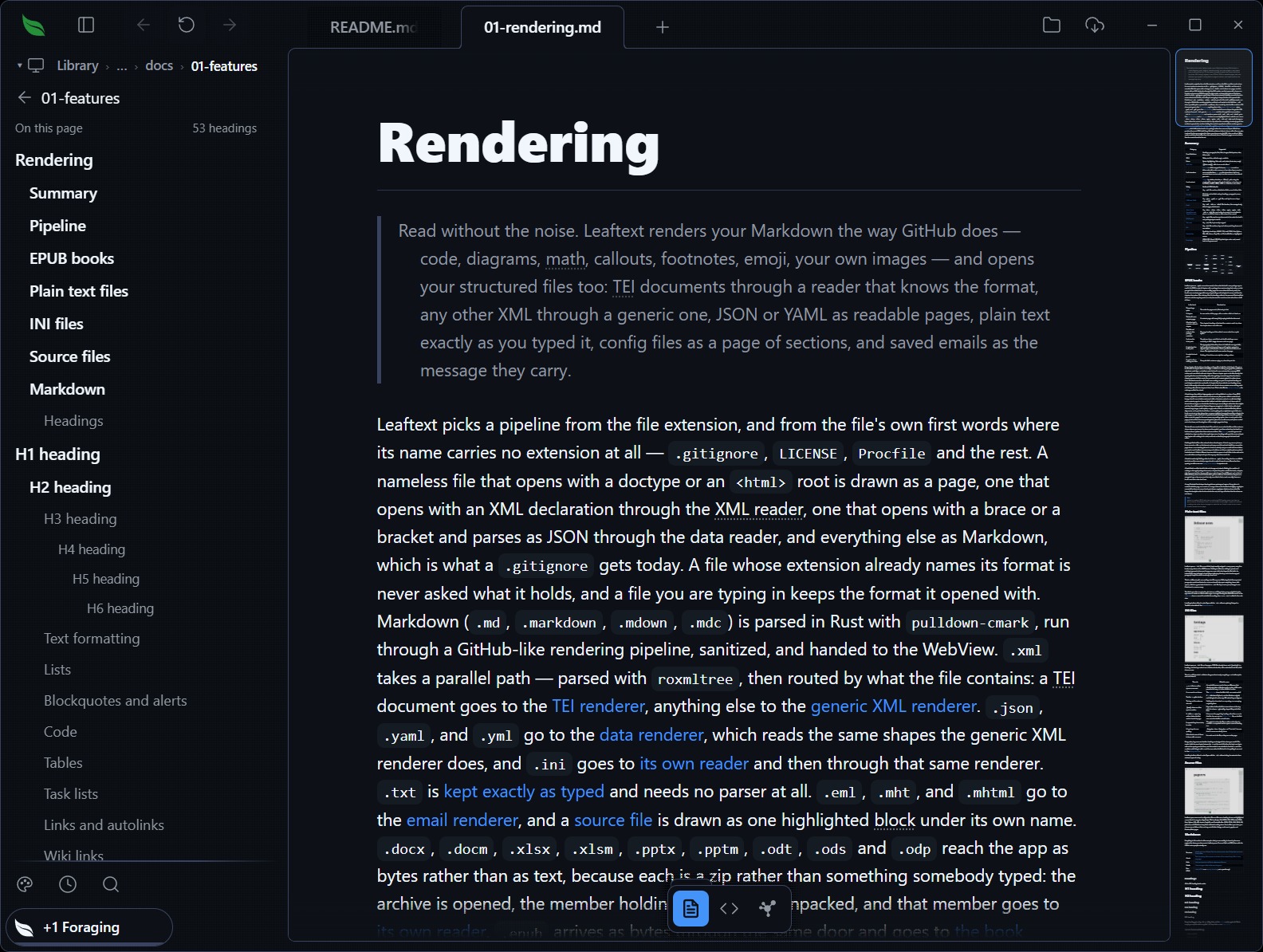
Read your files
Markdown, web pages, data, email, Word, Excel, PowerPoint and EPUB books each open as a page you want to read.
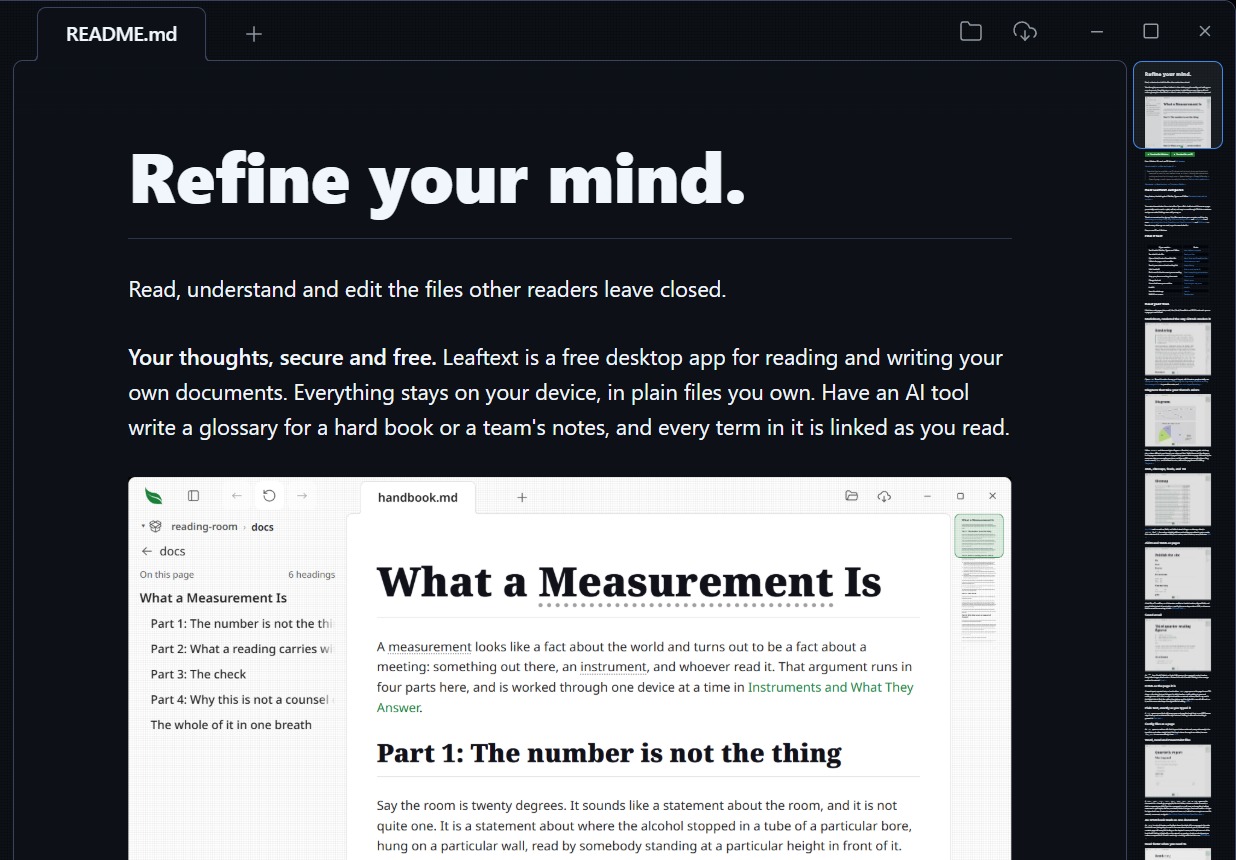
Write where you read
Click into the rendered page and type. The change lands in your file, and nothing saves until you say so.
Keep a library
Search notes, follow links, and find free books from Internet Archive, Open Library, Project Gutenberg and Standard Ebooks.
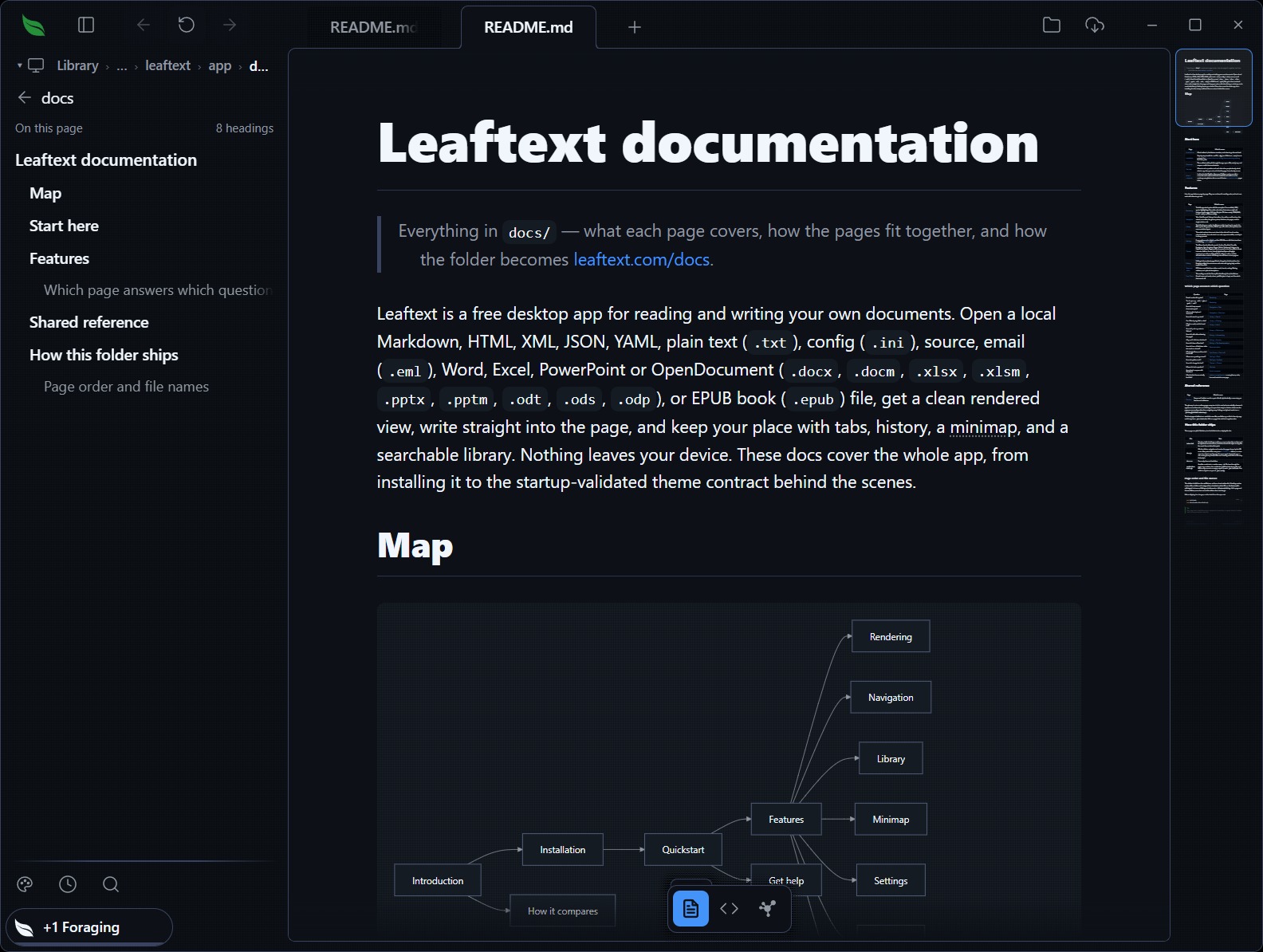
Your thoughts stay yours
No account. No cloud. No telemetry. Nothing you open, write, or search leaves your machine on its own.
Leaftext is free. Download for Windows or for macOS, and the Installation guide walks through both, the Mac's first launch included.